
Communication between PC/PG and S7-2xx CPU
1.- I will carry out the following practice on a 32-bit Windows 7 Operating System. For Microwin to work correctly, SP8 needs to be installed; if it were 64-bit, SP9 would be required. Since the equipment has an RS-232 serial port, I will use the standard PC/PPI cable.
2.- The first step will be configuring the COM Port. To do this, we go to the device manager and configure it with the default values. If these parameters have been changed previously, it is sufficient to restore them.
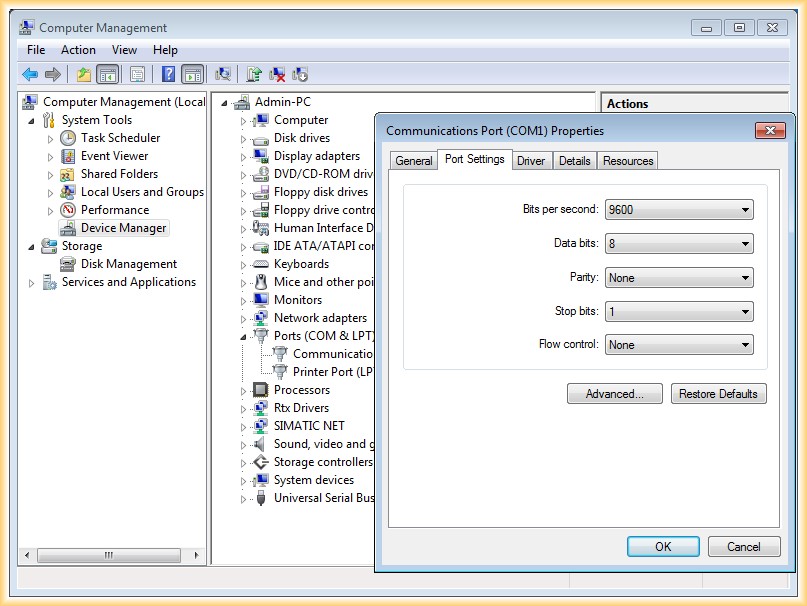
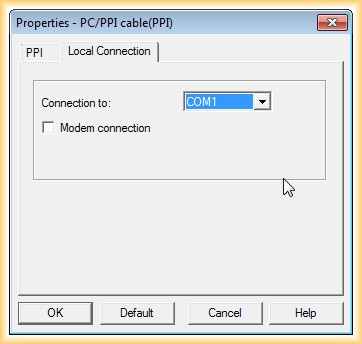
3.- Once this step is completed, we open Microwin and go to the Adjust PC/PG Interface icon, select the PC/PPI interface, leave the PPI properties with the predefined values, and in the Local Connection tab, select the COM Port to be used.
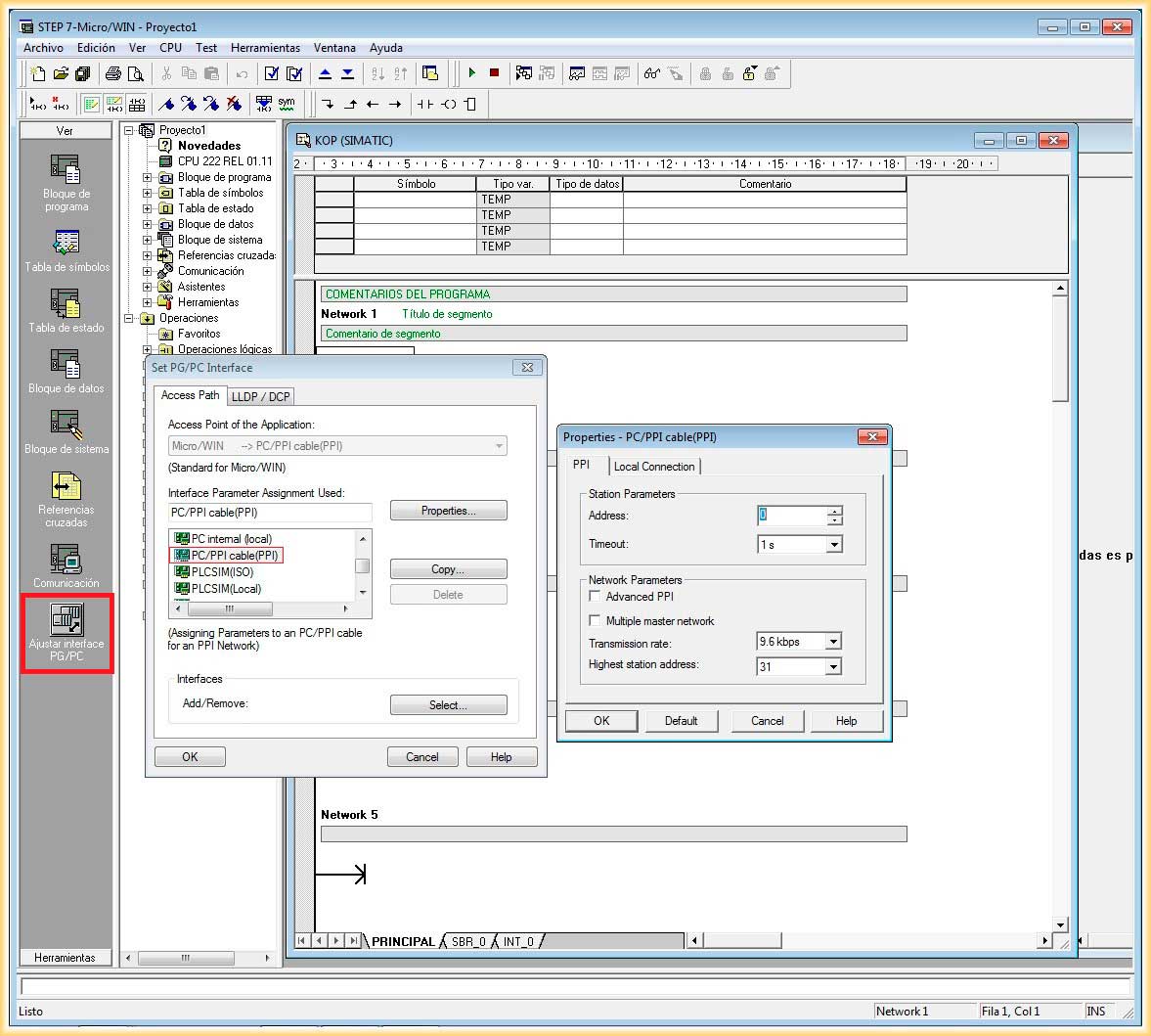
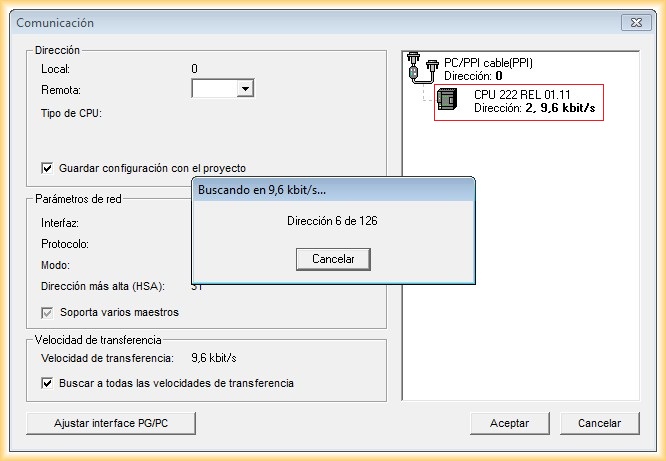
4.- The next step will be to click on the Communication Icon and double-click where indicated.
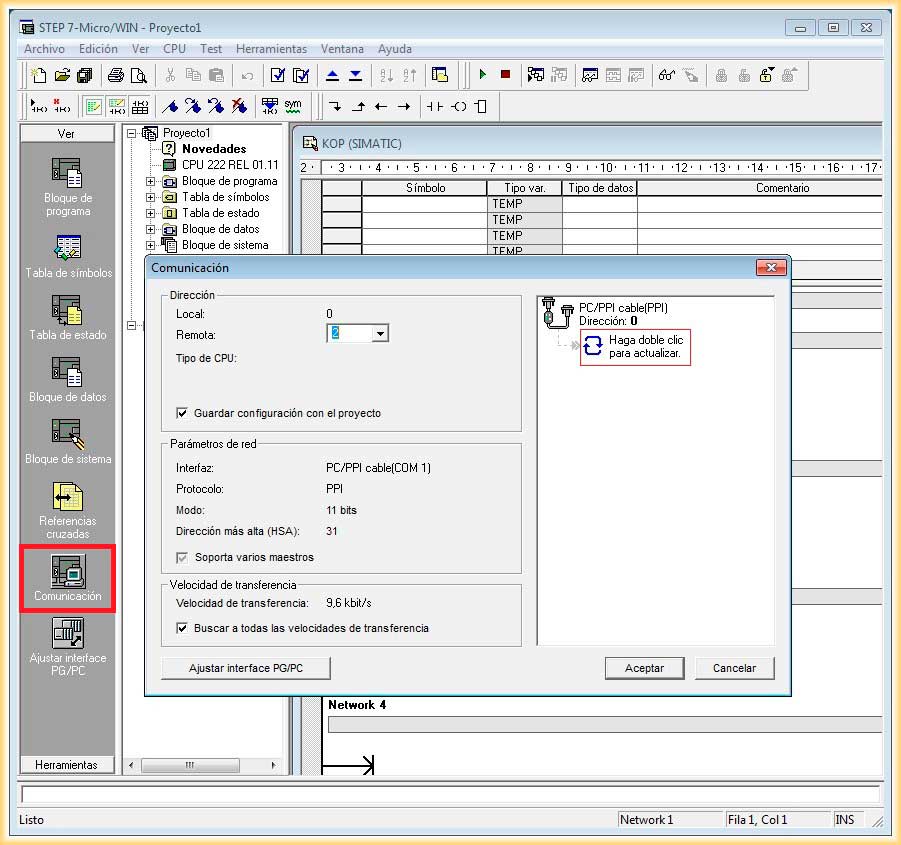
5.- The search for devices will automatically start. If the option to search at all transfer speeds is selected, it will start with the lowest speed and perform a search at all available speeds. Once a CPU is found, we select it and click OK. From this moment, the connection is established, and we can proceed to transfer a project to the CPU or make a copy of the Project to our PC/PG. To provide a more detailed visualization, I will transfer the Project currently running on the CPU to the PC/PG.
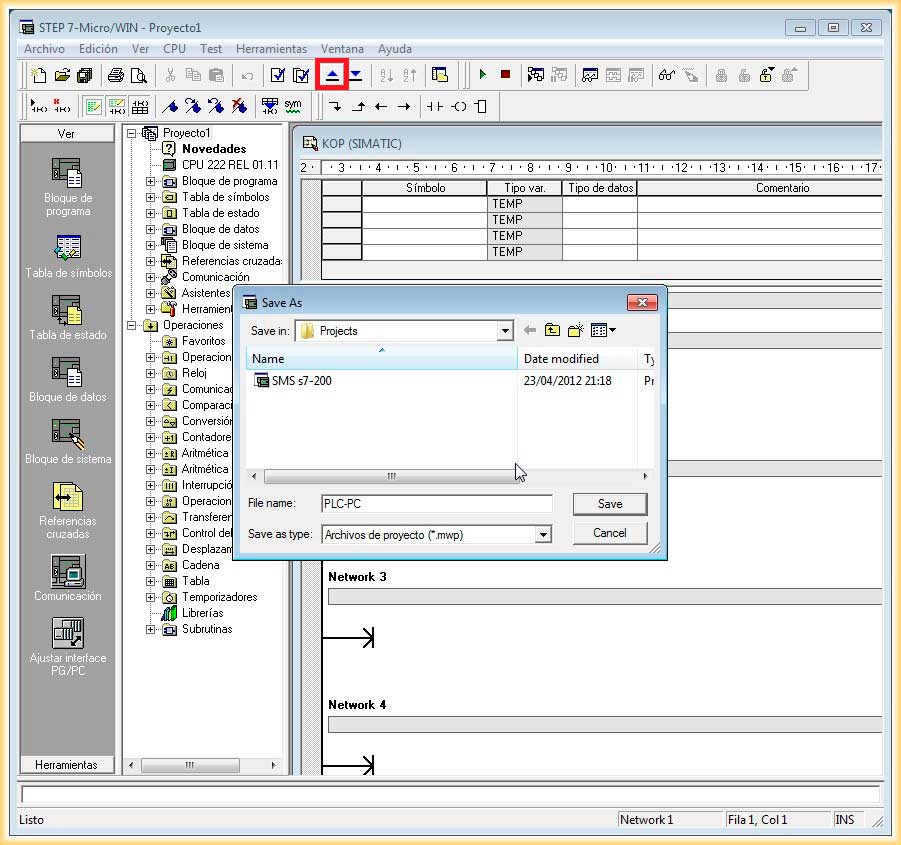
6.- We click on the Load to PG Icon, the one selected in the following image, and provide the location and name for our project.
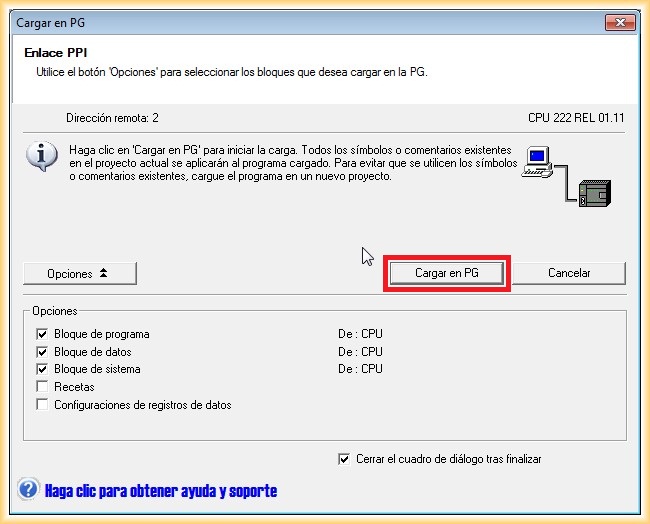
7.- We select Load to PG and the desired options; by default, it appears as shown in the image.
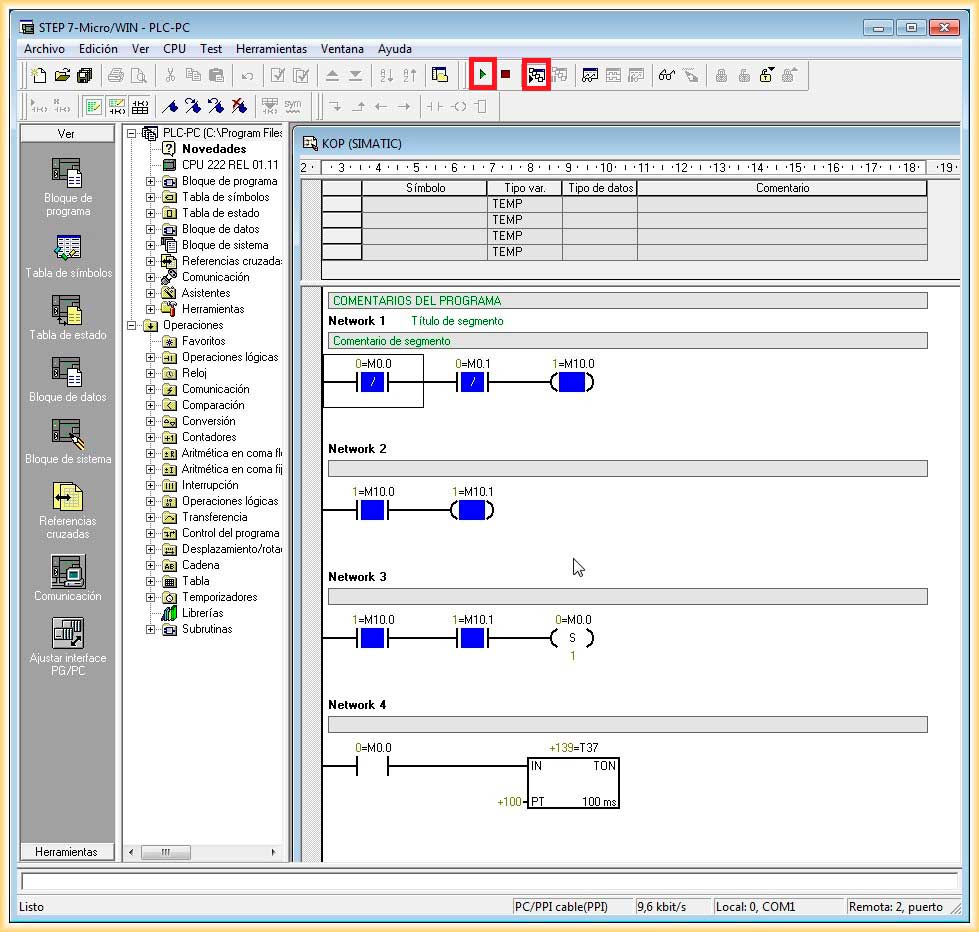
8.- Once the transfer is completed, we can go online and visualize the execution of our project. The first step will be to switch the CPU to RUN and select Program Status. After any modifications, the project will be compiled, and if there are no errors, the Project can be loaded to the CPU by clicking on the Load to CPU icon.
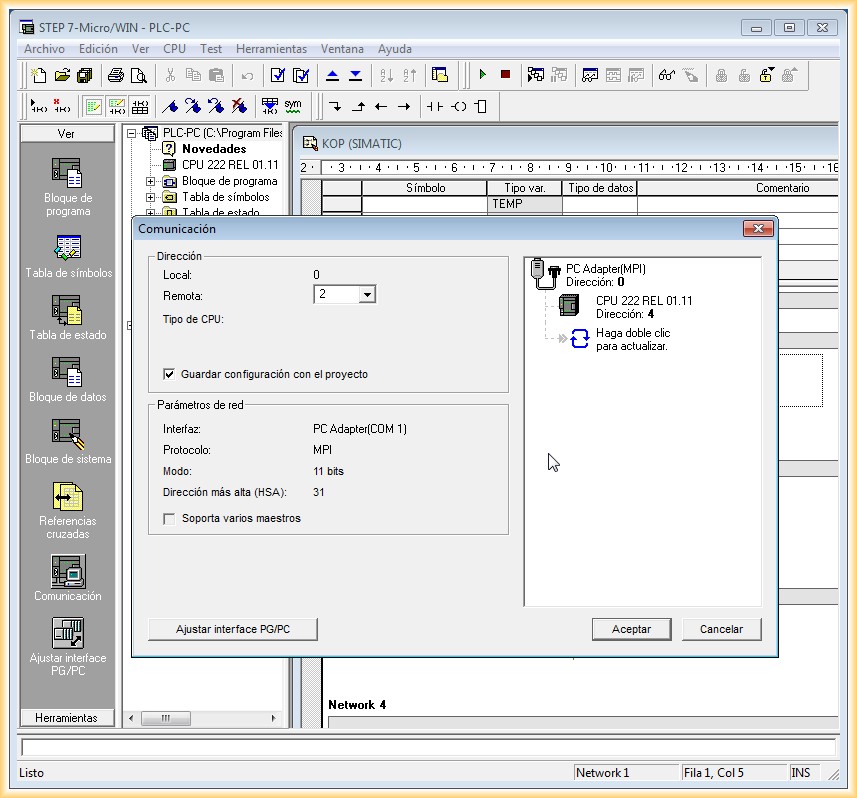
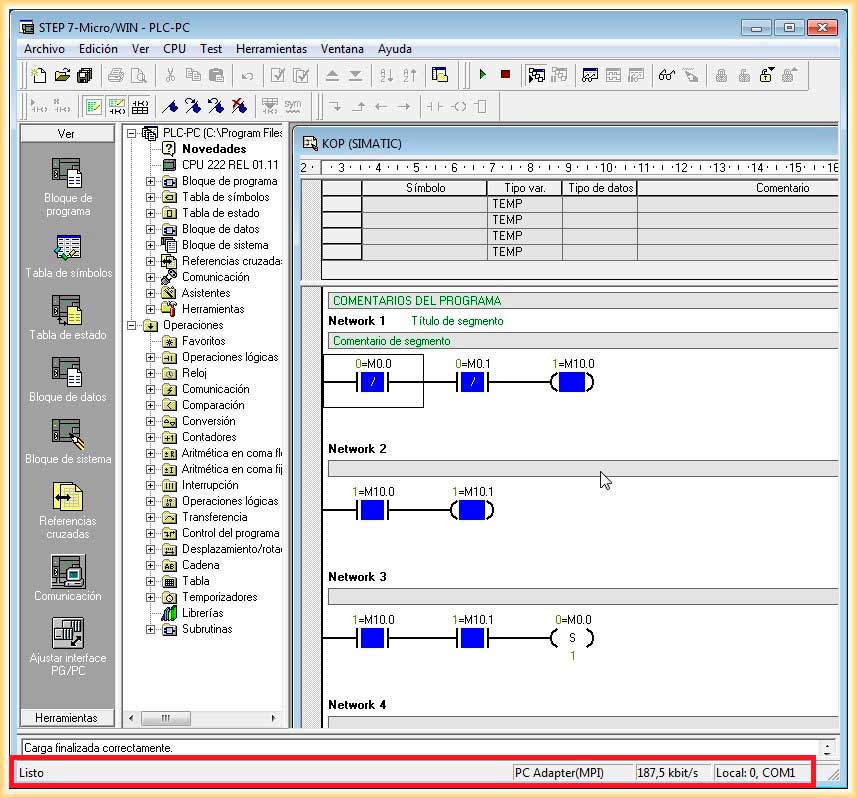
As additional information, there is the possibility to establish the connection and communication with an S7-2xx using a PC-Adapter (MPI) if the EM277 Profibus-DP Module is available. The same procedure described will be followed with the following variations: we will select a COM port speed of 19200 or 38400 according to the DIP switch of the PC-Adapter.
In the PG/PC interface settings, we will select PC-Adapter (MPI) and we can establish communication.
July 2012