
The principle of this practice is based on a question from a colleague in the Infoplc.net forum, where the goal is to print labels when an input is activated. To write this guide, I used the Paint program to print an image of a Barcode, but it has been tested with other applications; to reuse it, the script code will need to be adapted.
The solution involves using the resources of Visual Basic Script, and the procedure I followed was as follows:
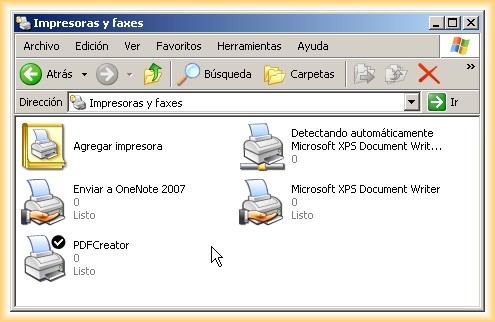
1.- Set up the default printer; for this, go to Control Panel -> Printers and Faxes and select the one we are going to use; in my case, for testing, I used a virtual printer called PDFCreator.
2.- The next step will be to open a new project or the project we are working on in WinCC Flexible.
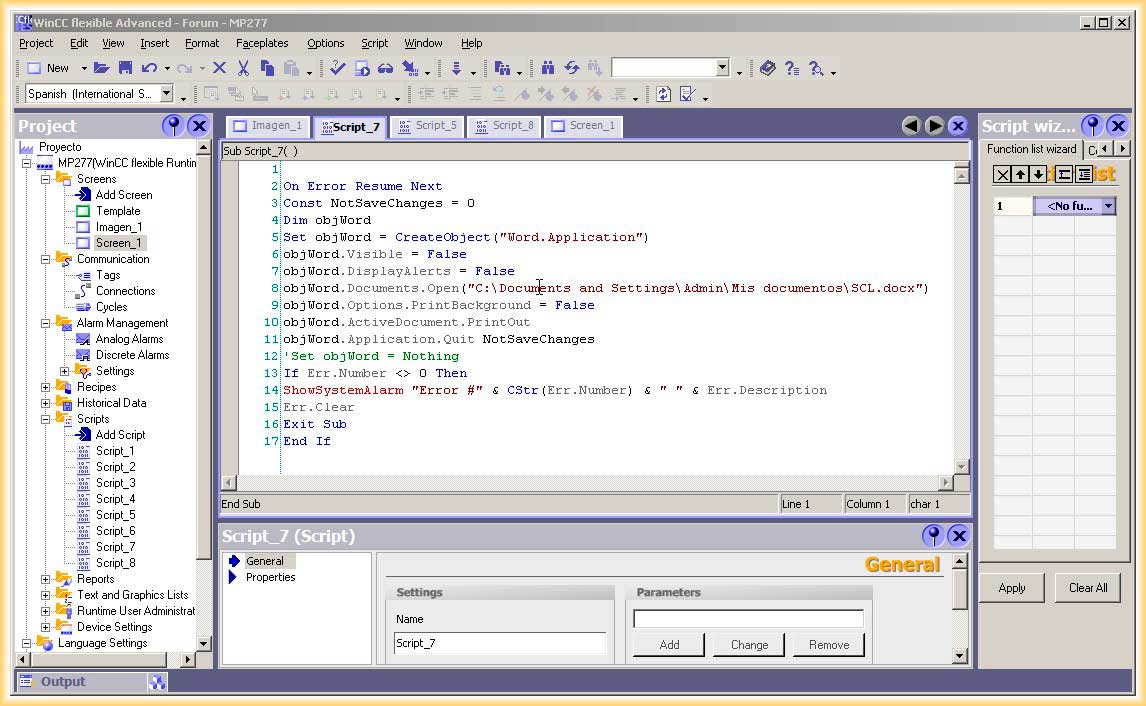
3.- Go to the Scripts section and create a new one; the code would be as follows: this script would open an application, open the specified file, print it, and close the application.
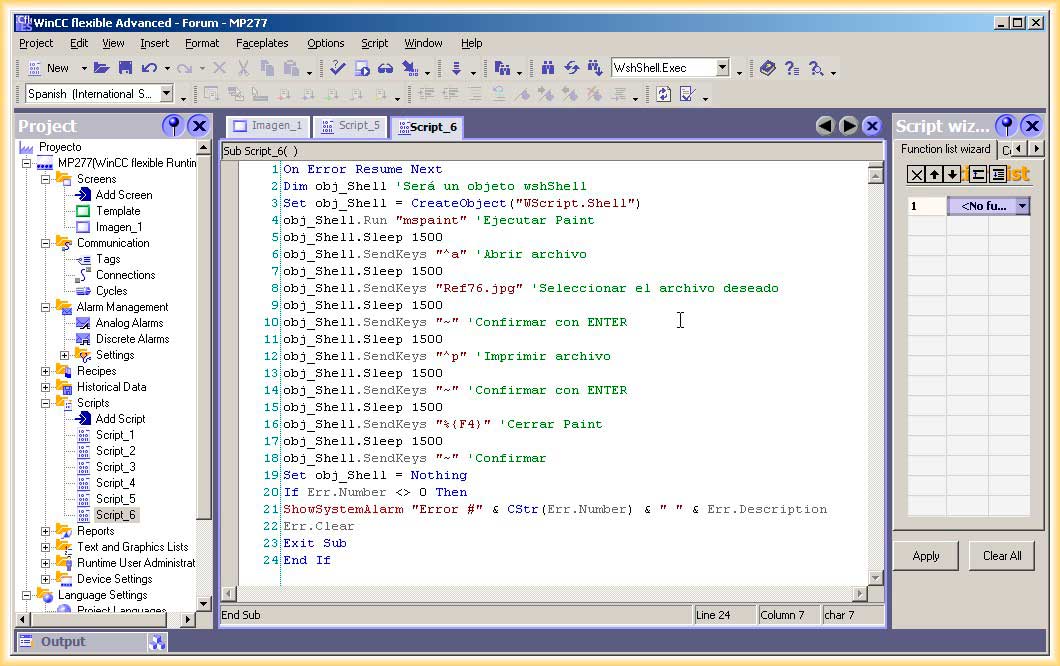
4.- The problem arises because it is not possible to use the Sleep method in WinCC Flexible; the solution is to create an external script outside of WinCC Flexible and then call it from the Runtime.
5.- To execute an external program, we can use obj_Shell.Exec or obj_Shell.Run (the name obj_Shell is symbolic), although another issue arises: it is not possible to use the .bat or .vbs extension, so the script we create outside of WinCC Flexible will be converted to an .exe file to be called from the Runtime.
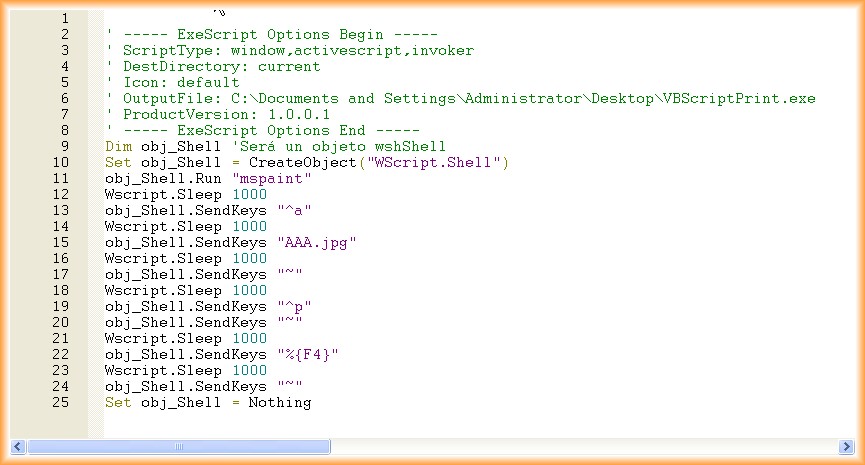
6.- Once we have created our .exe file, we are ready to create the script that will call this when the input is at 1.
7.- The script in WinCC Flexible will be as follows:
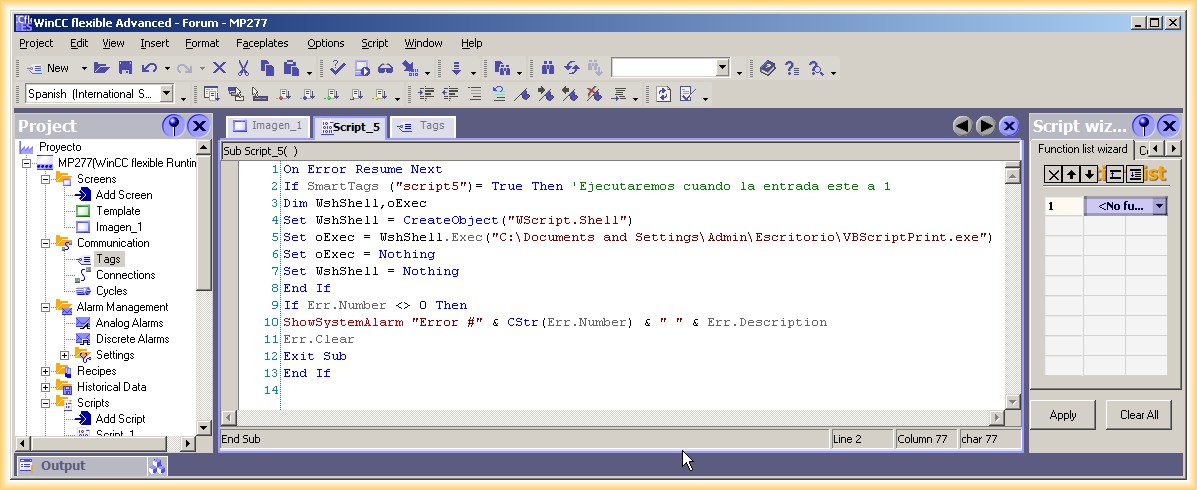
8.- Now we just need to configure the execution of the script, which we will do in the corresponding tag, and it will execute every time it changes value. However, if we want to print a Word or Excel document from the Runtime, the structure of the script would be something like the following:
July 2012