
Objective
This practice configures Allen Bradley RSEmulate 5000 to test projects, exercises and training work without a physical CPU.
With this simulator we can work with Logix 5000 PLCs. Compatible versions are important: if the project is in RSLogix 5000 V16, RSEmulate 5000 V16 is required.
Create the Project in RSLogix 5000
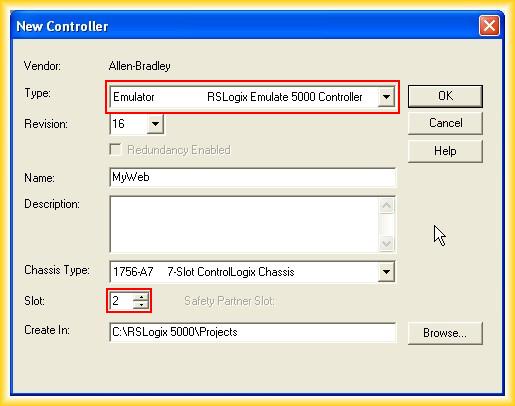
The first step is to create a new project. When selecting the CPU, choose Emulator and set the slot number where the controller will be placed.
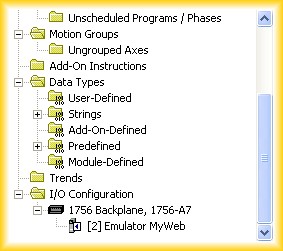
In this example the CPU is placed in slot 2. The parameters can be changed later from the object properties.
Add Input and Output Modules
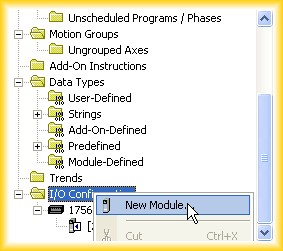
Once the CPU is selected, add input and output modules from I/O Configuration using right click and New Module.
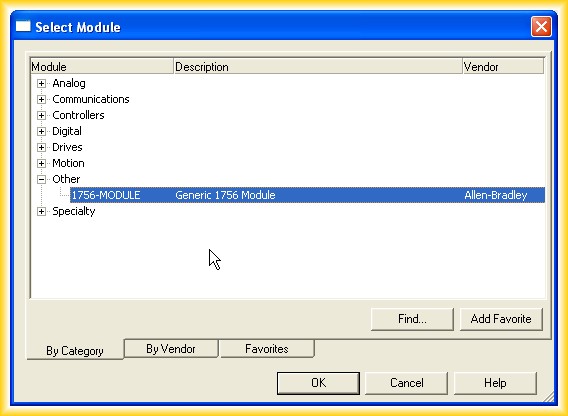
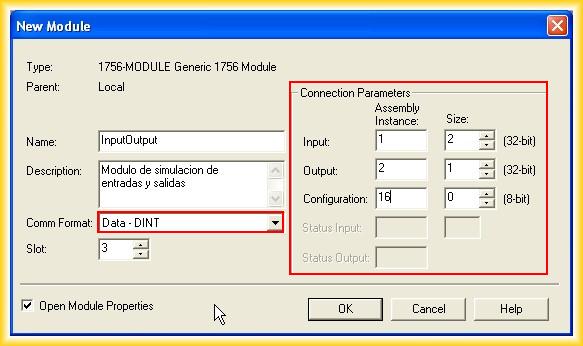
Simulation modules are found under Other with reference 1756-MODULE. Configure the module as shown in the screenshots; otherwise it may not report an error, but it will not work.
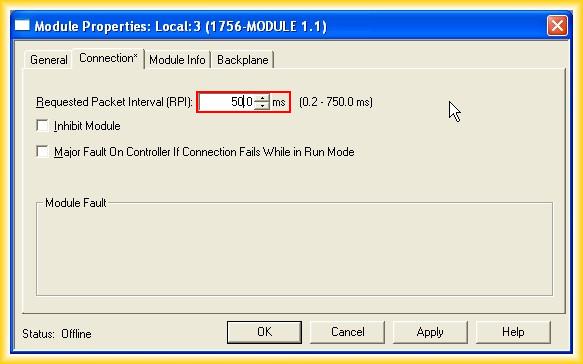
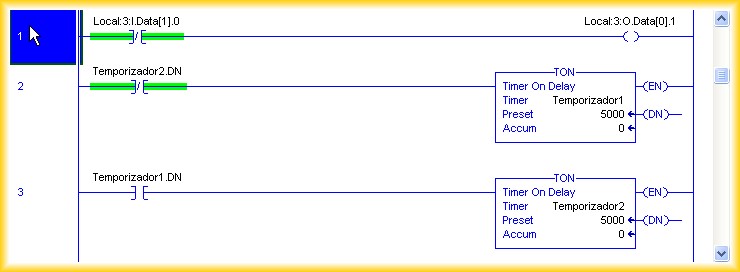
Another important parameter is changing the time from 5 ms to 50 ms, as indicated in the manual. With this, the hardware is ready for a few test rungs.
Configure RSEmulate 5000
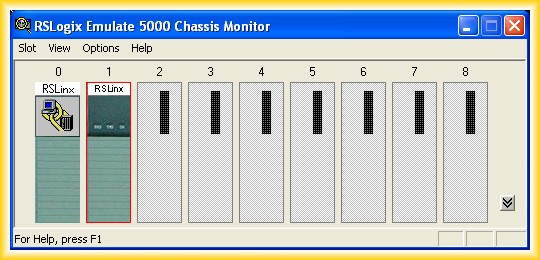
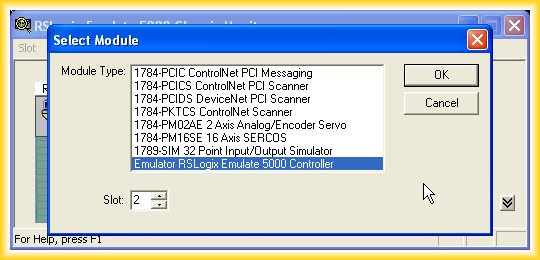
Run RSEmulate 5000. By default, slots 0 and 1 are already occupied, so insert the CPU in slot 2, matching the project.
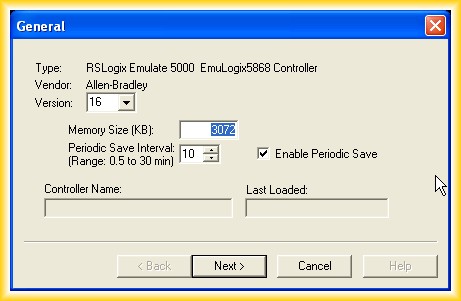
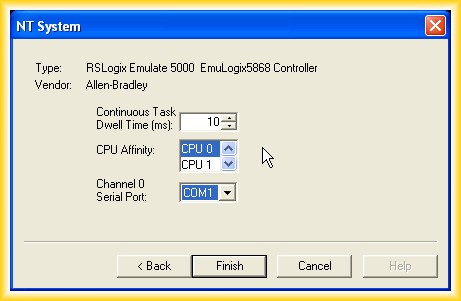
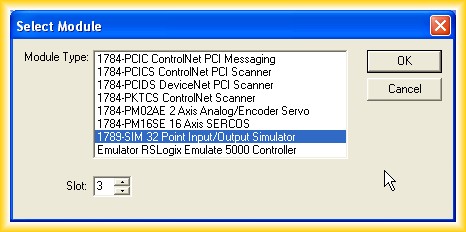
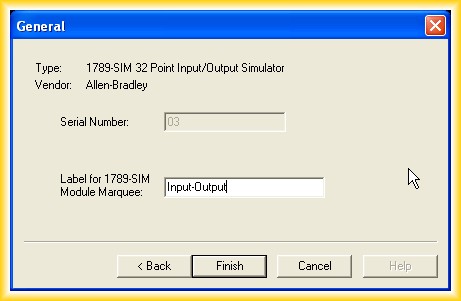
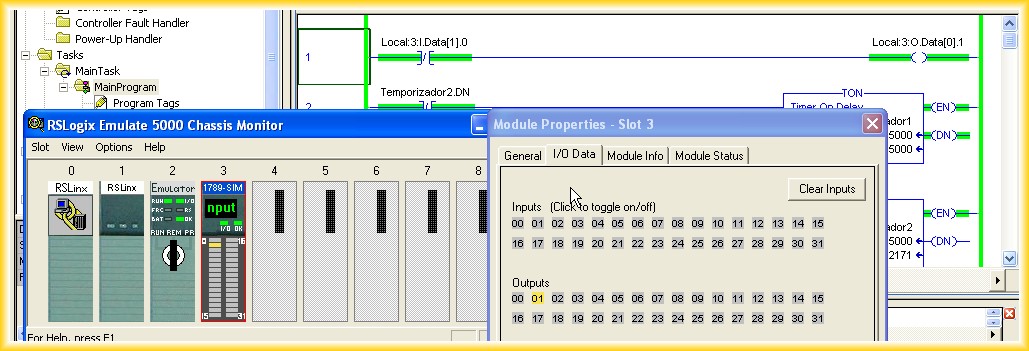
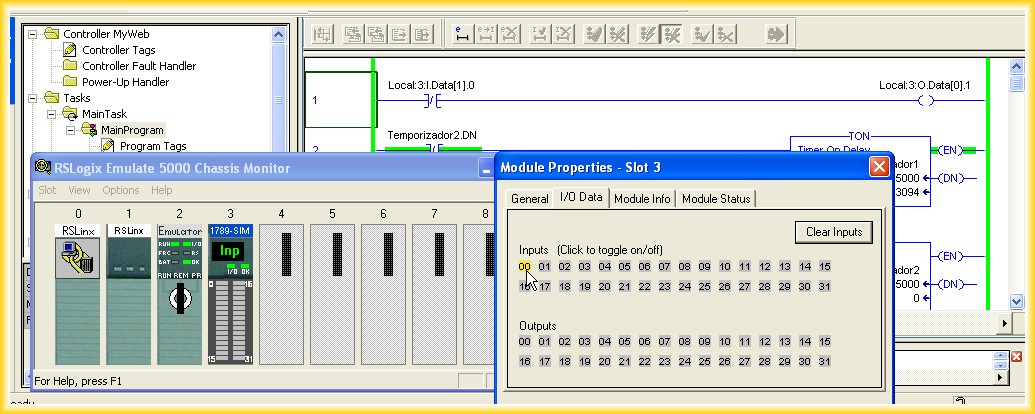
Select Emulator RSLogix Emulate 5000 Controller and finish the wizard. Then add the 1789-SIM module in slot 3 to simulate inputs and outputs.
Configure RSLinx
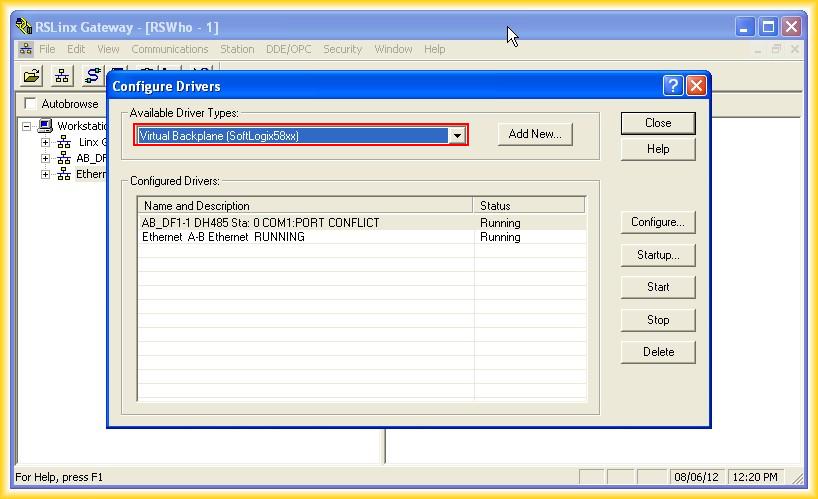
With RSLogix 5000 and RSEmulate configured, prepare RSLinx. Run RSLinx and add the corresponding driver.
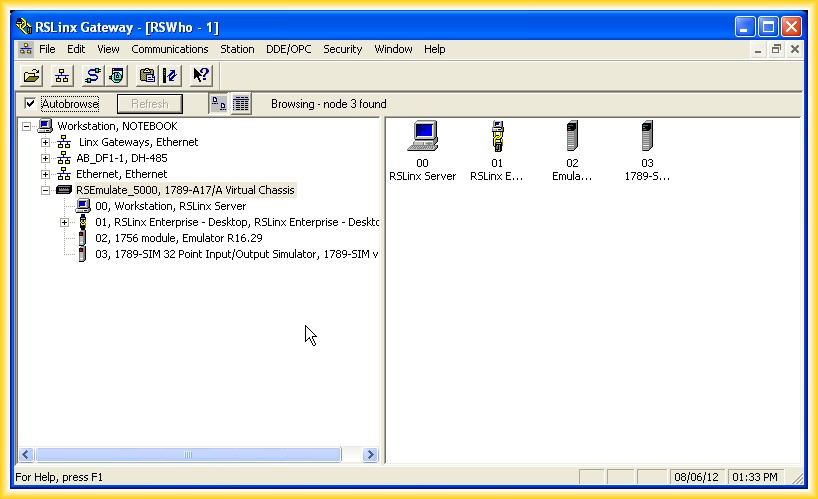
If RSEmulate is running and Autobrowse is active, RSLinx will detect the device automatically. Then close this window and use RSWho from RSLogix to download the project.
Download and Test
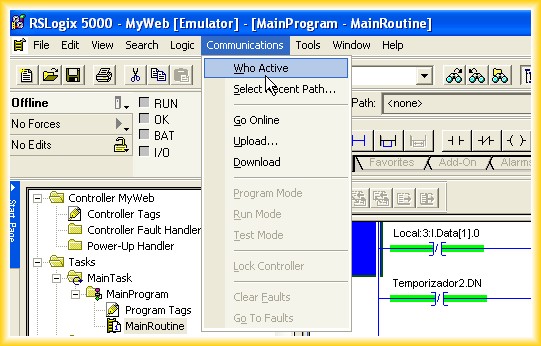
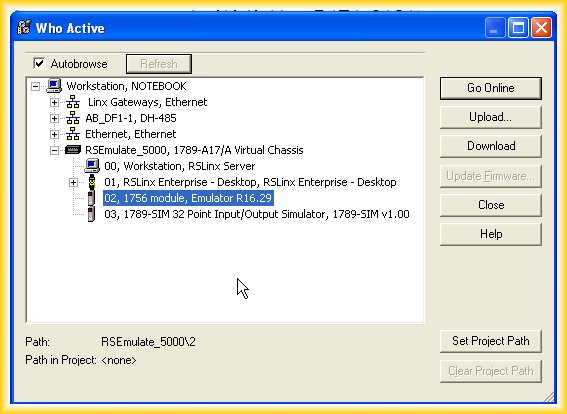
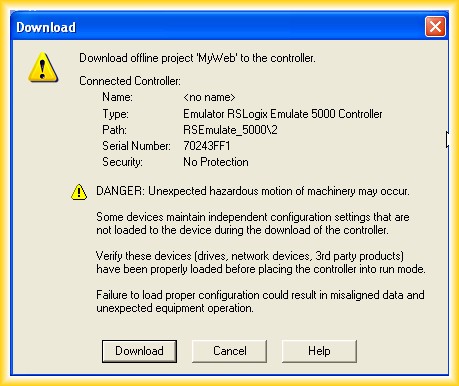
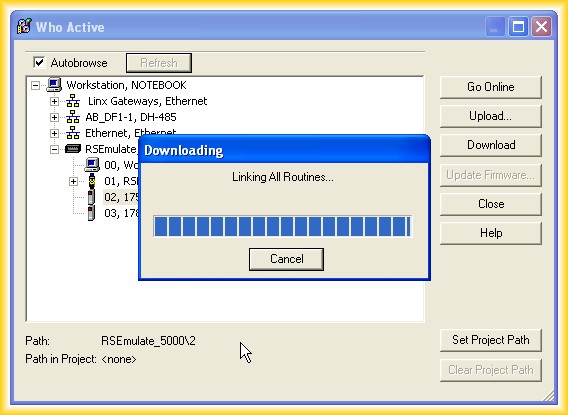
Return to RSLogix 5000 and open Communications > RSWho. Select the CPU in slot 2 and click Download to transfer the project.
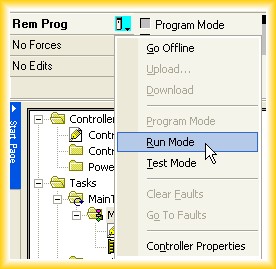
After the download warning, go online, switch the processor to RUN Mode and test the behavior by acting on the simulator.
Historical note: in some later versions, such as V16, the operating system had to be in English for RSEmulate to work correctly.
Original article published on August 7, 2012.