
Following the request of a colleague, I will carry out this practice that deals with the creation of a Multi-instance FB from scratch; the only thing we will consider is that we already have a project created.
The first step will be the creation of a Function Block (FB), we do this as shown:
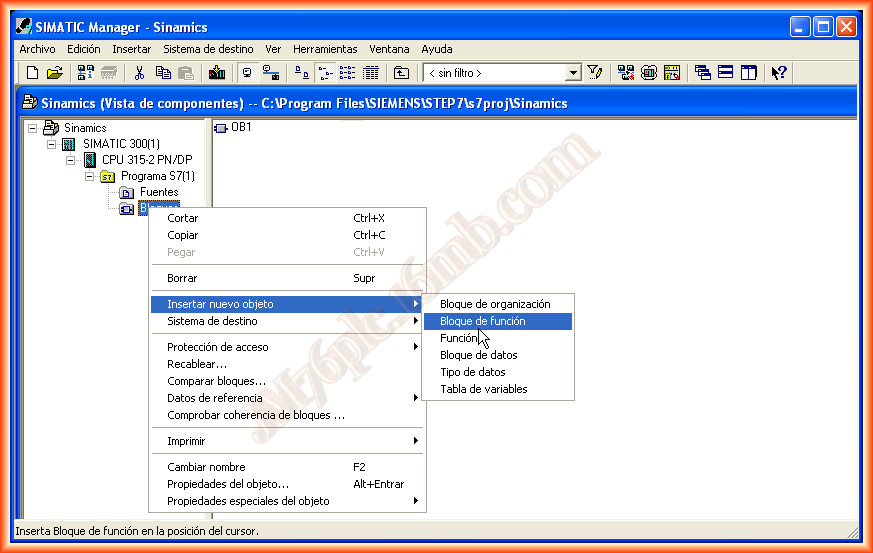
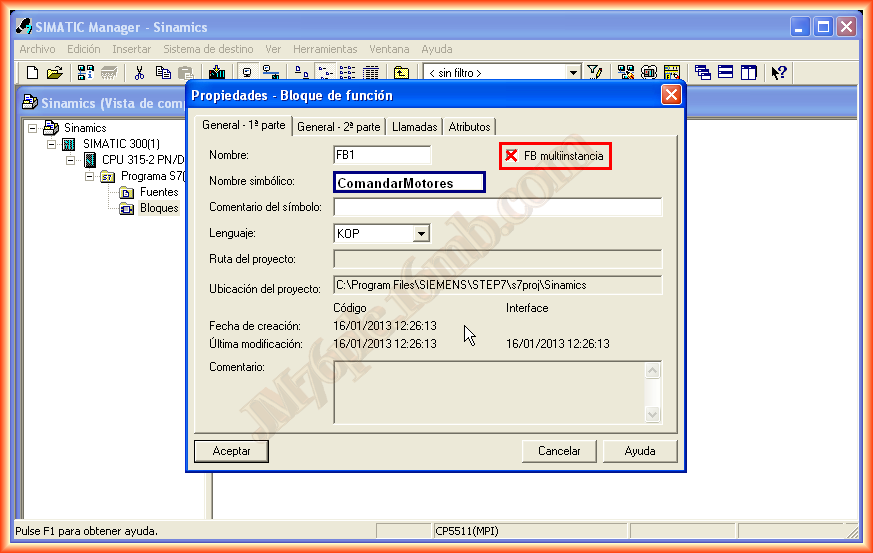
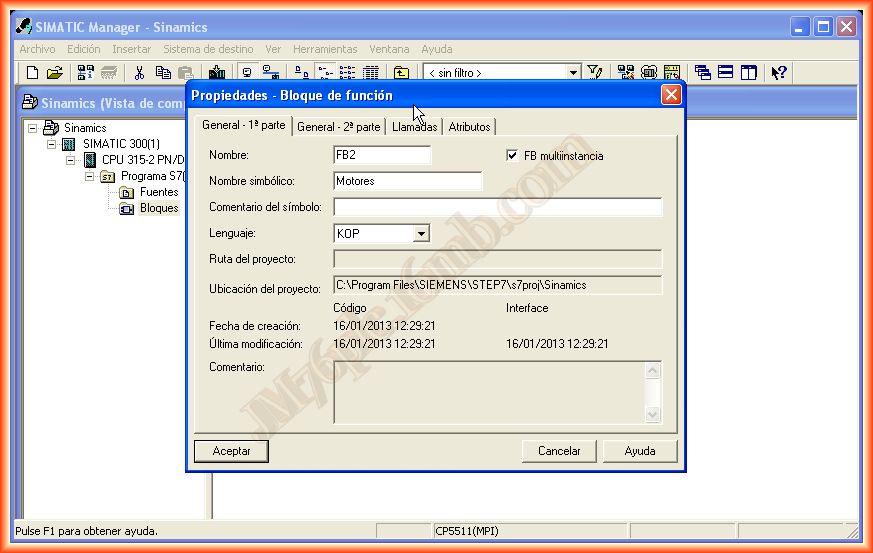
For the creation of the FB, the following configuration window appears; it is important to select that it will be a multi-instance FB and the name we assign to it. It will be automatically created upon acceptance. Next, we open our FB
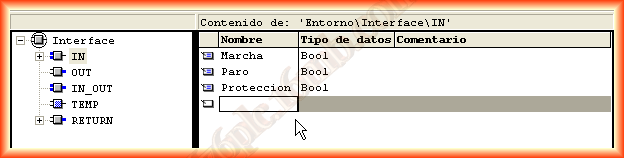
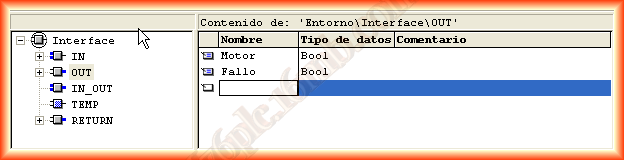
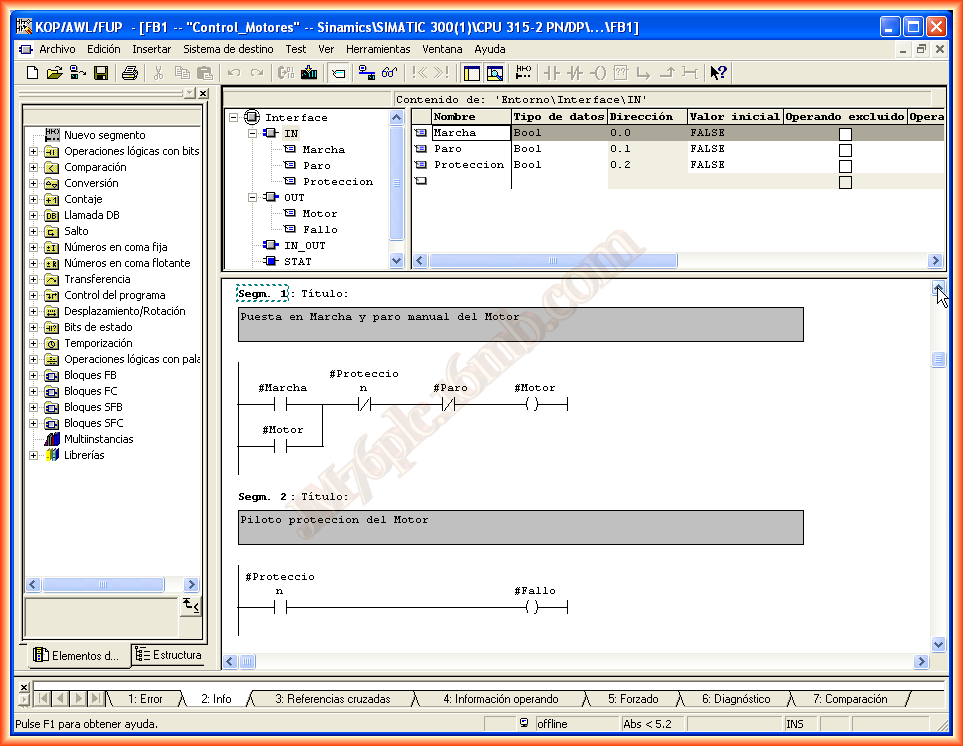
We will proceed to create the variables that we will use in our function; for this example, I have created a simple start-stop of a motor, with an alarm. We declare the variable and the data type.
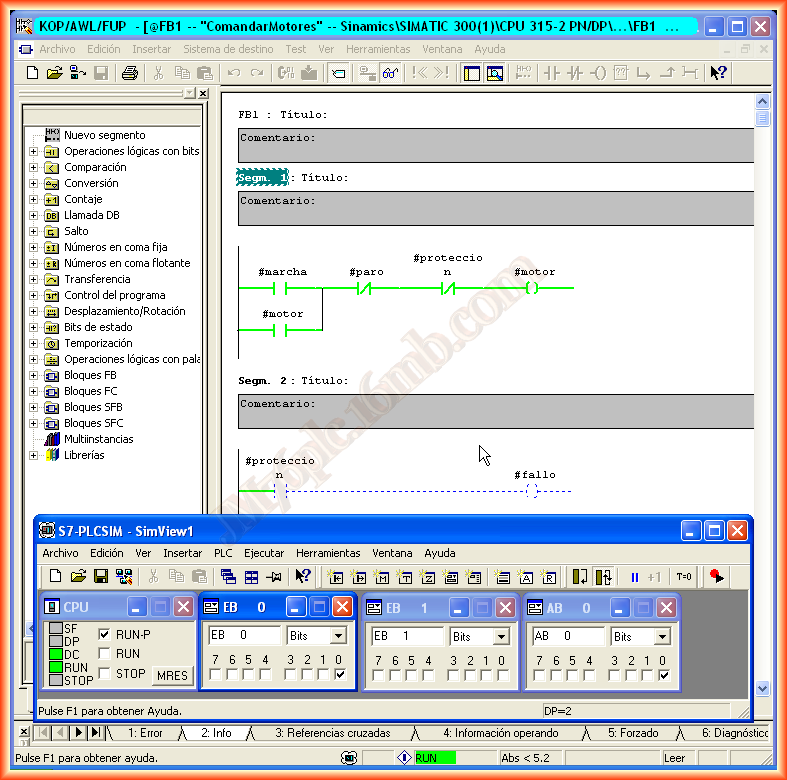
We write the corresponding programming code for the implementation of this function
Once we have created the Function, we will create another FB where we will call this function (Multi-instance); for this, we follow the same steps as before
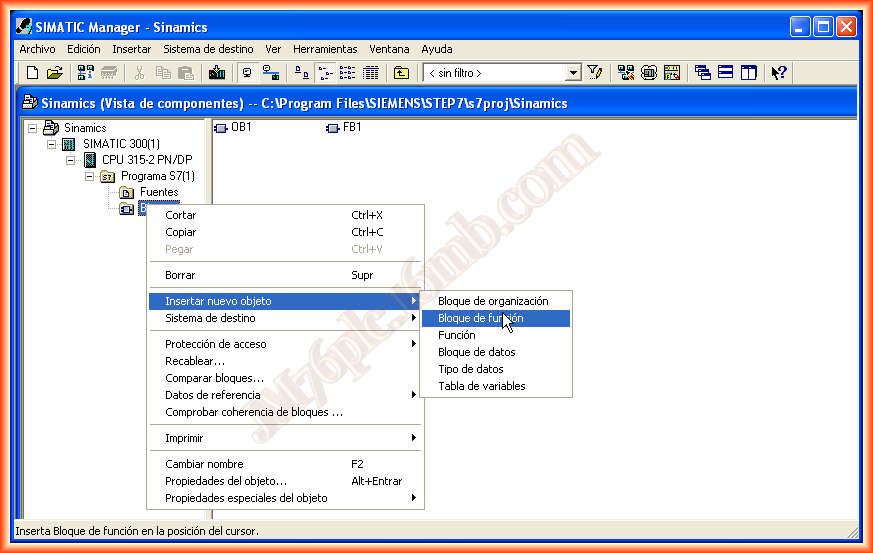
The next step is important! We are going to declare the variables and the data type; in this case, the variables to declare will be made within STAT (Statics) and as a data type, we will configure the FB created earlier, this will prevent us from having to assign a DB Data Block for each of these; in turn, each new variable we declare of this type creates a new multi-instance.
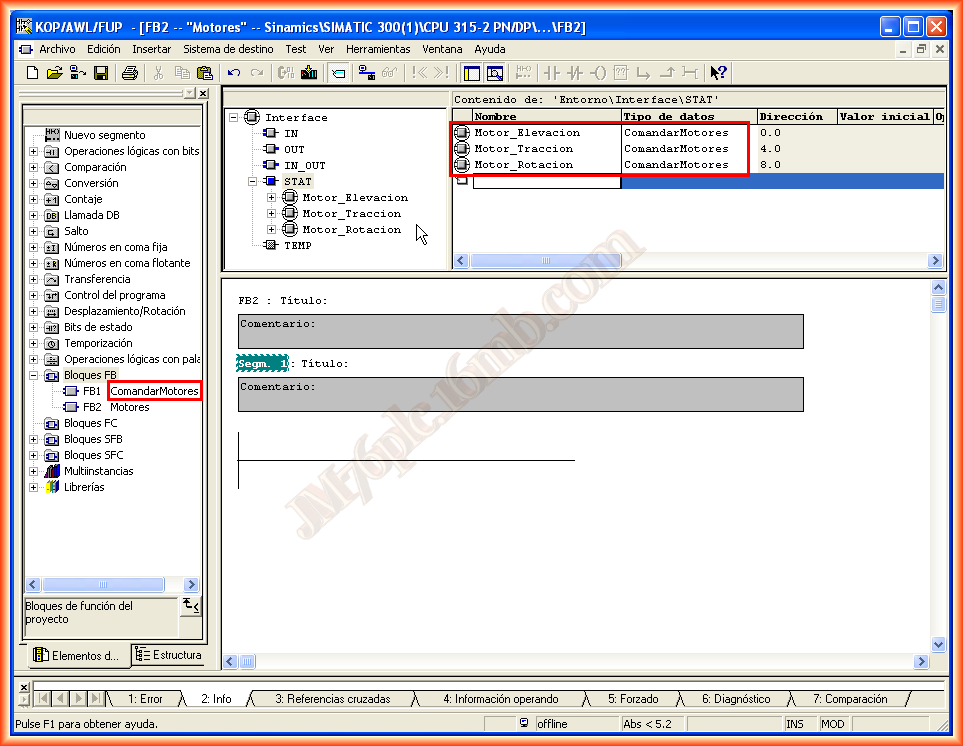
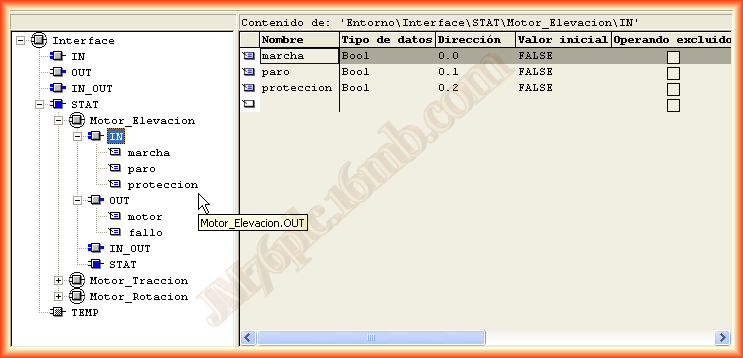
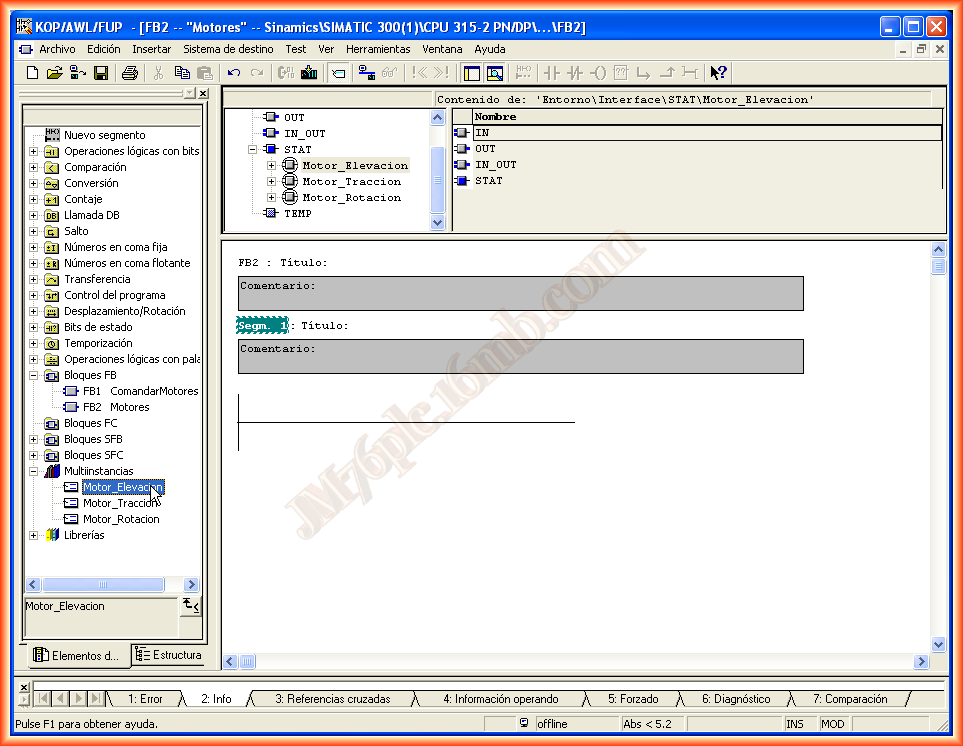
We can observe that if we expand the created variables in each of them, it can be seen that they have all the data we had created in the first function
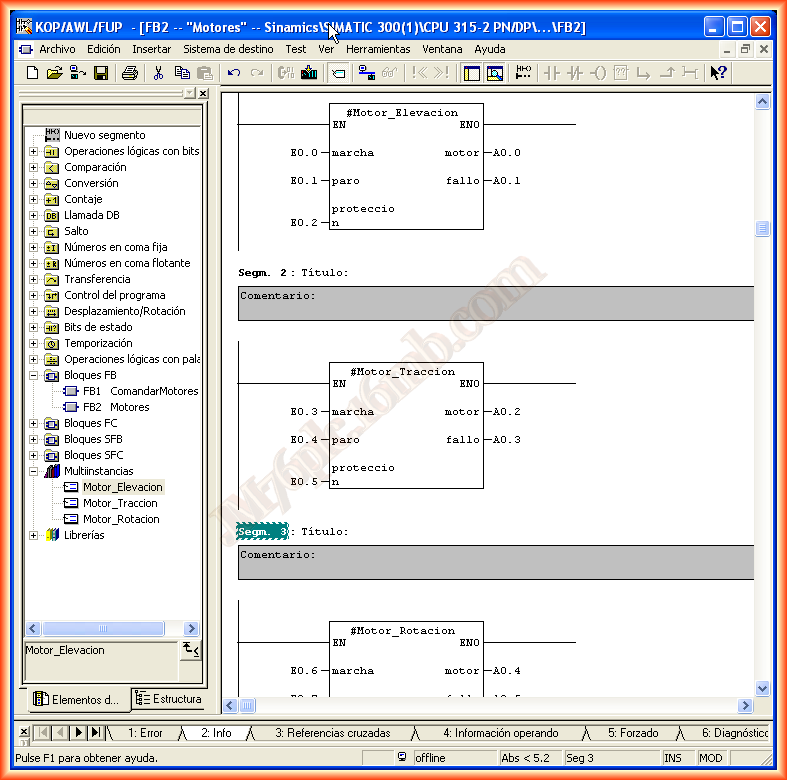
Now what we do is insert each of our Multi-instances and assign their corresponding variables, and if applicable, those that the function itself may have.
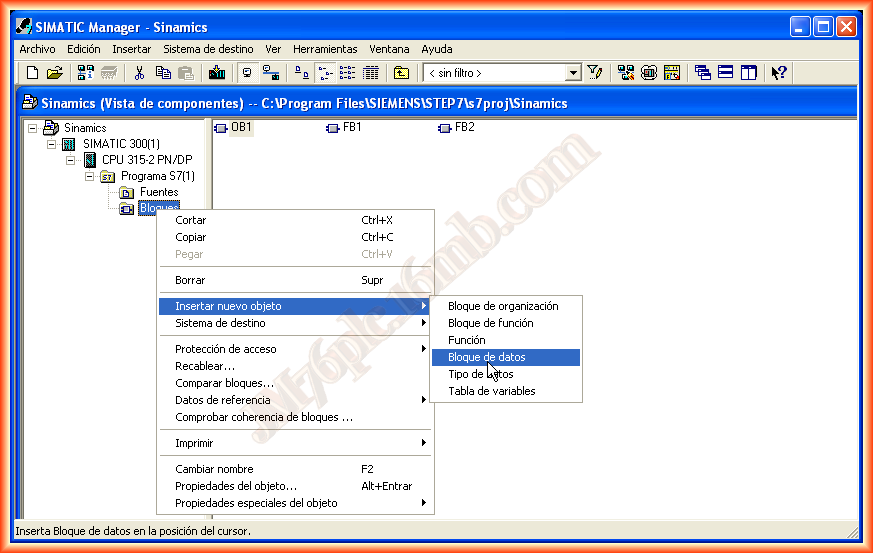
Having created an FB, it is necessary to assign it a Data Block (DB) in order to use it; to create it, we follow the steps below:
In the configuration window, we need to specify that it is an instance DB and the FB to which it corresponds, as observed
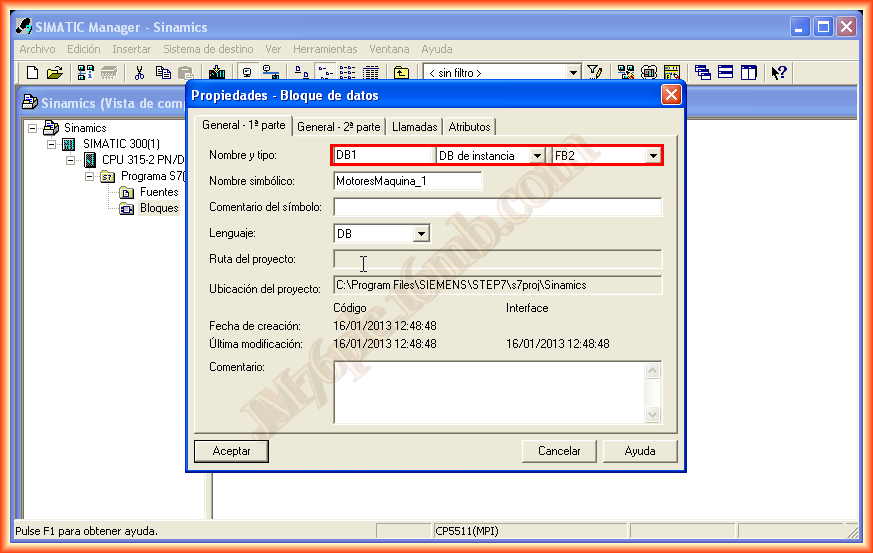
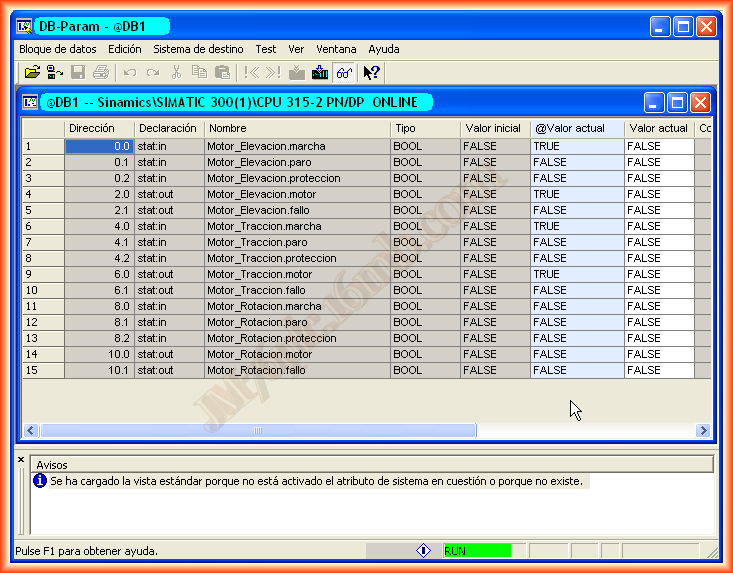
Upon acceptance, our DB is created; we can open it to observe it
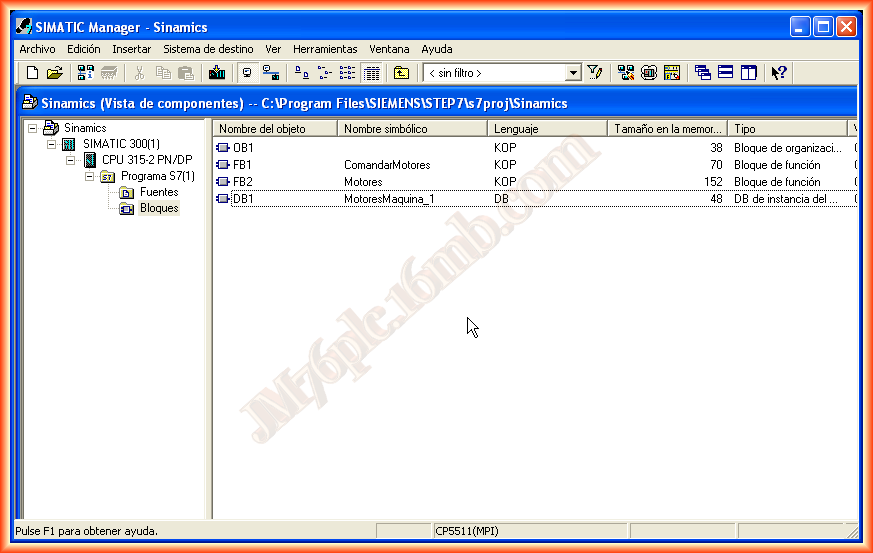
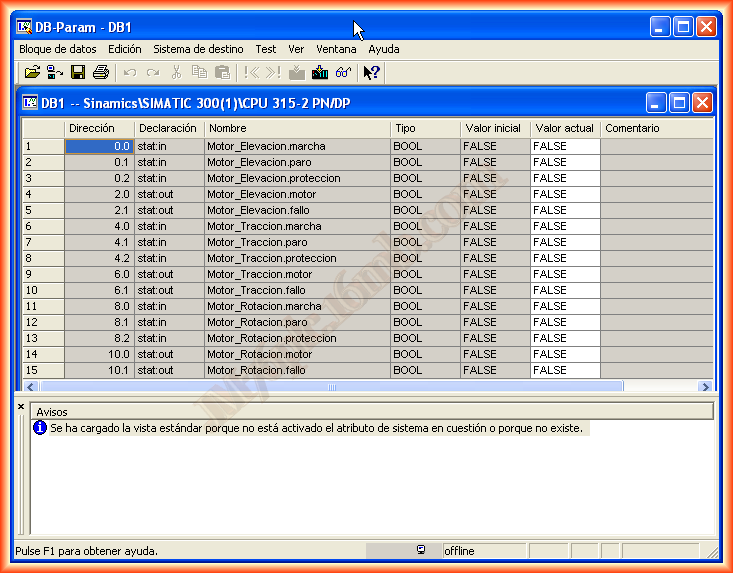
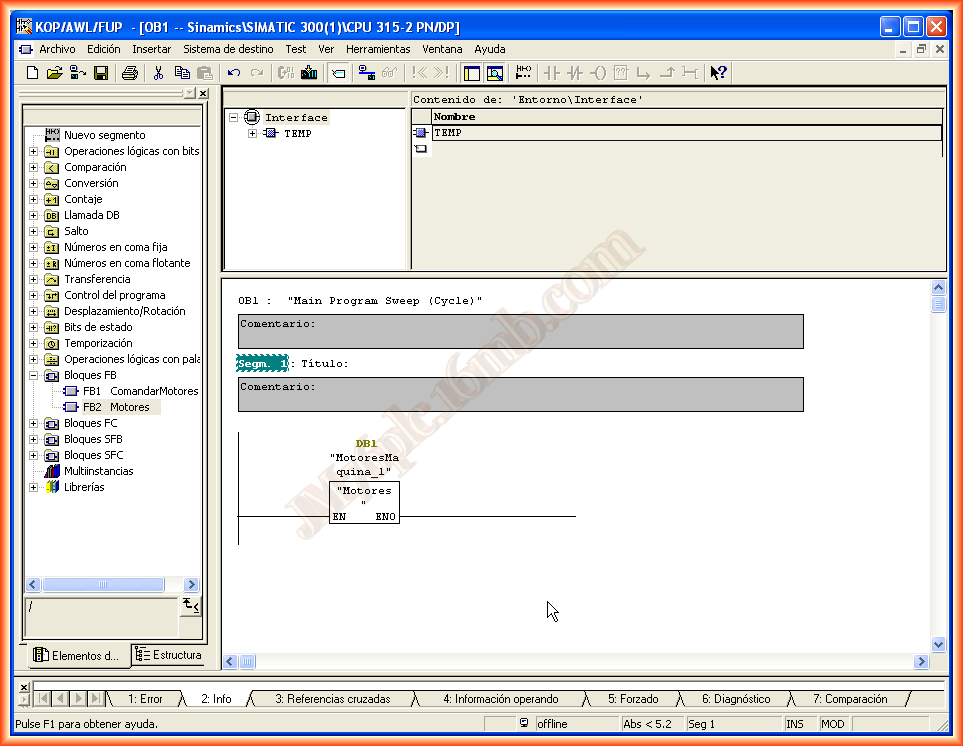
We can now make the call from OB1 to the Motors FB, which in turn has the instances of the Command Motors FB, and we assign the DB that we just created.
We can now load it to our PLC, in this case to our simulator, and observe its operation. It is evident that if we open the CommandMotor FB when starting the first and being online, when we simulate the second, it will not be observed in the Ladder but will be in the data block DB
January 16, 2012