
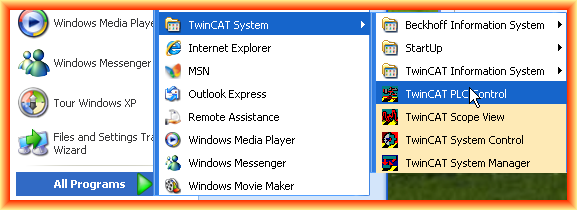
Following the previous practices regarding the use of CodeSys, we will see a small introduction to Beckhoff, as it also uses CodeSys. We will create a small example; once the TwinCAT software is installed, we run the TwinCAT PLC Control, which is in the following directory and has the same interface as CodeSys V2.3 and ABB's Control Builder Plus.
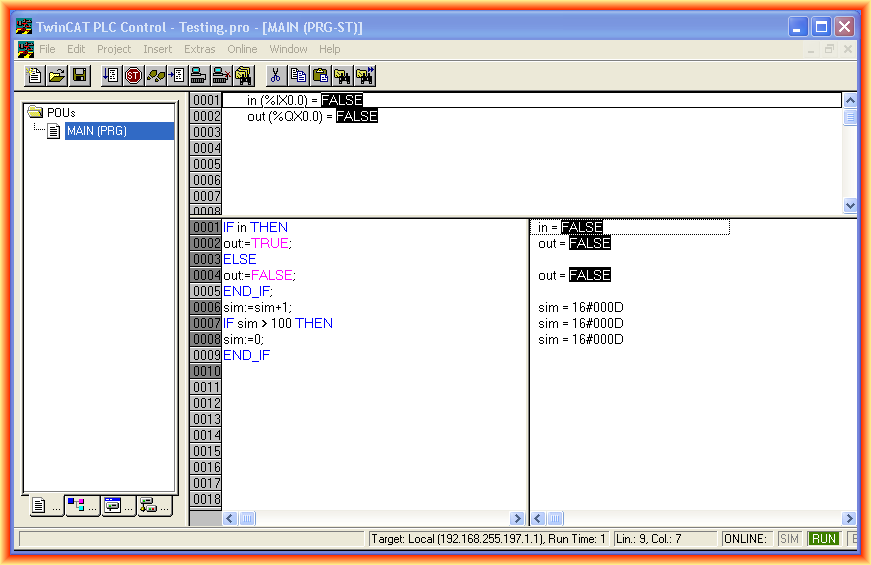
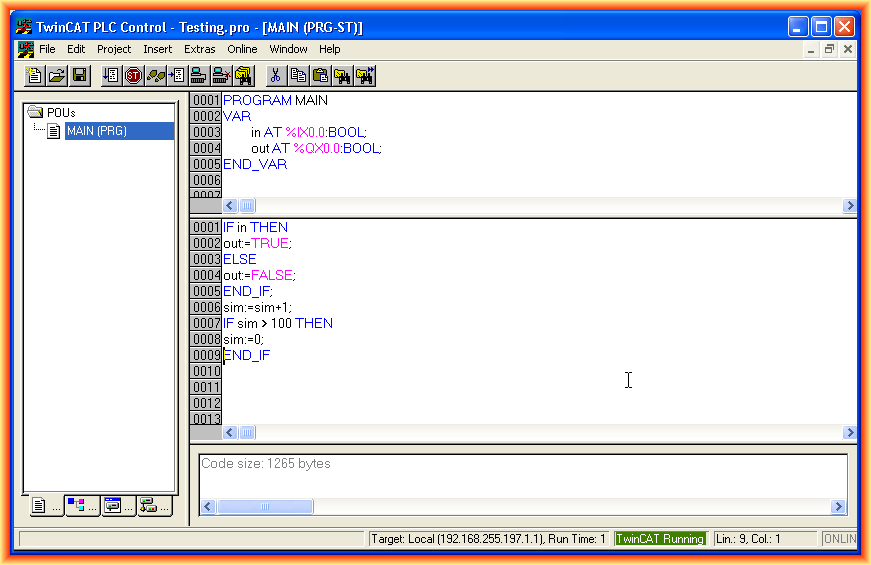
We create a small program with two variables that would correspond to inputs/outputs of a card.
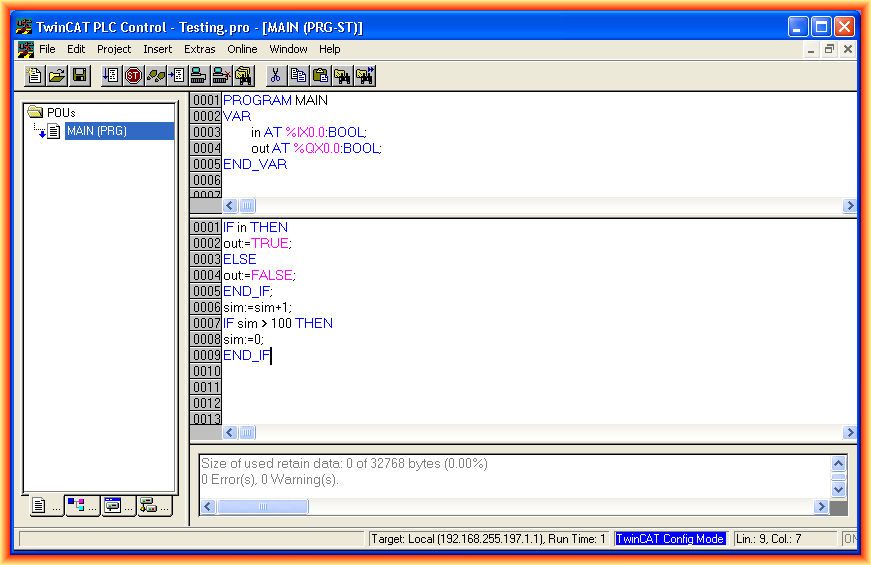
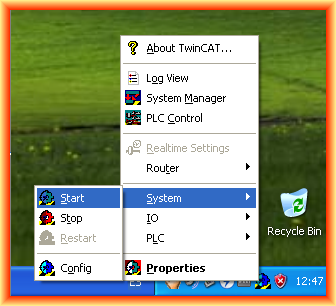
As can be seen in the previous image, we are working in configuration mode. We have two options to check and simulate our project; the first one we will see would be without configuring the hardware. Once compiled, we can start runtime mode; for this, we click on the icon and in the System directory, we execute Start.
Once started -> Start changes the mode from configuration to TwinCAT Running, which allows us to do Online -> Login and Online -> Run to check the operation. I will not repeat the steps as they are mentioned in the previous practices.
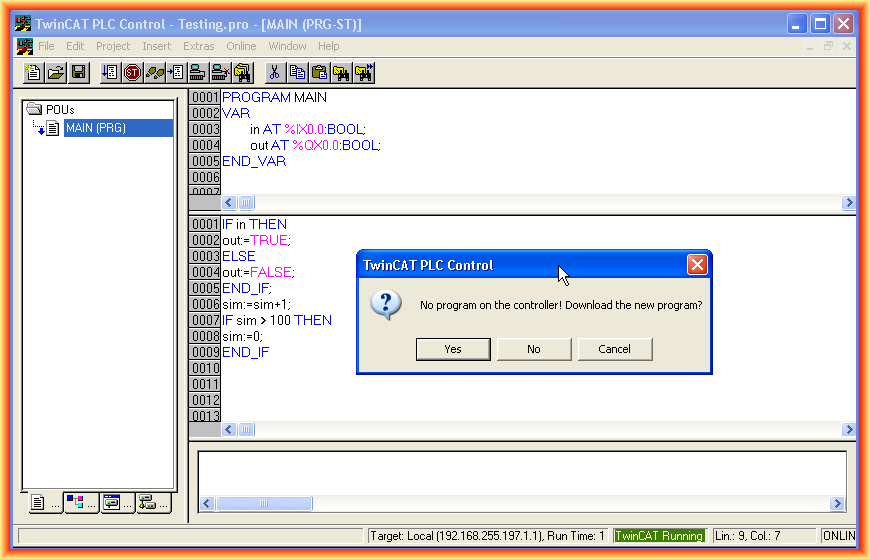
In the next image, Run has already been executed, which means our program runs cyclically. This would be one way to check our program; now we will see the next step in case we have real hardware.
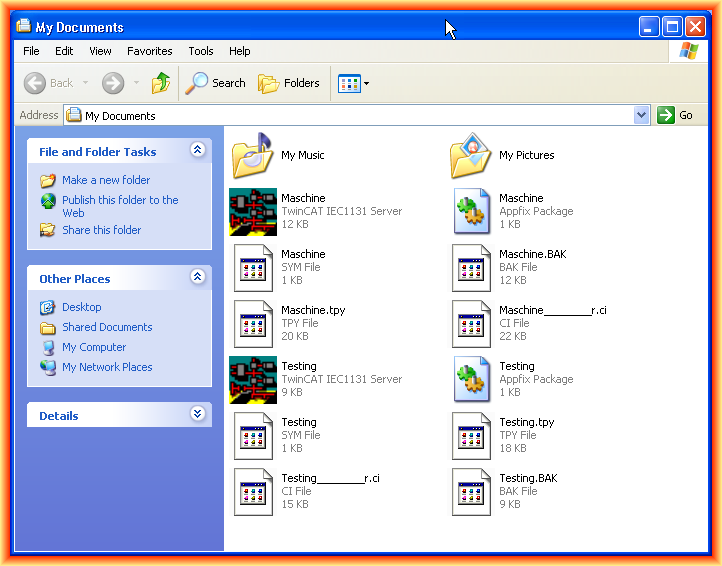
Once we have created our program, compiled it (Build), and saved it, if there are no errors, a file with the extension *.tpy is automatically generated in the directory where we saved it. This will be the file we need in the subsequent steps. My thanks to Archie, who advised me in resolving my main doubts, "Thank you very much for your help," and you can see his video on YouTube.
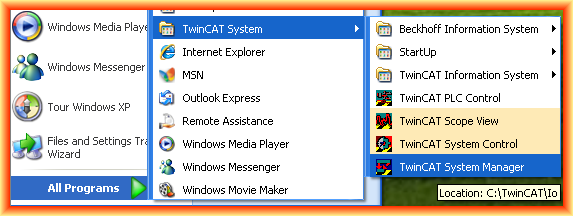
Assuming we are going to configure a more realistic project, what we need to do is run the TwinCAT System Manager and create a new project, which has the following interface, and as can be seen, we are working in configuration mode.
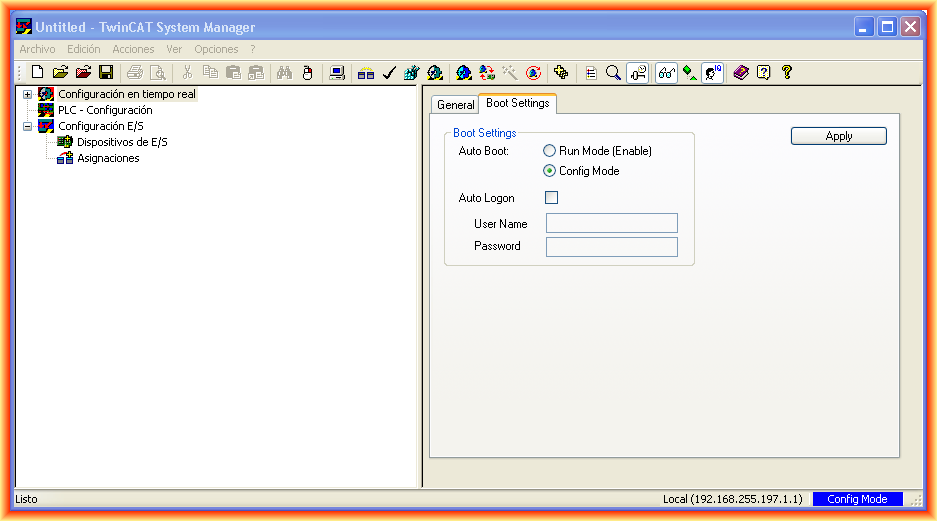
Since we have already created our program, where we have supposedly configured all the inputs and outputs we have, the first thing we will do is load our file into the new project. For this, we click Add to IEC Project and select our file.
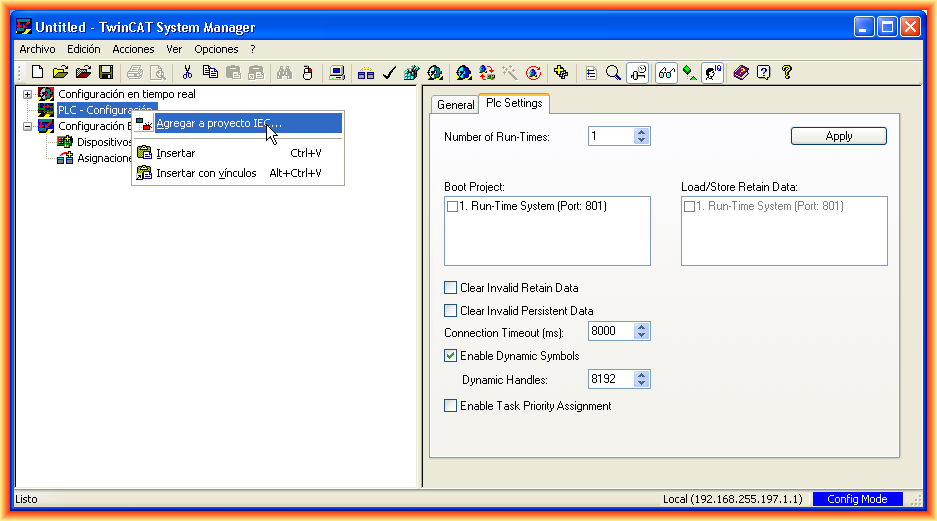
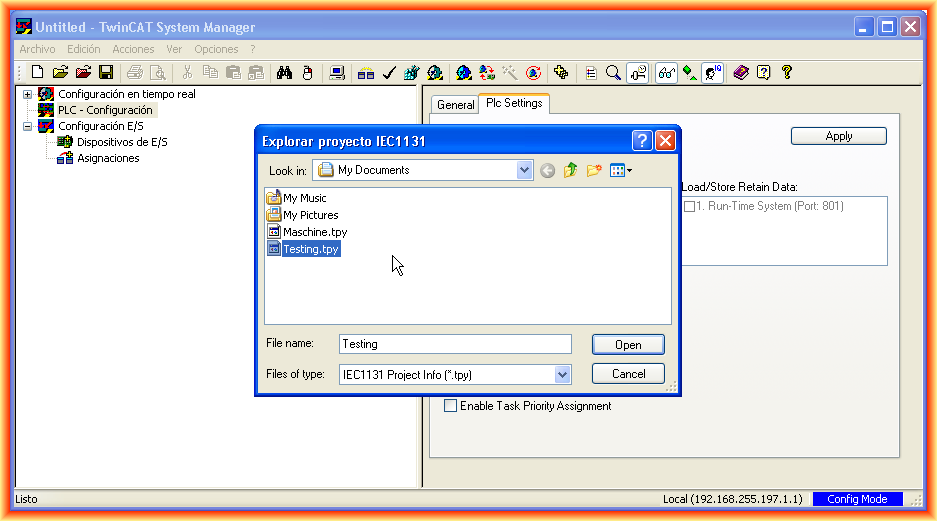
In the dropdown, we observe how the input and output are set up. In case we have an I/O card, we would configure it according to the image and link the configured inputs and outputs in the program with the physical ones.
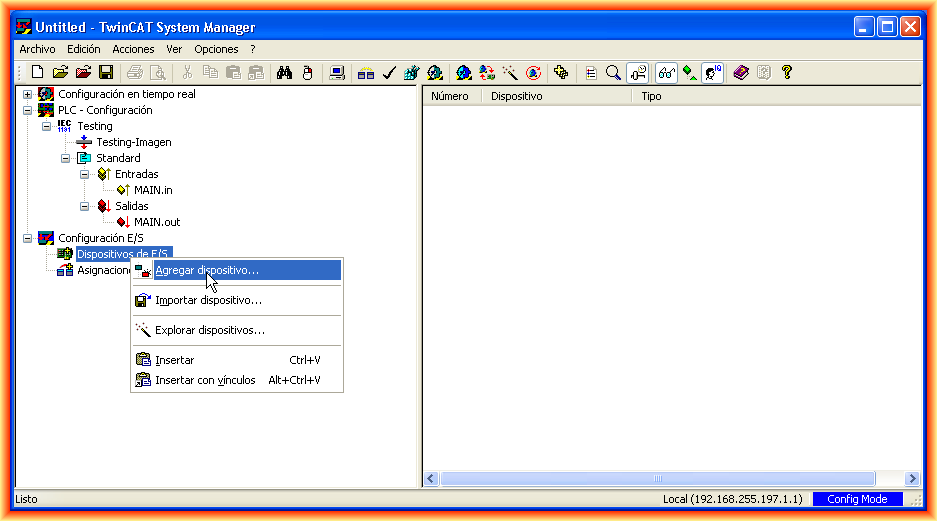
Assuming we have configured the hardware, the next step before execution would be compilation, verification, and then we should switch to Running mode where it can be observed that it is in real-time mode. We could then do Online -> Login followed by Online -> Run in the TwinCAT PLC Control.
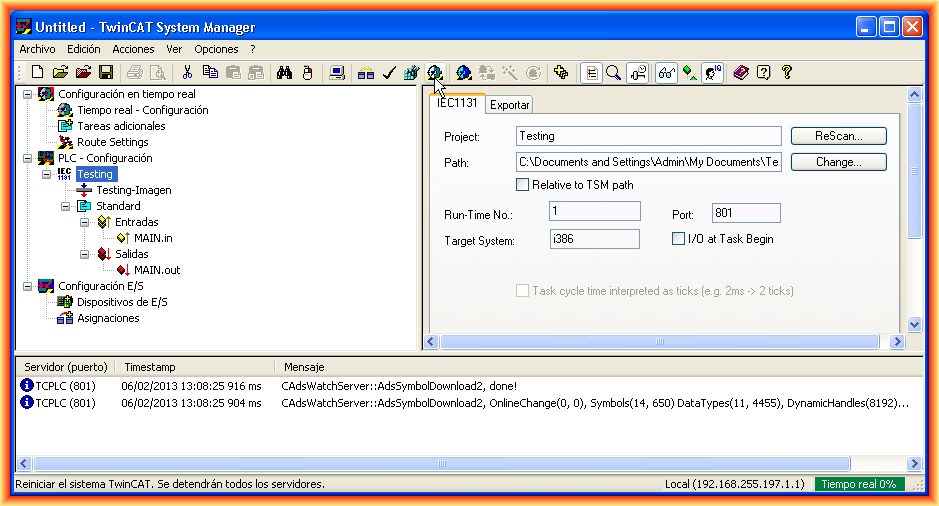
Here we could connect and execute it to observe the result, which would be the same as seen in the first part, and at the same time observe that CodeSys is used to program PLCs from other major manufacturers such as ABB, Beckhoff, Wago.
February 7, 2013