
Wonderware Historian I/O Server
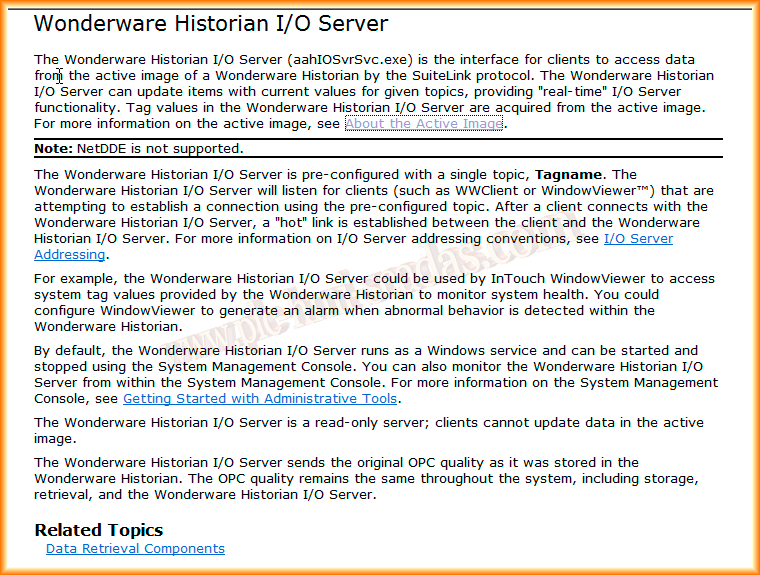
In today's practice, following the information from Wonderware, we are going to configure a link with the Historian through the I/O Server aahIOSvrSvc.exe. This means that we have the Historian running, which may be acquiring values from X processes, and we will visualize that data in our System.
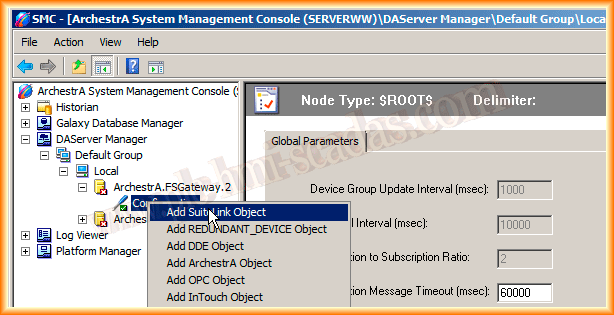
Following the recommendations read earlier, we are going to configure the FSGateway with the SuiteLink interface. Let's look at the steps.

Within the Configuration -> Right-click and add the SuiteLink Object, as it does not support DDE.
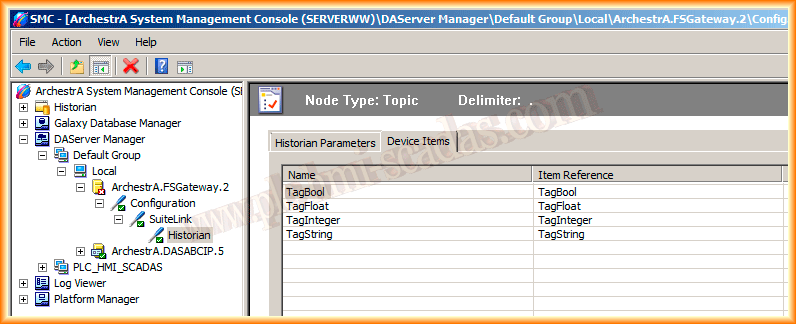
The I/O Server is named as we have seen earlier and as shown in the following image. The machine where it runs is the same one where we are doing the configuration: Localhost.

The next thing to configure is an Object of type Topic. For this, right-click on the SuiteLink object we created and add a new one of type Topic.

Following the initial recommendations, the name of the Topic should be Tagname and it is read-only, so we check the checkbox.

Once we have the Server|Topic, we need to configure the items. Here we add the names of the Tags we have configured in the Historian.
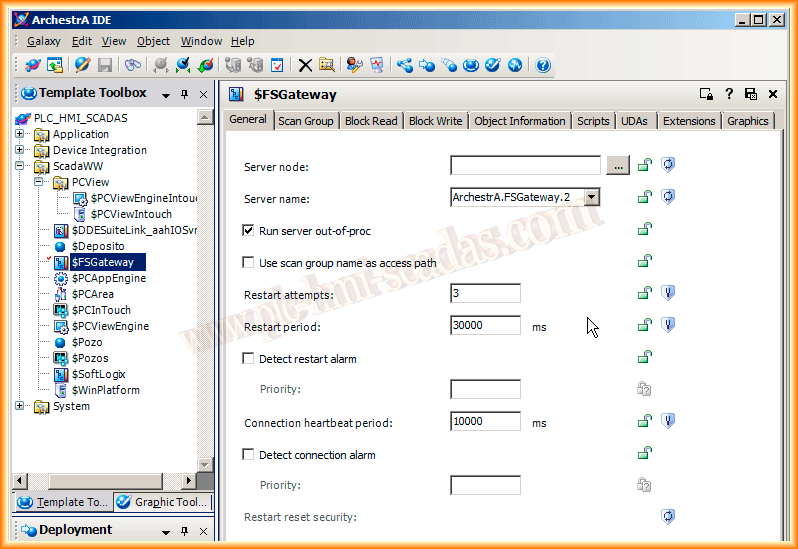
Once this part is configured, we proceed to configure a new template derived from the OPCClient Object. In this case, the Server is ArchestrA.FSgateway.2.
The next thing we need to add is the Group. Here I have named it PLC and set the interval to the default. Once the group is added, we can add the items.


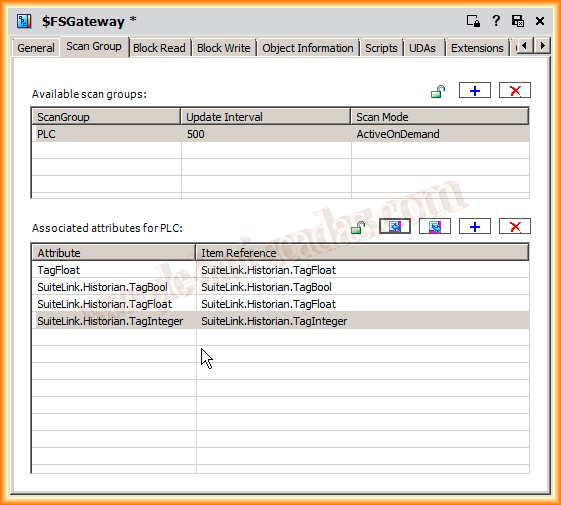
With this, we have finished configuring. Now we can instantiate our Object and check its operation with the Object Viewer.
If there are any doubts about creating the templates or instances, I recommend the practices 1,2 and 3.
Here we can already observe the value of the configured tags, and we can also access all the tags that exist, such as the default System tags. In this next practice, we see another way we can configure, avoiding the use of the FSGateway.

August 18, 2013