
Factory Talk Alarm and Events

With the documentation in hand for Factory Talk Alarm and Events, we see the possibility of configuring our alarms depending on the controllers.
In this first case, we will consider that we are using Controllers with a firmware version equal to or greater than v.16, which is the requirement, as well as the use of RSLogix 5000, its version must be V.16 or later.
We will create a project locally from scratch to see how to perform its configuration, so we start the Factory Talk View Studio and since it is a Local application, we select Site Edition.
Without creating any project yet, this is the interface of Factory Talk View, subdivided into two tabs, Application / Communications. The System directory of the Application tab is the same as if we start the Factory Talk Administration Console, so we have these two options to manage these directories.
The Communications tab represents RSLinx Enterprise, which we will use to configure the link with our Controller and is necessary to use and configure Factory Talk Alarm and Event.


The first step in case it has not been configured is the creation of the Database for Factory Talk Alarm and Event, which you can see how it is created in the following link. Here we observe that it is already created and its view within the SQL Server.
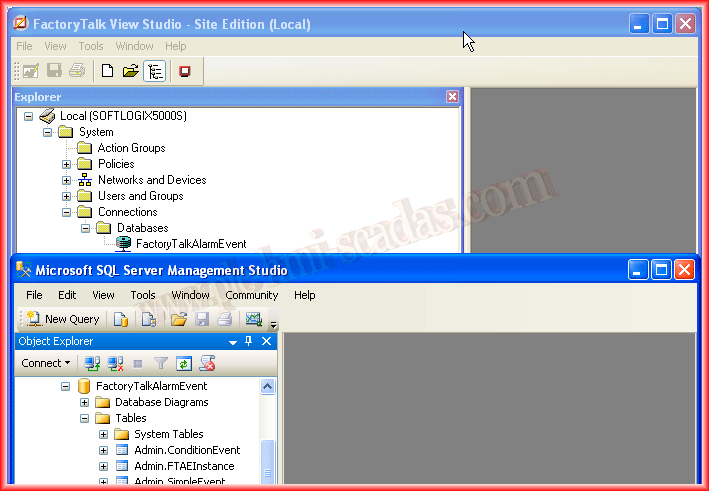
Now we are going to create a new project and as we have mentioned Local, so all the components will be within the same PC.

Here is an overview of all the directories that exist once our project is created, there are common configuration elements when we are making a project for a Panel View Plus, so some configurations are based on the same procedure for both.
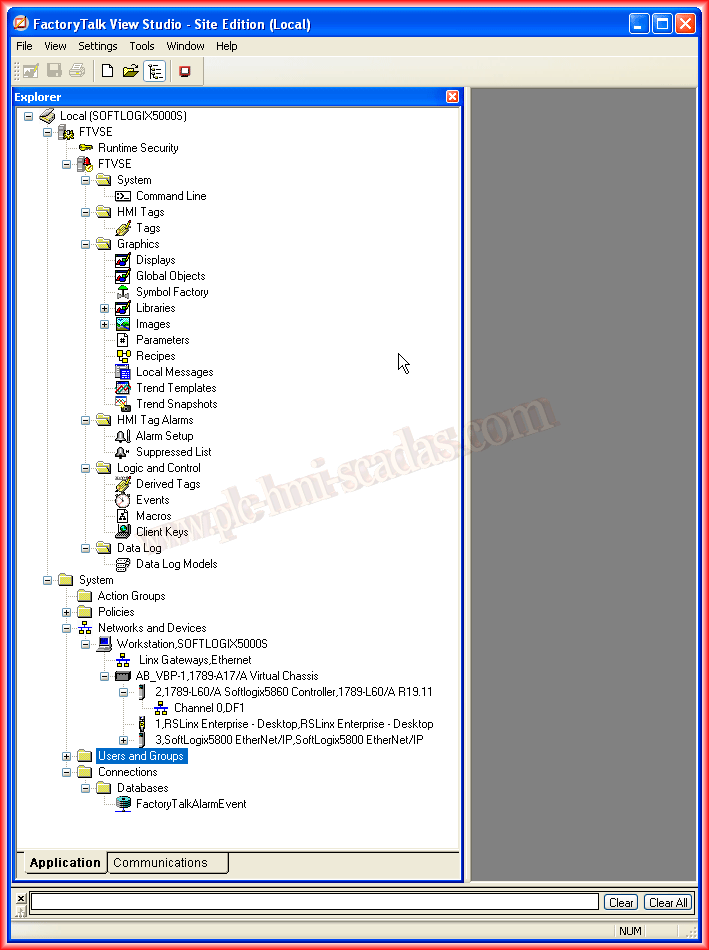
As this example is based on the configuration of Factory Talk Alarm and Events, we have already said that the RSLinx Enterprise Server is necessary, the next step is to add it to our project, as can be seen in the image.

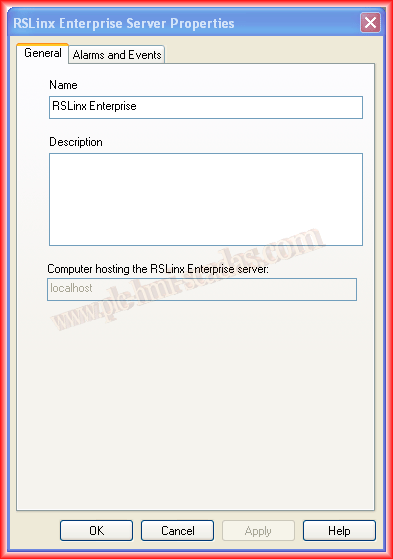
It can be clearly seen that once added, the configuration window has two tabs, in this first one we assign a name or leave its default, it is also observed that it is on localhost, the same PC.
If we switch to the Alarms and Events tab, this is where we must enable it and specify the priority or leave it by default. If we activate the checkbox Enable history, this is where we will register each Event and Alarm in our Database, which is our goal, we select the Database that we had created earlier.

The next step is to finish the configuration of RSLinx Enterprise, we need to create the Shortcuts, the shortcut to our Controller.
We run the Communication Setup and the following configuration window opens, we click Add and create a Shortcut, we assign the name that interests us.

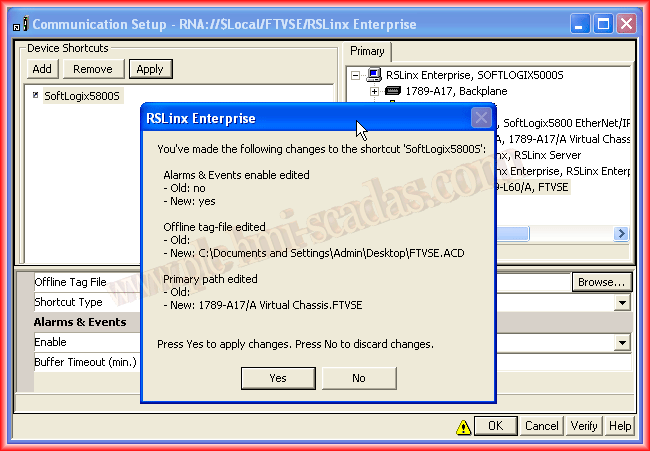
In my case, I named it SoftLogix5800S, once created we have to associate it with our Controller, so all we need to do is select the Controller and click the Apply button, with that step it is already linked.
As it is a Local application and everything is on the same PC, I associate the RSLogix5000 file, and finally, we need to enable the Alarms and Events option.
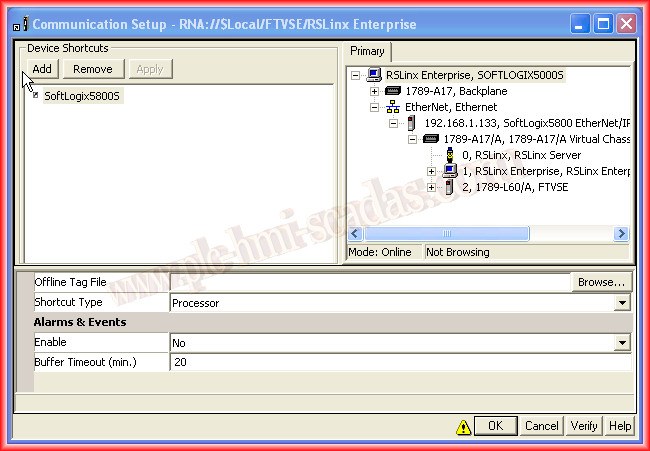

These are the changes made, we confirm and we have completed the configuration.
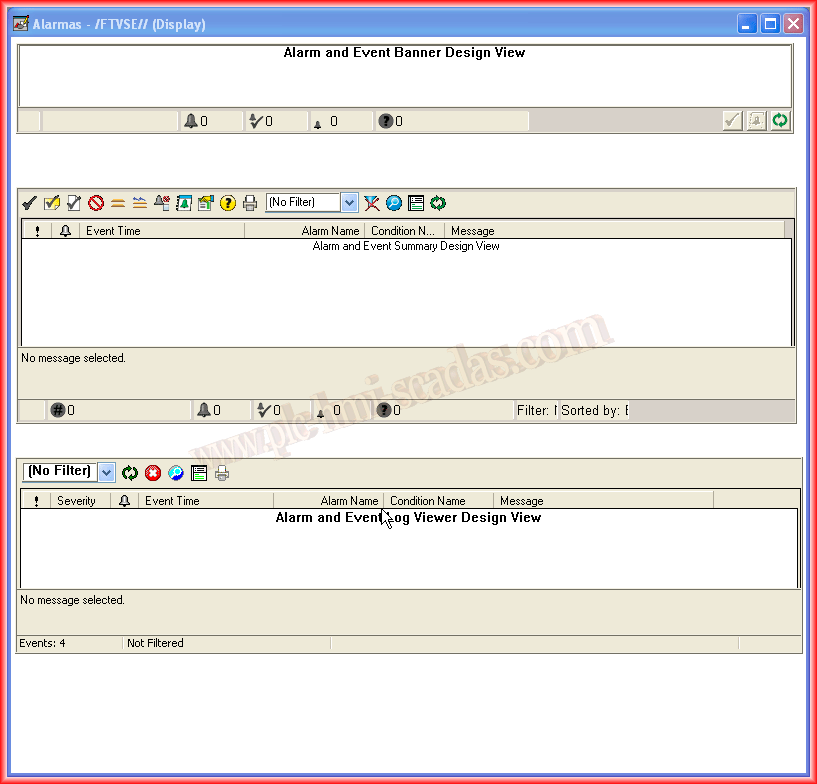
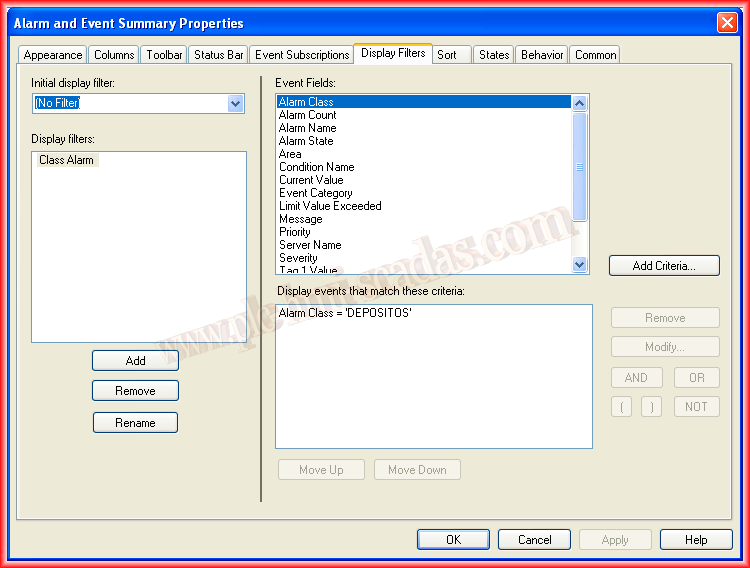
Now to check the operation, we are going to create a new Display, which we have called Alarms, and within the Factory Talk objects, there are 4 objects related to the Alarms, we will place them in the same Display to check their operation, within their properties we will make the configurations that interest us, now we will only see their operation, but if we remember when we configured the alarm in RSLogix 5000 there was an option that was Class Alarm, where we created the Class DEPOSITOS, so we are going to test the filtering, for this we create this new filter.
And now a short video to see its operation.