
TIA Portal - PLCSIM Advanced OPC UA
Another feature offered by PLCSIM Advanced is the ability to simulate that the OPC UA Server option is enabled. Remember that this is another of the new functionalities of the new CPUs.

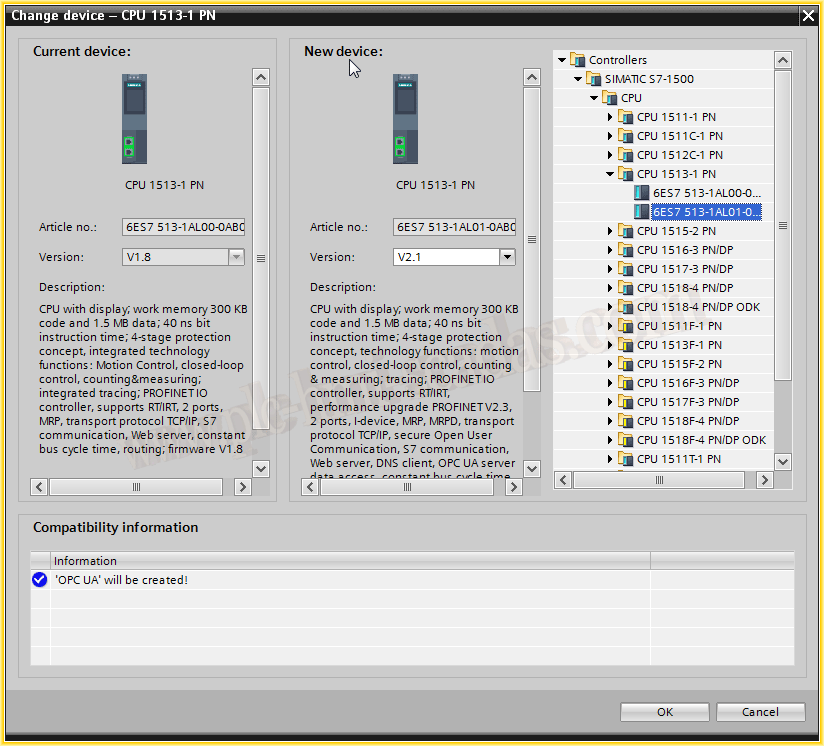
To do this, the first thing we will do is change the device and select the CPU1513 starting from firmware v2.0, which is when this option to be an OPC UA Server is available, see the details in the image.
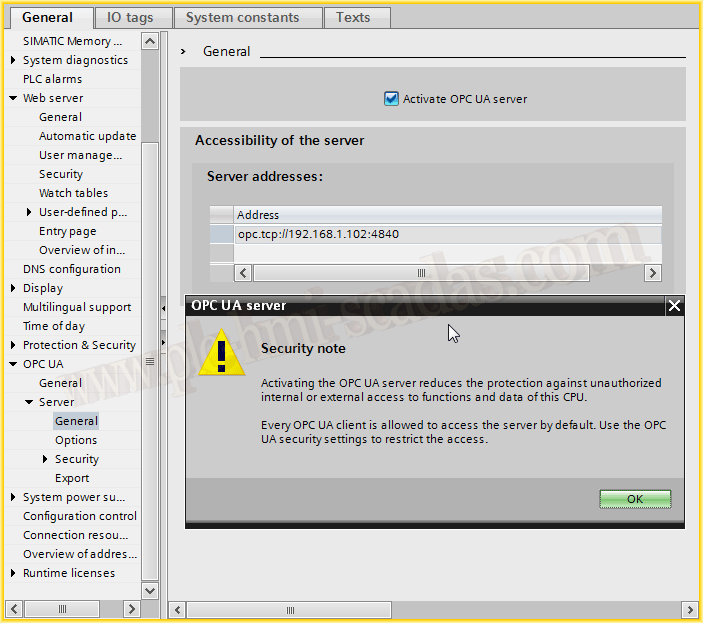
Once the device is changed, we go to the properties and activate the checkbox Activate OPC UA server. When we activate it, we will have a pop-up window about security; since I am going to test it, I will not configure any type of security.
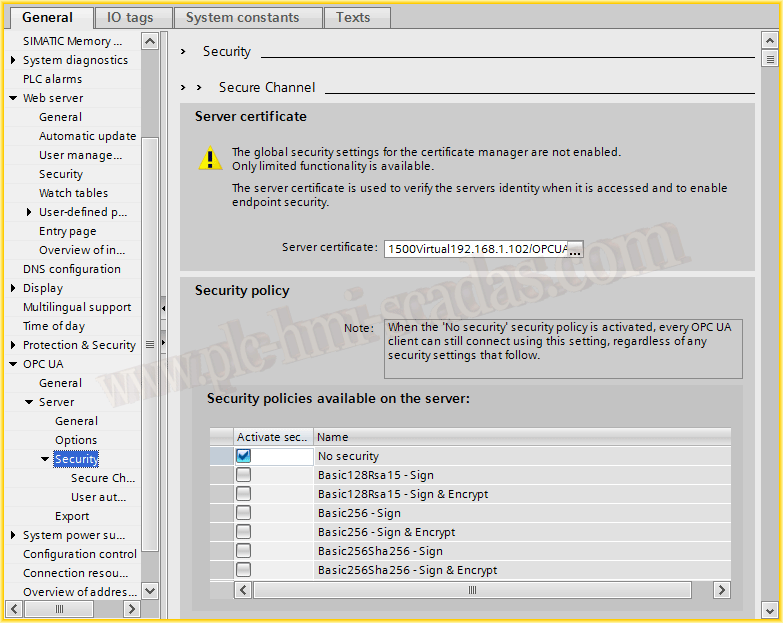
As I am not going to configure any type of security, I will uncheck the checkboxes and only leave No security selected. Once this is done, we can compile and transfer the changes made. Let's assume that I have already done this and I have PLCSIM Advanced running.
The next step will be to check the operation of the OPC UA Server, and I will take advantage of this practice for two reasons: the first is this, and the second is to test the new version of Wonderware 2017. This version has the novelty that it has changed the old FSGateway; it now incorporates a new version called OI.GATEWAY, which includes the option to create links to OPC DA Server and OPC UA Server, this is our case, which we are going to use.
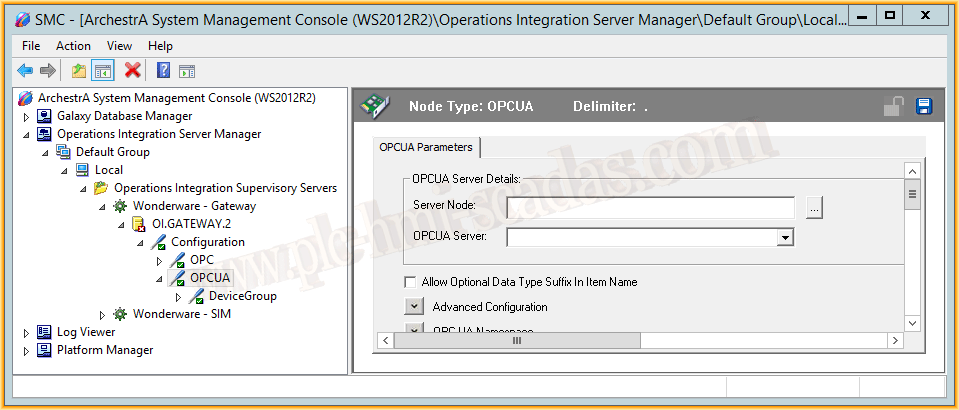
Knowing this, we will proceed to the configuration. The first step is to define the IP address of our device. If you have observed the details of the previous captures, the address is 192.168.1.102, and in the following images, it is 192.168.1.104. The reason is that I tested with several instances and made the wrong captures...
Knowing the address, to access any OPC UA Server it is always opc.tcp://IPAddress:PortNumber
Since we have not configured any type of security, we leave it as none as it appears.
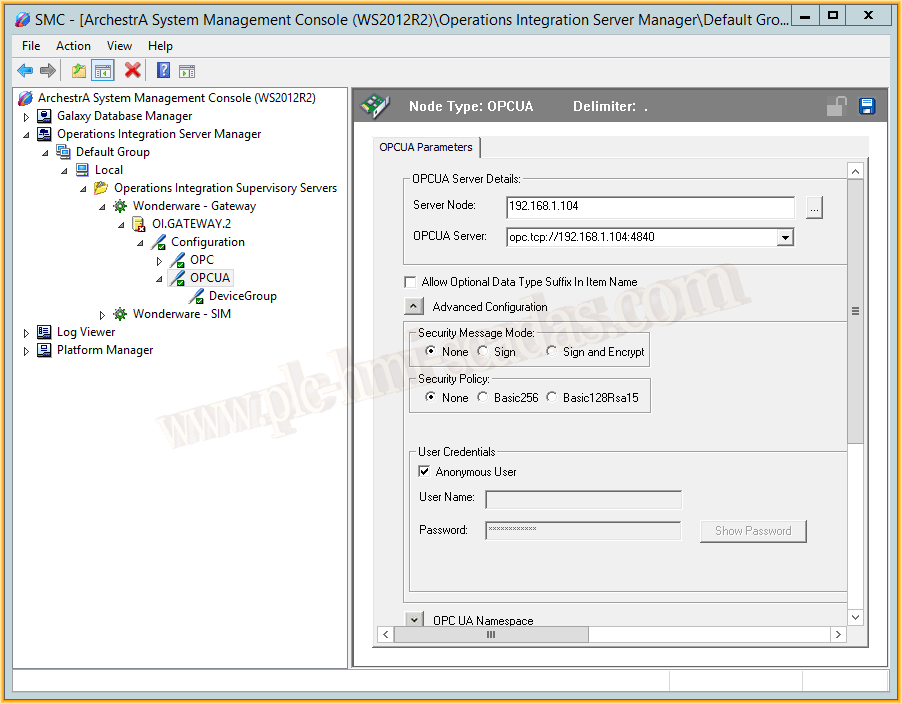
If the address is correct, the server is Online and the security is well configured, by pressing the Browse OPCUA Server button, we will be able to access it to select the tags that interest us.
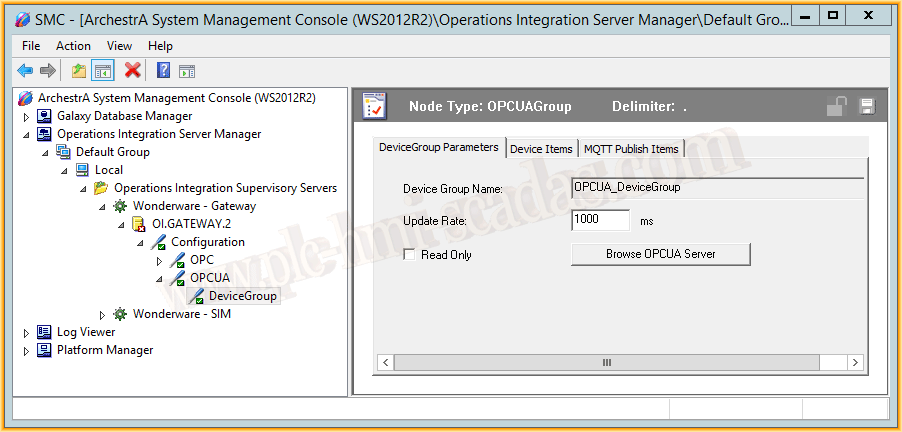
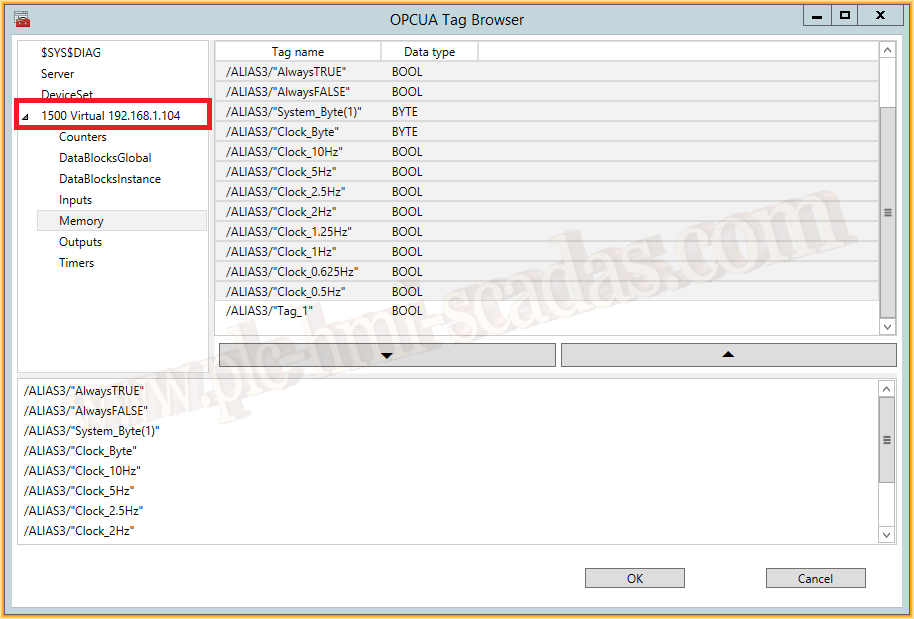
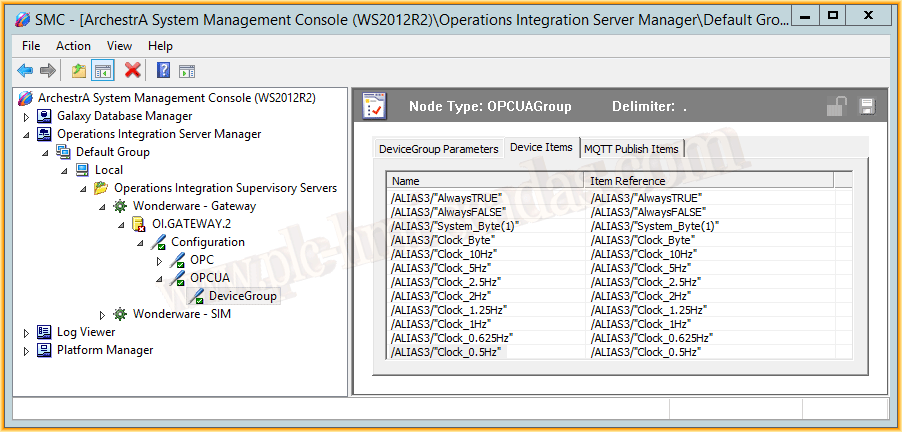
Once the tags are selected and loaded correctly, we can now observe them within the tab, Device Items. We can save with its corresponding button, and the configuration is ready.
Finally, we proceed to activate the Server to be able to run it.
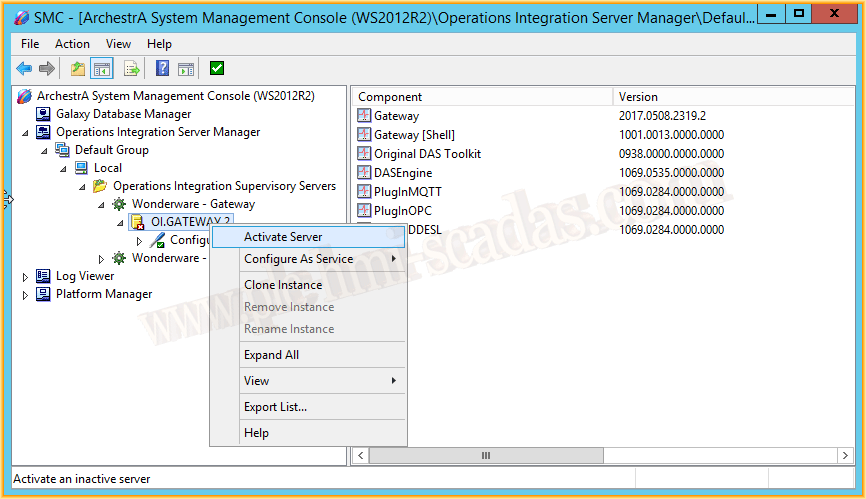
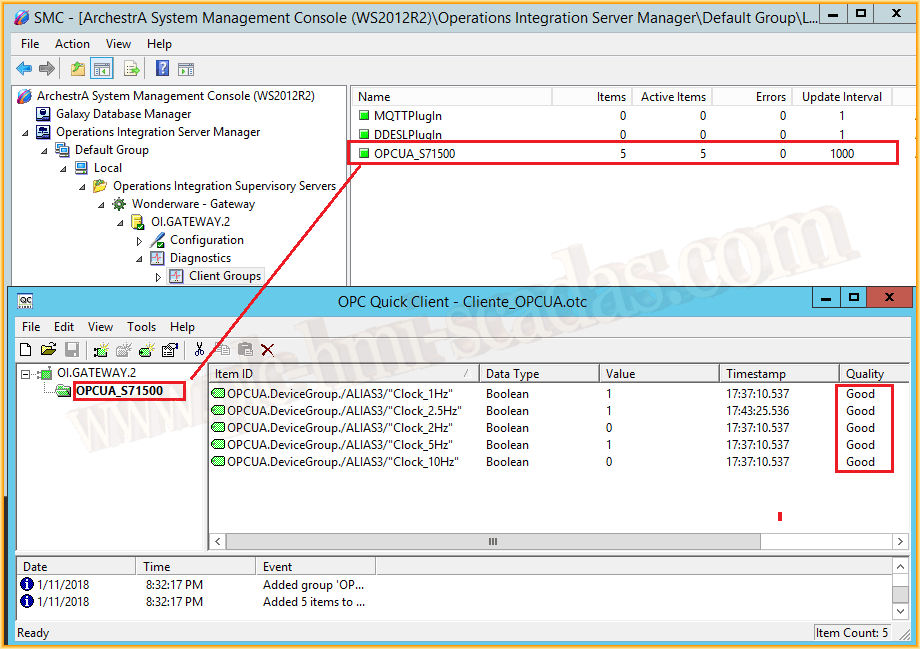
Once started, we could now start Intouch or our Galaxy and create the link to check its operation. I will check it by connecting an OPC Client to the OI.GATEWAY Server, as seen in the following image, and its operation is perfect!!! We can now debug our project with PLCSIM Advanced and Wonderware or another manufacturer that has OPC UA Drivers.
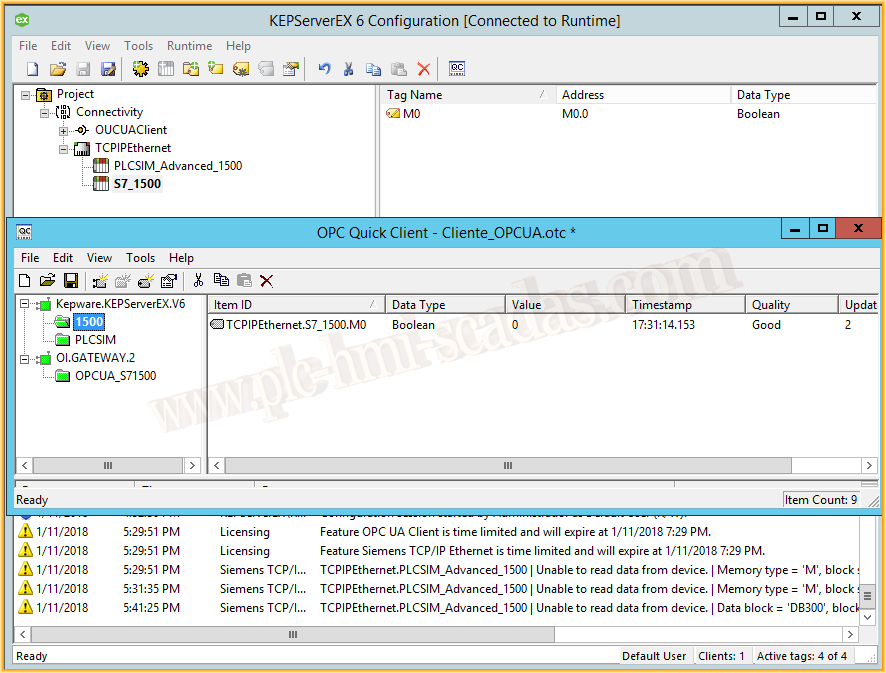
IMPORTANT: Since I was in the subject, I wanted to know if I could configure PLCSIM Advanced with the TCP/IP Driver of KepServer to make connections via OPC DA. I have made a configuration and added two devices: PLCSIM Advanced and a real 1500, and the conclusion is that it does not work correctly. As can be seen in the images, there are warnings that it cannot read from the device.
Image with PLCSIM Advanced: Value UNKNOWN Quality BAD
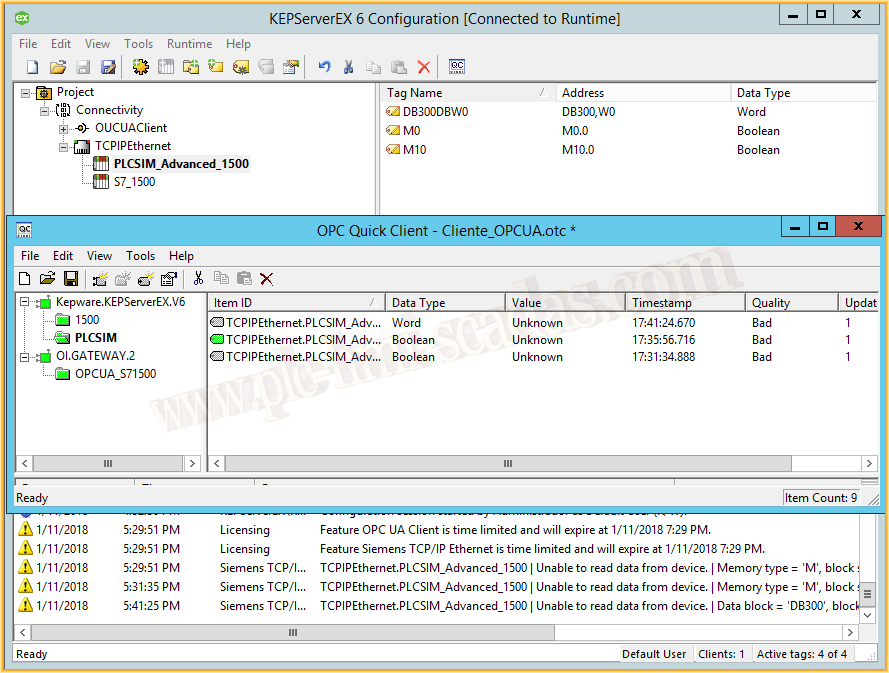
Image with the S7-1500 PLC: Value OK! Quality GOOD
If anyone conducts any further tests and wants to comment, we will expand the information.
January 12, 2018
"Silent gratitude isn't much use to anyone." Gladys Bronwyn Stern