
SCADA ZENON Supervisor (COPA-DATA) Driver Siemens s7-1200/1500
Having made initial contact with the Software, and taking advantage of having an S7-1500, we are going to configure the Driver to see its configuration.
To add a new Driver, within the tree of our project - Variables - Drivers and we add a new one.
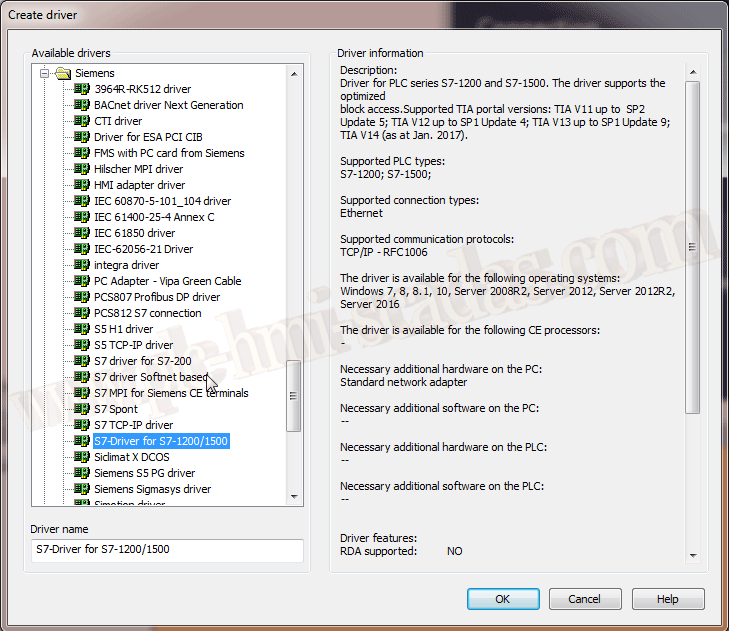
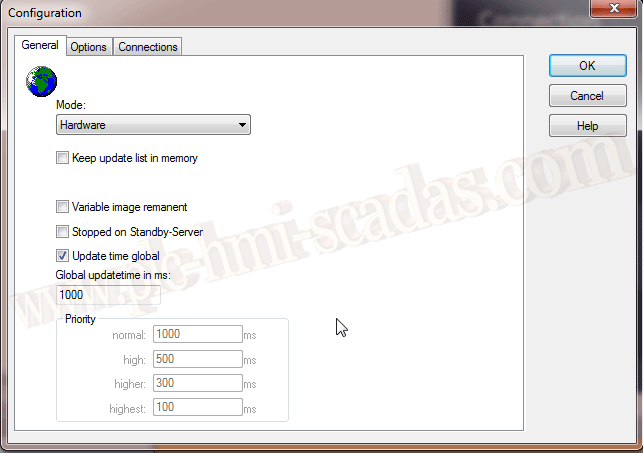
We assign the name of the Driver that interests us, this must be unique, duplicates are not allowed, and the following configuration window automatically appears. Where in Mode we select Hardware, because we are not going to simulate.
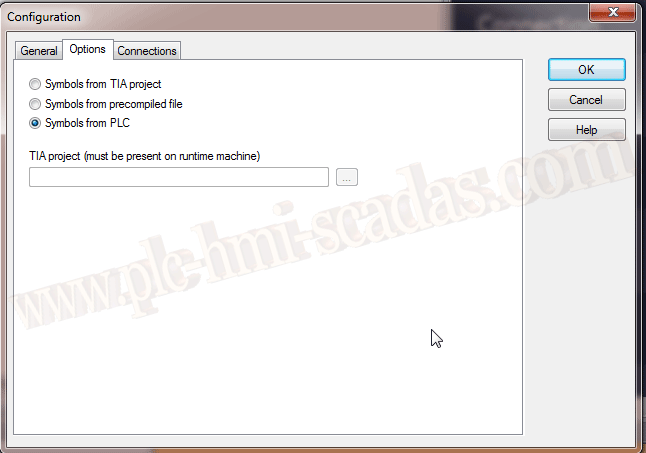
In the Options tab, we will directly load the symbols from the PLC, for this, we need to have the PLC connected and Online.
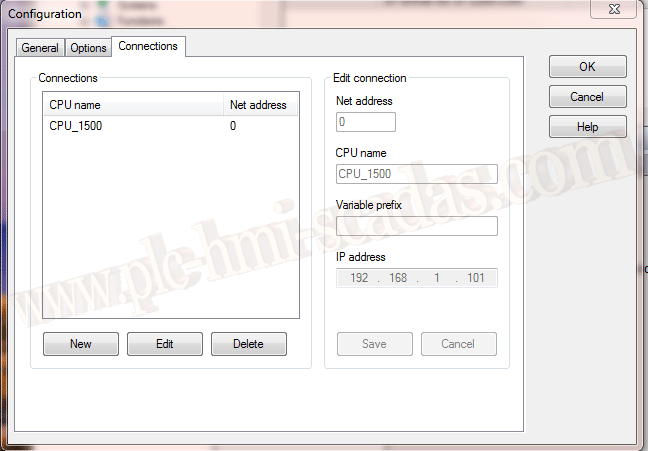
Finally, we need to define the PLC parameters, Net Address, Name assigned to the CPU, Prefix if we are interested, and the IP address of the PLC.
Once the parameters are defined, we start the Import variables wizard from the Driver:
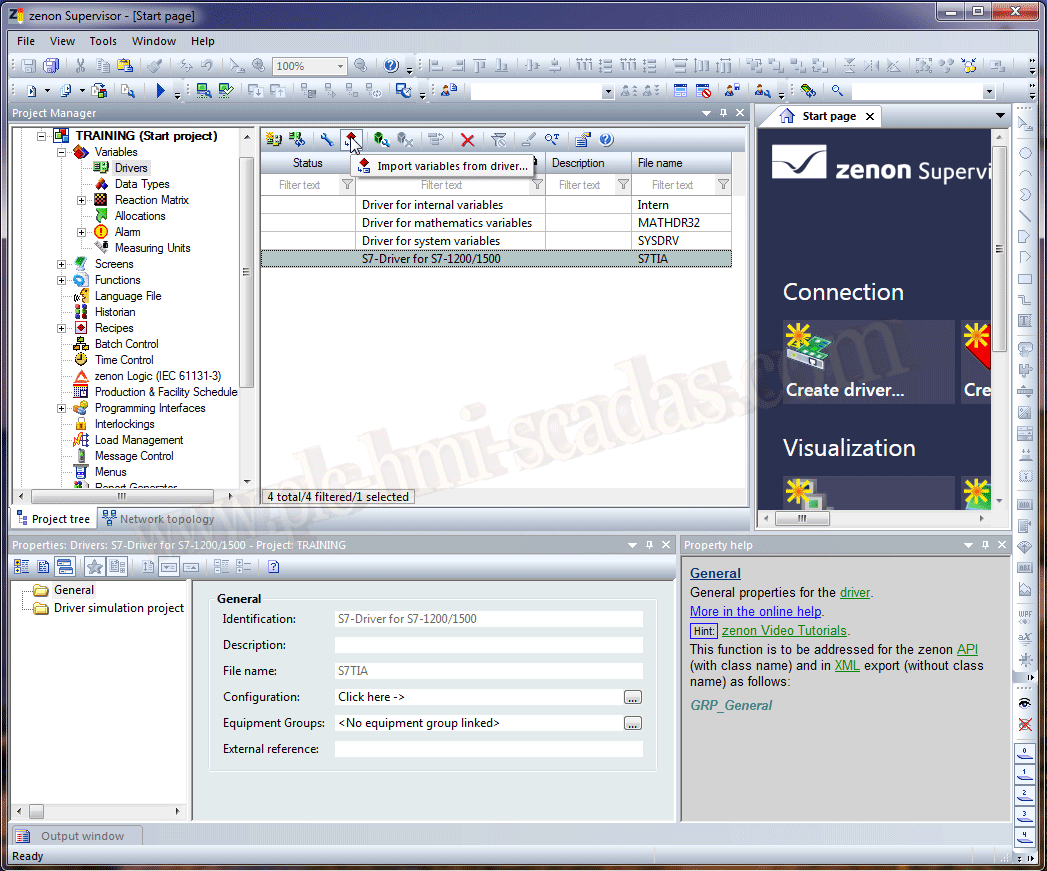
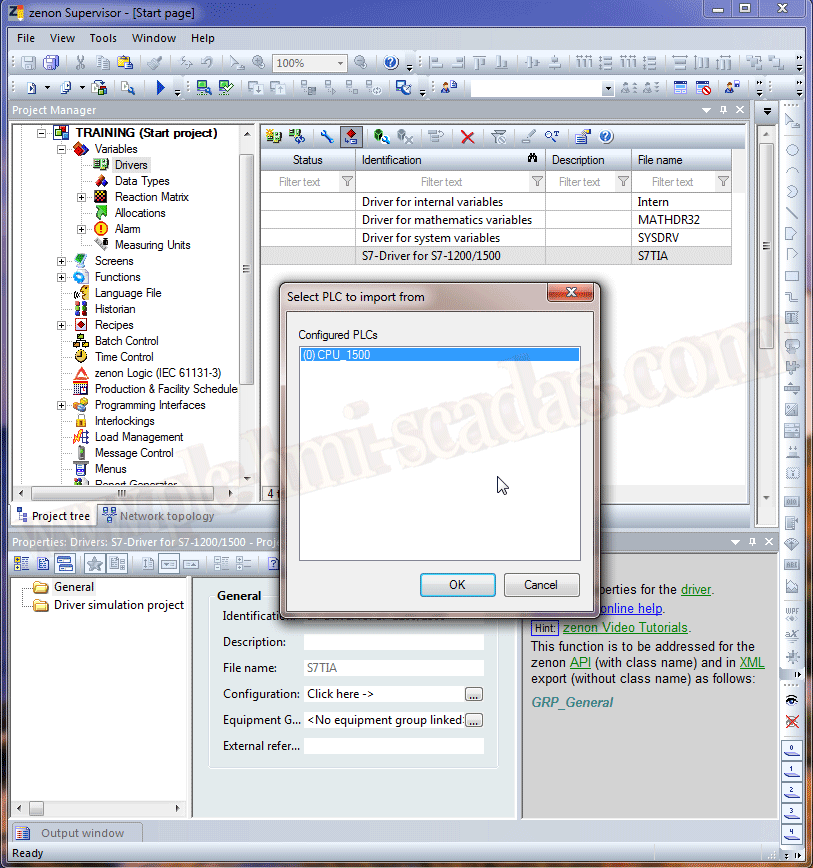
As seen in the following image, the name we defined for our CPU and the Net Address appears.
At this point, it is important that the PLC is connected; otherwise, an error message will appear regarding the connection.
The next screen is where we will define where we want the variables from, either from a DB - Blocks or from the variable table.
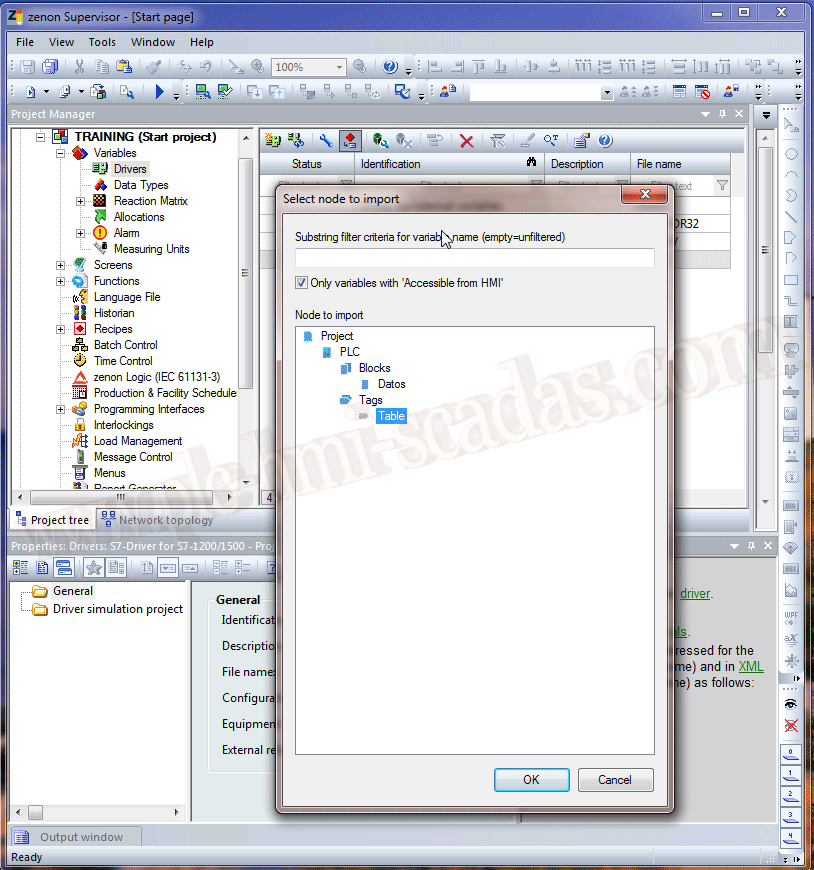
Having selected Table, the variables that I have declared in my TIA Portal project appear.
Here we select the variables that interest us and add them.
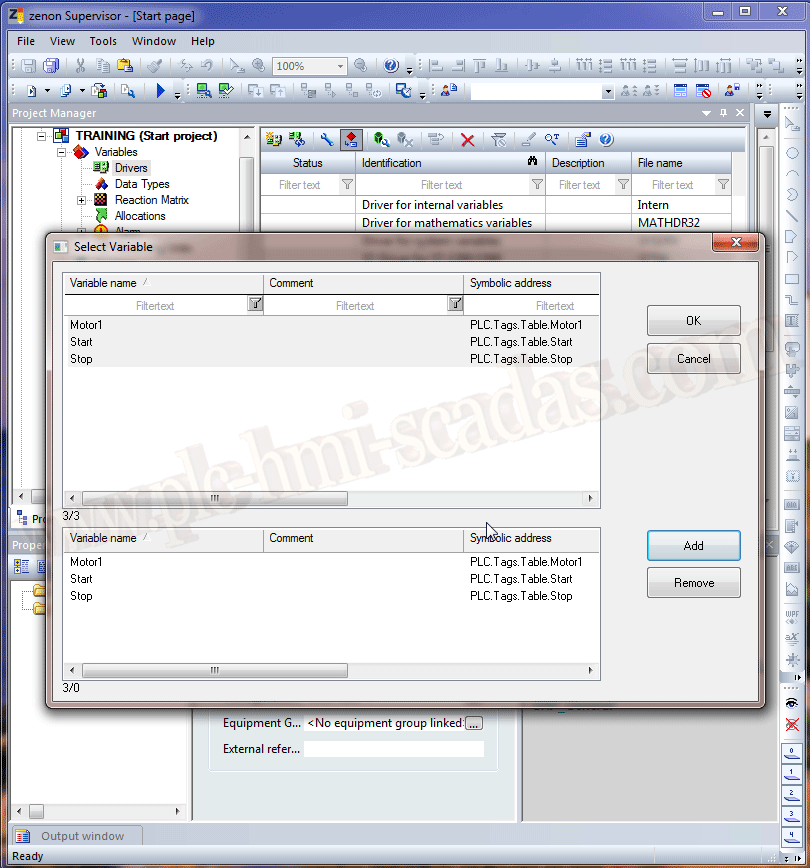
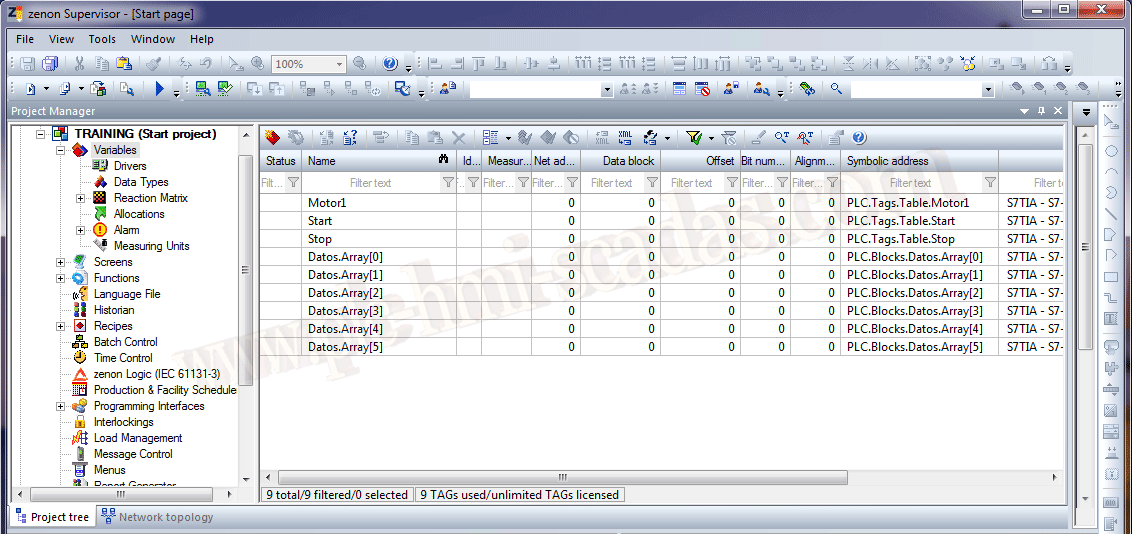
We now have the variables we have added for our Demonstration project. If we want to add the variables manually, the most relevant parameter is the Symbolic address field.
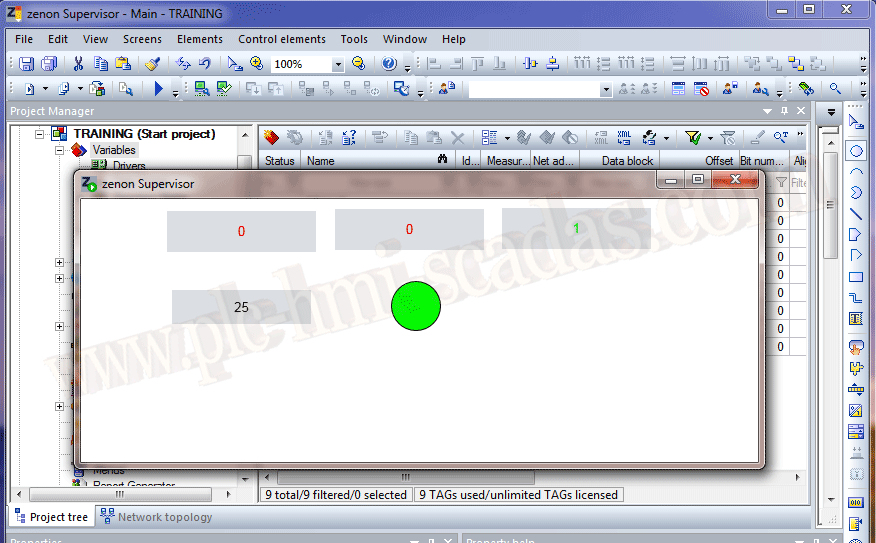
If we now create a screen and insert an object linked to our variables, we verify that the communication is correct.
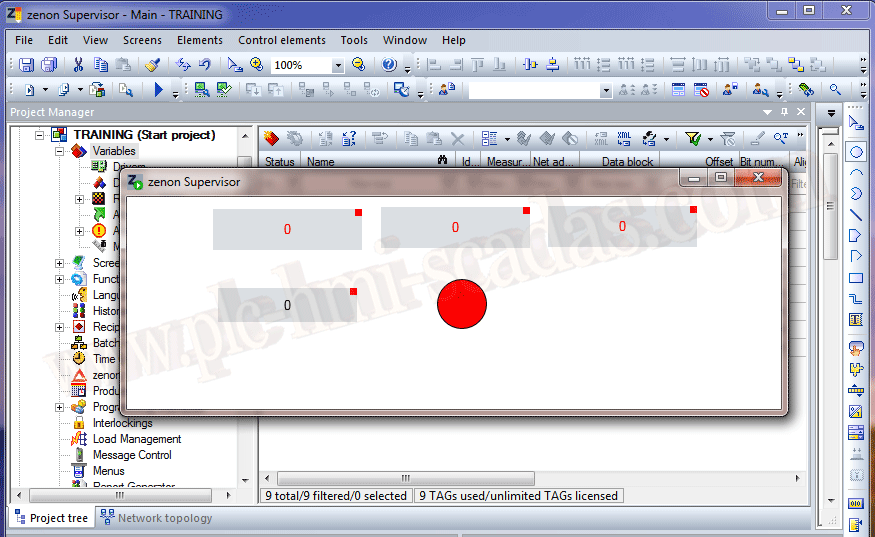
In case there is an error in communication, the indication we have is a red square at the top, which indicates that there is no communication with that variable.
January 21, 2019