
RSLinx OPC Server
The OPC Server for the entire Allen Bradley PLC family is RSLinx in its Professional or Gateway version. Its configuration is quite simple; in fact, I believe it is the easiest to configure of all the ones I have worked with.
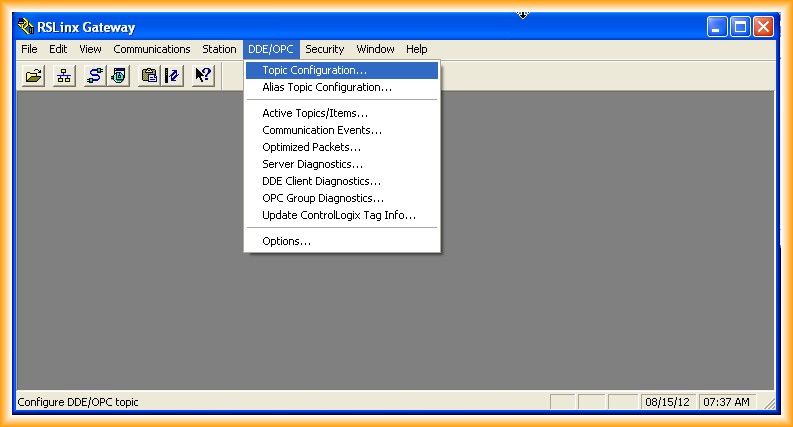
1.- We run RSLinx and this is the interface it shows, we go to DDE/OPC and Topic Configuration
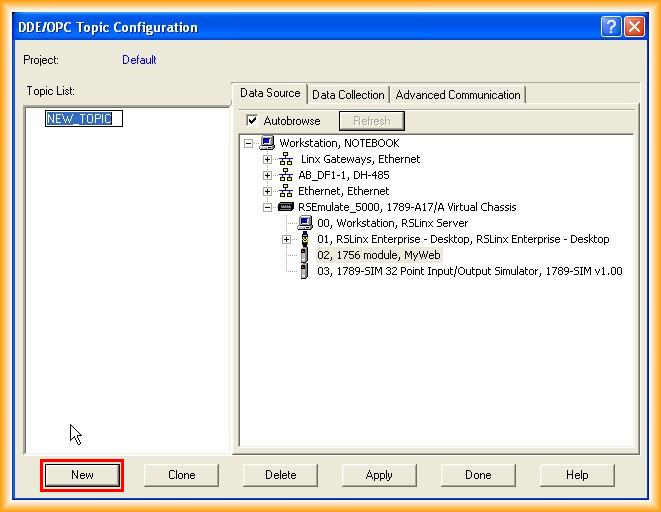
2.- The following image appears, and we click the New button to create a new Topic, assigning the name we are interested in.
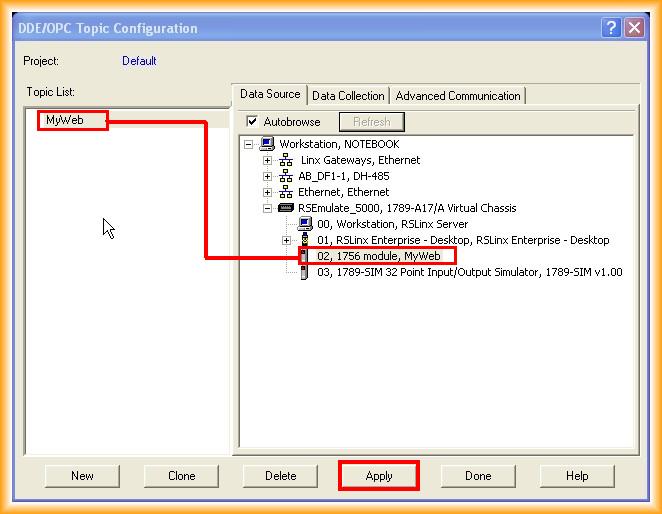
3.- The new topic is assigned to the PLC it will reference; since I currently do not have any physical PLC, I will use the previous practice in which I simulated with RSLogix Emulate 5000 and we will reference that PLC, for simulation purposes it works as if it were real.
4.- Now we go to the Data Collection tab to assign the project or the *.CSV file to which we will have access to its tags or items.
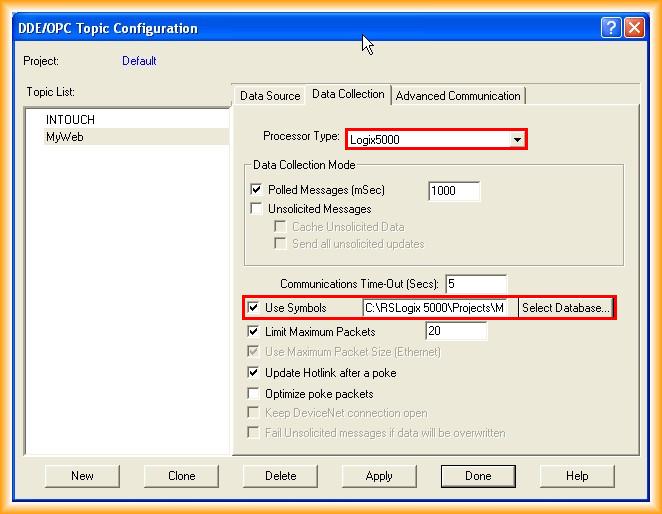
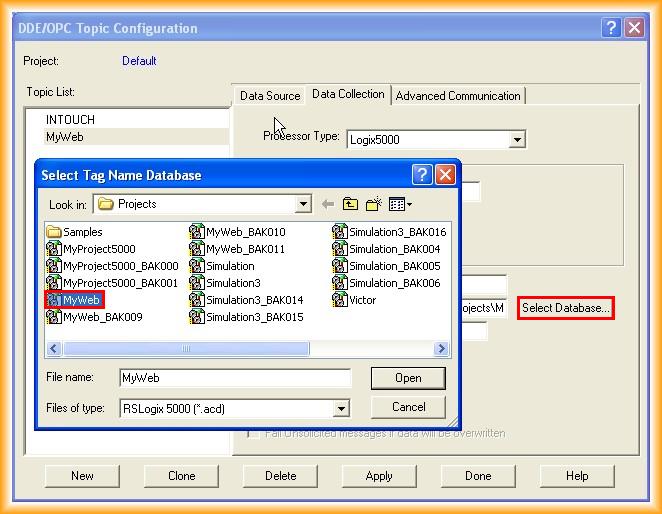
5.- With these simple steps, we have already configured our Topic and we would have access to the RSLinx OPC Server; to verify it, we will access using the OPC Test Client application.
6.- We run the application and the first step is to define the OPC Server, in our case RSLinx OPC Server.
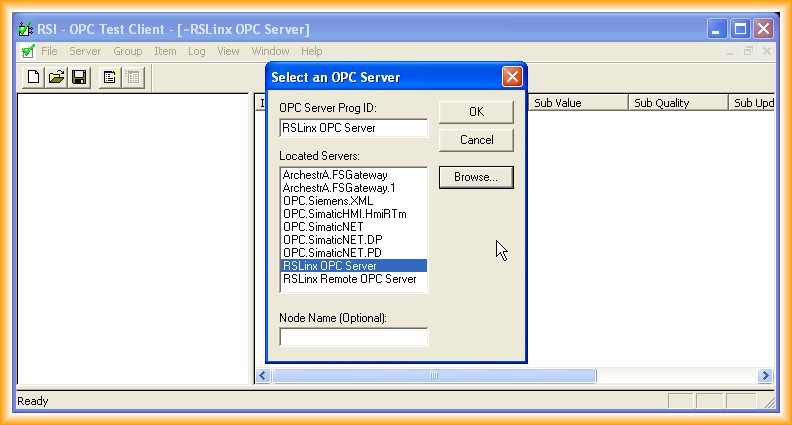
7.- We add a new Group.
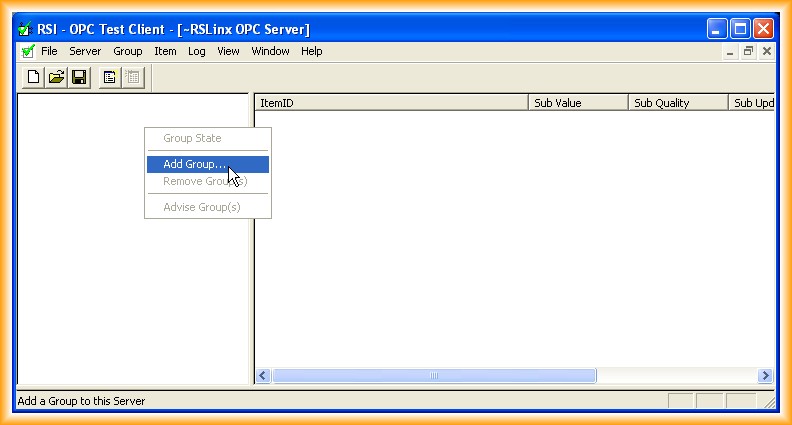
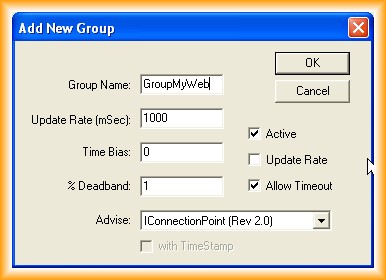
8.- Now we add the items by clicking on Item or its icon; the following image appears, where we will navigate through the different Topics we have configured and select the items.
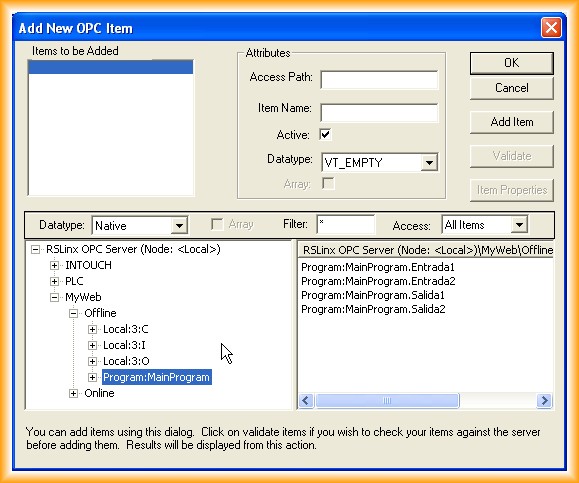
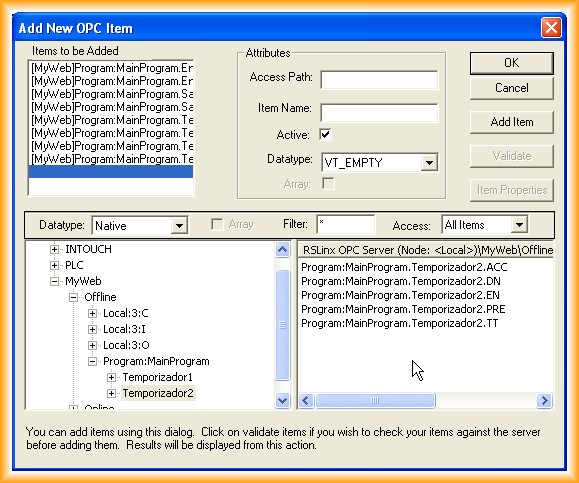
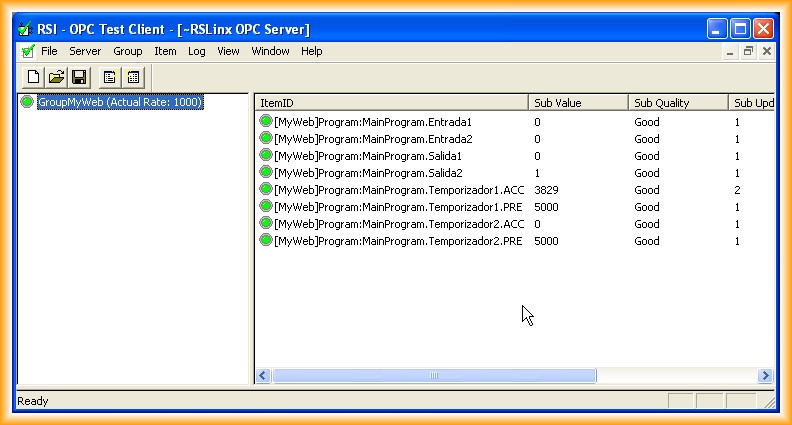
9.- And we can now check its operation, the value of the variables, and the quality of the communication.
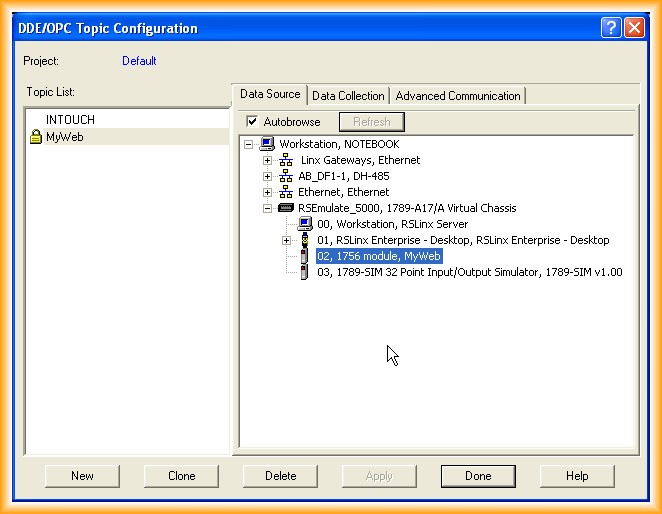
10.- When a Client connects to the RSLinx OPC Server, if we run it again and go to the DDE/OPC tab, we will see the icon of a padlock appear on the topic.
August 15, 2012