
In response to a question asked, I will demonstrate how to read and write the time in an S7-2xx CPU and modify it from the screen. I will use a PC with WinCC RT Advanced as the screen; this same configuration can be applied to WinCC Flexible PC Runtime.
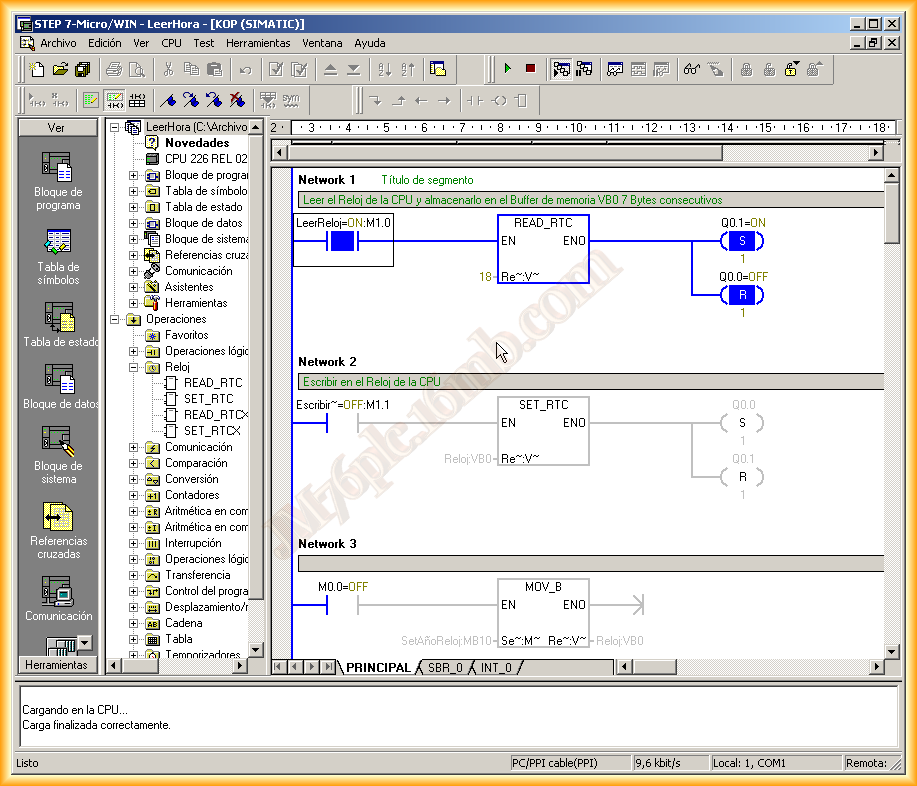
To read and write, we have two functions or four, depending on the CPU you are using. In this case, I have enabled all four functions, but I will use the basic ones.
The first thing we will do is consult the manual to understand how the function works and the type of data to use.
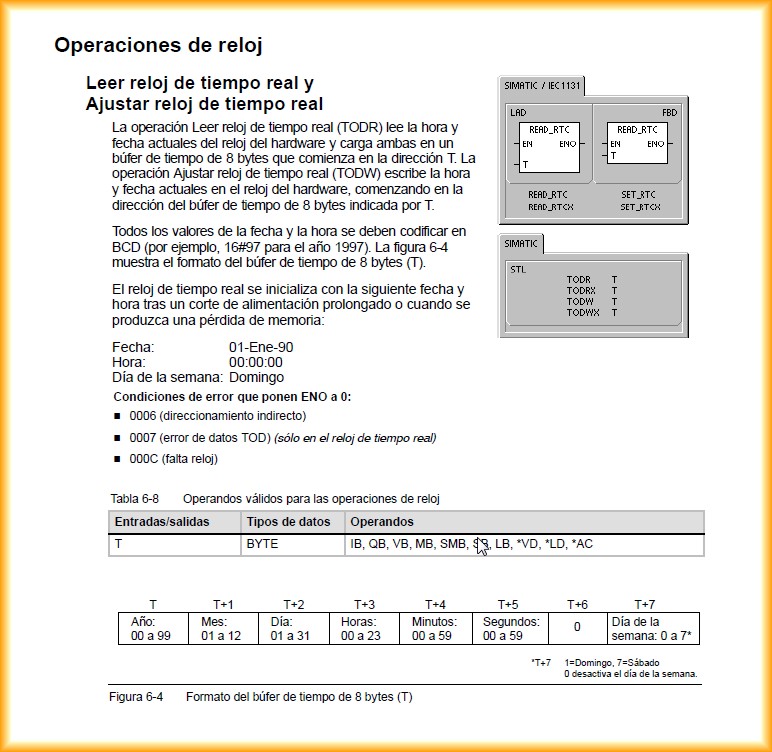
Once reviewed, we know that in T we will introduce a pointer to the first memory address. From this, it will use 7 consecutive bytes to store year, month, day ...
We insert the function for both reading and writing using VB0.......VB.
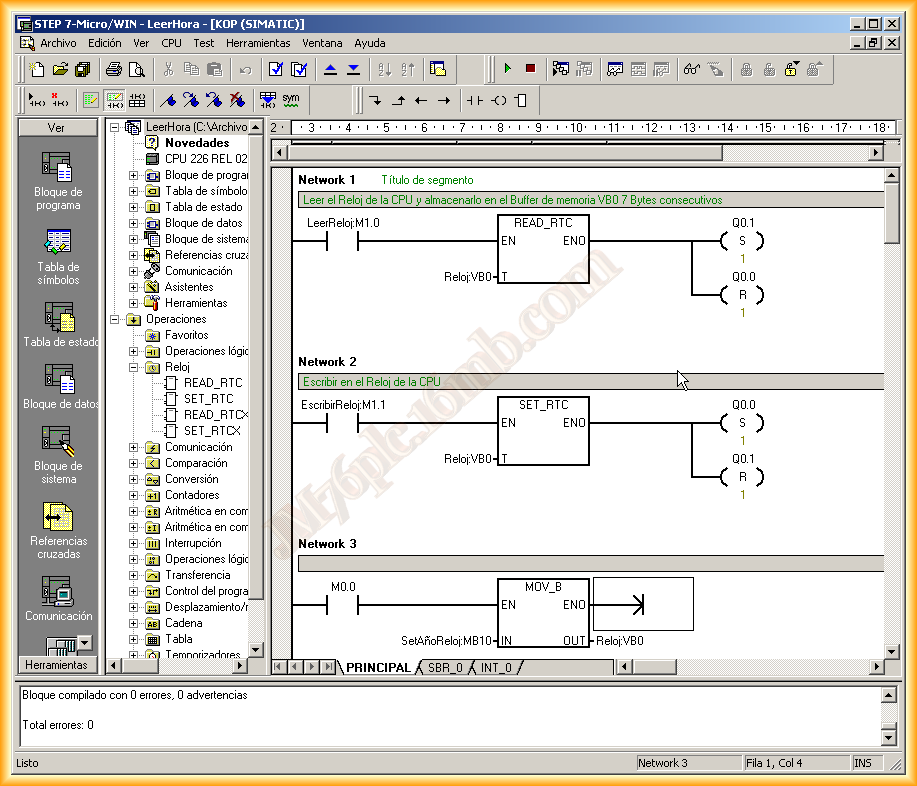
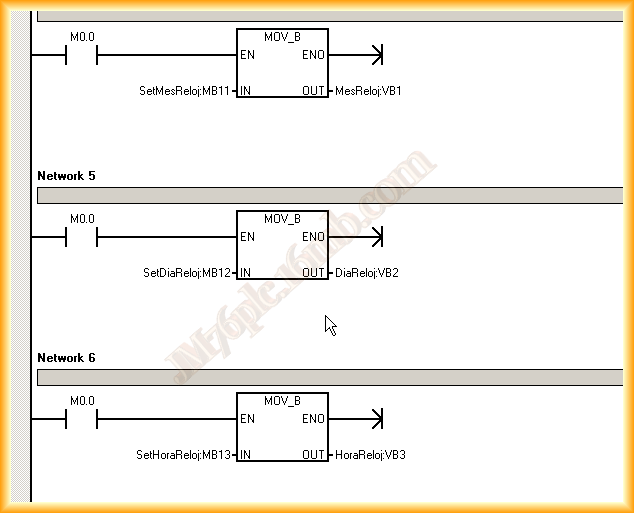
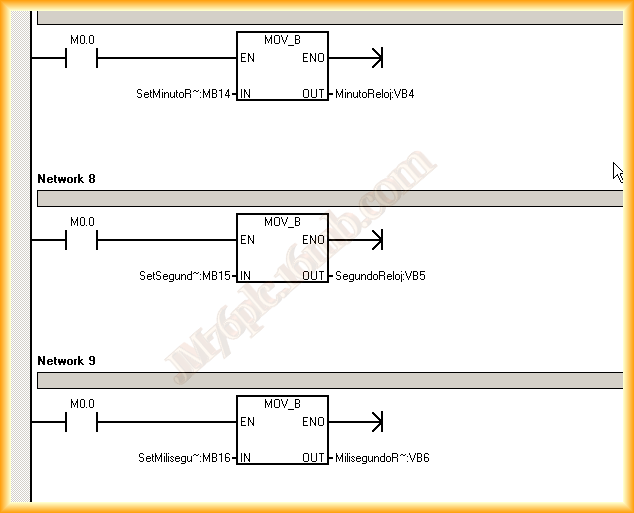
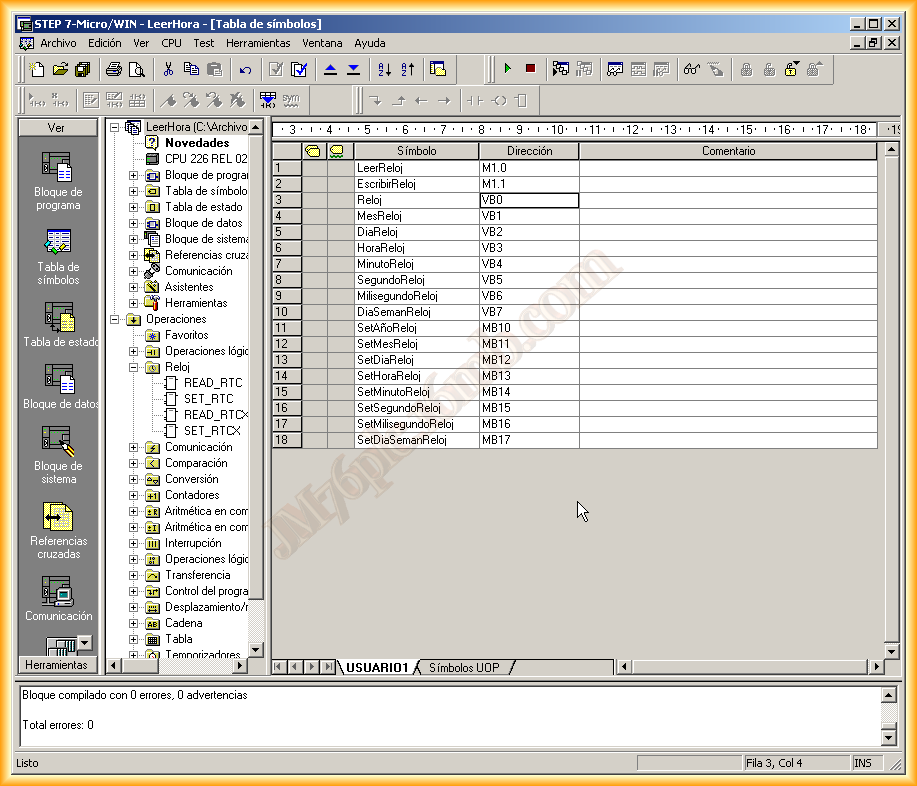
With this, we would have enough, but I have used some intermediate markers that are not necessary. We could write directly on VB0 for the year, VB1 for the month, and so on consecutively. However, as I mentioned, I have configured 7 bytes starting from MB10... MB17, and the program is simple; I move the loaded values to their corresponding VBx memory.
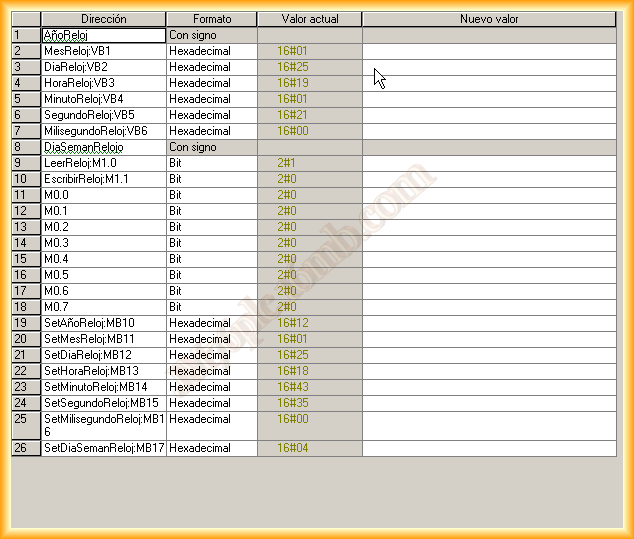
And the status table to check its operation is as follows:
I compile, check that there are no errors, and load the program to the CPU. If you have any doubts when loading, here is an example. I go online and read the clock configuration of my CPU, checking its values in the status table.
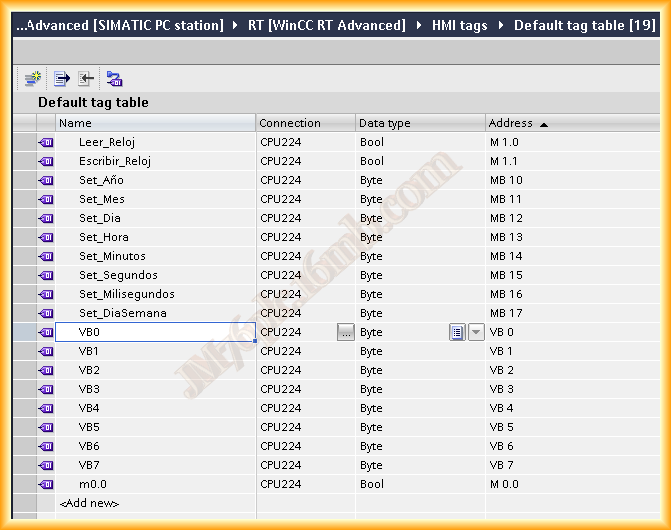
We open our project in WinCC Flexible or TIA Portal and create the configuration to run the Runtime on the PC communicating with the S7-200 through the PPI cable. Here you can find the example of this configuration. We create the variables that we will use; according to this example, the following.
We insert some Input and Output fields for the visualization and modification of the date and time. Here comes one of the things to keep in mind; otherwise, it will give us an error that is not visible. The formats of the date and time are in BCD, meaning their format is from 0 to 9. Since we do not have that format, we will use hexadecimal and enter the values as if they were in BCD; for example, 10 will be entered as such and not as 16#A, and we repeat this for each field.
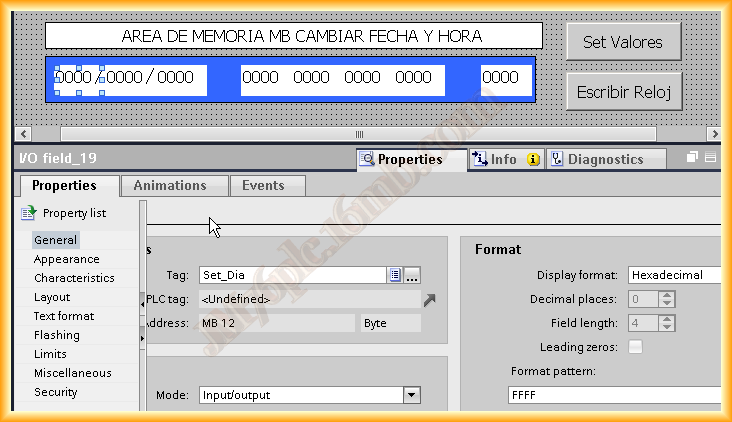
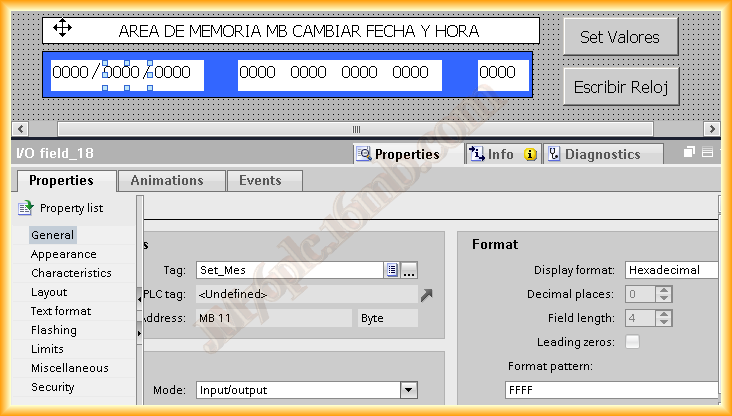
The final appearance of our screen is as follows, where once the values are entered in the memory area fields MB, we perform the move. According to the program, when pressing Set Values, which is associated with marker M0.0, once this is done, we write with marker M1.1 or read with marker M1.0, which is associated with the Read Clock button.
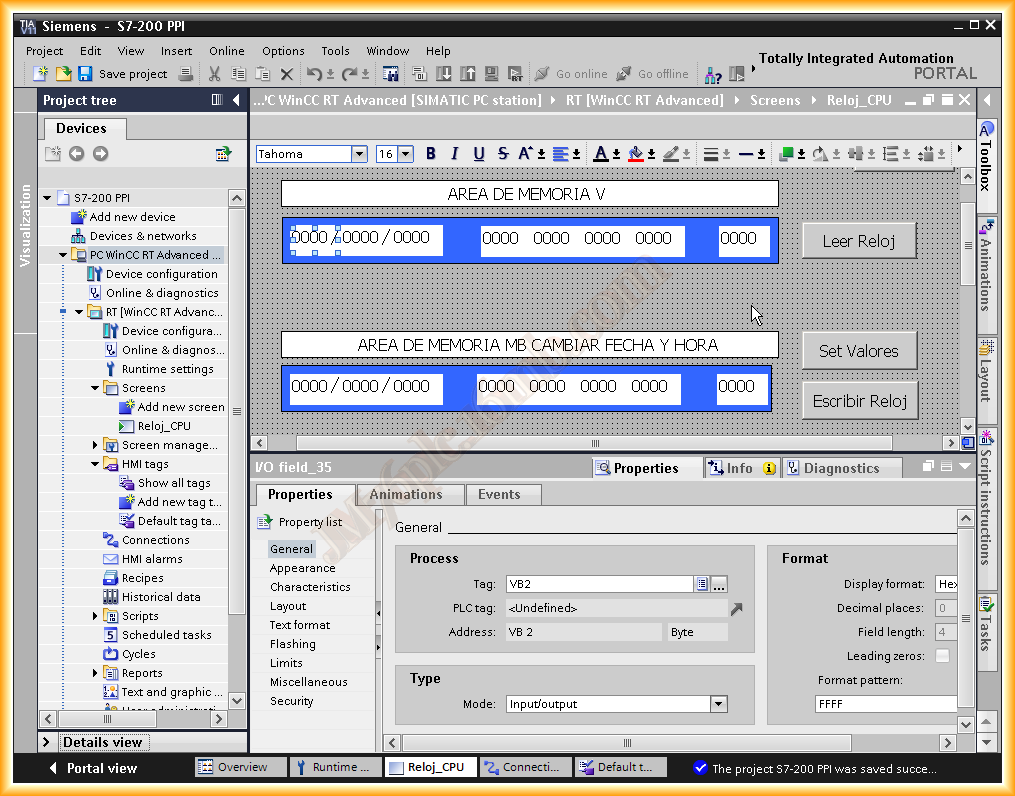
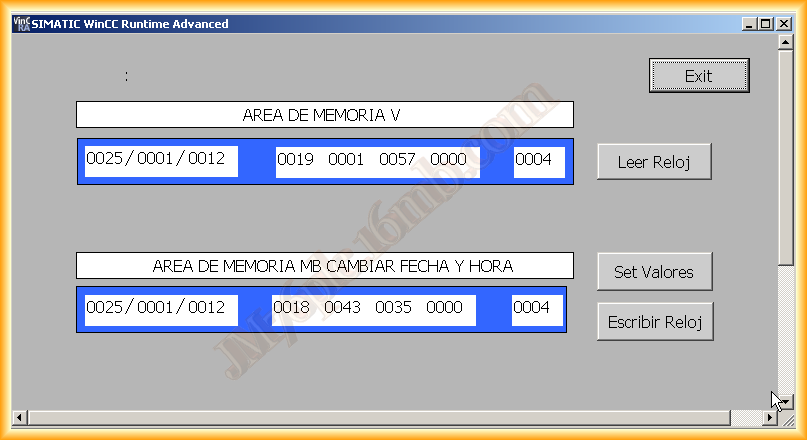
We run the Runtime and here is the result; we can read and write, and the values we have entered in decimal while the field is configured as hexadecimal. I hope this resolves the doubt.
November 28, 2012