
Today we are going to configure a new Display (Window) to show the Information Messages, for this, as always, right-click New, and this is the window for configuration. We have two columns; in the first one, we configure the value that the tag we are going to configure will acquire and the message it should display. There is no need to follow an order; the values can be alternated.
Something to keep in mind is that the Trigger Value can be positive, negative, but it cannot be 0.
We can include in the message the value of some Tag, the maximum length is 256 characters, and to create a multiline message, we can use the line break \n just like in C.
To demonstrate the operation, I will use the tag System/hour and I will create a couple of messages as can be seen.
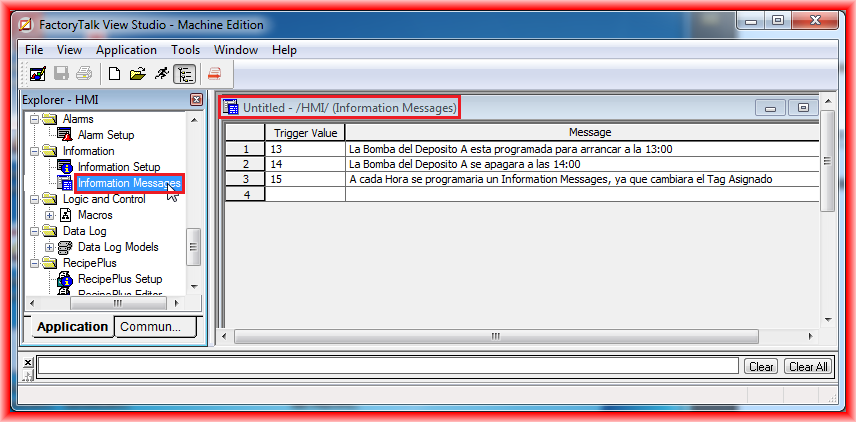
Once the different messages are created according to the needs, we can save our configuration. Once saved, we can configure the Display in which it will be applied with the Tag we have assigned.

To configure the Display, the list of messages, and the Tag to which we are going to apply our information Messages, we execute the Information Setup; here we make the configuration.
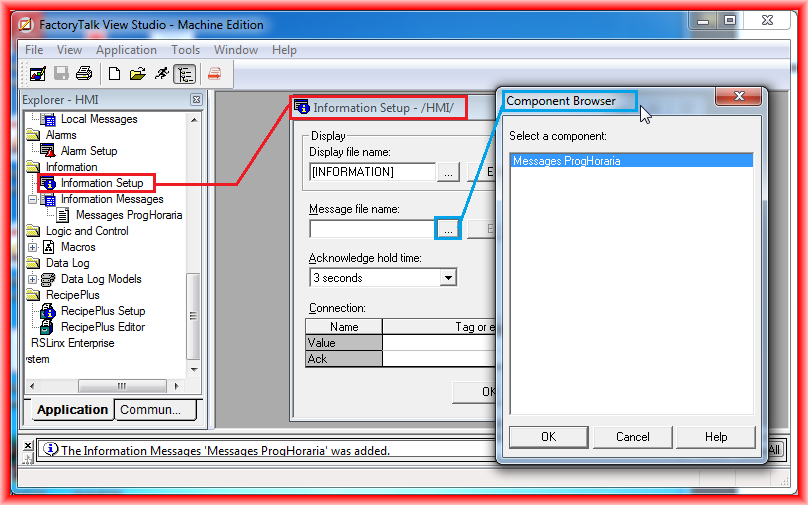
Once the Display is chosen, which by default is INFORMATION, but we could create our customized one, we have selected the list of messages and configured the Tag. For the Ack button, in case we want to give it functionality, we need to assign it a Tag.
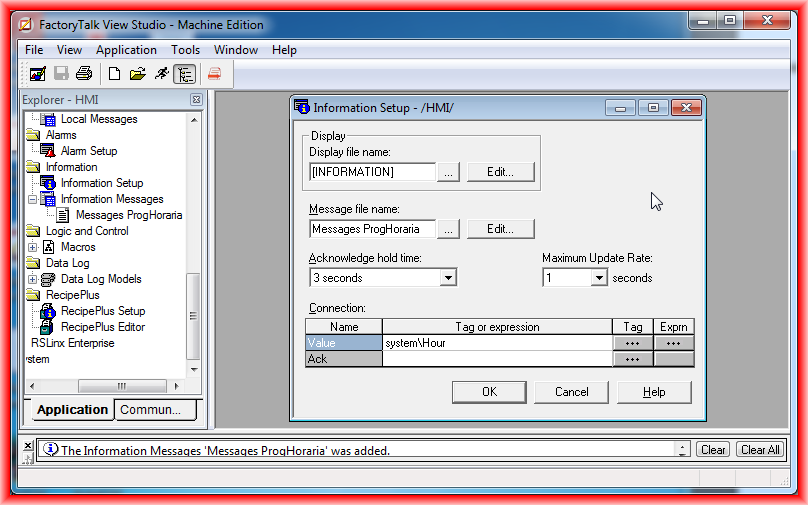
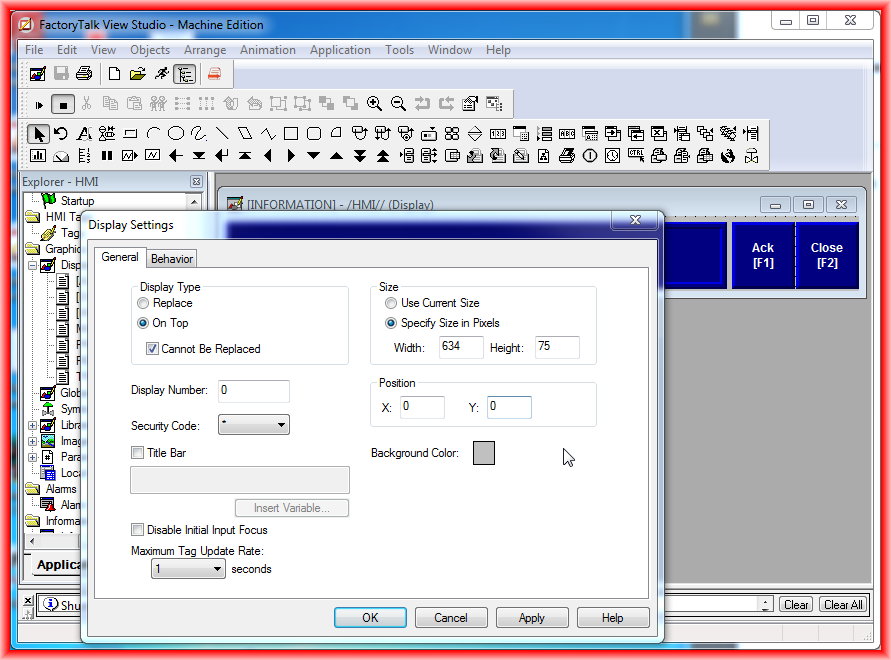
As I mentioned, the Display I am going to use is INFORMATION, which is the one assigned by default. Here we can customize this Display and its properties.

Within the properties, it is observed that it is configured to be of the type On Top, with its dimensions and position.
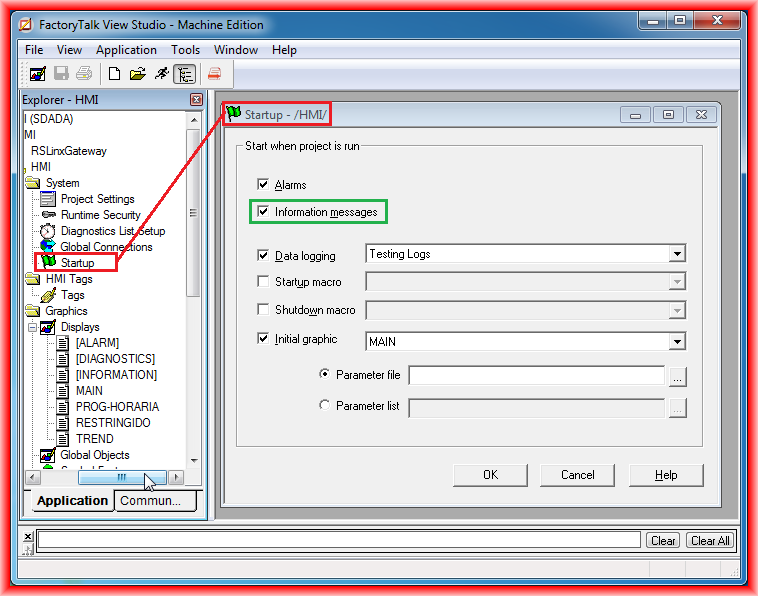
Finally, to execute it when starting the Runtime, within the Startup configuration screen, we select Information messages, which is already selected by default.
To conclude, once the Runtime is executed and it is 1:00 PM, the message we just configured appears.

February 22, 2013