
Update Firmware Panel View Plus 600
Thanks to Miguel's collaboration, we will see how to update the firmware on a Panel View Plus 600, and taking the opportunity, how it is possible to install KepServer Enterprise drivers on the Panel View, which we have seen previously.
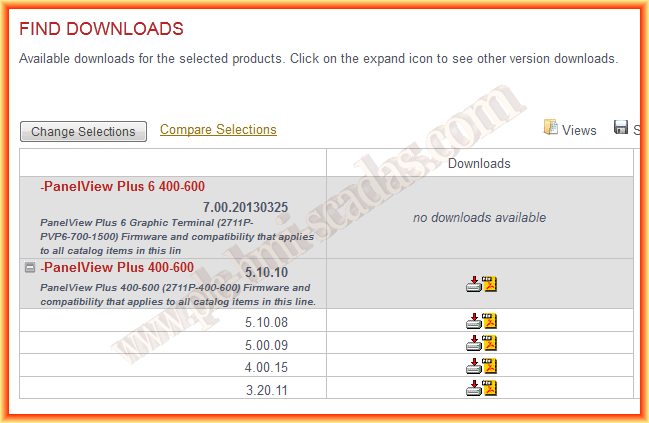
The first thing we need to do is download the firmware for our Panel View from Rockwell Automation, and the version that interests us; it is necessary to be registered with Rockwell for the download.

We select according to our Panel and download the version that interests us; in this example, we will install the latest available version 5.10.10, currently having 5.00 installed.
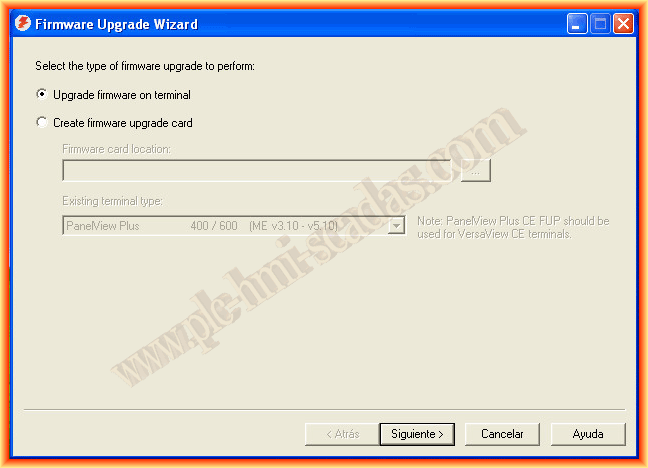
Having already installed KepServer on our machine and downloaded the firmware, we can proceed with the update; for this, we use the Firmware Upgrade application wizard.
In our case, we are going to update the firmware on the Terminal.
The first notice that it shows us is that we must have a backup of the project currently on the Panel, in case we are interested, and that we must delete it before proceeding.

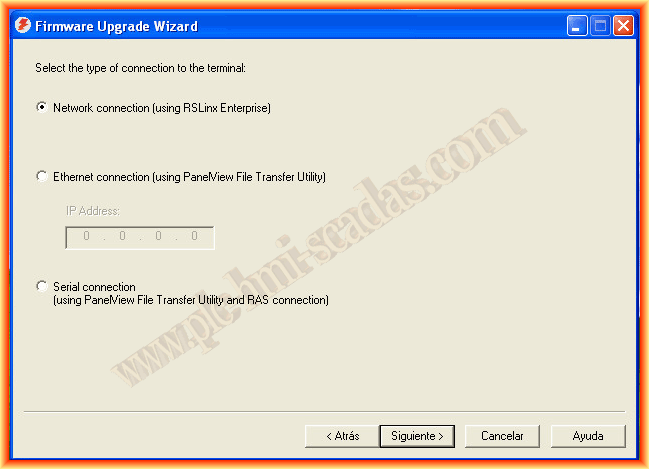
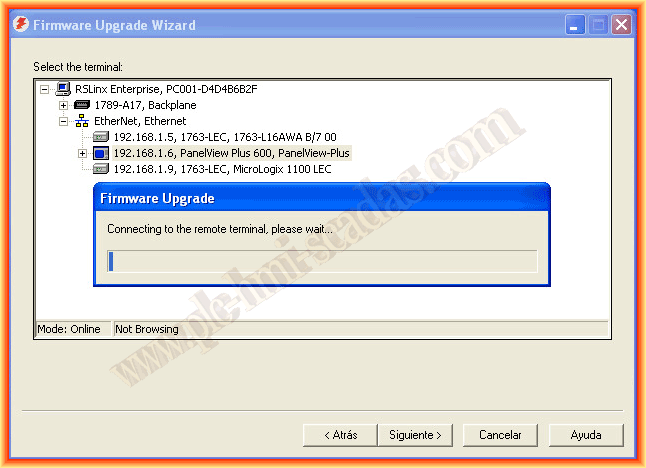
To establish communication with the Panel View, it can be done according to the following image; here RSLink will be used to determine our device.
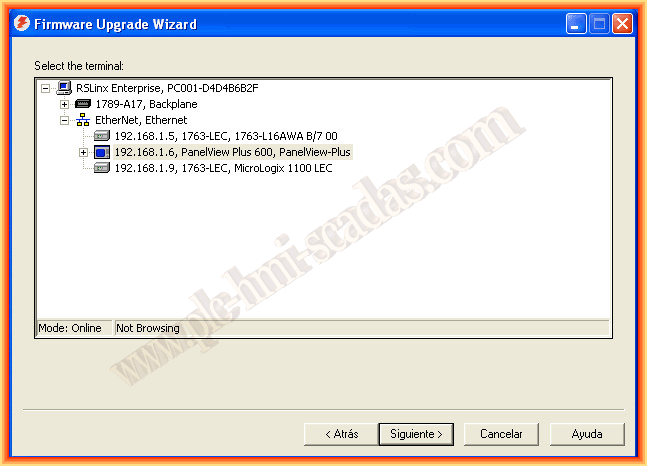
We select our device and follow the wizard; by clicking next, communication automatically starts, and once established, we can continue.
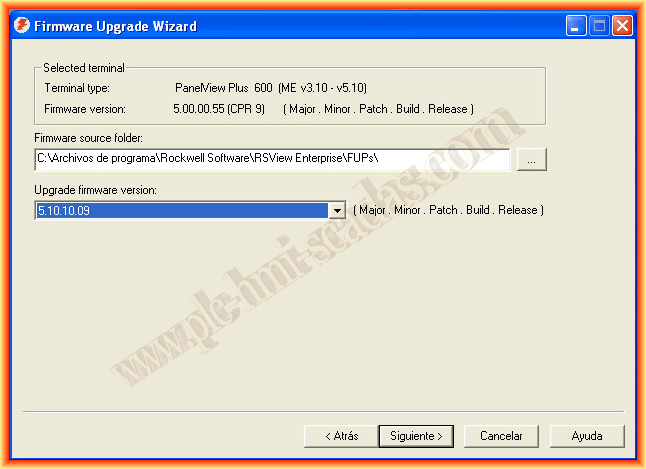
In the next step, we need to specify the directory where the new firmware to be installed and the version is located.
It is time to select whether we want to install any new driver together with the firmware from all the available ones when the KepServer was installed.
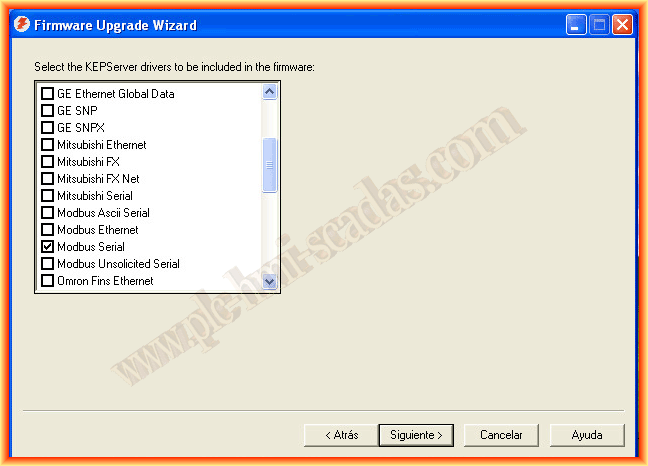
For testing purposes, we have selected as a sample the Modbus Manual Serial; by clicking next, it already shows us the current firmware version, the new version, and the additional drivers we have selected.
We confirm by clicking next, and it warns us that we need to restart it to complete the process.
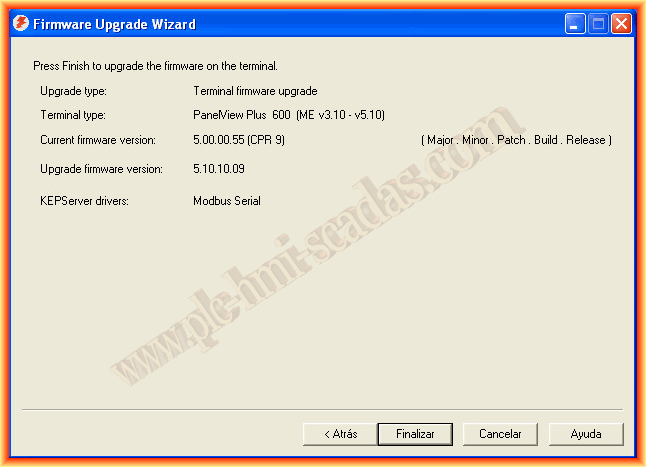
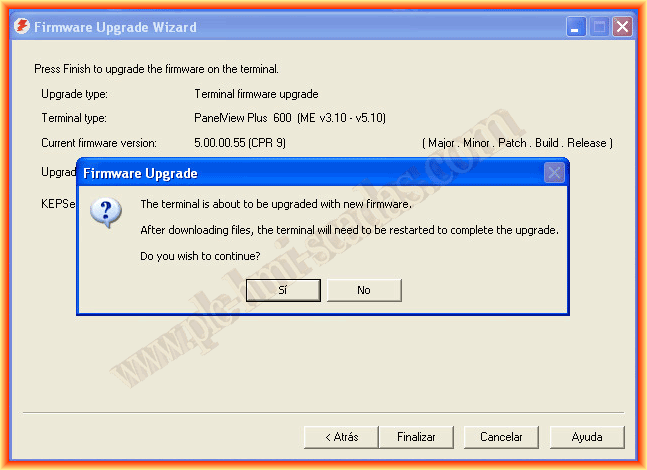
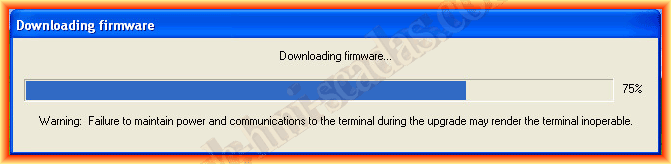
In the following images, the firmware is being downloaded to the Panel View.
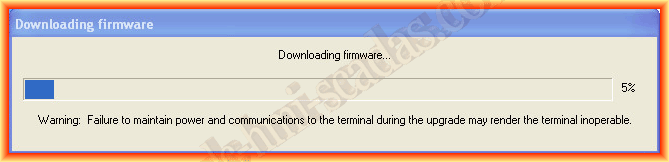
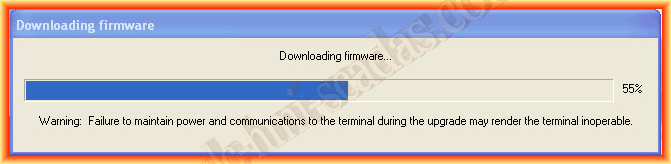
And once downloaded, it is when we must restart it to complete the process.
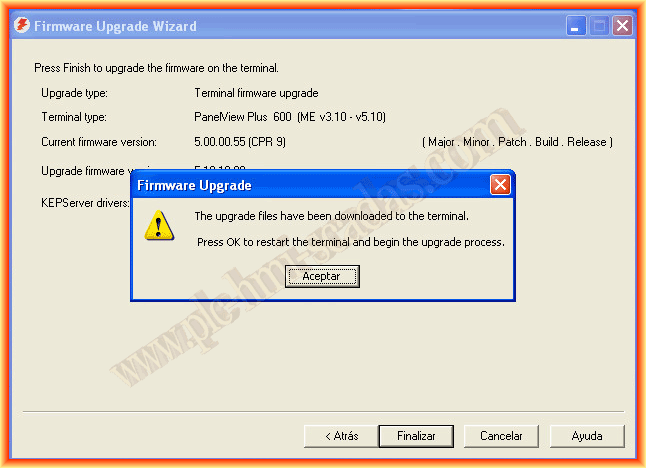
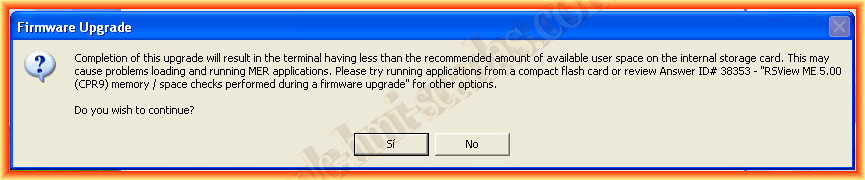
Finally, it shows us the following warning to consider; if we agree, we click yes, and finish the process; we now have our firmware updated.
June 7, 2013
If you liked it or found it useful, share it...