
PLC Simulation with Automation Studio
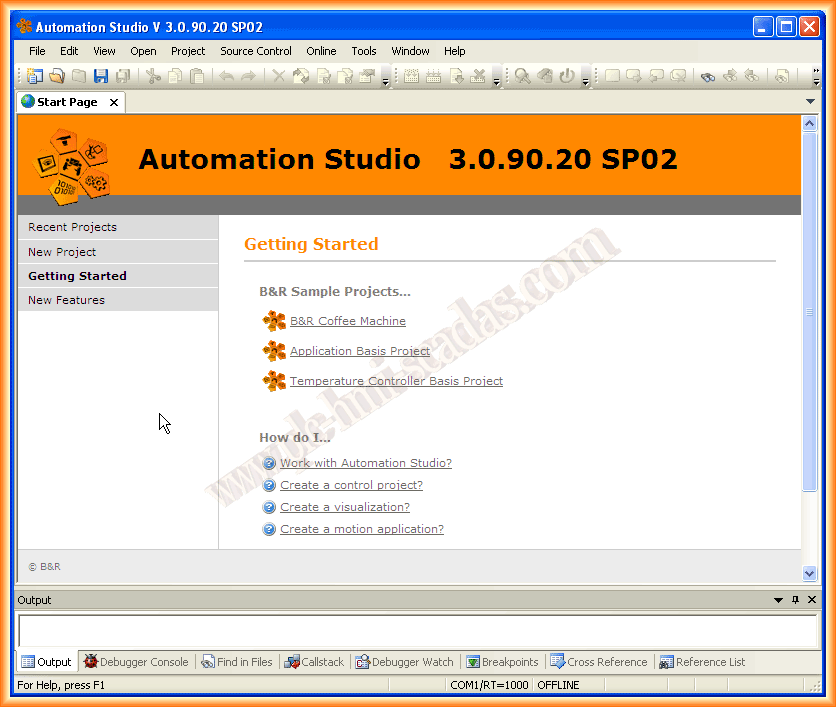
In the following practice, I will use for the first time the programming software from B&R Automation Studio. My first impression is that it has a very user-friendly interface, and I was able to create a simple program to run in the simulator without much trouble. Once we run the software, this is the startup image. It is worth noting that the help it includes is very good.
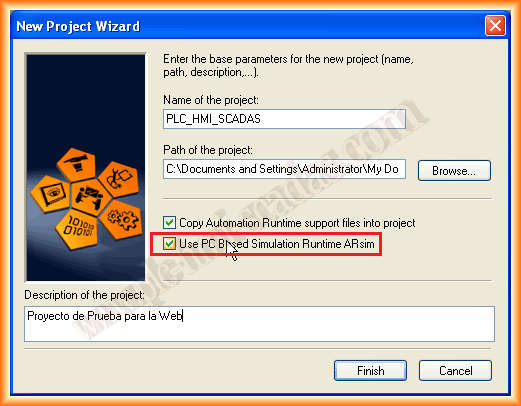
Since the goal is to test it, we will create a new program and select the checkbox to use the PC with the ARsim simulator, we assign it a name of our choice and the path, or we leave it as default.
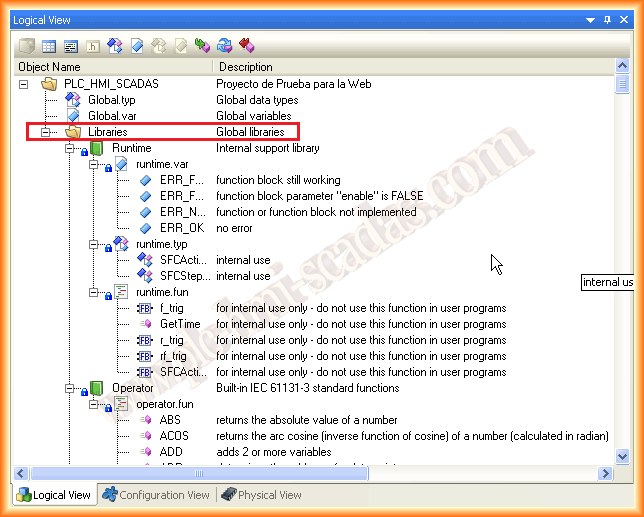
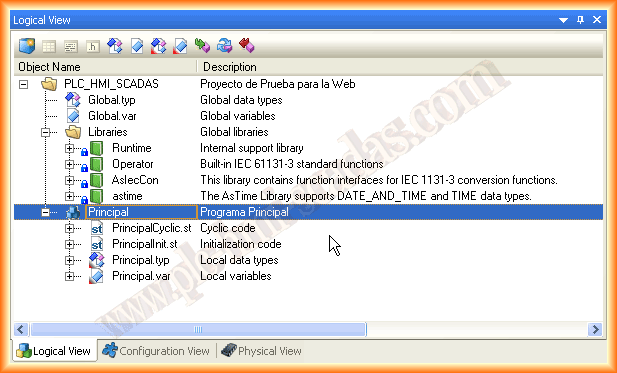
After creating our program, a hierarchical tree appears, where we see the Global Object, in which we will declare the variables that are Global as its name indicates, and by default, the default libraries appear.
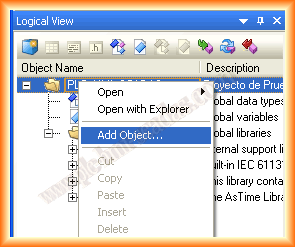
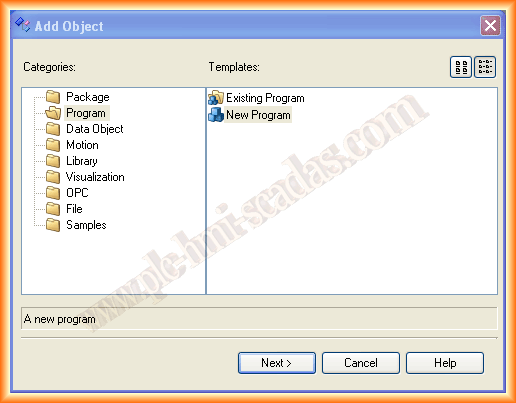
The next thing we will do is add a new object, which shows us a new window where we can see all the objects we can create. We select Program -> New Program and next.
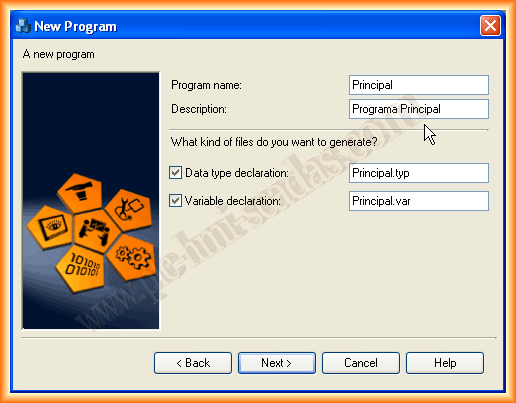
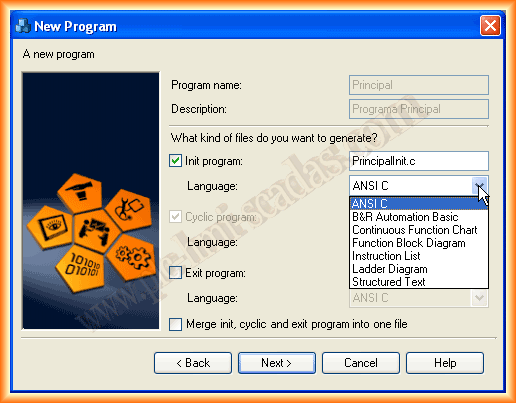
The assistant asks for the name of our program, the type of variable file we want to create if we are interested; if we do not select any of them, the variables will be declared as Global, but it is advisable to create variables for each program. We click next, and it asks us what type of program files we want to create; the cyclic one will be created automatically by default, but we have the option to create a start and an end one.
Among the languages allowed, we select the one we are interested in and proceed to the last step.
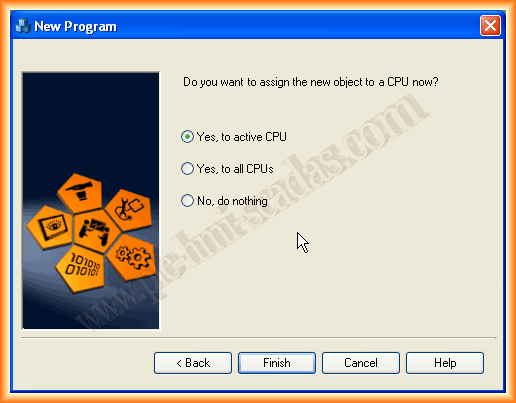
In the last step, it asks if we want to assign the program to the CPU, and we finish the assistant for our program. We can now see that it has been added correctly.
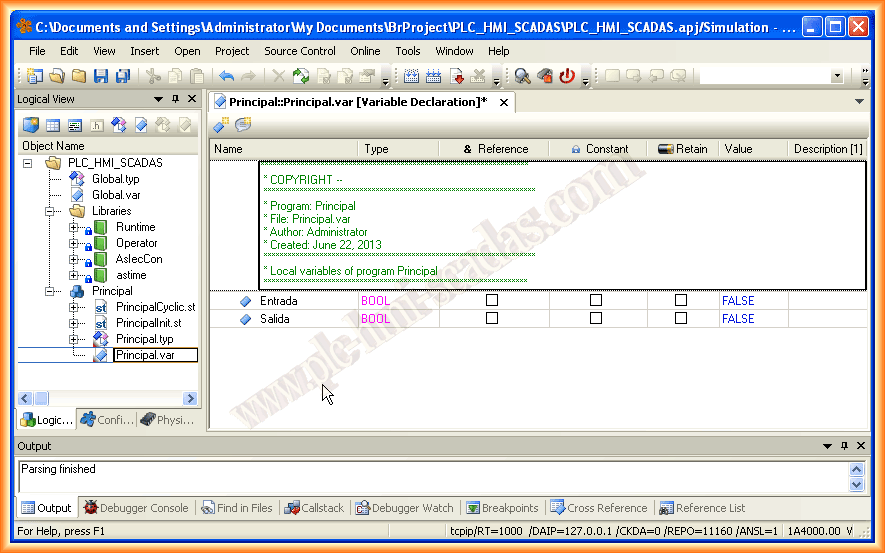
Within the Principal.var, I declare the variables that will be at the program level for testing.
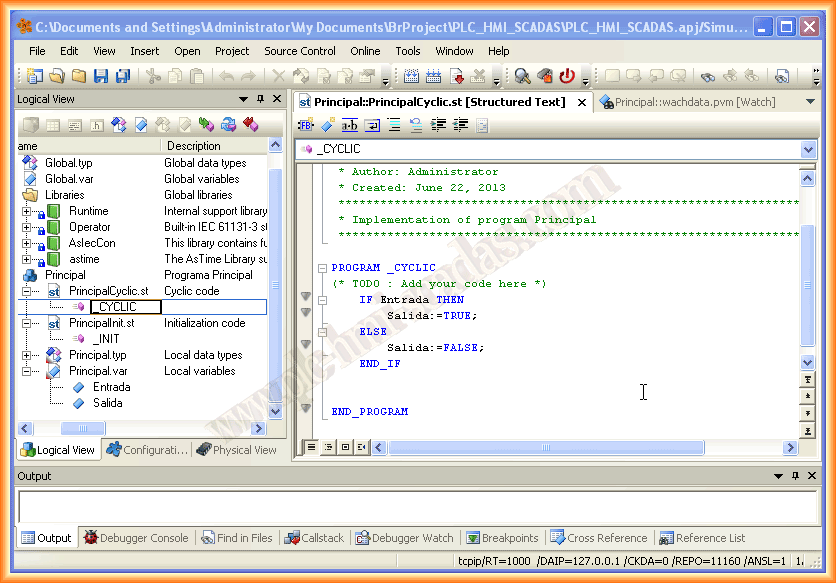
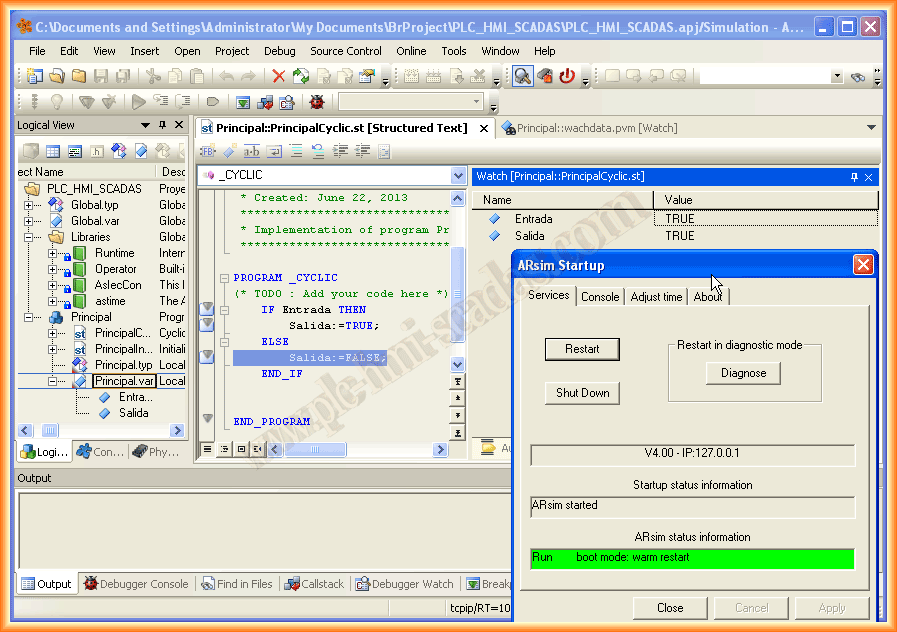
And within my main and cyclic program, we write the code. Since I had previously selected structured language, I write the following conditional statement, and it is ready to test.
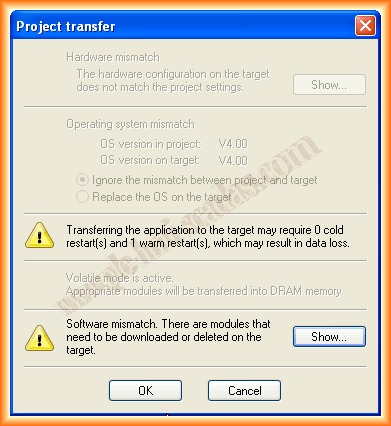
Previously, we need to do a compilation, and since it was successful, it asks us if we want to transfer it; we say yes.
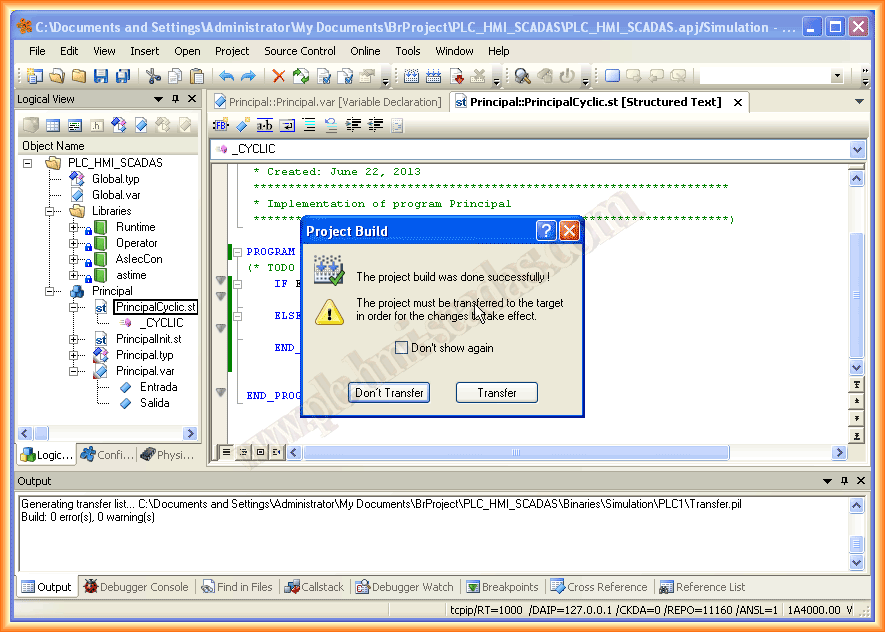
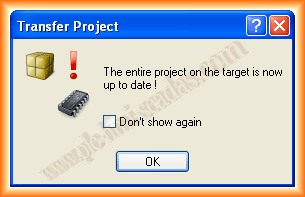
The following image appears with the corresponding warnings, and once transferred, it shows us the following message.
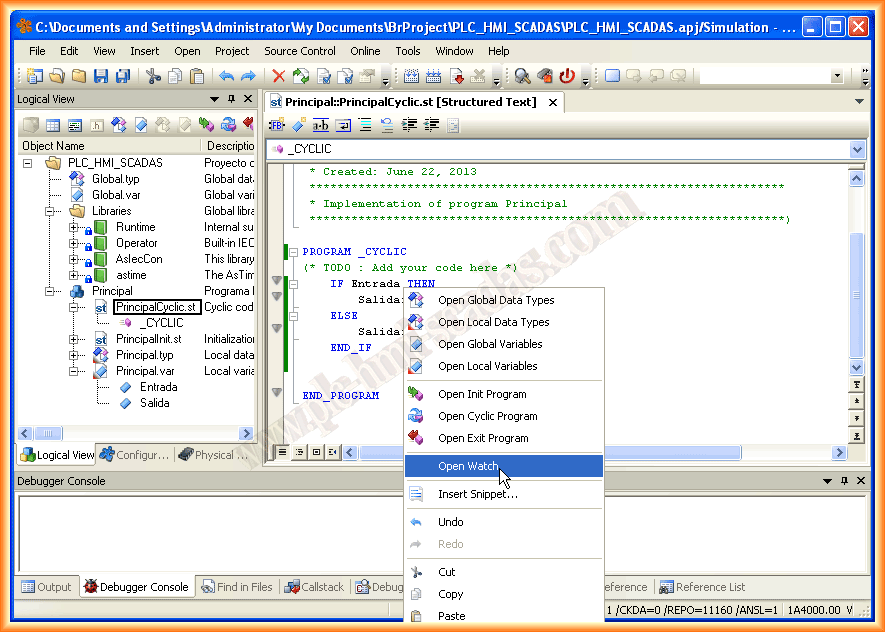
To see the status of my variables and be able to force them, I add a visualization table where I add the variables I am interested in monitoring.
From the table created earlier, we can force the values and check their operation, and we can also switch to Monitor mode, where we can observe and force.
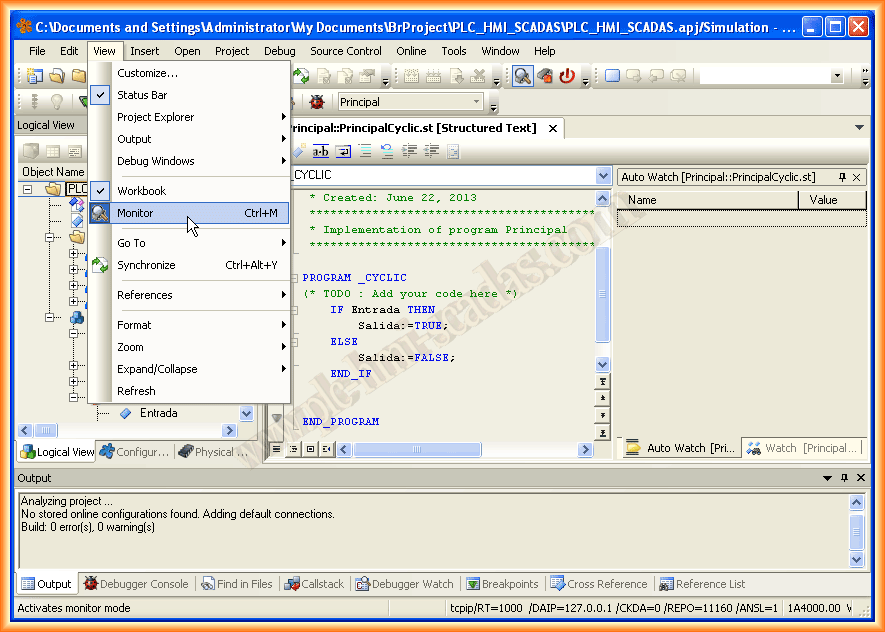
Here is the status of the ARsim Simulator, and from the visualization table, we force the values and observe their operation. Next, we will see if it can be linked with the graphical interface ...
June 26, 2013
If you liked it or found the information useful, share it ...