
In this practice, we will configure a USB-RS232 adapter to communicate with S5 PLCs both on a real machine and on a virtual one. For the virtual machine, we will use VirtualBox in its latest version V 4.1.18 and a Windows XP SP2-SP3 Operating System, although it has been tested to work with VirtualBox and VMware 7.0. The Host Machine (real) Operating System is Windows XP SP3.
It should be noted that I will use an adapter with a Prolific chipset, although if you need to buy one, I recommend that the chipset be FTDI. However, it will be demonstrated here that the former can also be used, but since it has not worked on all laptops, I never recommend it.
HOST MACHINE - REAL
1.- The first step will be to connect the USB-RS232 adapter to a USB port, it will automatically recognize a new device and you will need to install the drivers.
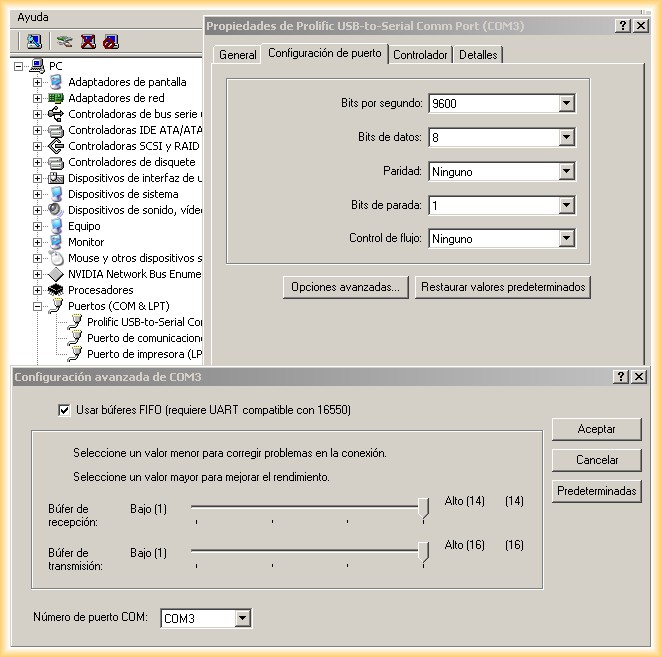
2.- Once the drivers are installed, we go to device manager -> Select our USB-to-Serial -> Go to its properties -> Advanced options and select that our COM port will be COM3.
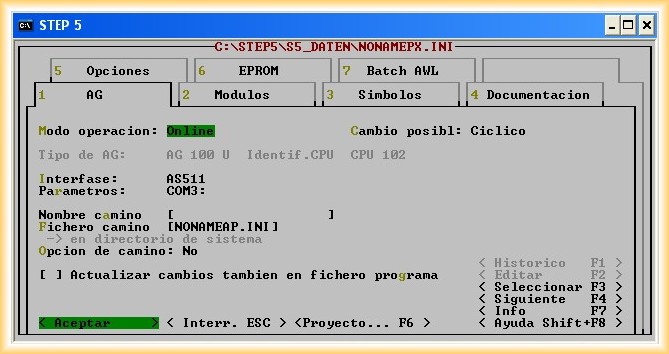
2.- If we open our Step5 and try to communicate by setting the COM3 port, the result will be:
Now we will see the configuration on the VIRTUAL MACHINE.
Since I am doing the tests on a machine with an RS-232 serial port, I will take advantage of using the serial port in the virtual machine.
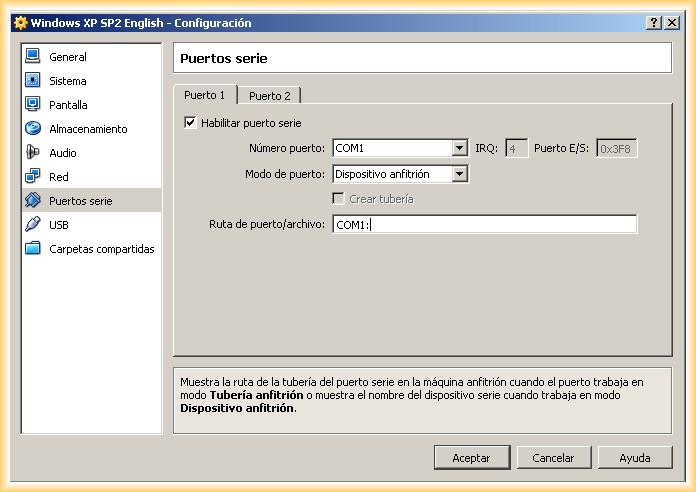
When configuring the serial port in VirtualBox, we select according to the following image:
Important: Set the port path to COM1:
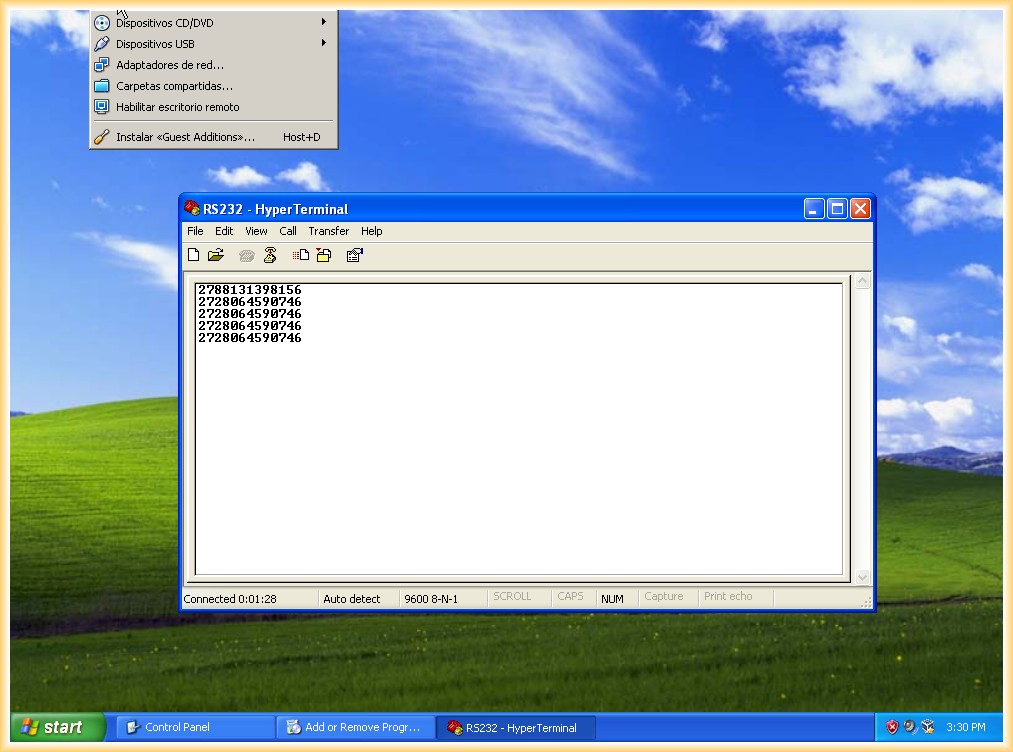
1.- To verify that the serial port works correctly, I connected a barcode reader to the serial port and ran Windows HyperTerminal, which demonstrates that it works perfectly.
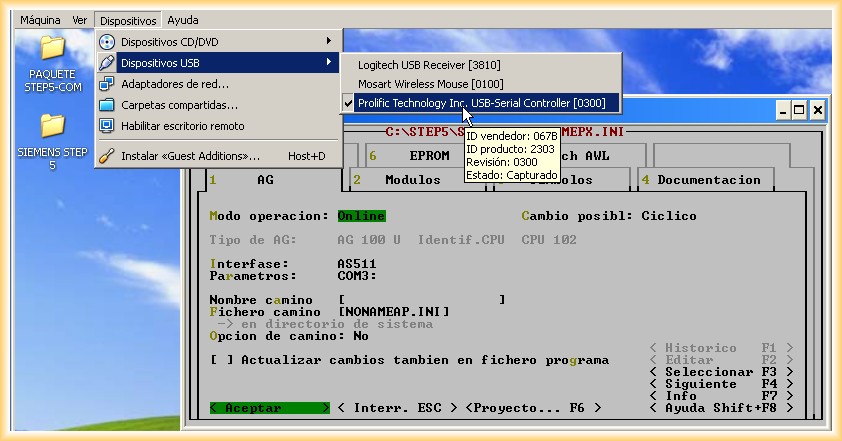
2.- Now we will connect the USB-RS232 adapter to our host machine, once connected, in VirtualBox we go to:
Devices -> USB Devices -> Select our adapter.
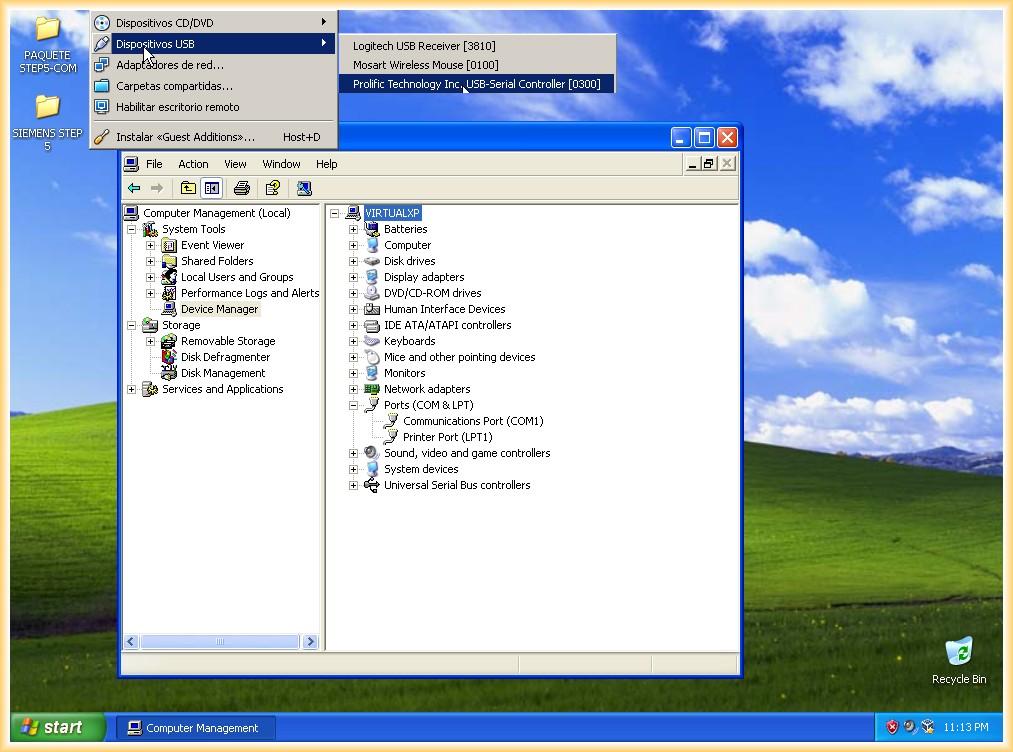
3.- When the adapter is connected, the Operating System recognizes a new USB device and the following pop-up window appears, in which we follow the steps to execute the installation.
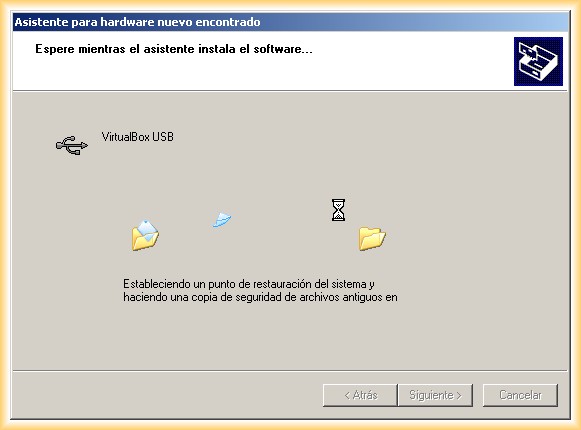
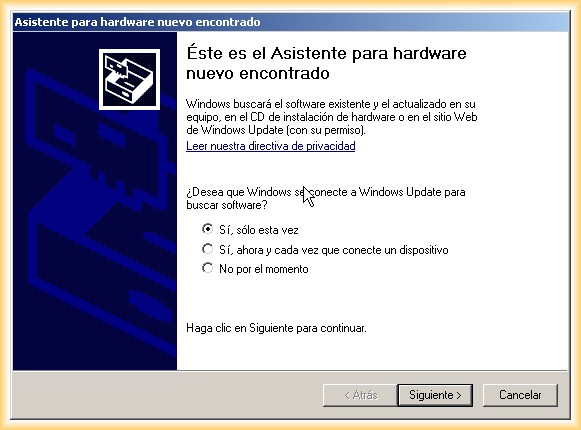
4.- Once the USB port drivers are installed, if we go to device manager, we will see that a new hardware appears, our USB-RS232 adapter.
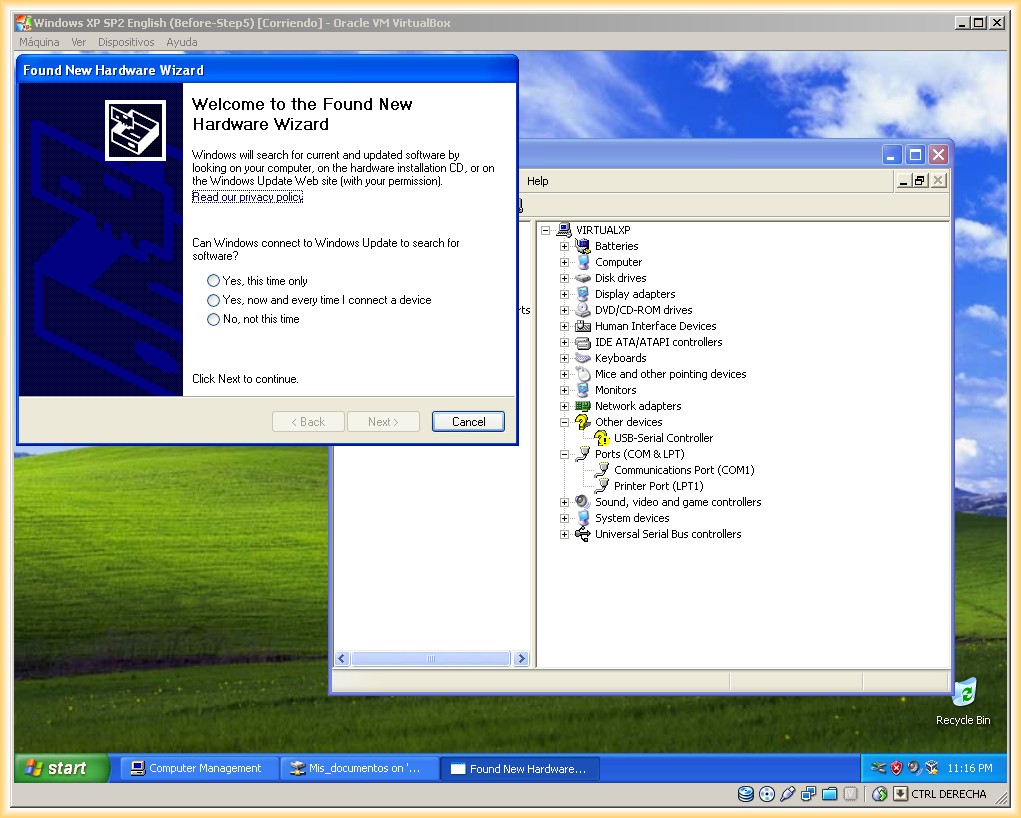
5.- We install the drivers, and we can see how our device is recognized by the Operating System and is ready to use.
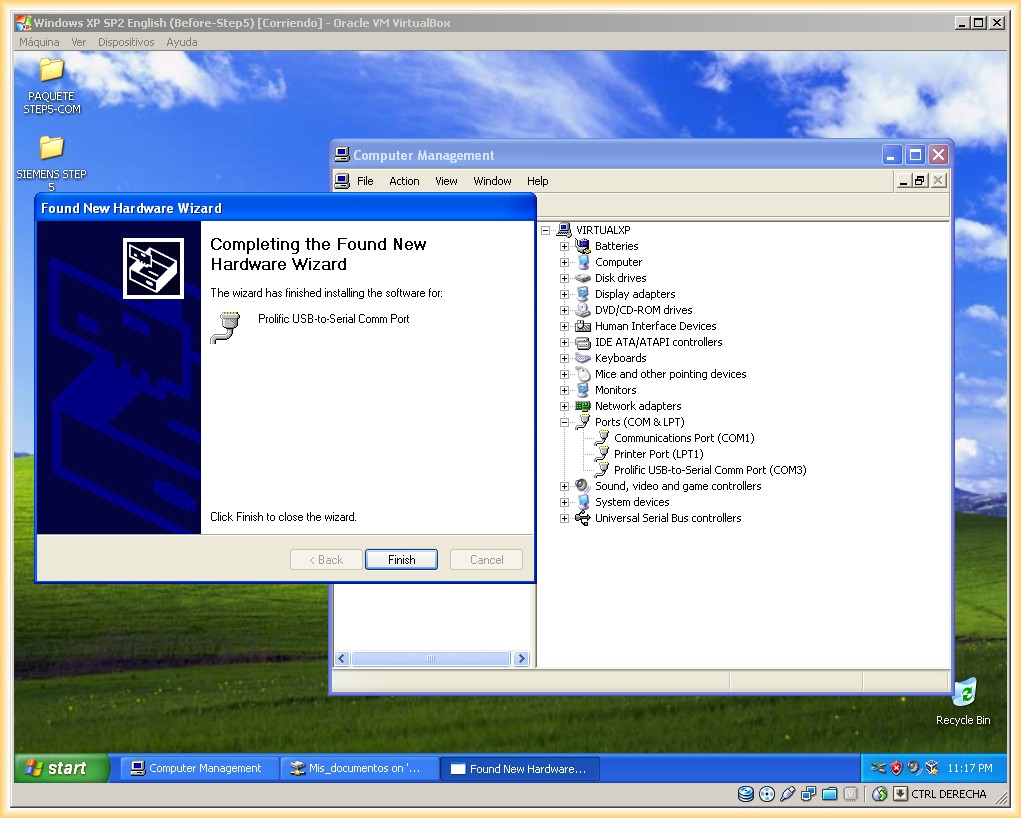
6.- Now we just need to test that we can communicate with our PLC and our USB-RS232 adapter in our virtual machine, the operation is perfect!
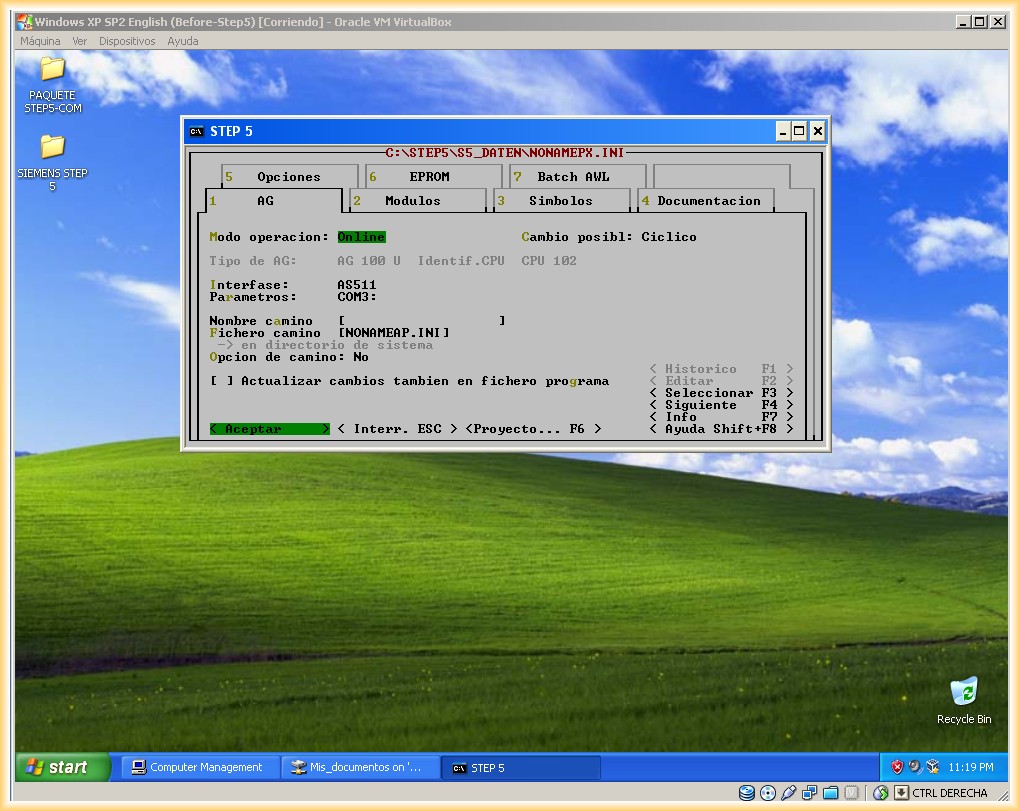
And since we had configured our Serial port, we need to test that we can also communicate with it, with the result being satisfactory, which means it is possible to communicate with an S5 in both its variants.
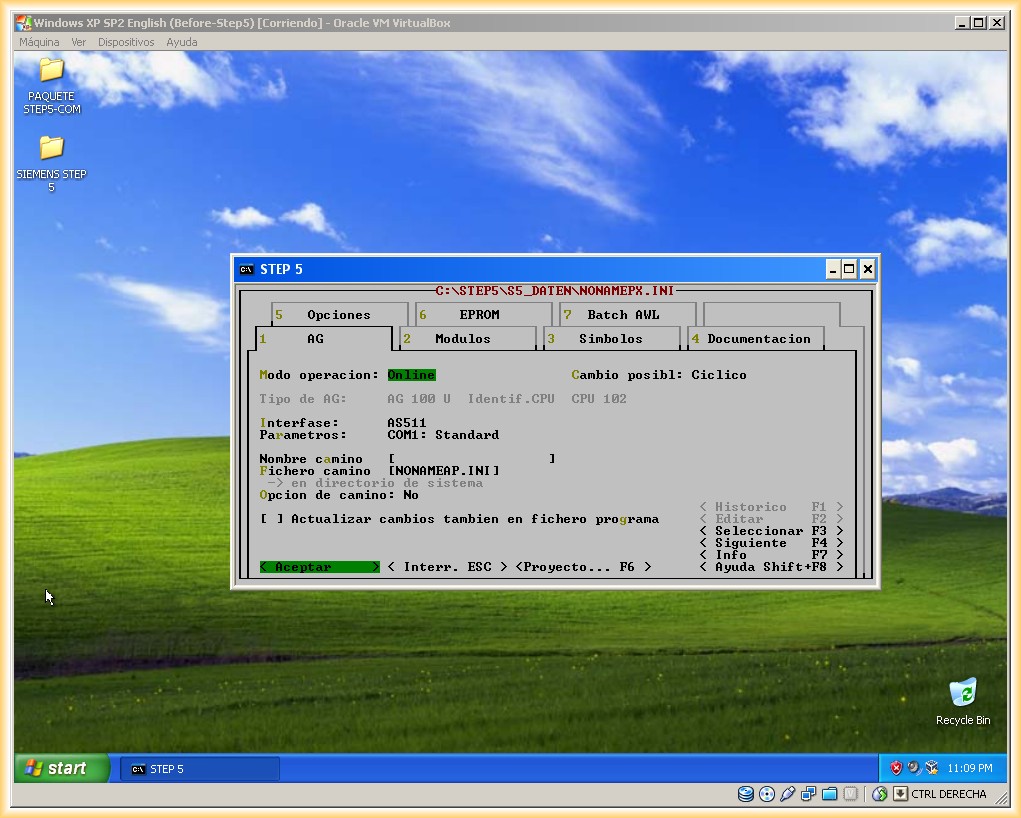
As an informative note: To use the same USB-RS232 adapter and communicate with an S7-200/300 on the host machine if it does not have a COM1 serial port, set this as the default in the advanced configuration so that it appears in the virtual machine by default.
July 26, 2012