
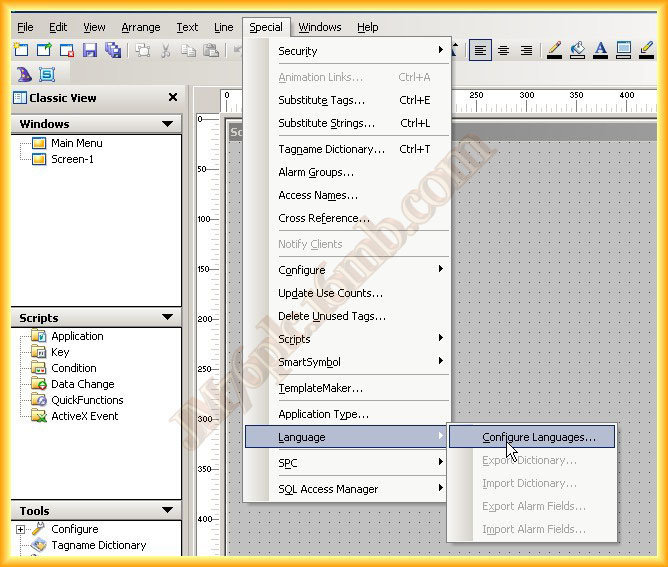
In this practice, we will see how to configure another language and be able to change it when running the Runtime. I start from the basis that I have created my project with the default language, which is English. In the menu, we select Special -> Language -> Configure Languages...
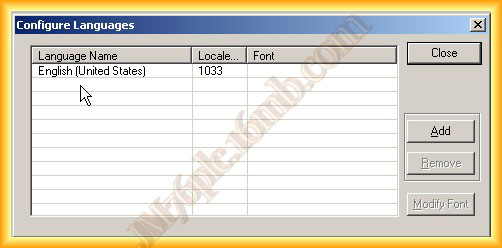
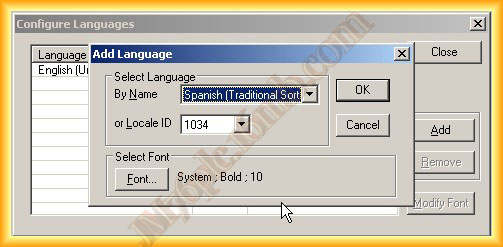
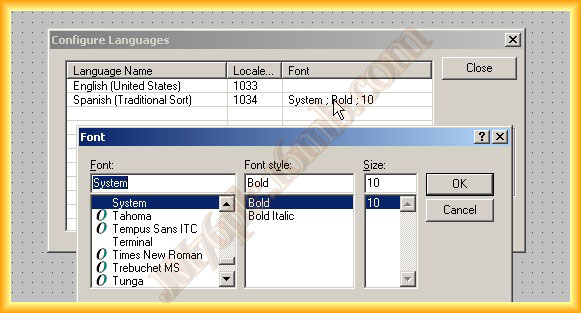
2.- The following pop-up window appears, we click on Add and another pop-up window appears where we select the language of interest. Each language has an ID that will help us change the language in a script when running the Runtime. We also have the option to configure the font.
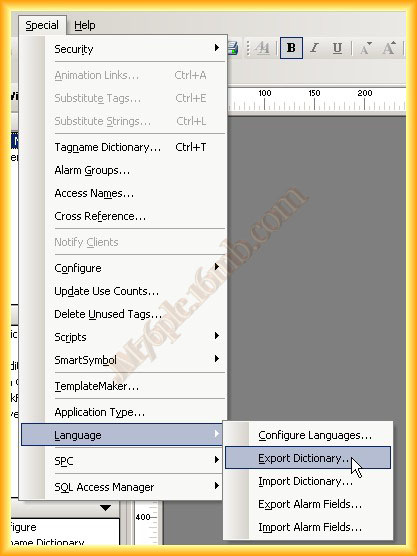
3.- Once a language is configured, other options become available. We will use Export Dictionary; with this function, we will export an XML file according to the specified path.
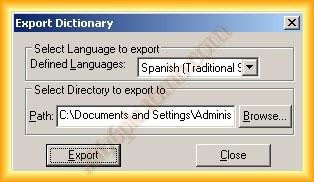
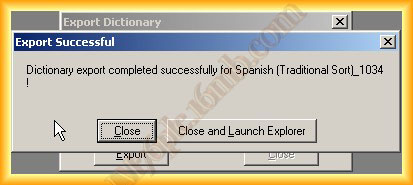
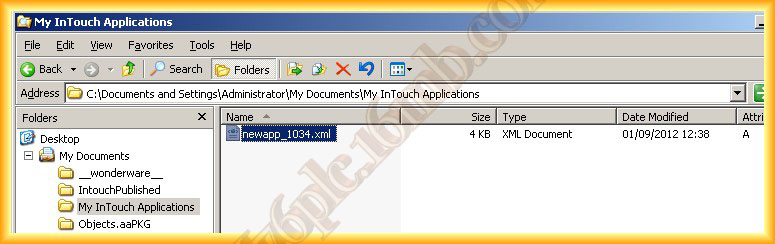
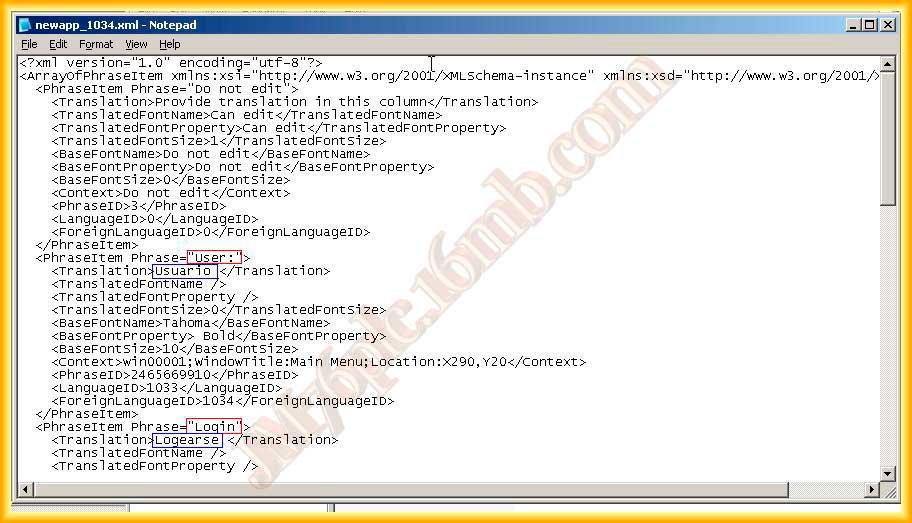
4.- We navigate to the selected directory, and there is the file we need to modify to add the words in the language of interest, in this example, Spanish. The file can be opened with any plain text editor like Notepad.
5.- Of all the words used, we have the <Translation> tag, and here is where we introduce the translation of the word as can be seen. As a warning, do not modify any other tags.
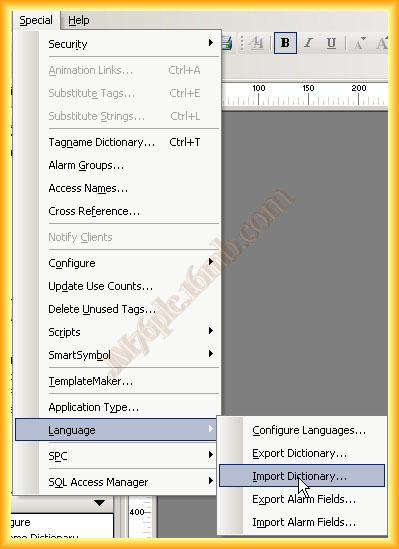
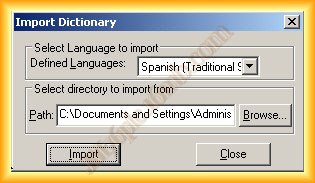
6.- Once the file has been modified and all words translated, we save the changes made and we can use the import function to reload the modified file.
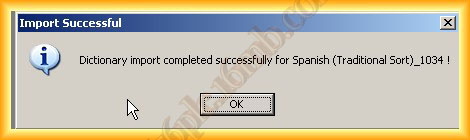
We select the path where the file is located and click import. If it completes without any warnings, we will be notified that it has been completed successfully.
For the changes to take effect, the WindowsViewer must be restarted.
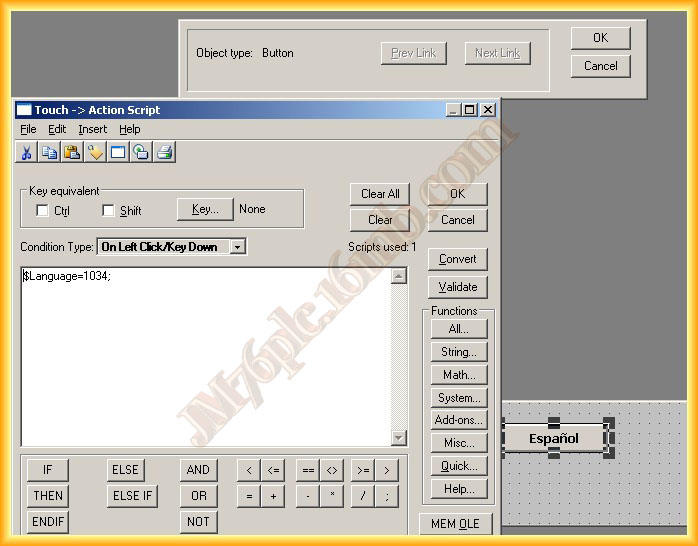
7.- The next step will be to create the button to effect the language change when running the Runtime. We create a button and add the following script; to the system variable $Language we assign the ID of the language of interest.
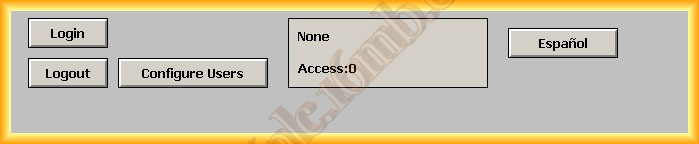
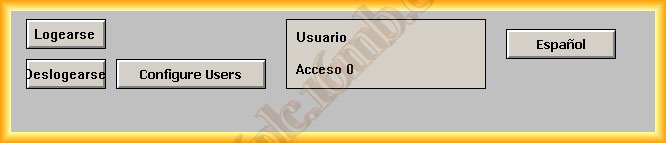
8.- We can now run the Runtime and check the results. We can also change the language if we click on special -> Language on the WindowsViewer and select one of the added dictionaries.
September 1, 2012