
In this practice, I will configure the Recipes in WinCC Runtime Professional. First of all, I will give a brief explanation, and for this, I will use milk production as an example.
The recipe would be Milk_Production, each recipe contains elements that would be equivalent to ingredients, and each recipe has its records that would correspond to the variations of the ingredients in the product's production, such as whole milk, semi-skimmed milk, and skimmed milk, where in each of these records, each element or ingredient varies in its proportions.
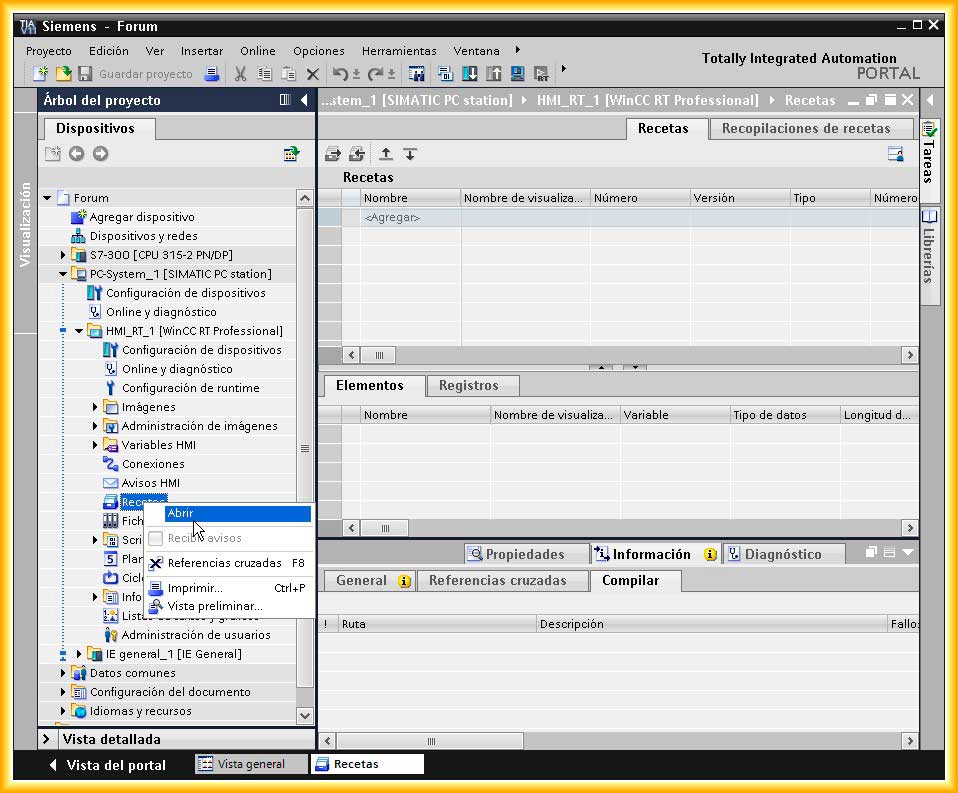
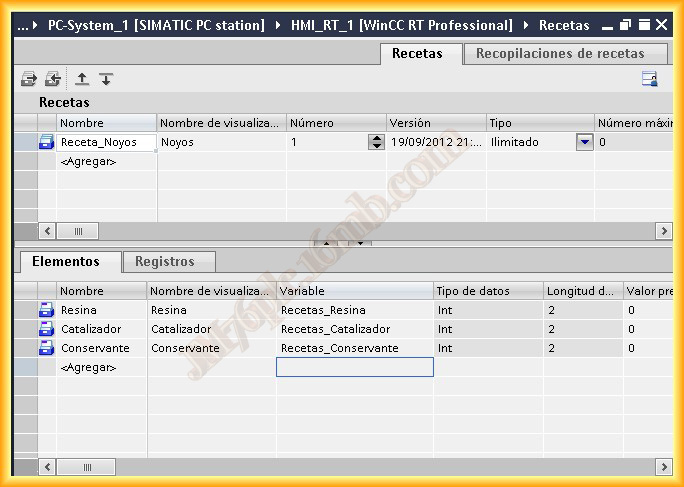
1.- We open our project in the TIA Portal, where we have our PLC, in this example an S7-300, but it could be any other, there is no variation in the configuration of the recipes and our WinCC RT Professional application, we navigate to Recipes and open its window, and the appearance it shows is as follows
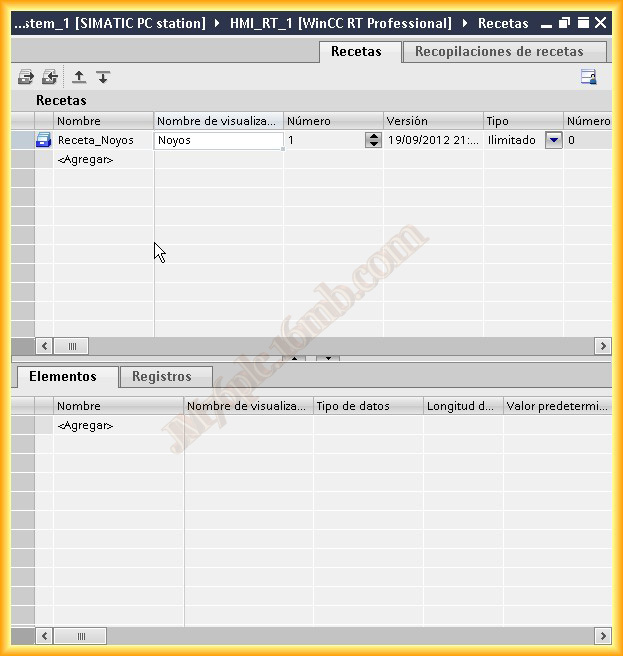
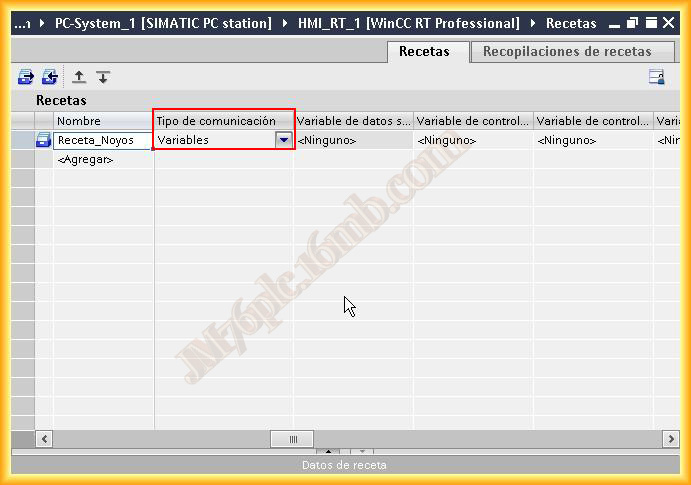
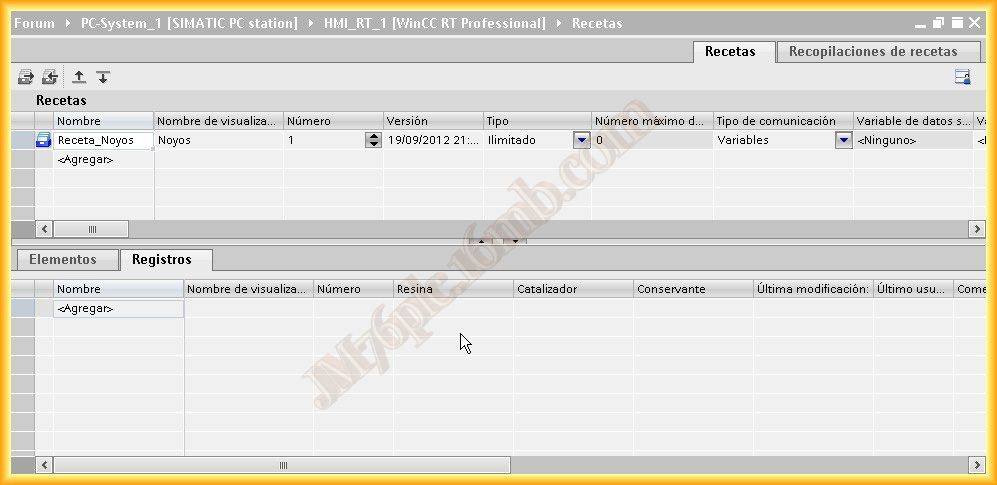
2.- What we will do next is give a name to our recipe, I should have continued with the example described above, but I already had the captures done. Our Recipe is called Recipe_Noyos, it is important to scroll with the bar and in Communication Type specify Variables, otherwise, the Variable column will not appear when configuring the elements
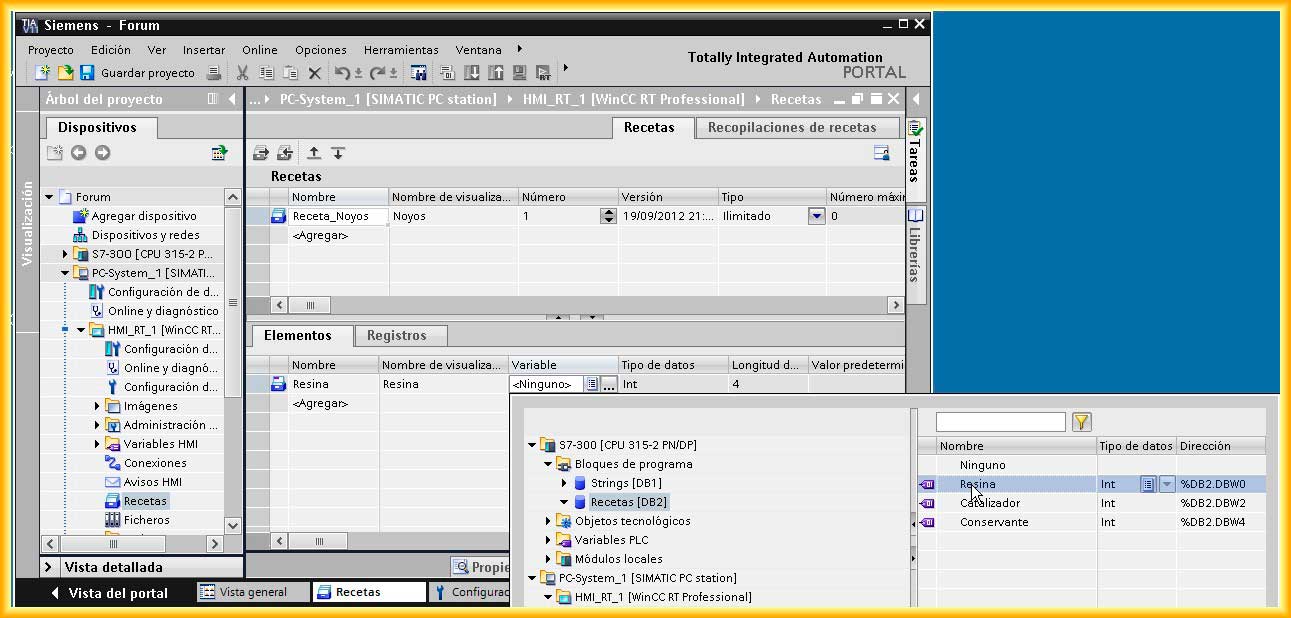
3.- Now we will add the elements that correspond to the ingredients that make up our Recipe and in the Variable column we navigate to the data that it will reference in our PLC program, in the example I have created a DB Recipes, where I have the ingredients
4.- Once all the elements, ingredients, have been added, we only need to configure in the Records tab the different proportions of the elements, ingredients
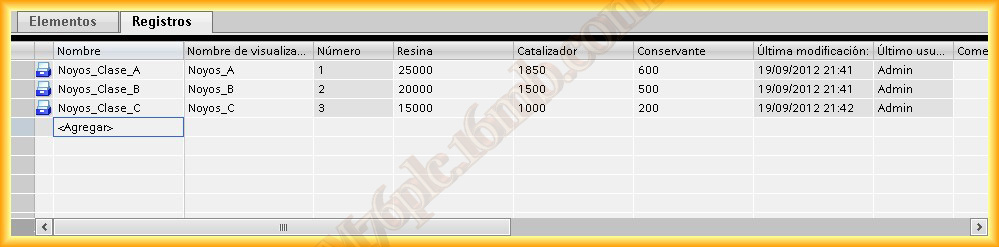
5.- We switch to the Records tab and we can see that the different columns with the elements we created earlier appear, now we add the different Records, redundantly, which would correspond following the main explanation to whole milk, semi-skimmed, and skimmed milk, although in this example to the different classes of Noyos according to their category
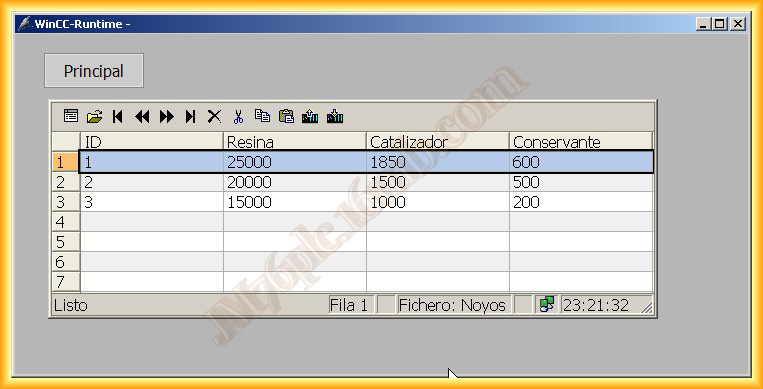
I have created 3 Classes, with their proportion of each element or ingredient which are Resin, Catalyst, and Preservative, as can be seen. With this, our first Recipe is configured, follow the same procedure to add according to needs.
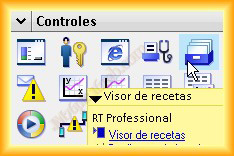
7.- Now we need to configure a screen to display the recipes, modify them, add some, and transfer them to the PLC or read from the PLC, for this we create a new screen and within the Controls window, we select Recipe Viewer and drag it to our image.
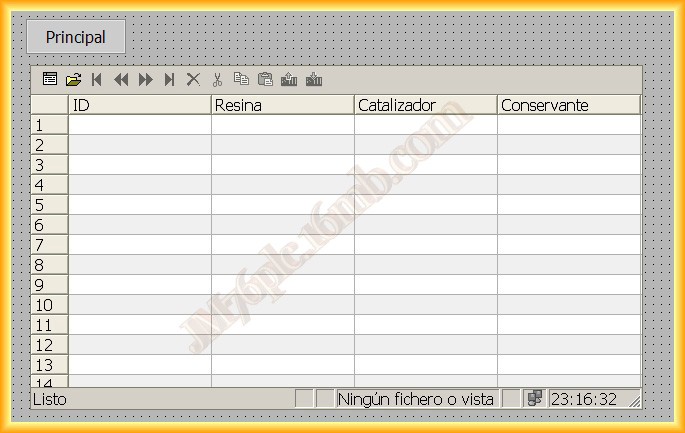
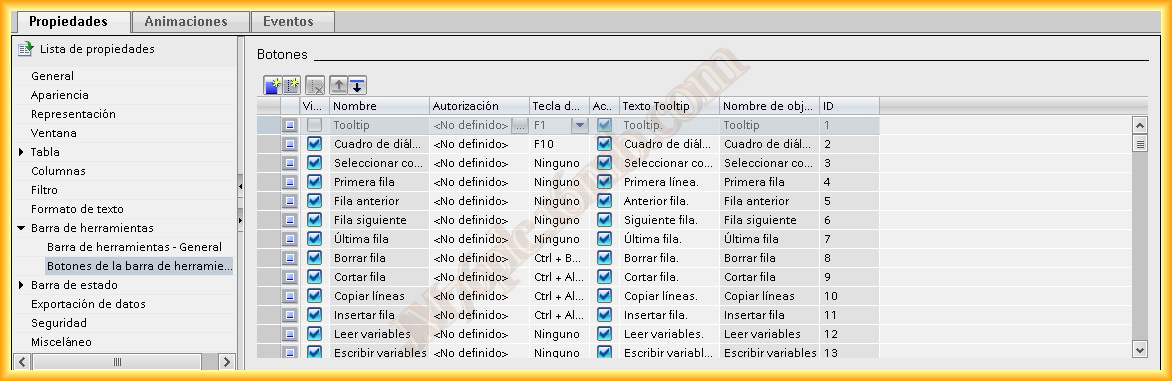
8.- Within the Properties, we will adjust the display of our Recipe viewer as needed, we navigate through its different properties and modify them, I have reduced the display to the most basic, and once this is done we can proceed to run the Runtime
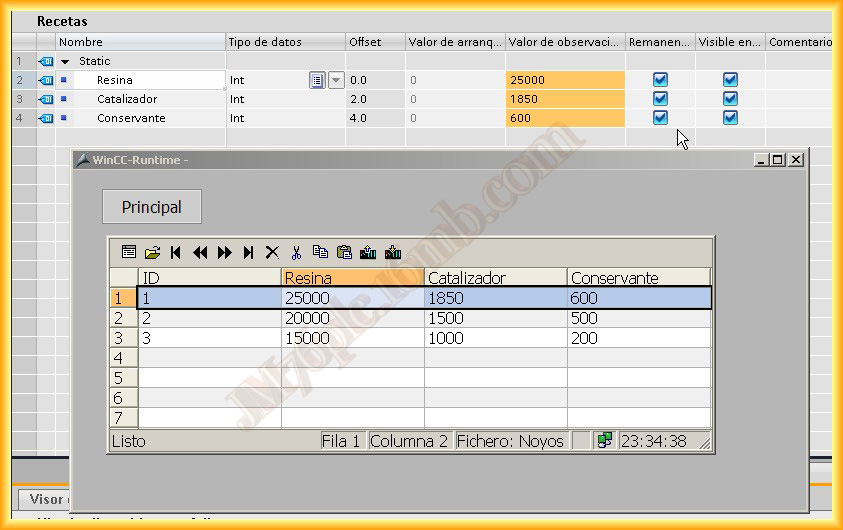
9.- I run the Runtime and this is the screen of my Recipes, I can now modify, add, delete, and transfer the recipe that interests me to the program in the PLC, in this case, I have transferred the first one and as can be seen in the DB Recipes are the transferred values
September 20, 2012