
Popup window for controlling elements in WinCC V7.0
This practice is in response to a query on how to control various field elements, such as motors, valves, etc... with a popup window that includes a start button and a stop button to avoid having to create these objects next to each element. Following the example, other functionalities can be included, such as reading and writing the Set Point (SP) of a motor and observing the Process Value (PV) or according to needs.
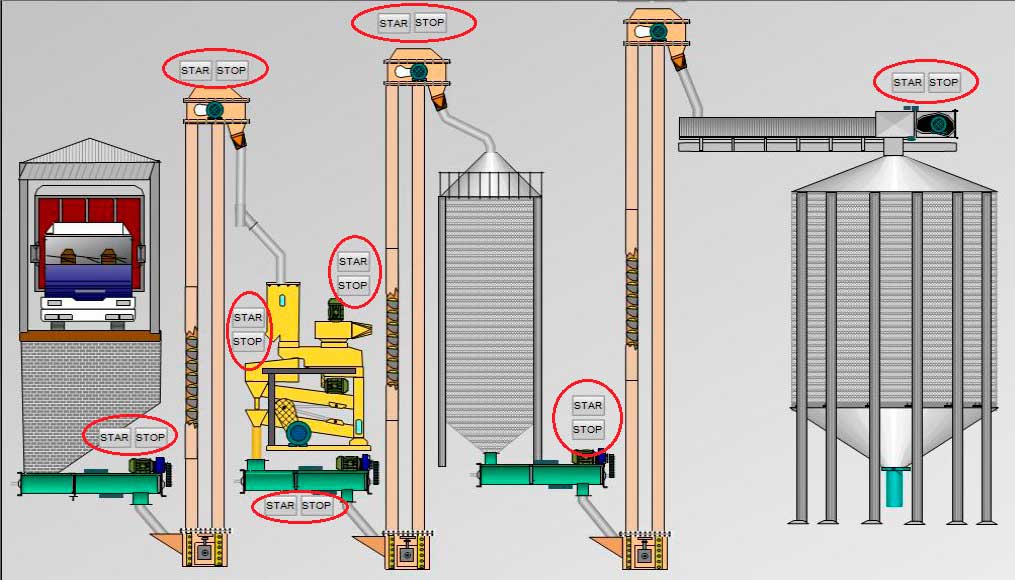
I assume there will be several ways to do it, although I will explain one of them that answers the question asked.
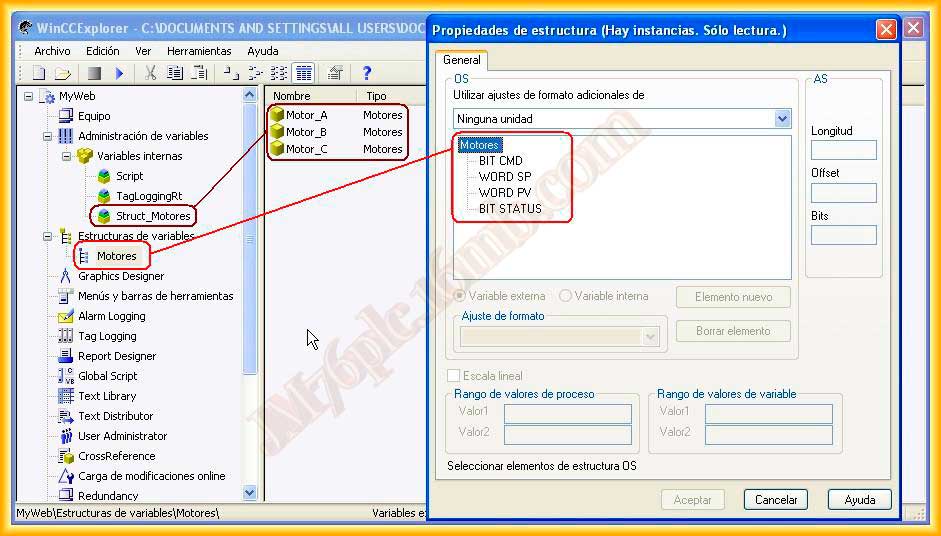
The first step is to create a new structure with the variables that interest us from each object, for our example of motors, and this is the structure created that will be according to the needs.
Within the Variables, I have created a group of variables to store the variables of the created structure and two other variables that we will need will be for the location of the image window and its corresponding X - Y coordinates.
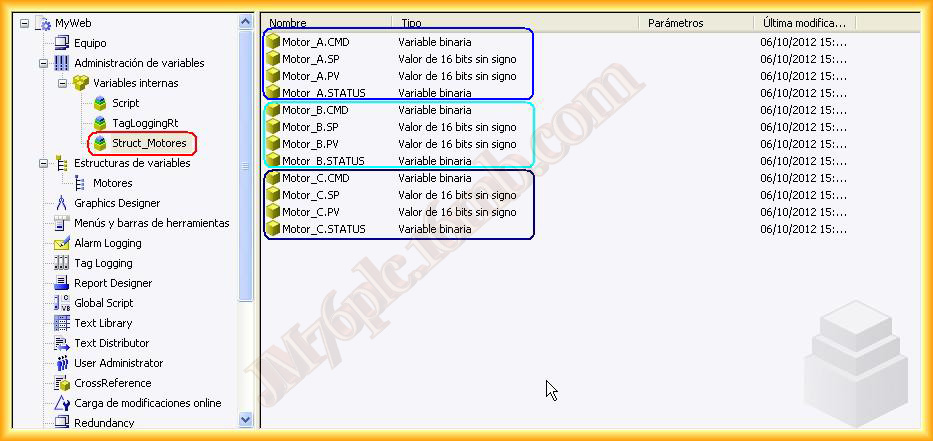
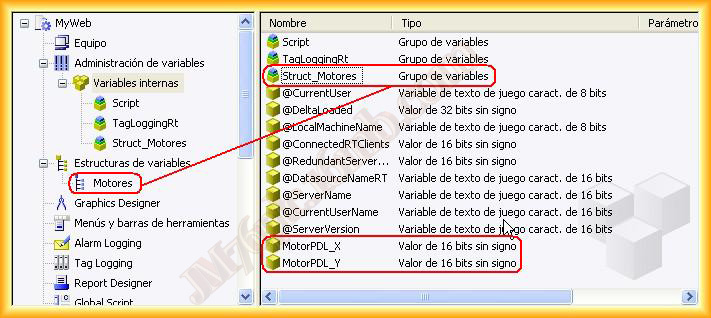
Once we have created the variables, this is our image, and the objects we are going to use will be the following:
An image window, which will be the popup window and will locate the image Motor.pdl. Motor.pdl is a new image adapted to the size of our image window in which we will have the buttons and a static text.
The creation of a faceplate, with a circle as an object, since this practice is not dedicated to that objective, although ideally, the motor, valve, etc... should be created within the faceplate, to be able to reuse it.
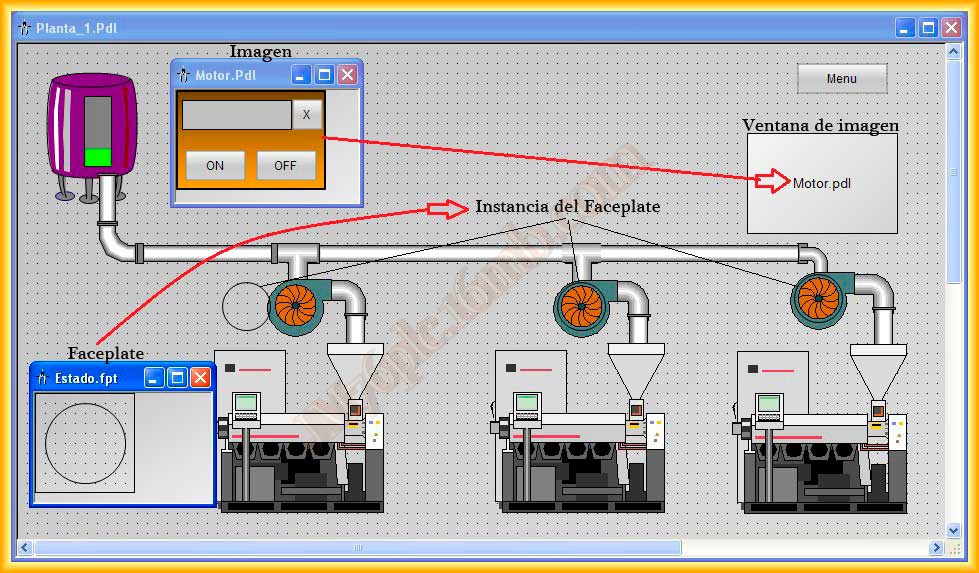
The creation of a faceplate is done in the Graphics Designer editor File-> New faceplate type.
A new image opens and we adapt it to the dimensions we are interested in, then we insert a circle, although as I mentioned earlier, here the motor, valve, etc. would be created with the relevant animations.
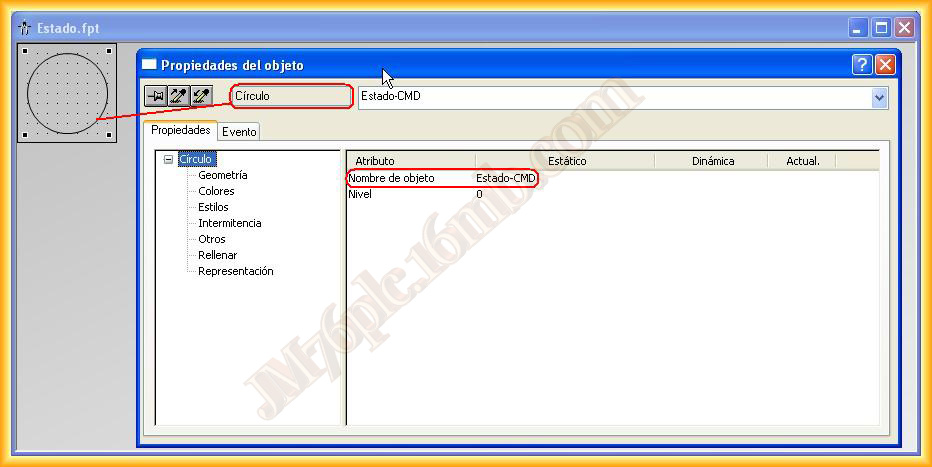
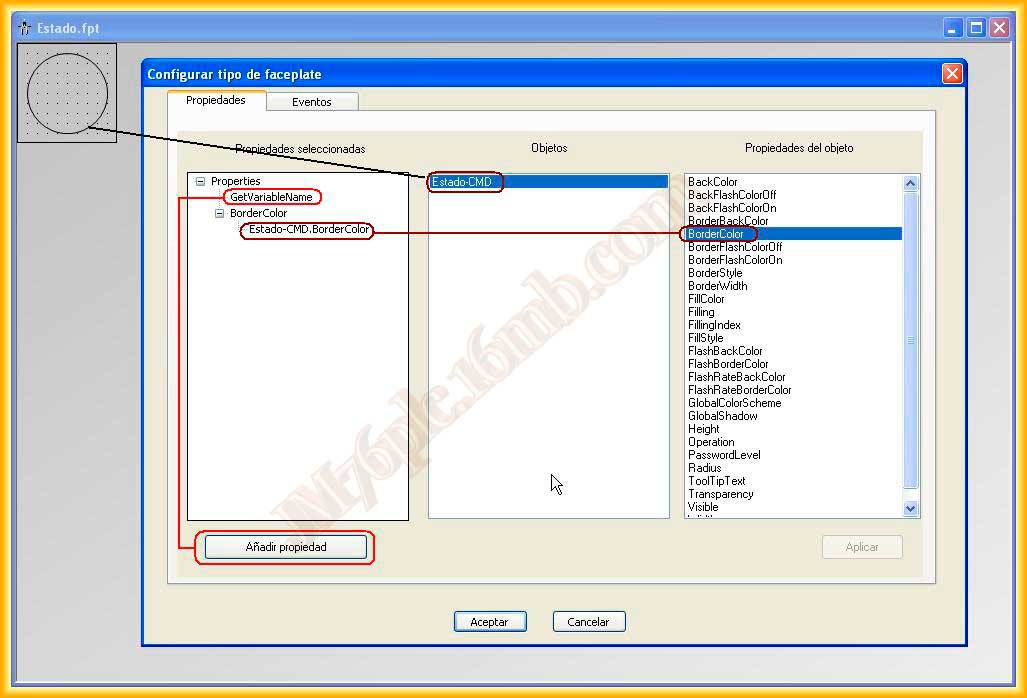
What interests us is to create a new property of this object, for this, while in the faceplate window we go to
Edit -> Configure faceplate type, the following image opens and we click on Add property and give it the name we are interested in, I have named it GetVariableName, because we will retrieve the variable we are interested in manipulating, if we want to add other properties it is enough to drag them to the properties.
This is the most basic thing we need to do, we can now save and close the window.
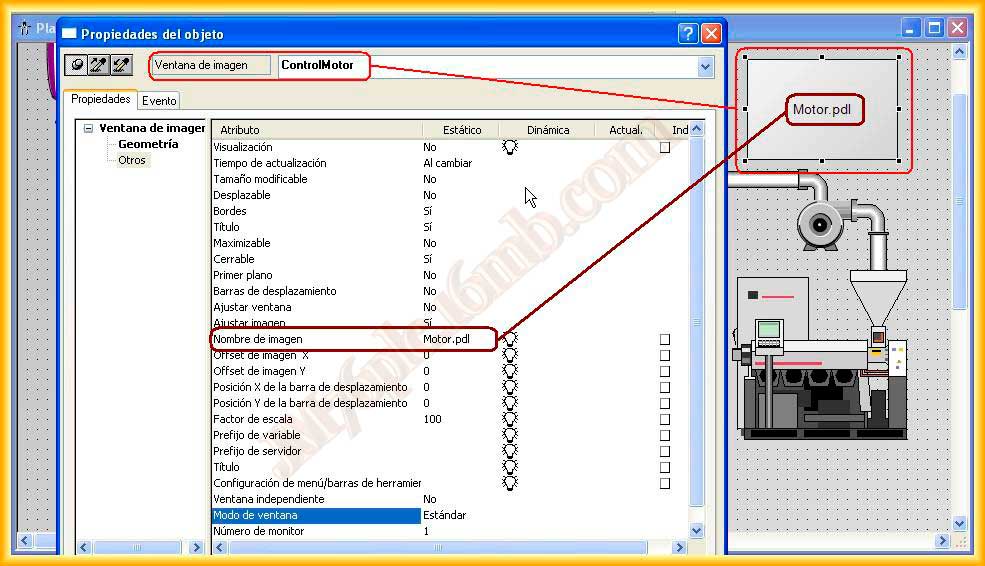
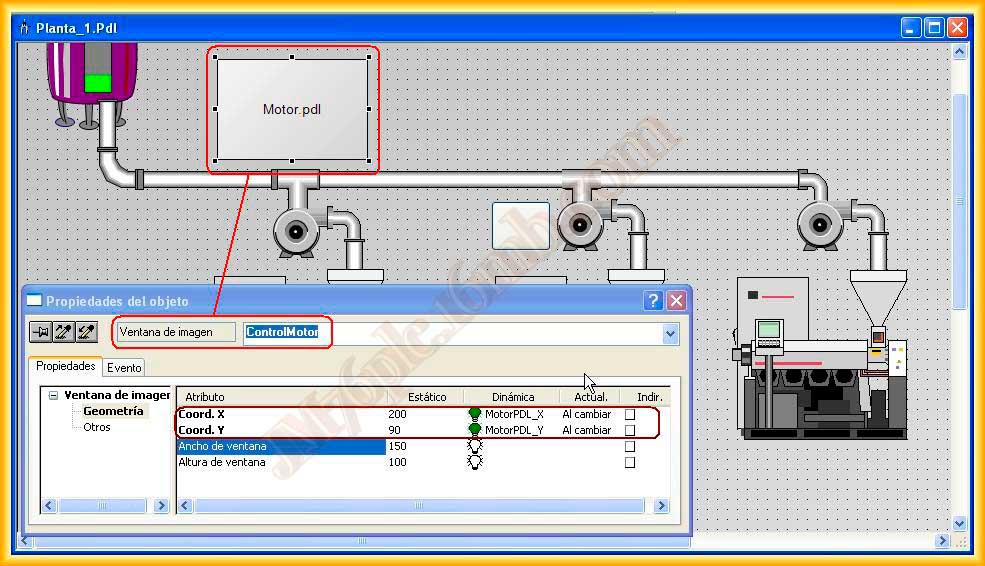
Another object that we have mentioned we are going to use is an image window that we will link to the image Motor.pdl as shown below, and within its properties, we will dynamize the X-Y coordinates with the variables we created for this.
It is time to configure the image Motor.pdl, it will have the size we defined in the image window, so that the scale matches and there is no need to adapt the image.
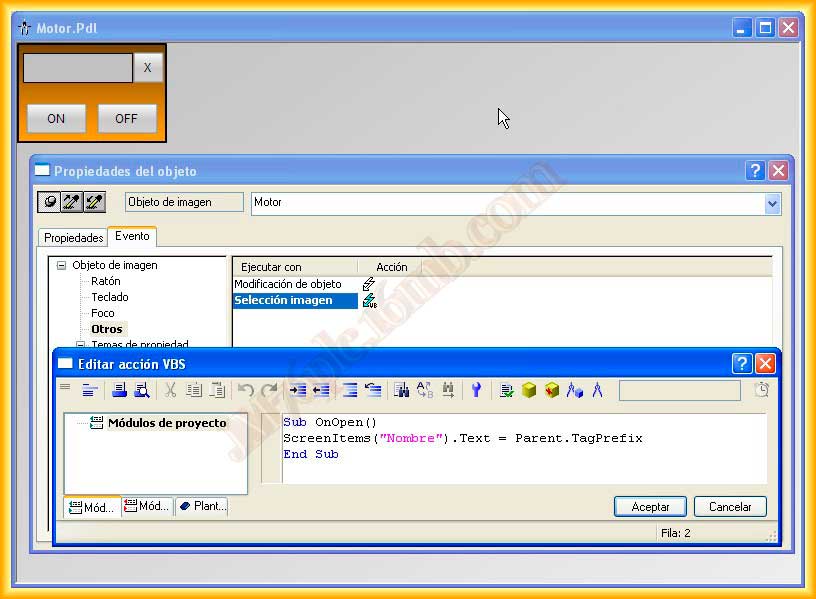
It will have 3 buttons as observed, next we will see the programming code that each of them has and a static text field that will show us the name of the element we are going to manipulate.
Within the properties of the image, we go to the Event tab and select Other -> Image selection and add the following code, which will show the name of the element we are going to manipulate in the static field, this is possible because the prefix of the variable to be manipulated has previously been sent to the image window, this will be seen when we insert an instance of the faceplate and configure its events.
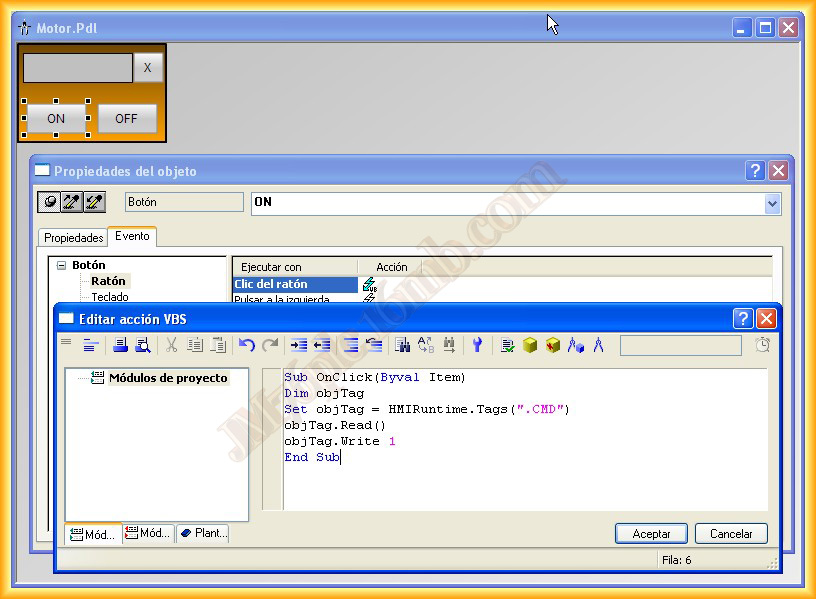
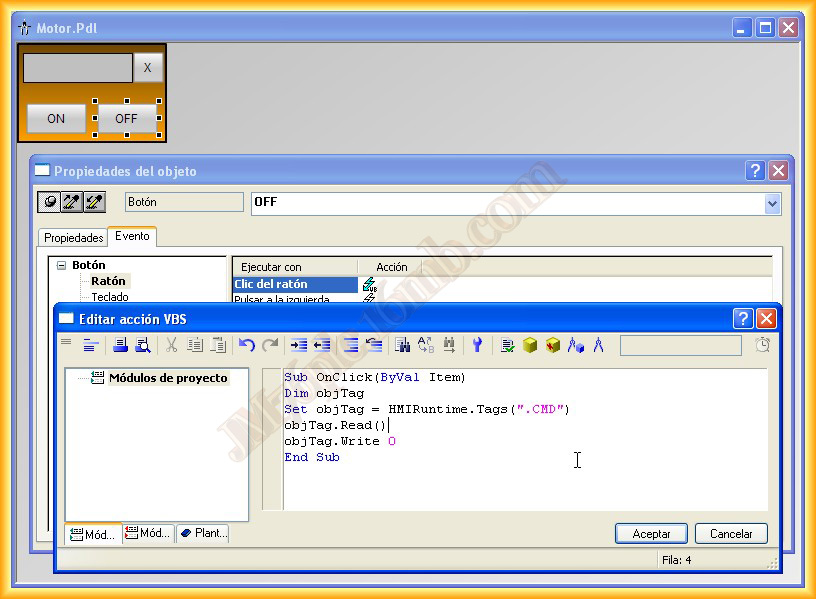
The code that we will insert in the On Button will be to activate that bit and in Off to deactivate it, when observing the code it will be seen that we access a variable .CMD that initially there is no such variable, but as I just mentioned, the image window has inherited the prefix we sent, so the variable we are going to manipulate is Prefix.CMD.
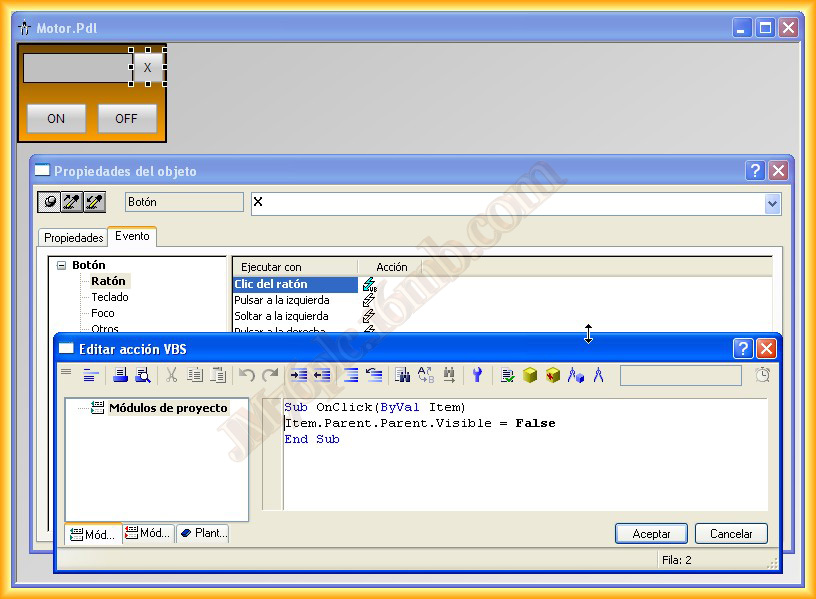
To close the image window, we make it invisible with the code that can be observed.
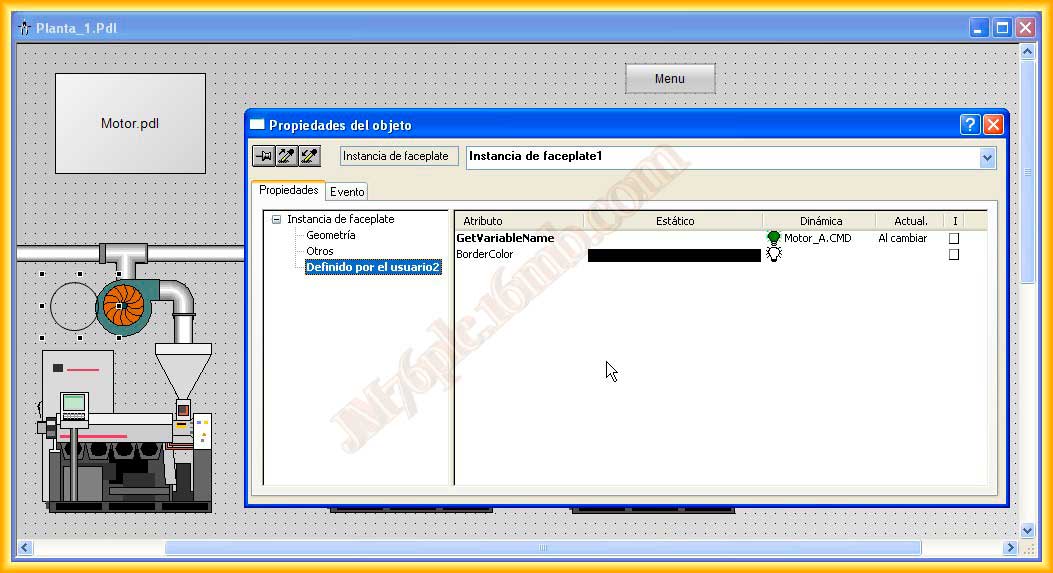
Finally, we insert an instance of the created faceplate and in the user-defined properties, we observe the two we created, in the GetVariableName property, we specify the variable we are interested in, as can be seen the variable is Motor_A.CMD, the prefix of this variable is Motor_A which will be the text we will show, hence when we manipulated the variable we referred to .CMD which is the common part of all the variables belonging to the structure.
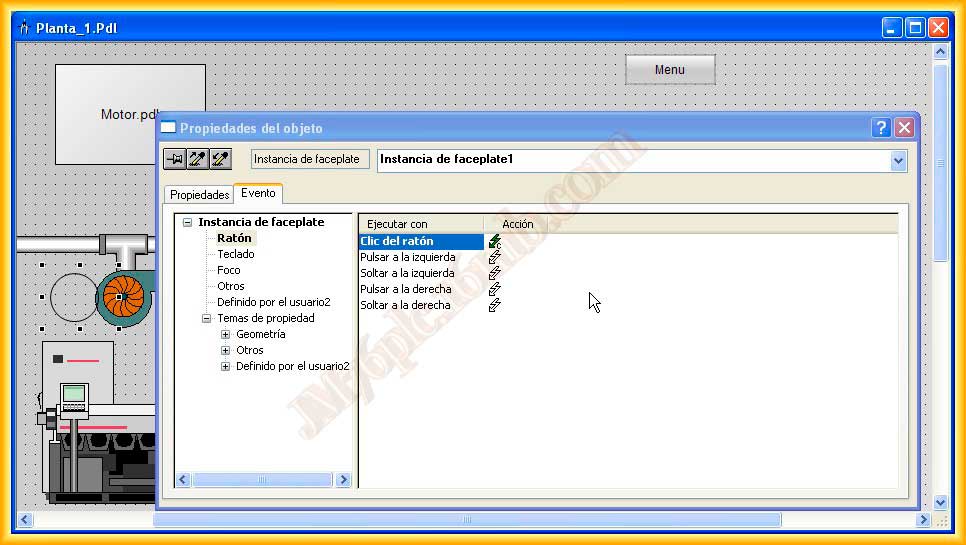
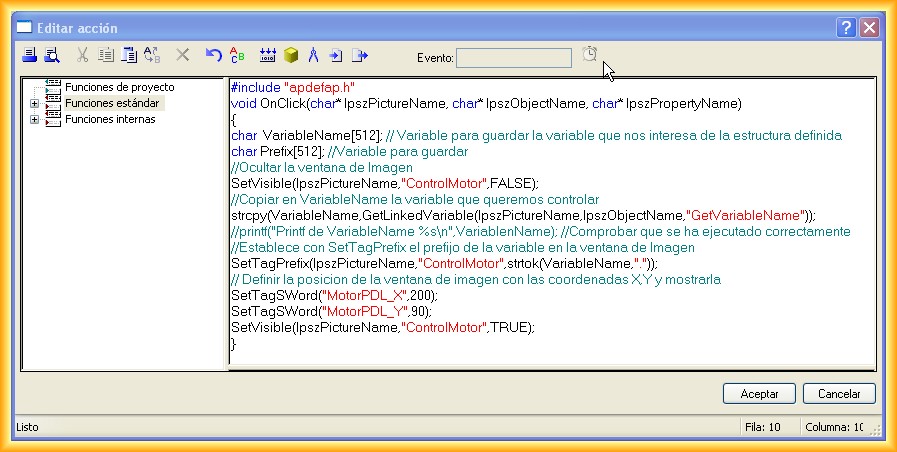
And this is the code we insert when clicking with the mouse, there is a small comment for each function used, except strlok, which segments the variable up to the specified argument, in this case the character ".", then establishes this as a prefix to the image window.
To conclude this practice, we will see the operation in a small demonstration video.
October 8, 2012