
This practice aims to show the type of configuration I have chosen to run an application developed in Vijeo Designer that will run on an office PC that has Vijeo Runtime installed, making a serious comparison to the Siemens Runtime, but in this case from Schneider.
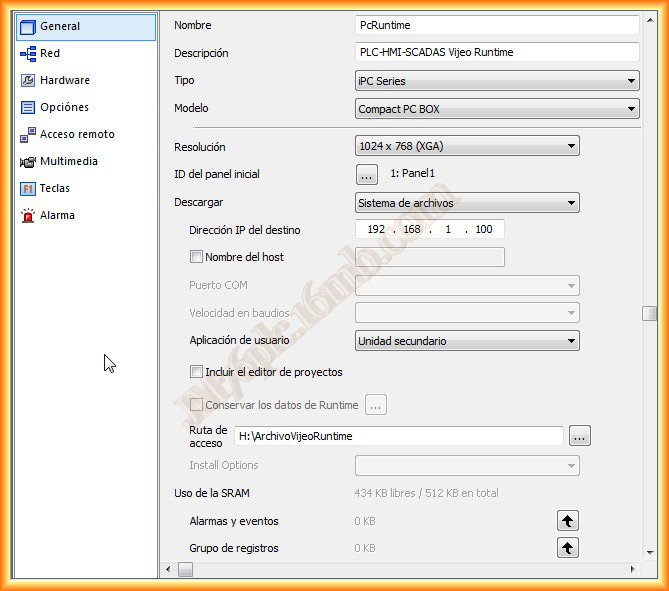
We assume that we have created a new project and in Type we must select iPC Series, the model may vary but as can be seen I select a Compact PC BOX, specifying the resolution according to my PC screen, plus its IP address, although in this case we will not use it, but I have in mind to do some practice where we link this PC with several PLCs.
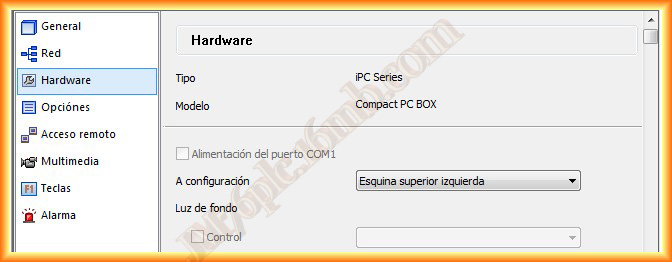
Important in Hardware, select if we want to view the configuration of our PC, even make modifications, such as the IP address, etc...
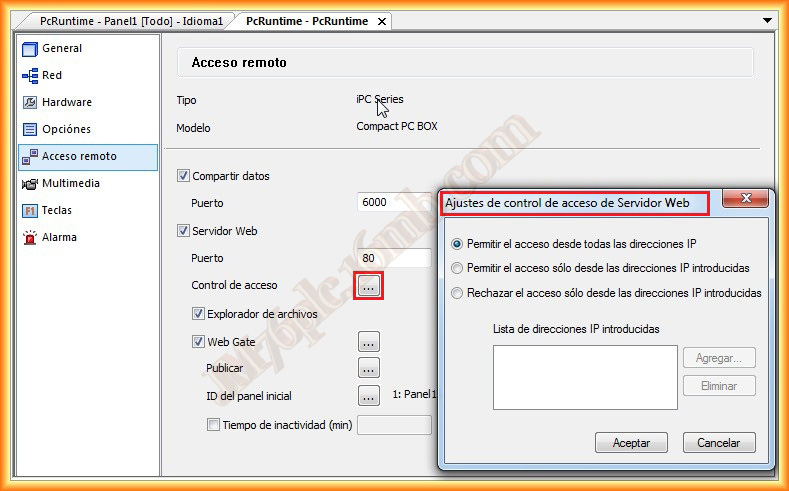
In Remote Access, we will configure it to be a Web Server, we add the port, which is generally port 80, although we can modify it and we will allow connections from any IP, we can restrict access to a series as can be observed.
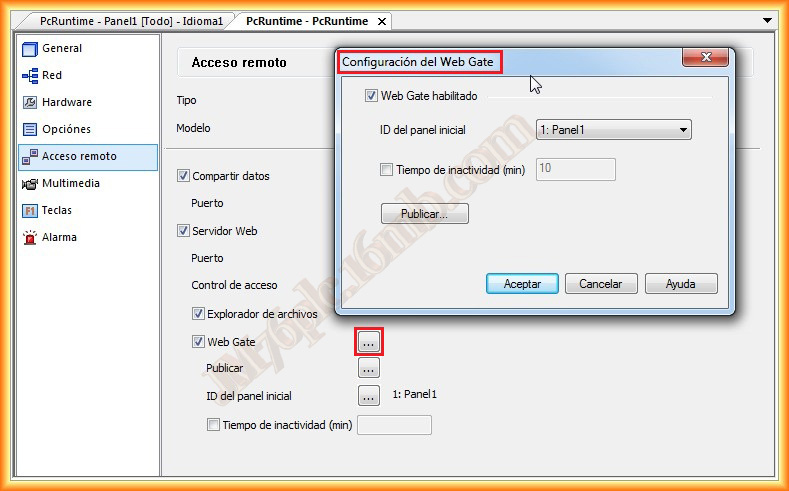
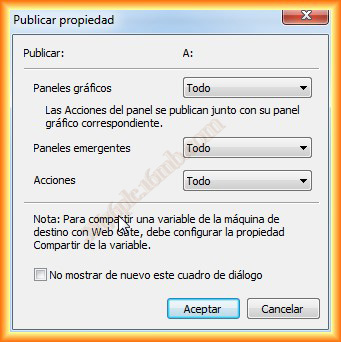
We select the Web Gate option and indicate what our initial screen will be and what we want to publish, pop-up panels, Actions. I have set everything to better experiment with it and not impose limitations, then we must adapt to the project's needs.
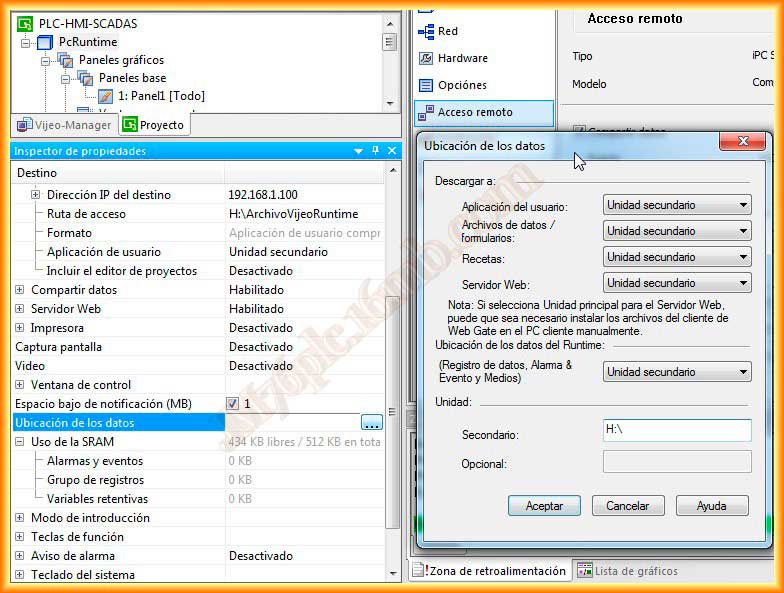
Finally, before transferring, we will specify the location of the data and files, for this location I have selected a partition of the hard drive called H:\
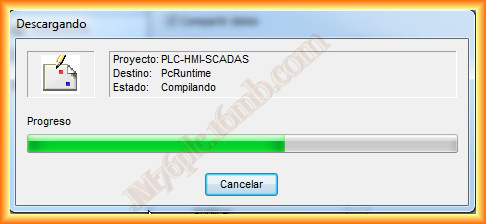
Let’s assume we have already created our entire project, with its corresponding screens, alarms, notifications, etc... and what remains is the transfer to our PC where Vijeo Runtime is installed, as in my case I have Vijeo Runtime installed, together with Vijeo Designer, as a means of transfer I will select file systems, which will compile my project and generate a file with the extension *.vda that is necessary to run Vijeo Runtime.
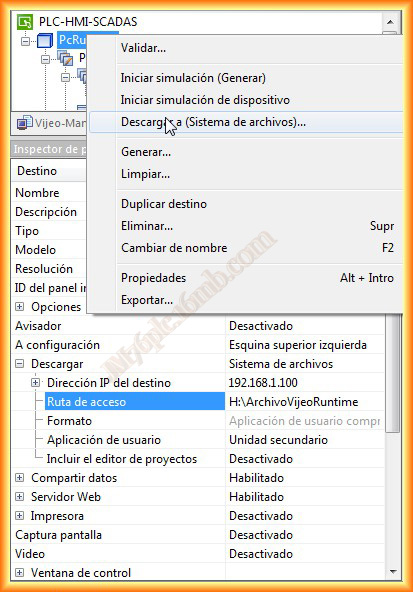
The file path that I am going to generate is in the directory H:\ArchivoVijeoRuntime.
As a warning, I would add that the directory must be in a different location than C:\ if the programs are installed in this directory.
Once compiled without errors we can proceed with the transfer, right-click on the project and Download to (File System).
Once transferred, we can open the previously selected directory and observe the file that interests us, this will be the one we will load.
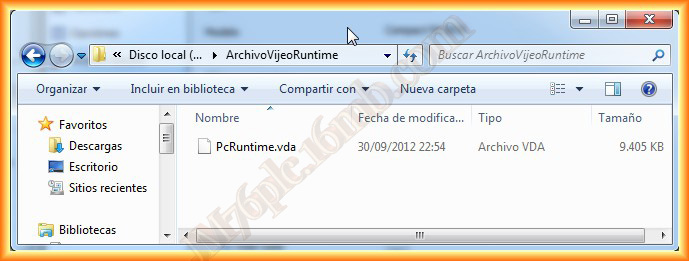
To load the file we have obtained and run Vijeo Runtime, we start the Vijeo Designer application installer and look for the directory with the file "Remember that its location must be different from C:\ if this is the directory where we have installed the program"
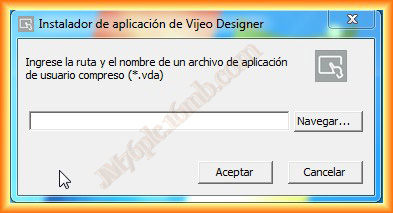
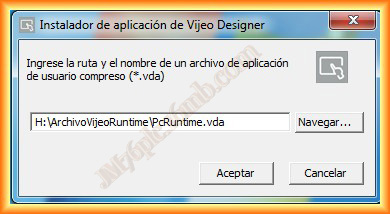
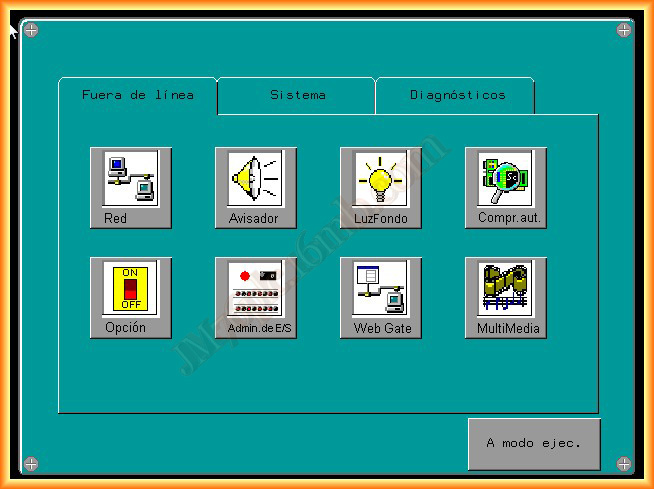
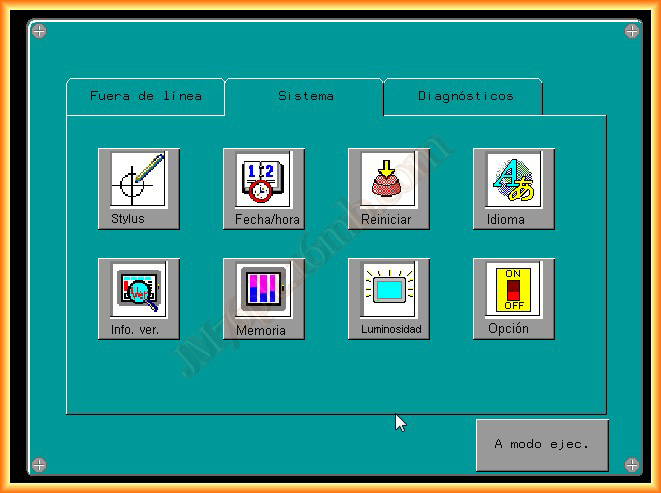
When loading the file, the Runtime starts with the screen we have selected, if we remember that we configured the corner to access the configuration, let's try...
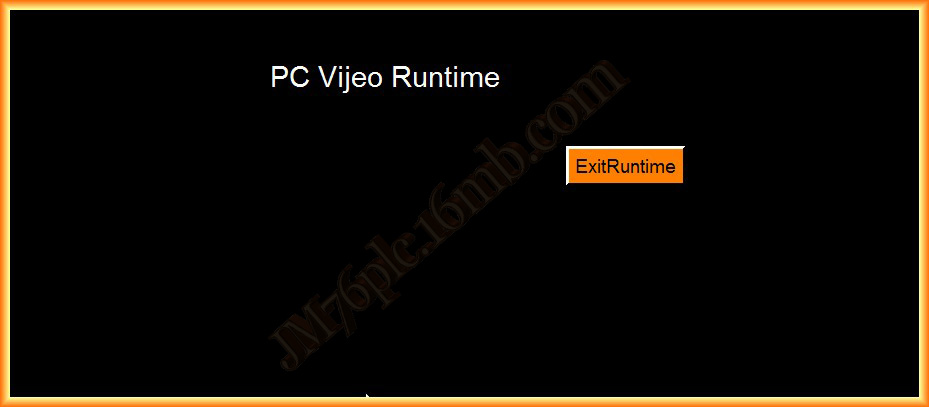
Indeed, the configuration of our PC as HMI opens, where we can access its functionalities, although not all of them are enabled, but all the necessary ones to configure our PC.
We will see other functionalities in upcoming practices.
October 16, 2012