
In this practice, we will configure a link between a PC with WinCC RT Advanced, which would be the successor of WinCC Flexible RT, and an Omron PLC, to be more precise, a CQM1. We start from the basis that we have created our PLC project.
We create a new project in TIA Portal and add a new device, as we mentioned, our case is WinCC RT Advanced.
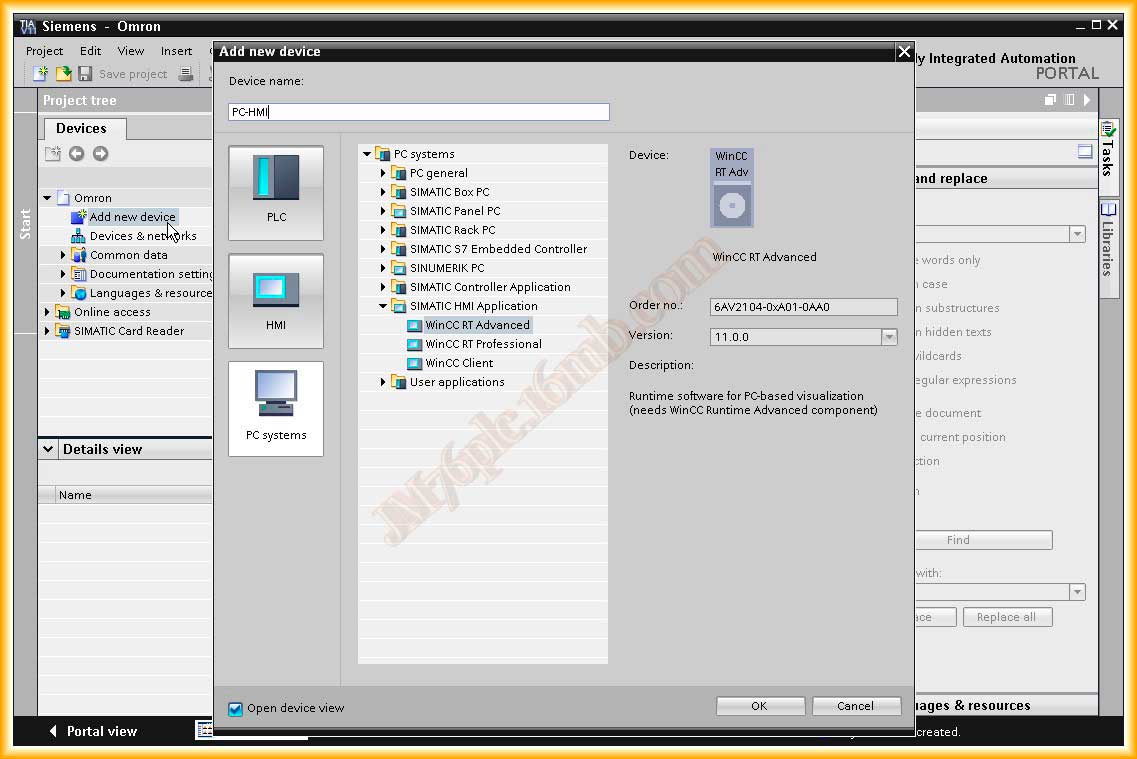
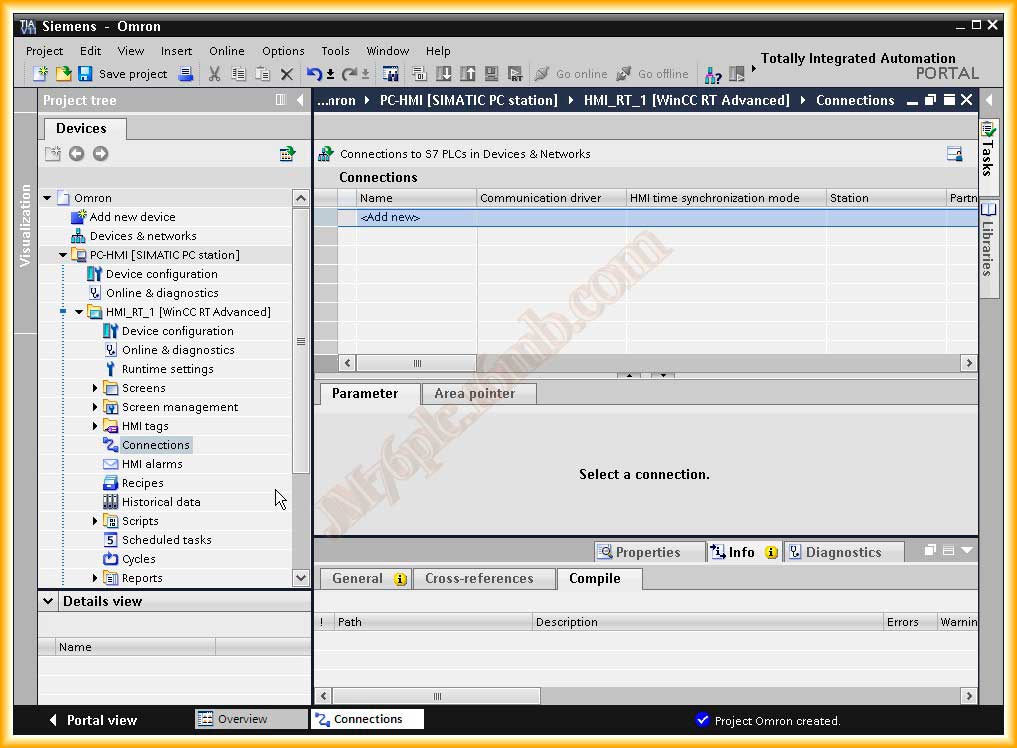
This is the interface we have once we have added our device. The next step will be to configure a new connection that will refer to our PLC.
We add the name we are interested in and in the driver, we select Omron Host Link. By default, COM1 port and default values appear, these are correct if we have respected these parameters when configuring the PLC port, as can be seen below. If necessary, adjust them to the values; otherwise, it will give us a communication failure.
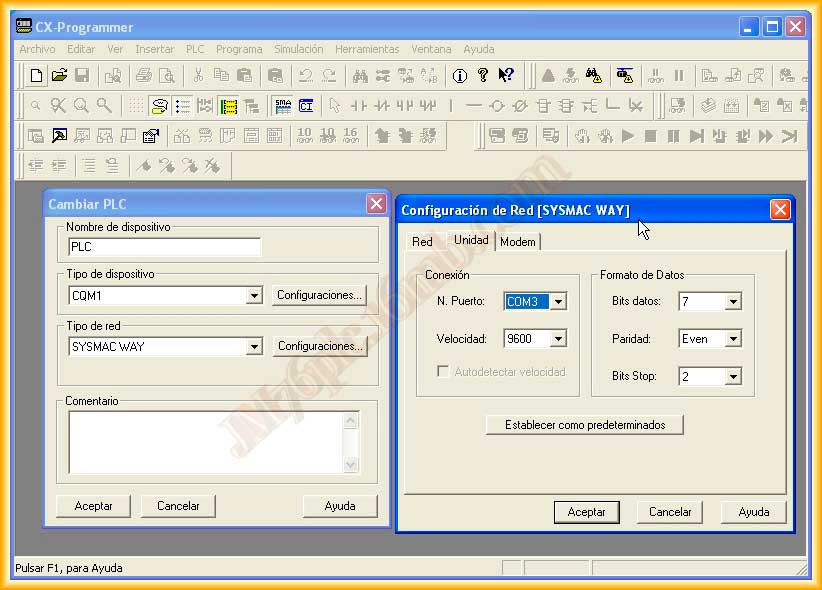
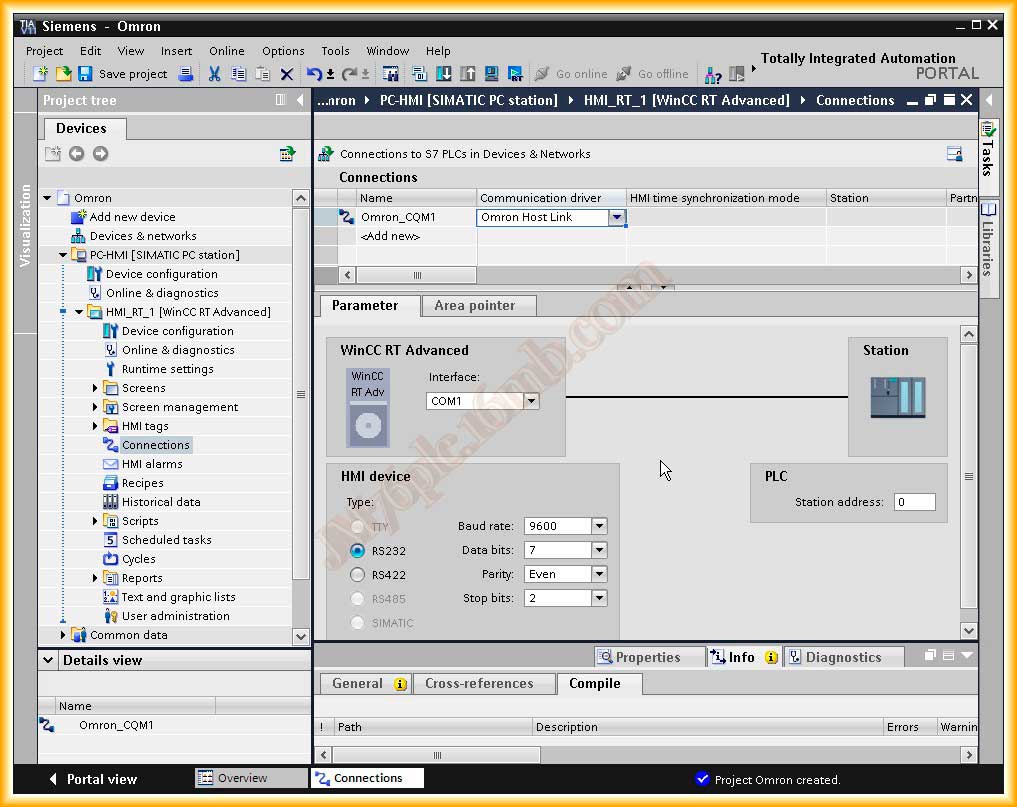
Once we have added the connection, we can now include the variables, tags that we will use or need to develop the application. Consult the help to verify the data types supported by TIA Portal.
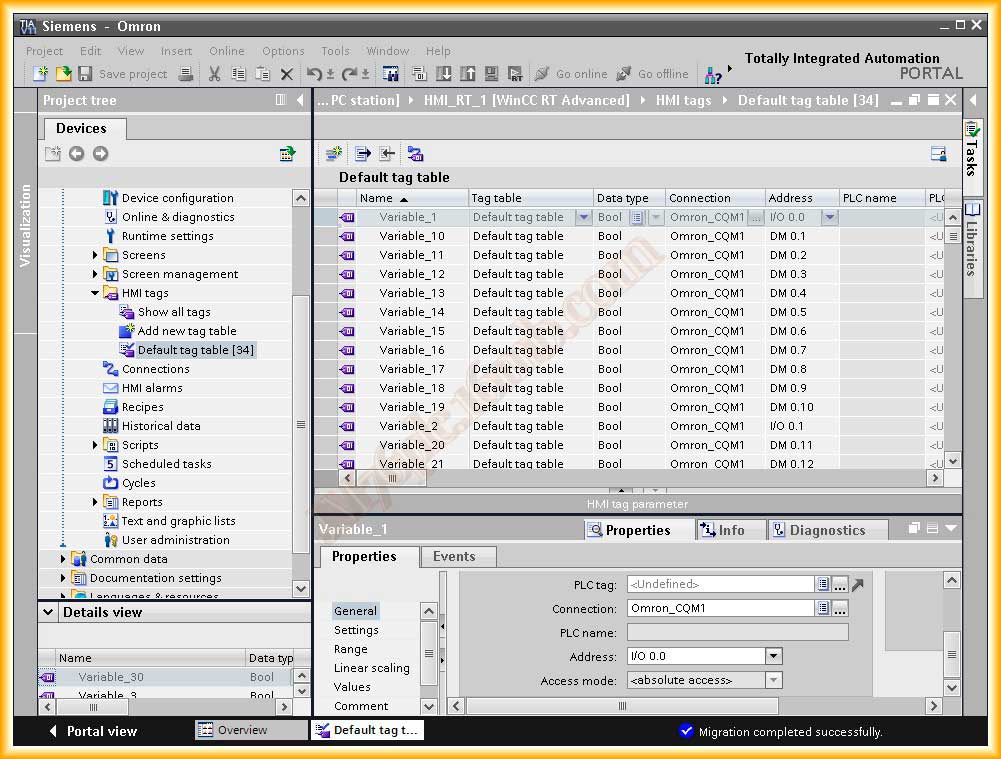
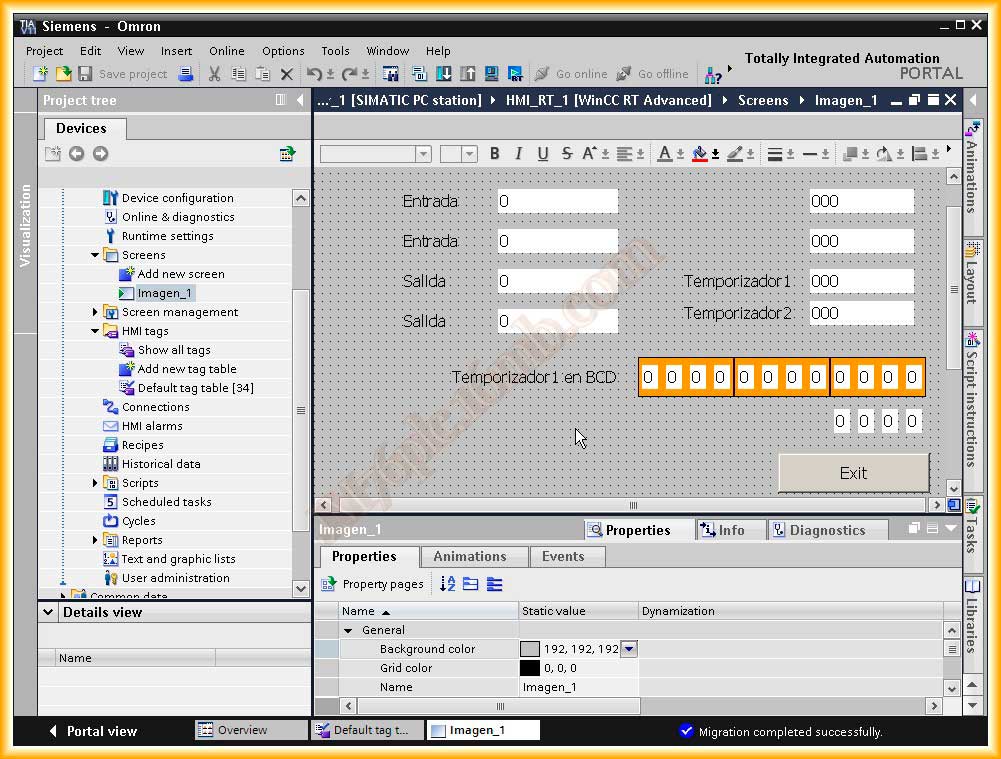
We can now add some input/output fields and link them to the created variables to check that there is communication and that the link and the configuration of the variables have been done correctly. For the example, I have added Outputs, Timers, and DM memory area.
Once these steps are completed, we can compile our project, and if there are no errors, we can check its operation.
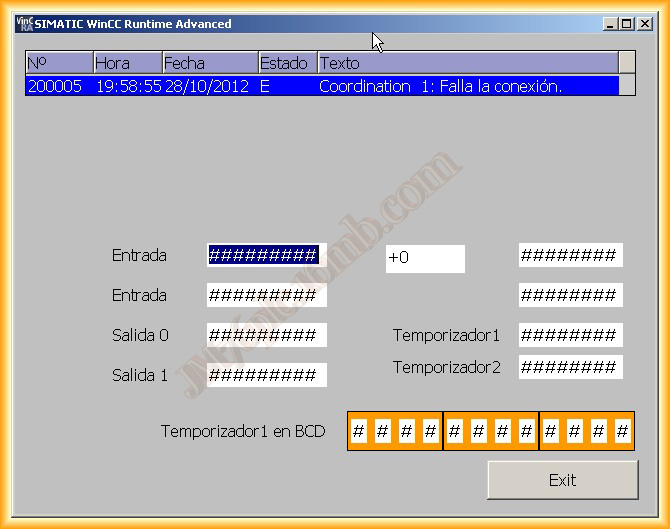
Once executed, here we have an example where the link with the PLC fails. This case was due to an error in the serial port configuration.
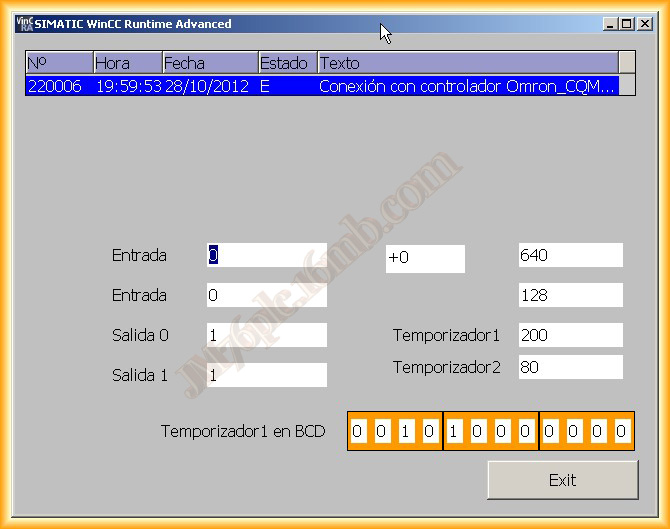
Once that problem is solved, we recompile and execute, and the result is satisfactory; it works perfectly. This same configuration is applicable to WinCC Flexible 2008.
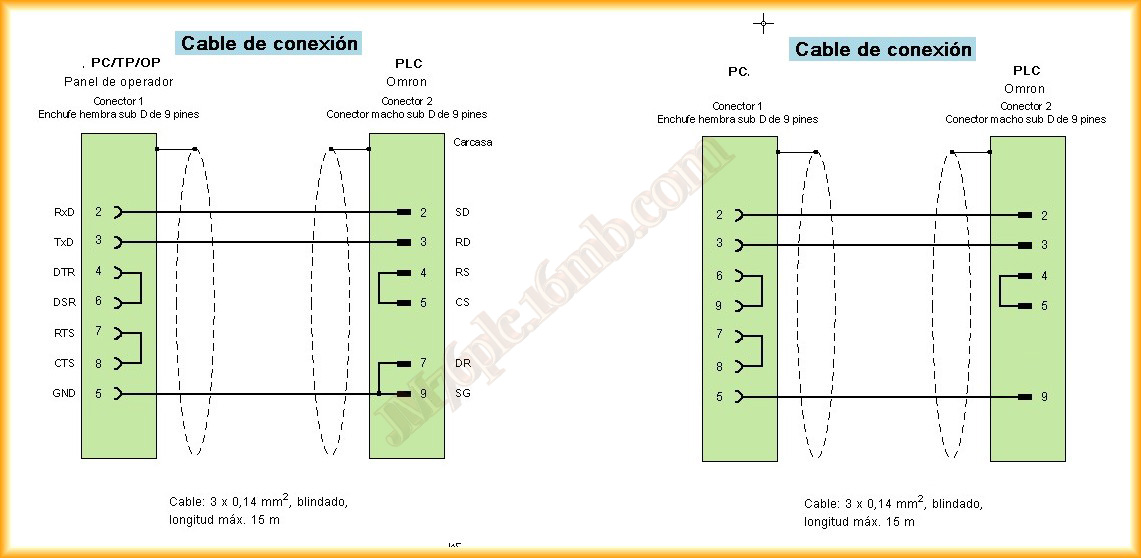
Finally, the cable used for the connection between the PC and the PLC serial port is the following, although the one used for the transfer between PC and PLC, that is, the one on the right, also works perfectly; for that reason, I have added it.
October 28, 2012