
Today I will revisit one of the topics I had pending, creating an application using ArchestrA technology. First of all, this is part of an additional software that is optional to install. If we have it installed, the Galaxy symbol will be enabled, as this is one of the names used when creating a new application, the creation of a new Galaxy.
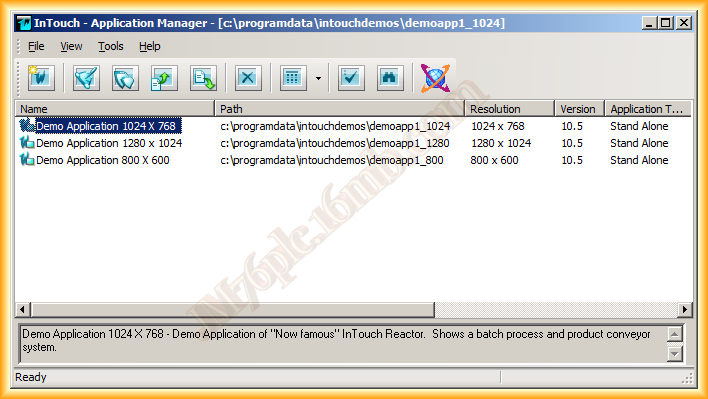
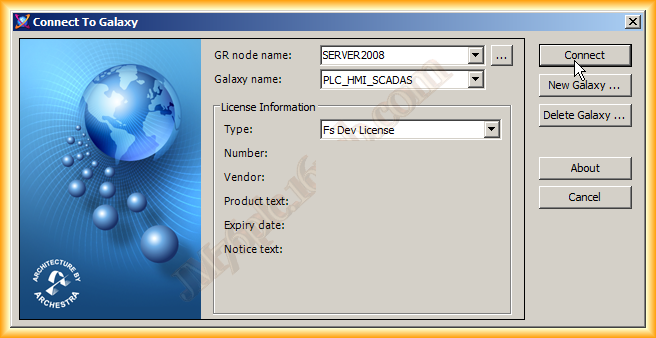
We start Intouch and then click on the Galaxy icon.
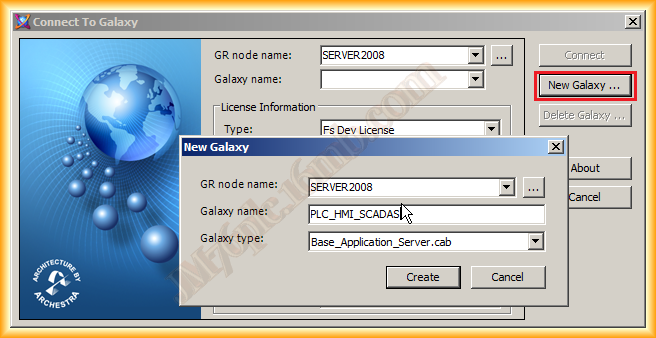
Since there is none created so far, the Connect button is disabled. We proceed to create a new Galaxy, specifying the node where it will run, a name, and the type. We will see later that we can create our own Galaxy and use this as a model for creating other new ones, but we will see that later.
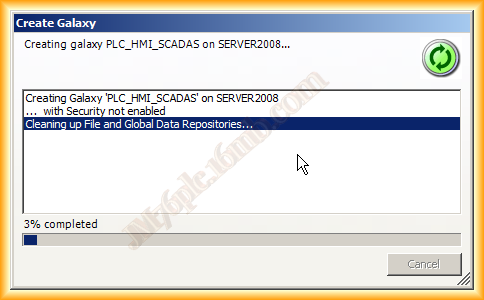
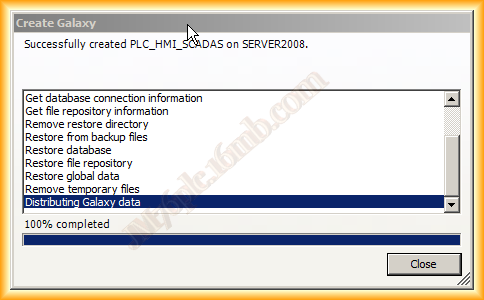
We click on Create and automatically the base for our project and the repository is created. One of the requirements to install the Application Server is to have SQL Server installed beforehand, which can be either 2005 or 2008.
Once created, we can select it and connect to it, that is, open the ArchestrA IDE, and this is what the interface looks like. First, we will look at the Template Toolbox to create the structure of our project.
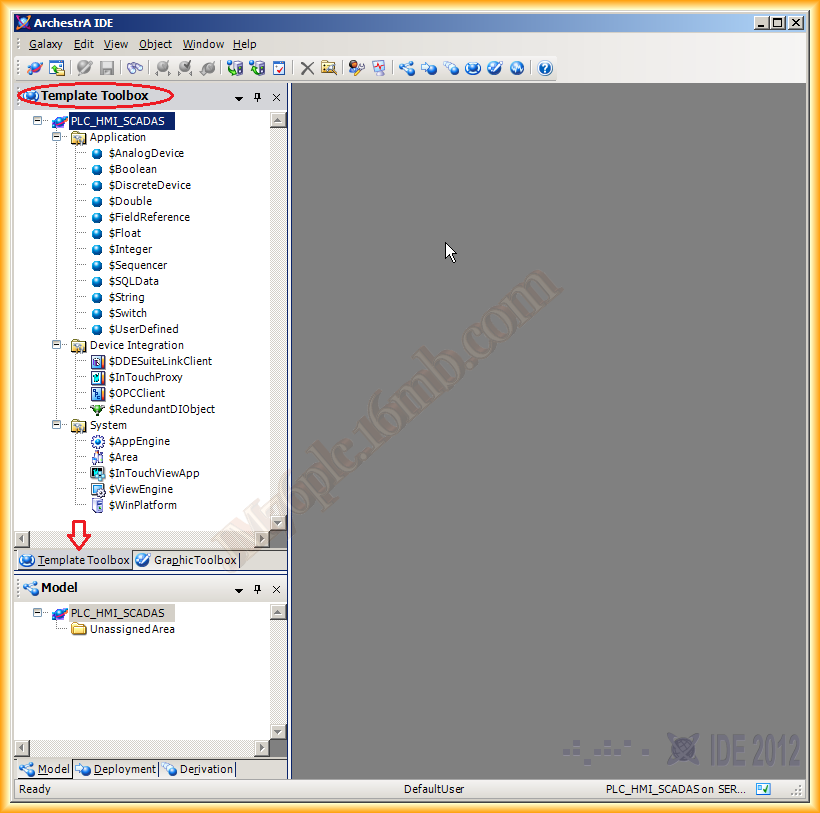
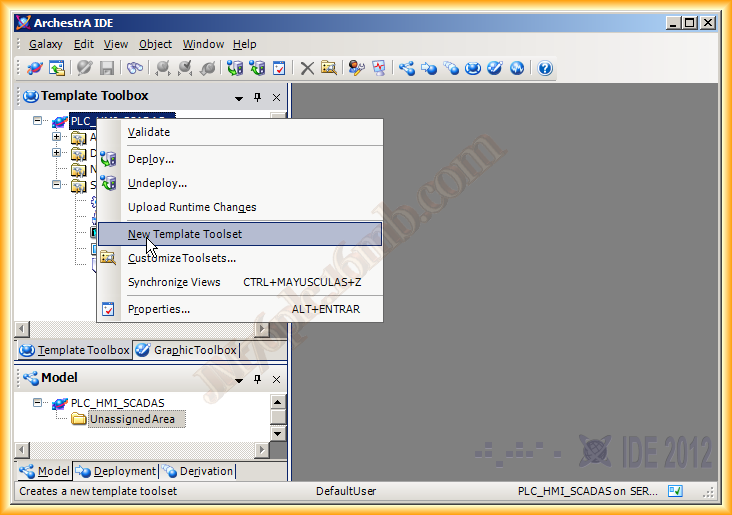
This step is not necessary, but for organization, I personally like to create a new directory called Template Toolset, where I can organize the entire project. If we skip this step, we will work directly on the System Templates and others.
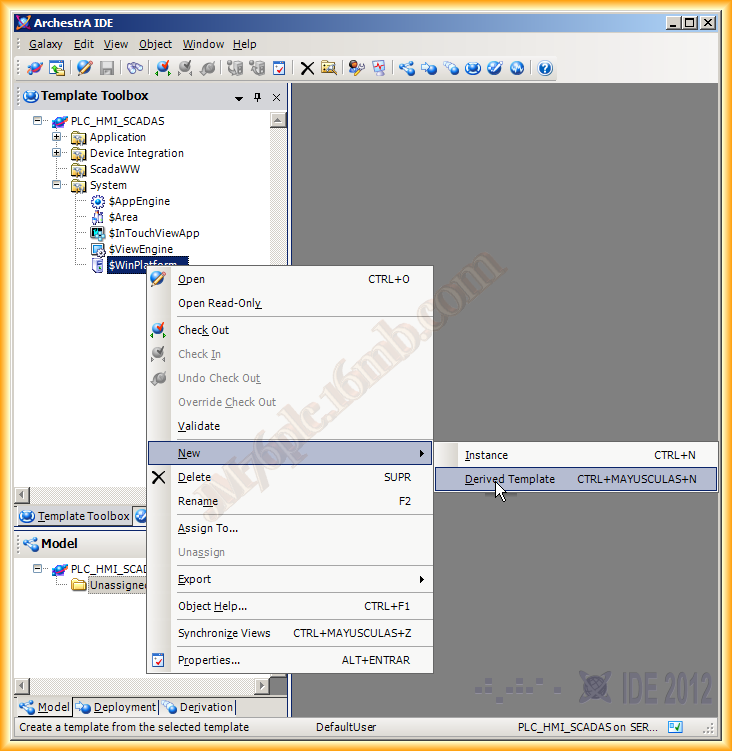
Once our Template Toolset is created, in my case ScadaWW, I will create a new derived template from each component of the Template System. This means that we will work directly on these templates, Templates, which will be the ones we instantiate. It should be mentioned that this technology is oriented towards OOP, where any modification we make on a Derived Template will propagate to all instances that have been created.
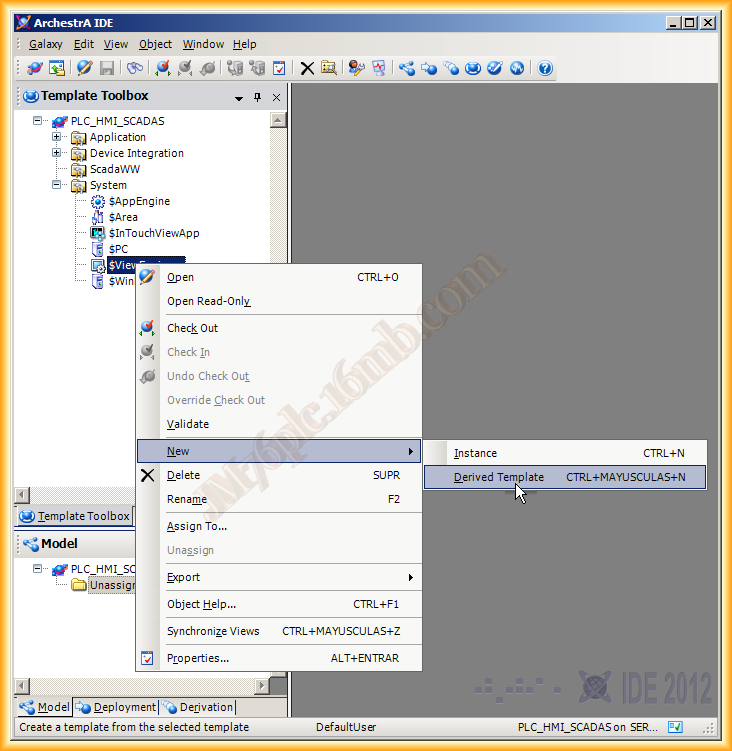
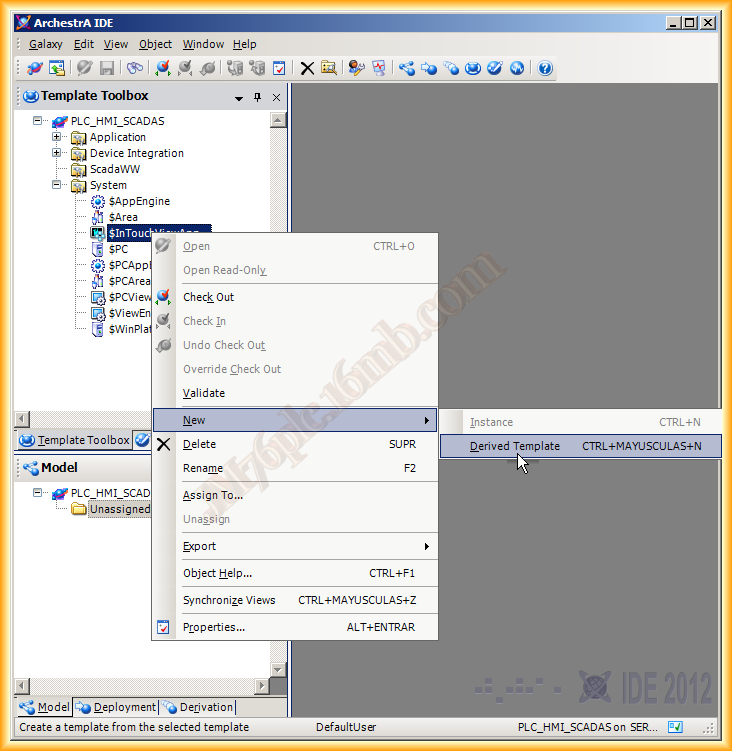
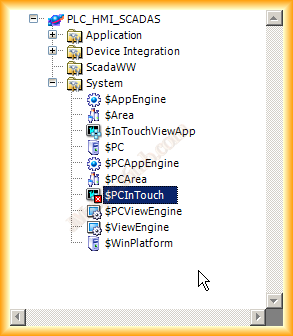
Finally, we leave the creation of the Derived Template for $IntouchViewApp for last. When we create it, its Template will appear with the symbol of a failure. We double-click, and a pop-up window will appear where we will associate this with a new Intouch application or import an existing one. Since we are doing everything from scratch, I will create a new application.
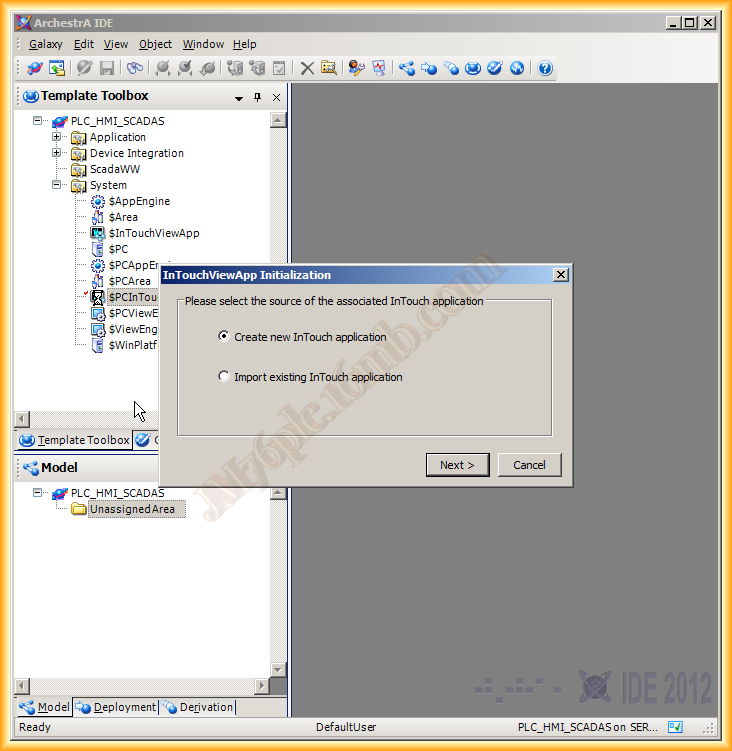
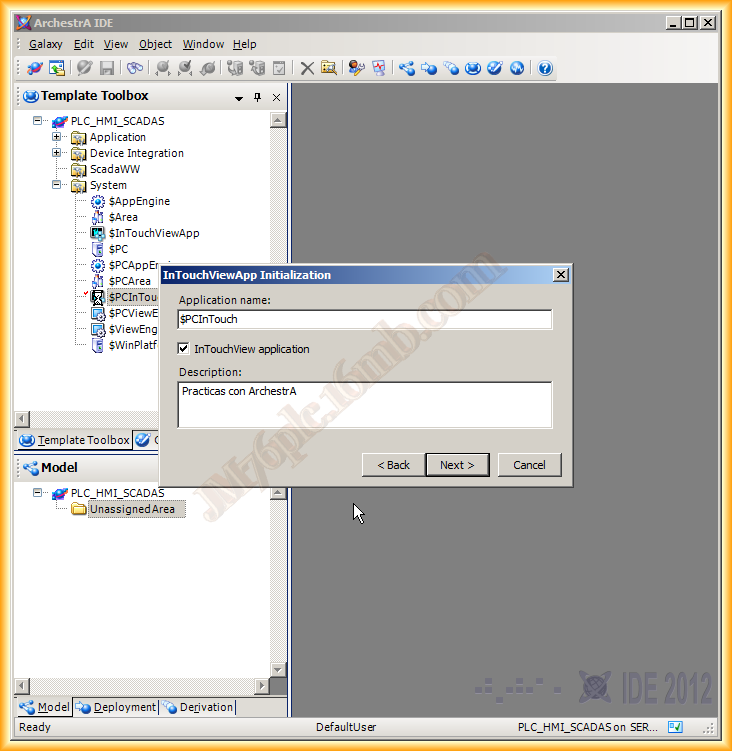
We give a name to the application and a description if necessary, then click next.
A new Intouch application opens up for us, although this one is referenced to our Galaxy. For now, we make no changes and close Intouch, which resolves the failure icon we had in the Derived Template.
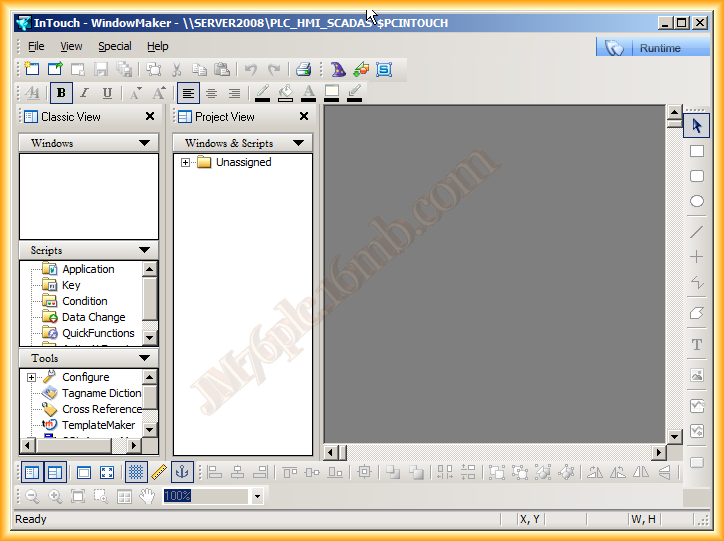
We have now created all the Derived Templates we need for the moment, although the essentials for doing the most basic tasks are $WinPlatform, $ViewEngine, $IntouchViewApp.
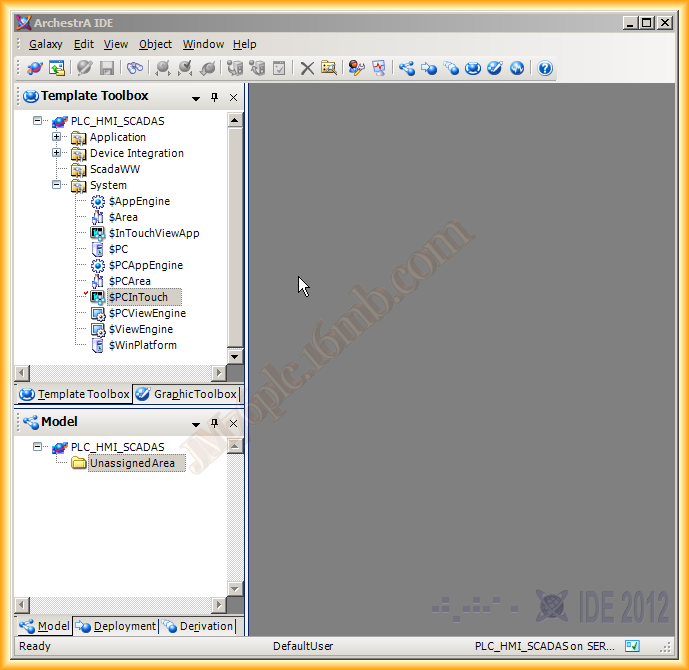
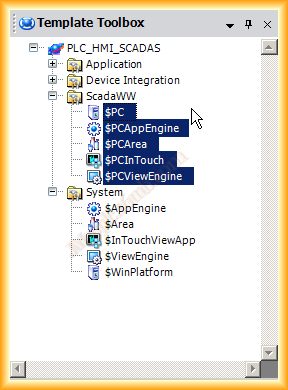
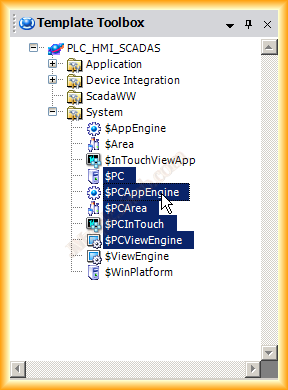
We select all the new Derived Templates we have created and move them to the directory we created earlier (Template Toolset). This way, we will have our Toolbox organized, in case we want to use these and the other components as a base for creating a new project.
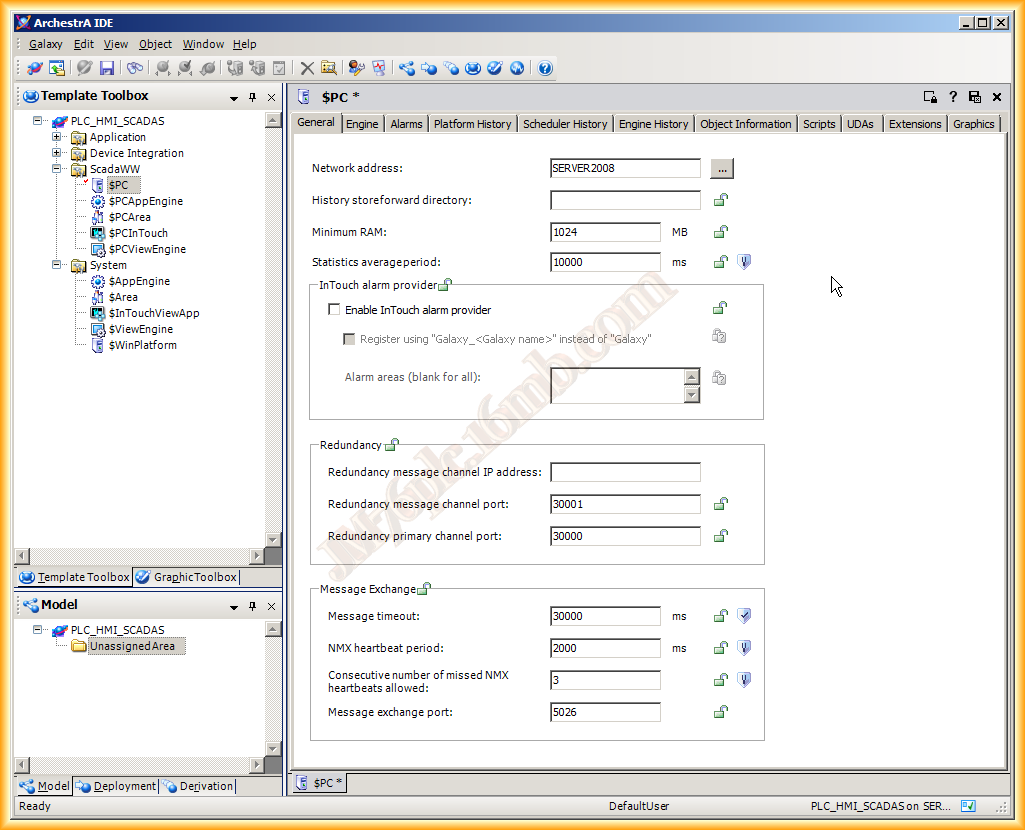
Next, on $PC which belongs to $WinPlatform, we will make the only configuration for now, which is to set the name of the node where it will run, either with the name of the PC or with localhost. We click on save and close, the icon at the top left.
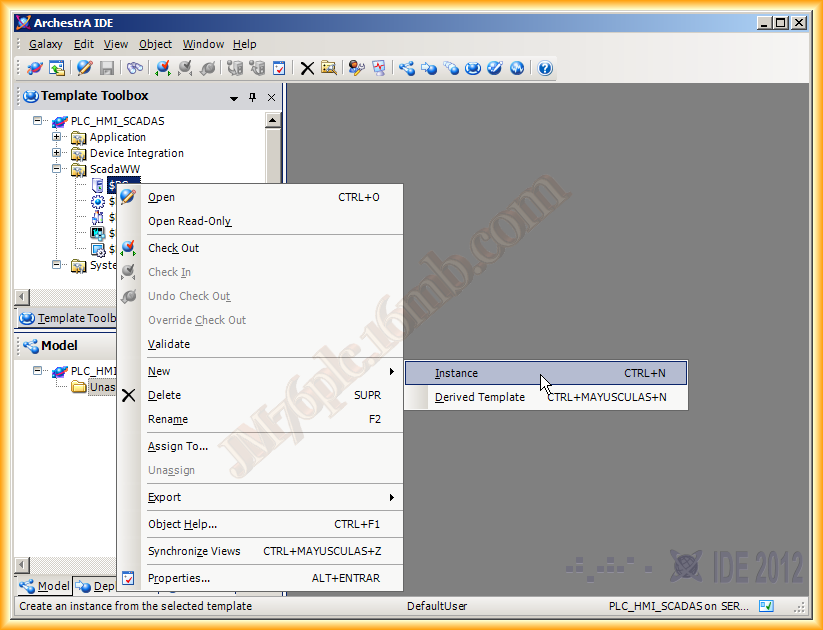
The next step will be to instantiate each object we have created. Instead of selecting new Derived Template, we select new Instance.
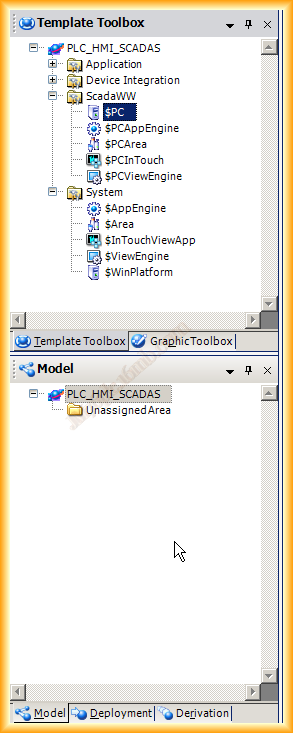
Every time we create a new instance, it is automatically assigned to the UnassignedArea directory at the bottom within the Model tab.
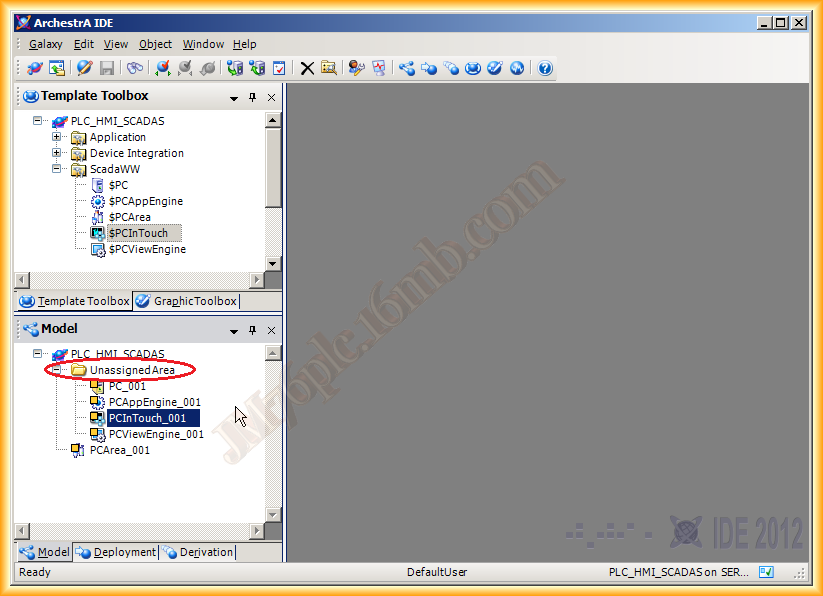
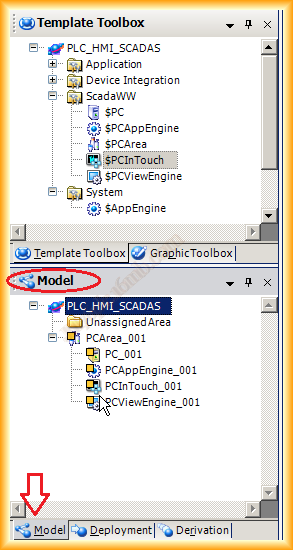
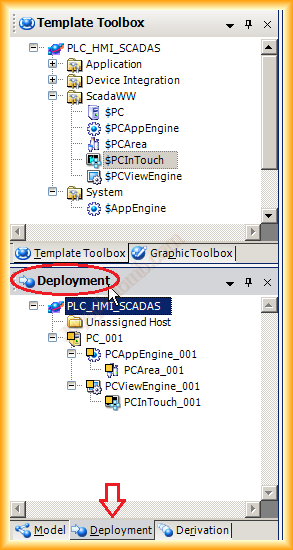
In the Model tab, we need to assign that each instantiated object is associated with an area. We drag and drop all the instances into the PCArea. However, in the Deployment tab, the main root is PC, and from this derive PCAppEngine and PCViewEngine as can be seen in the following images.
At this point, we could execute a Deploy and see if what we have done works correctly, but I will leave that step for the next practice, to create a Derived Template of a Device to configure communication with our PLC and observe something more significant and real.
November 23, 2012