
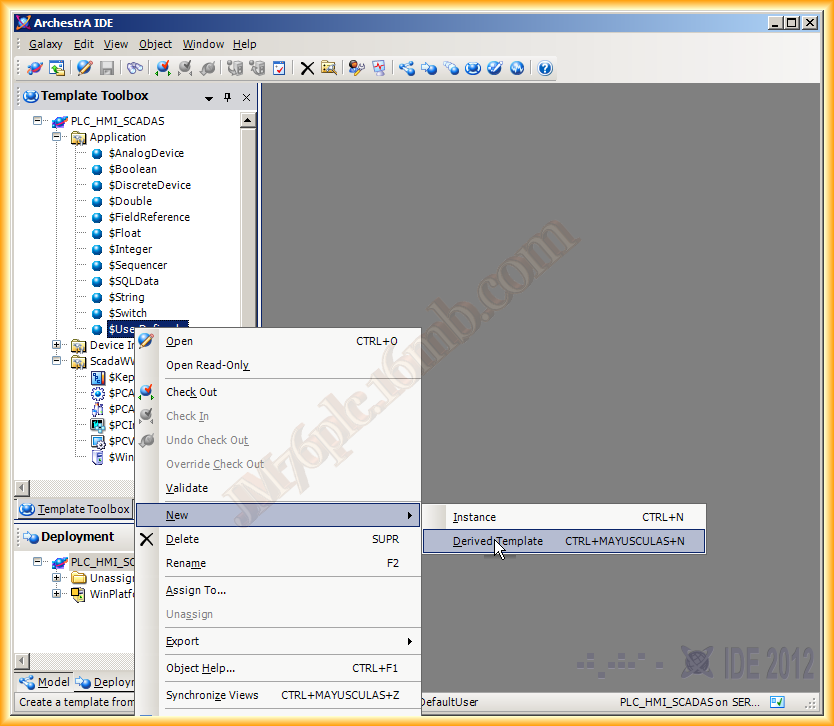
Continuing with the previous practice, in this one we are going to configure an Object, instantiate it, and use it in the AppIntouch to run the Runtime. The Object will be a tank, which will have 4 detectors: maximum level, minimum level, maximum level alarm, and a ultrasonic level detector. As this will be a user-defined Object, we choose $UserDefined and create a new Derived Template and move it to our directory.
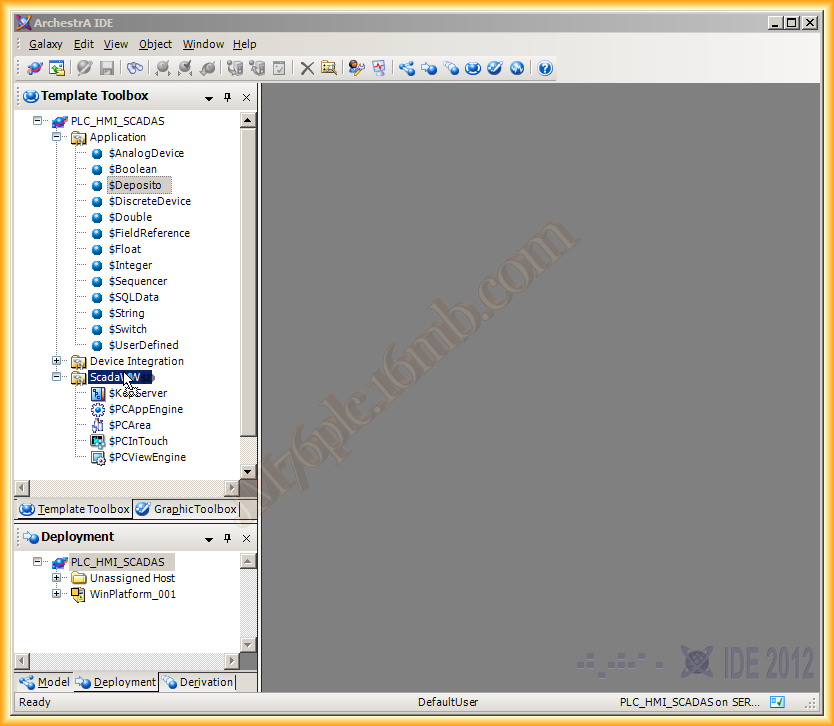
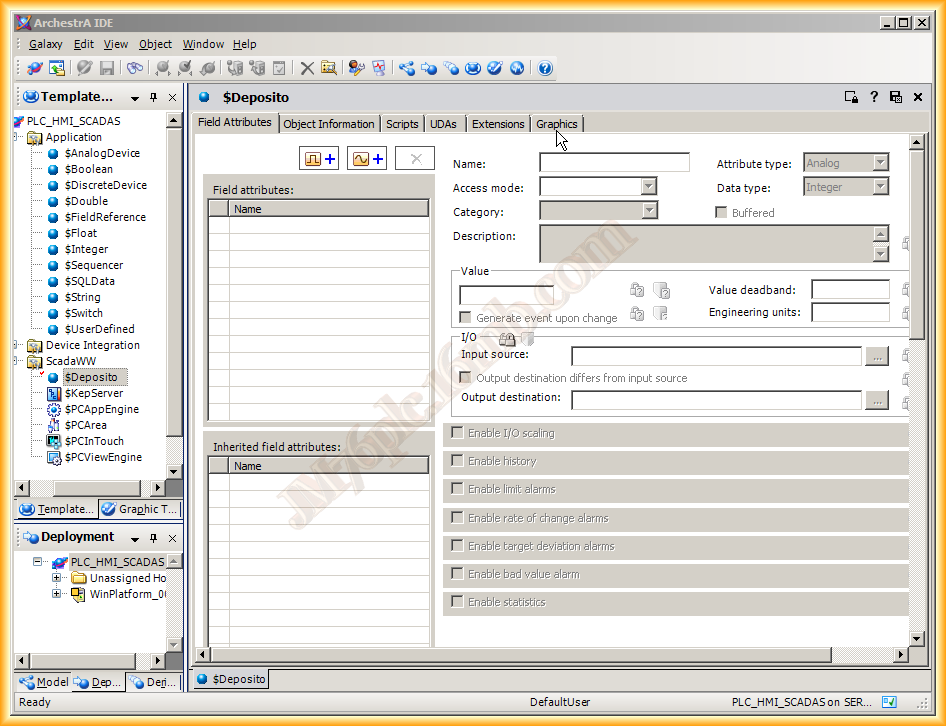
We open our $Tank and this is what the interface shows us, we have different tabs, but as this is part of an introduction, I will only use the attribute definition and Graphics.
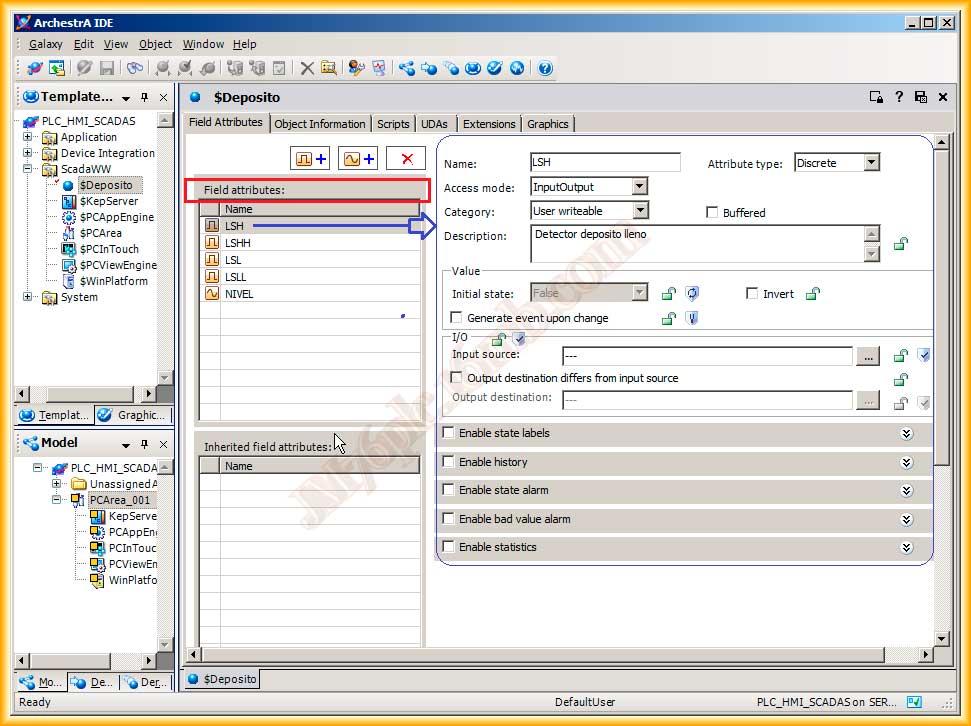
I mentioned that it would have four detectors that will be discrete signals and one analog level sensor, we will add them one by one and assign properties according to the needs. The field designated to assign a tag or item to these signals will be left unassigned, as this will be the tank model. Later we will instantiate from this and apply the signals to its different properties. This is one of the advantages, inheritance, as I mentioned, is based on OOP.
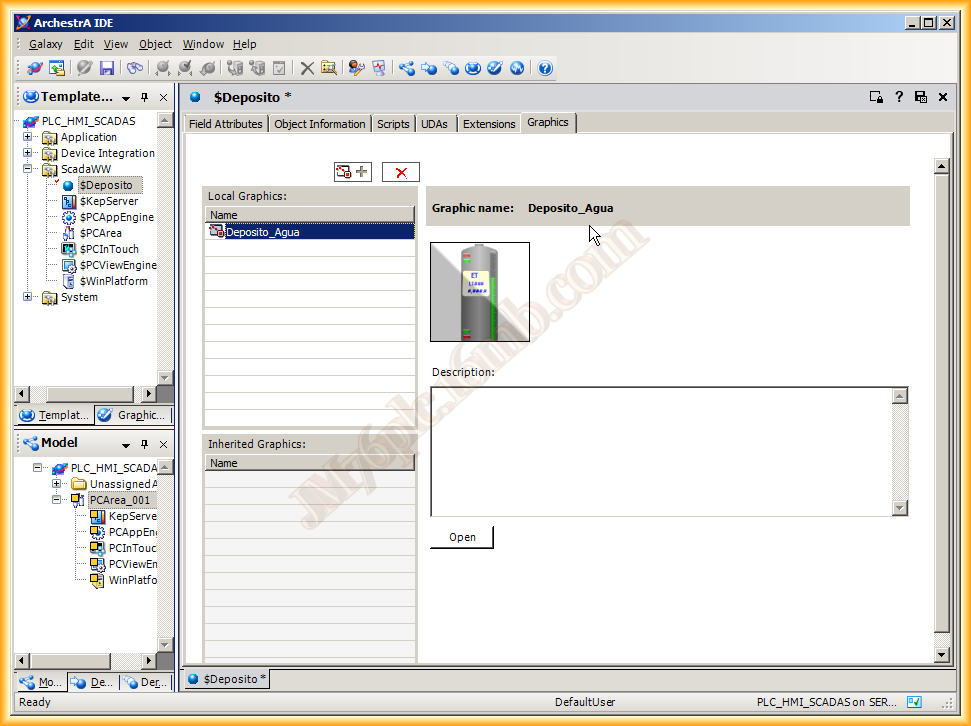
Finally, we assign a graphic that I have already created. The creation of graphics I will leave for another practice, otherwise this will extend too much.
In the graphic, I have configured each of the signals that I have set up with a functionality of its own.
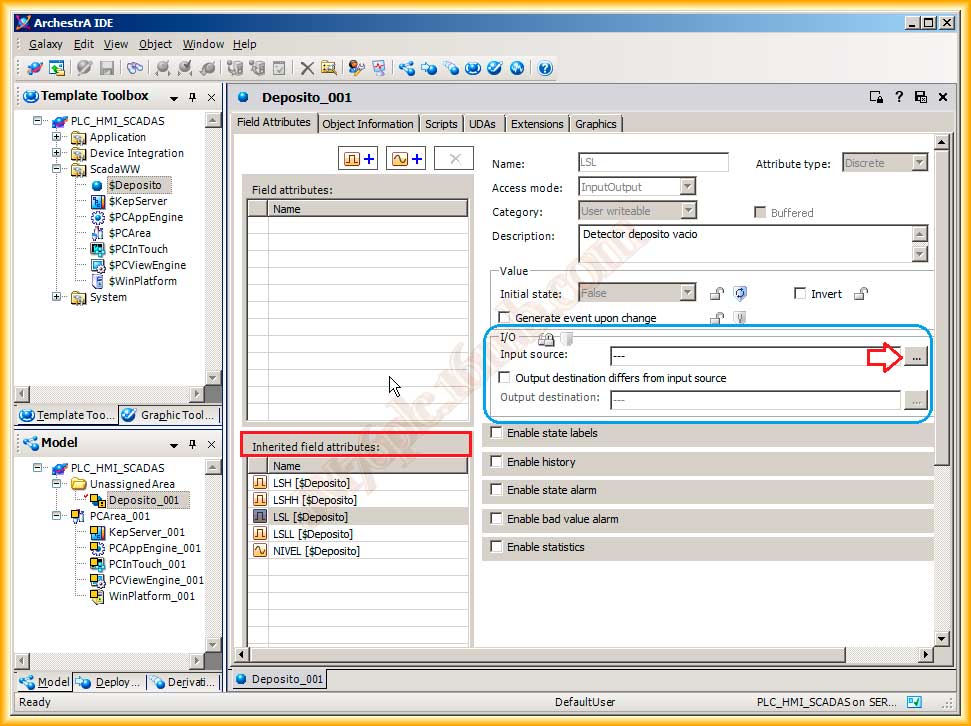
Once finished, we can create an instance and configure the signals that at first are not assigned to any tag. We open the instance and observe how the attributes created in the parent are now inherited, and we can configure new attributes. This would be the case of a tank that had another sensor...
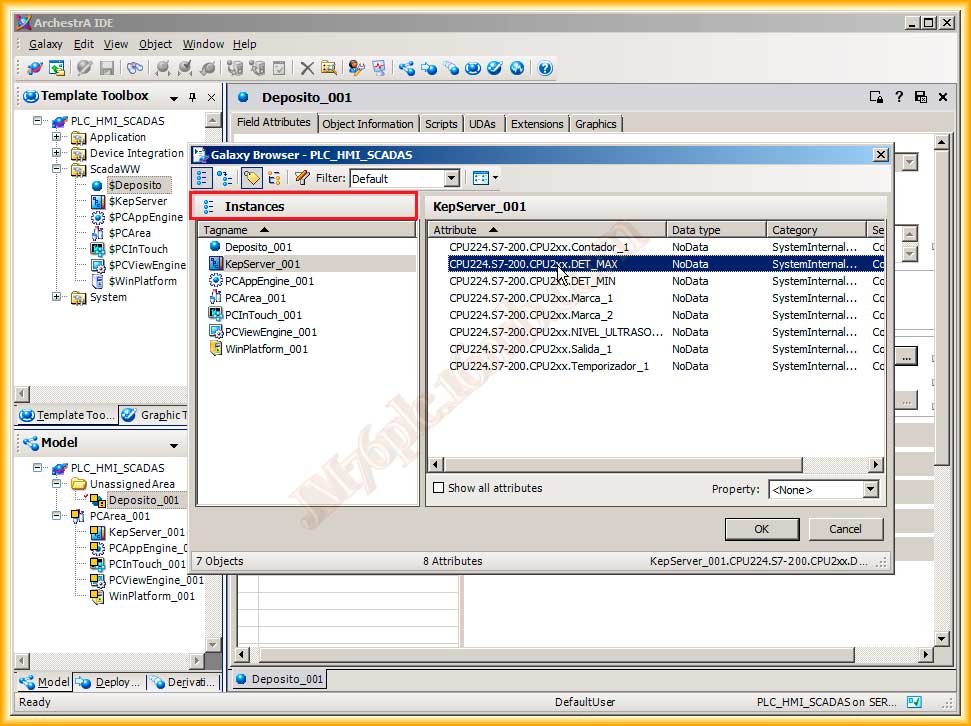
We can now assign the corresponding Tag to each of the defined attributes. In this example, my tank does not have alarm levels, so there are two attributes that I will not use. Each time a value needs to be assigned to a field, if you want to leave it unused, you must do so by writing three dashes in a row ---, otherwise it will give us a warning!!!
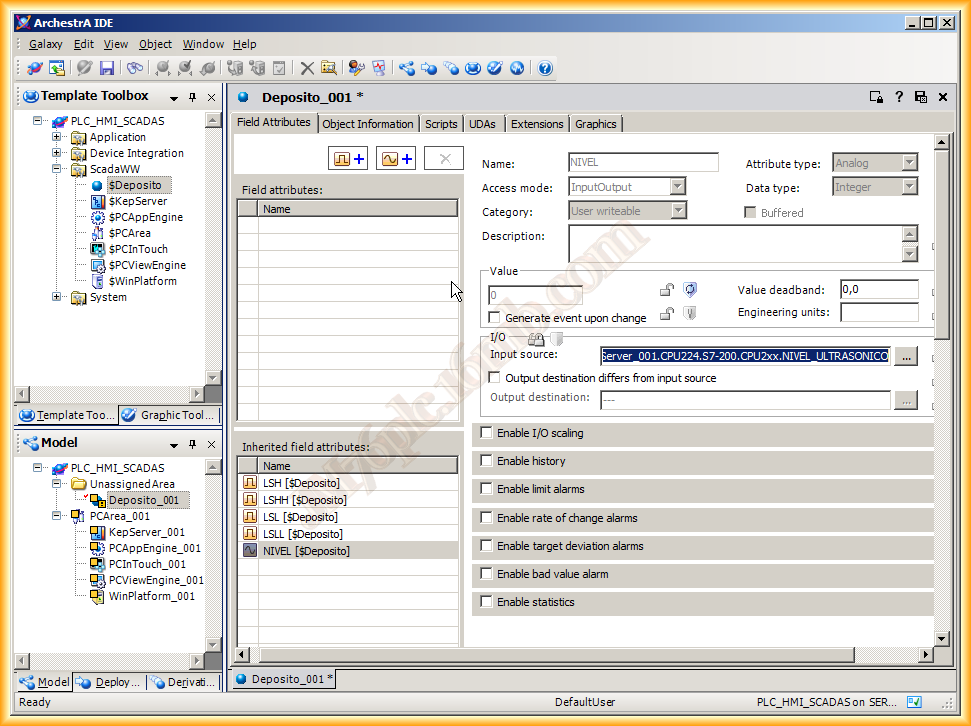
If you want to add a new graphic, we also have the option. I will leave it as is this time, with the graphic inherited from the Parent $Tank.
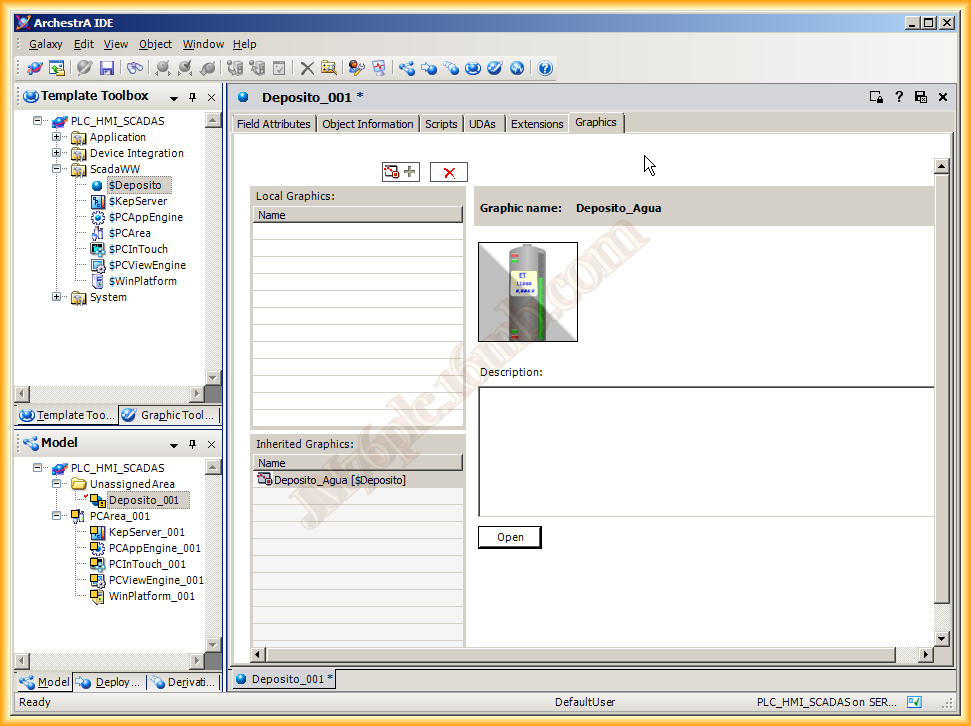
Once finished configuring, we can save the changes and close, then assign this object to the PCArea in the Model and to its corresponding location in Deploy, just as we have done previously with all the others.
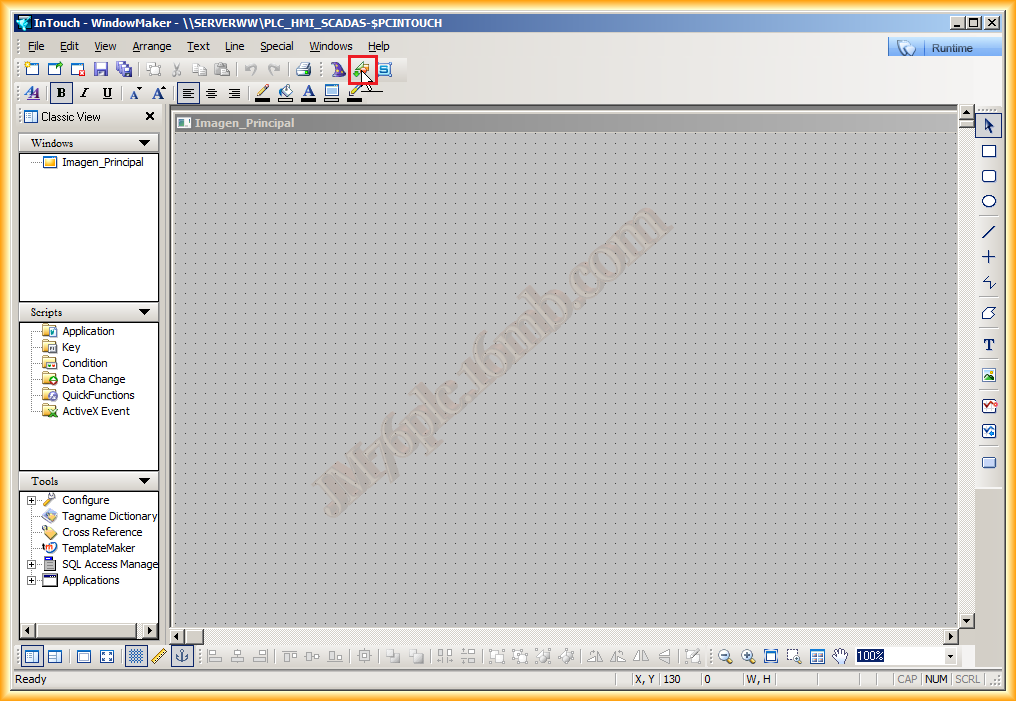
The next step will be to use this Object in Intouch, we open it, and to insert it we use the following icon as shown in the next image.
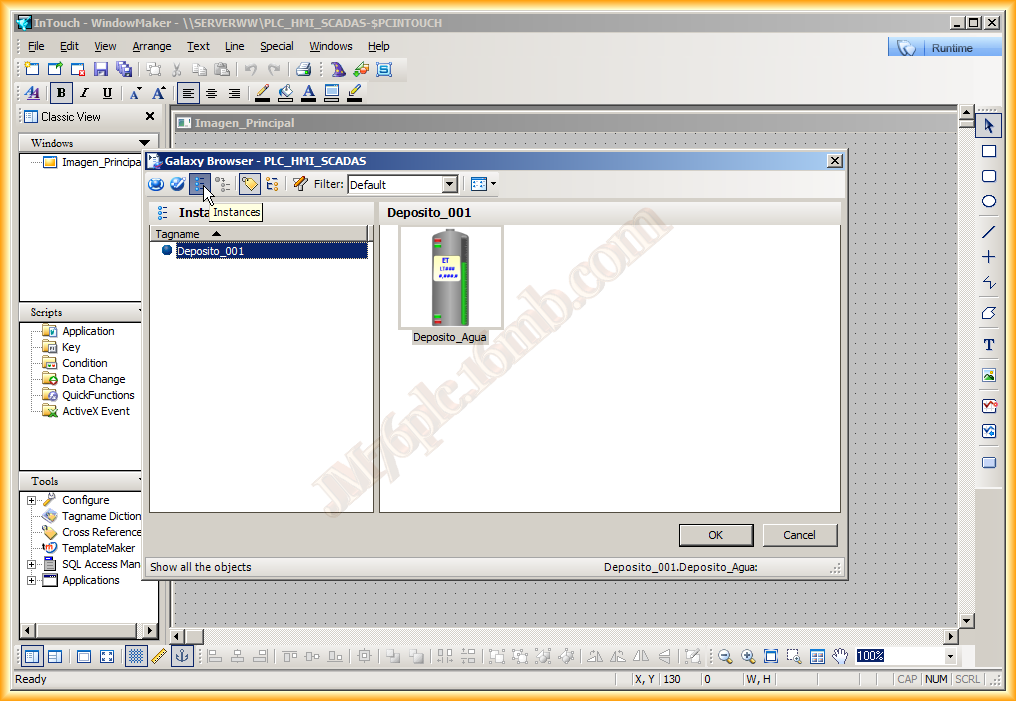
A pop-up window Galaxy Browser opens and in the Instances icon it shows our Tank_001 and the Graphic that represents it, we click OK and add it.
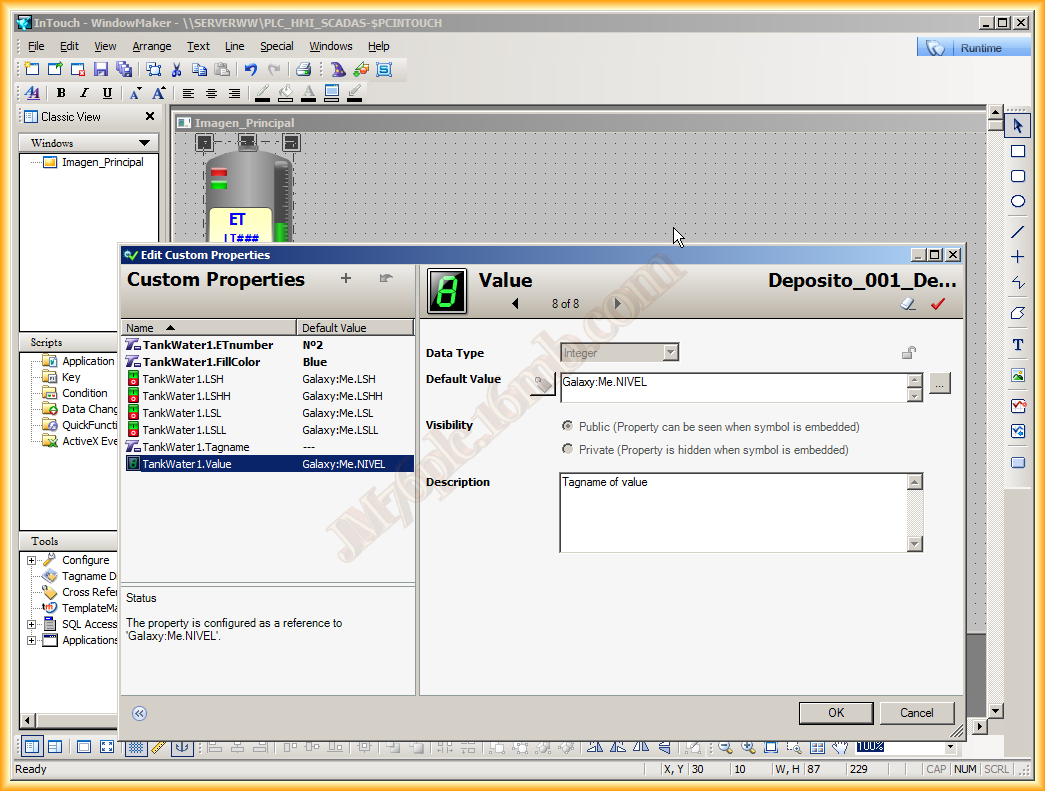
We click on the properties of the Graphic and the following properties are those that I configured when creating the graphic: the assignment of a name, a tank number, and the FillColor represents the display color, in this case, blue. But if I wanted it to be green, red, yellow, etc., it would be enough to change the name.
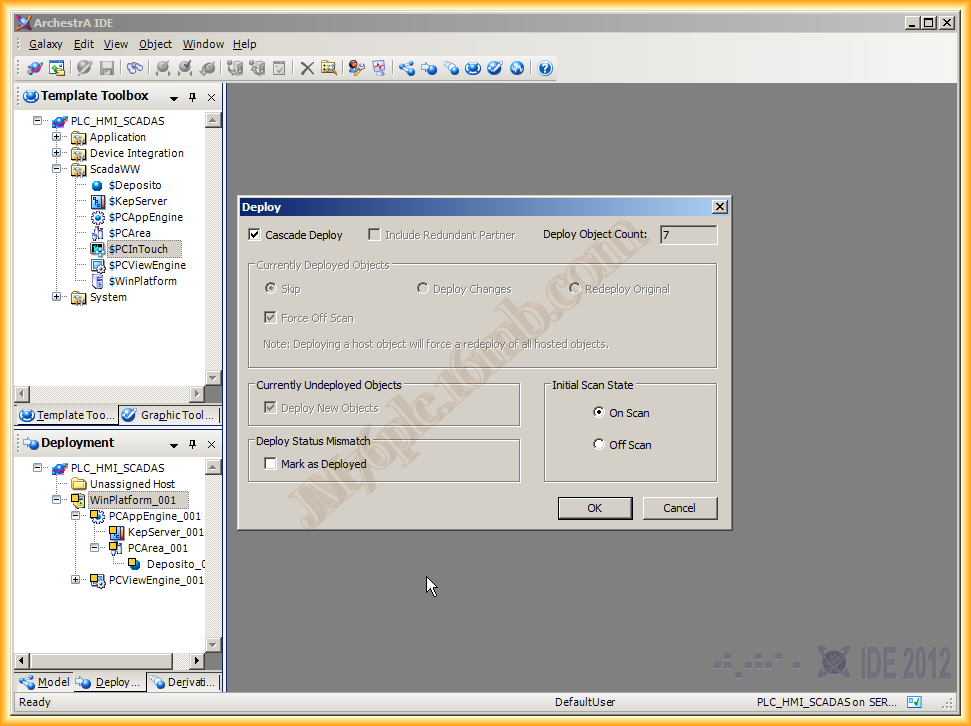
To test this symbol is already enough, so we save the changes and perform a Deploy of the entire hierarchy selecting the WinPlatform. The Deploy is carried out in Cascade of 7 Objects as can be observed.
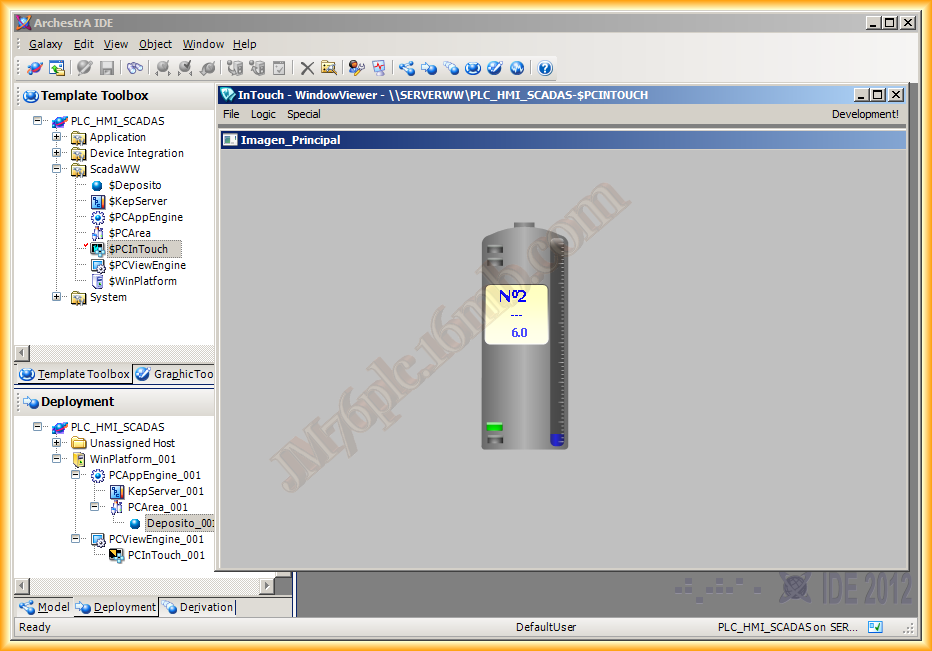
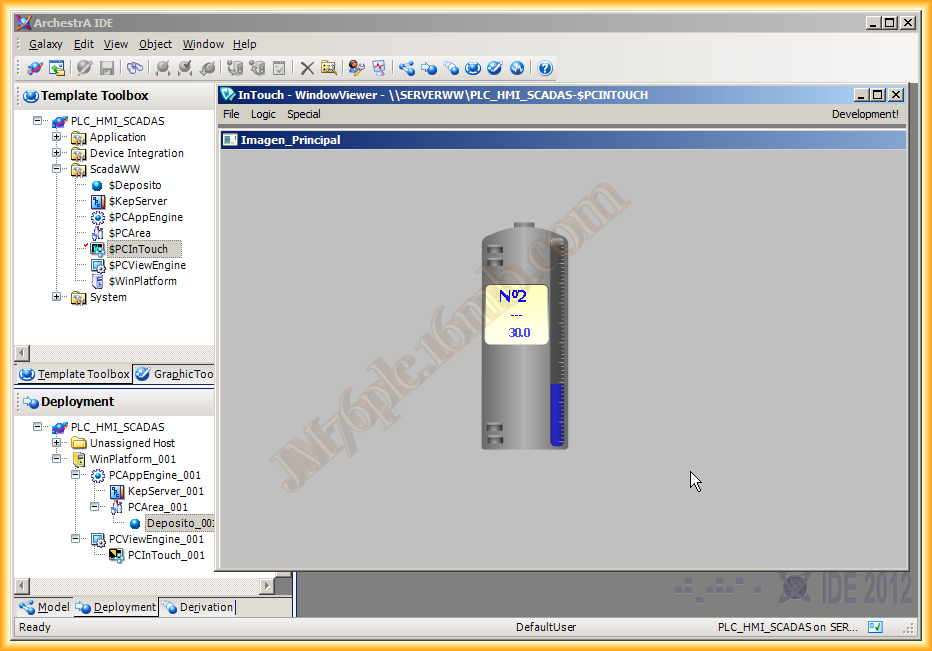
Once this is done, we open the $PCIntouch and run the Runtime with the following result. This concludes the first steps with Application Server.
December 3, 2012