
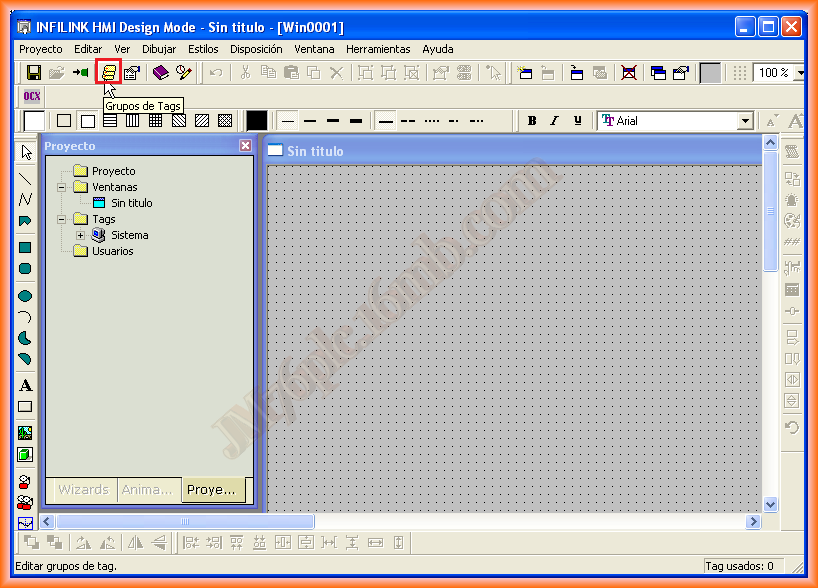
In this practice, we will see how to configure the Infilink Scada with the OPC KepServer, which in turn will be configured with the necessary Driver for the corresponding PLC. Here, I will only focus on the configuration of the Scada with the OPC. Once opened, this is the interface that is offered to us.
To create the communication, we click on the Tags Group icon.
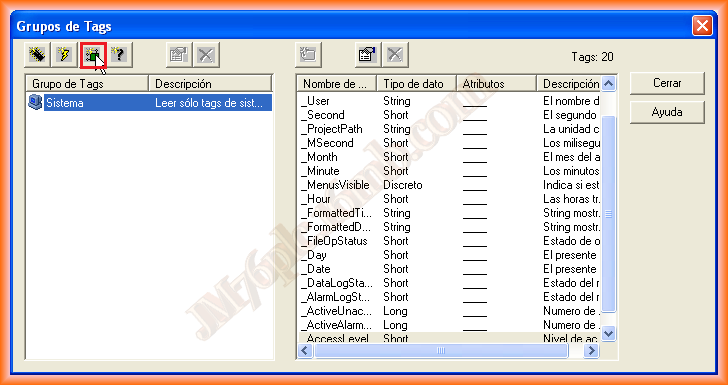
The following pop-up window opens, where the System tags appear. To create a new group, we select the marked icon.
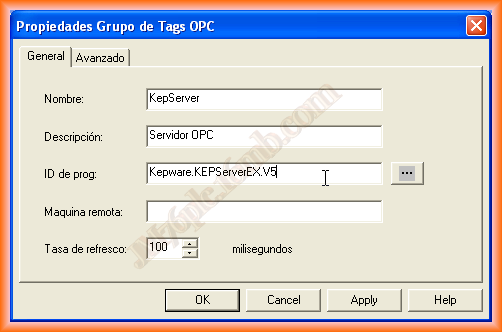
Following this, the next window appears. To create the new group, we specify the name and description as needed, and in the program ID, we click on the button ... and select from the list the OPC server that interests us. In this case, I will use the latest version of KepWare, KepServer 5.10, so I take the opportunity to test it.
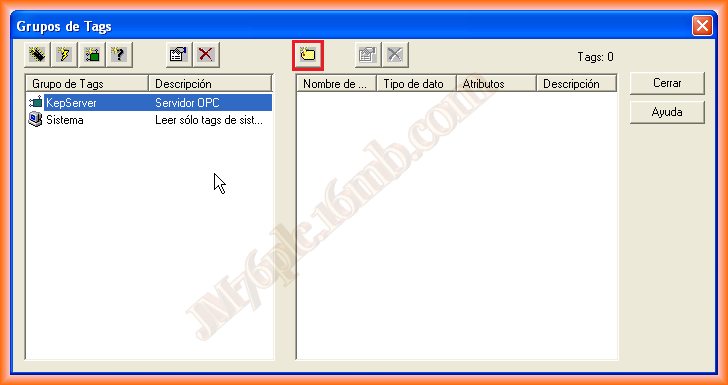
Once added, it appears in the Tags Group. We select it and can now add the tags, items of interest. When we click on new tag, the following window appears.
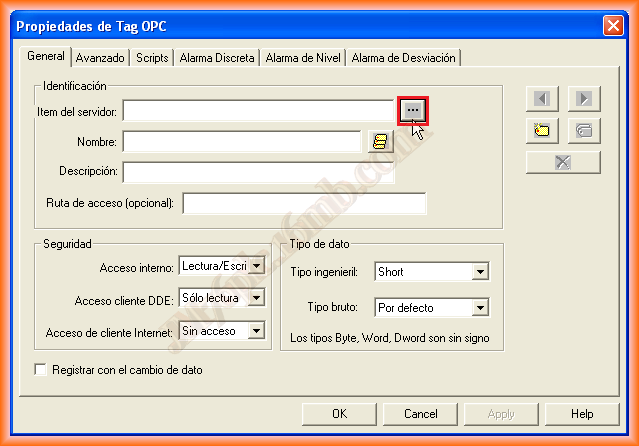
At the same time, we click on the button ... to search for the tags available in our OPC Server. The Tag Browser appears, and we select the tag or tags that interest us.
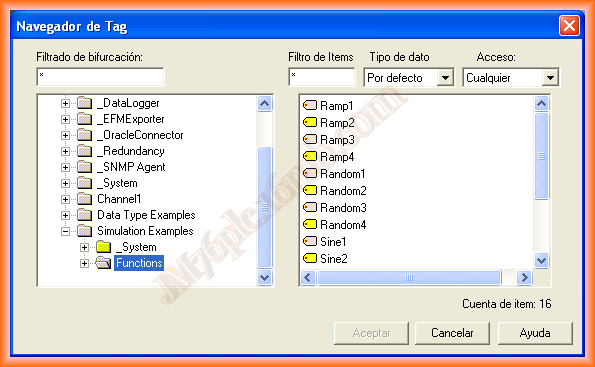
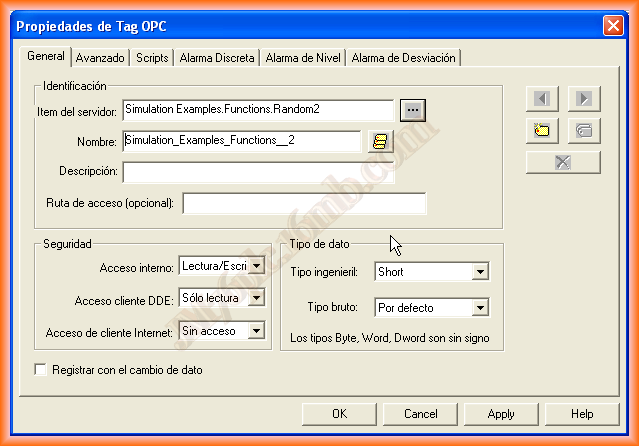
Once added, they load in the window where you can navigate between the tags using the buttons <- or ->. It is important to pay attention to the corresponding data type.
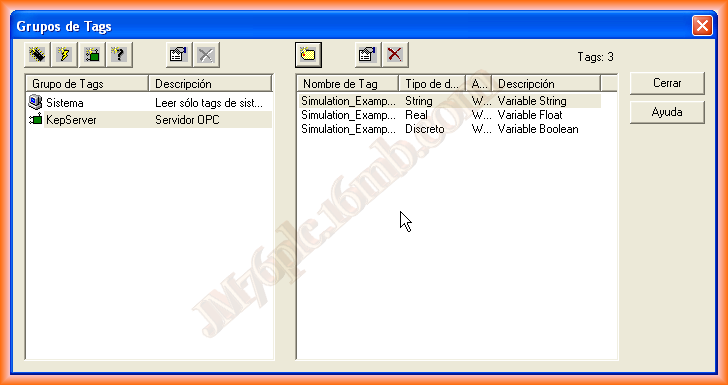
In the following example, I have added three tags, one of type String, Real, and Boolean.
To verify that everything is correctly configured, we insert some texts and an object where we configure some animation.
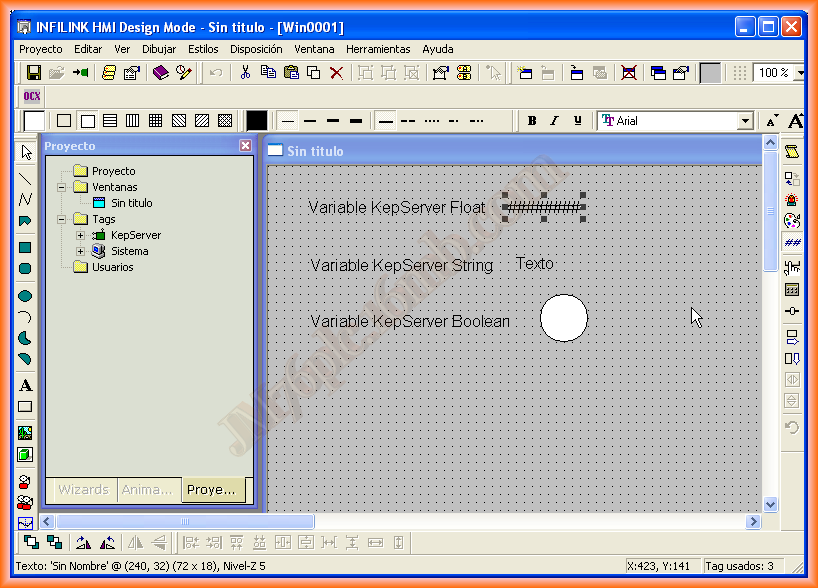
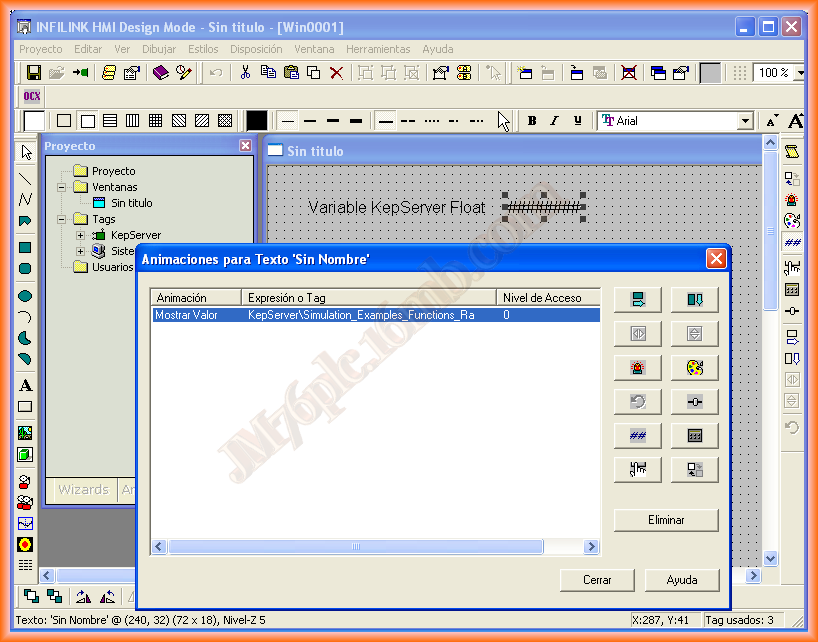
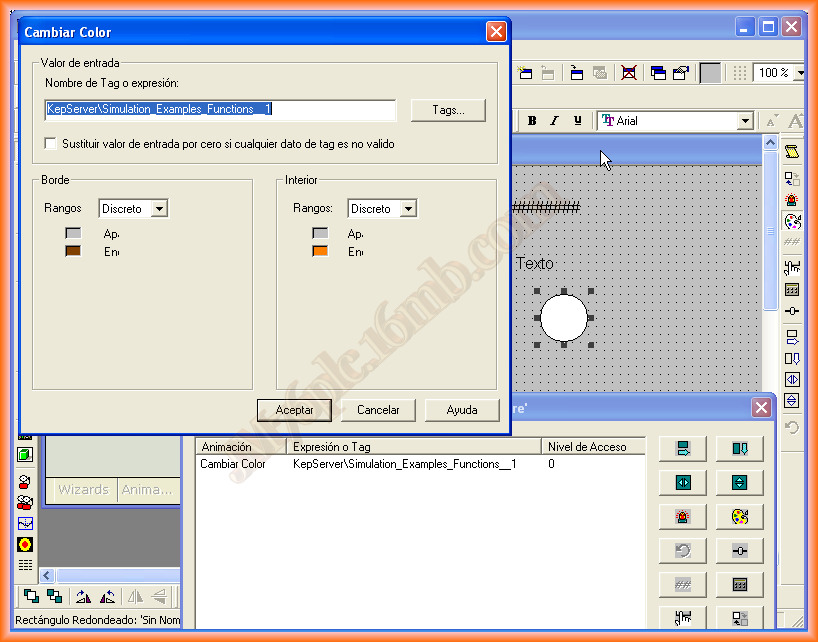
In this first field, we will display the value of a tag, and for the circle, we configure a color change with the boolean tag we have.
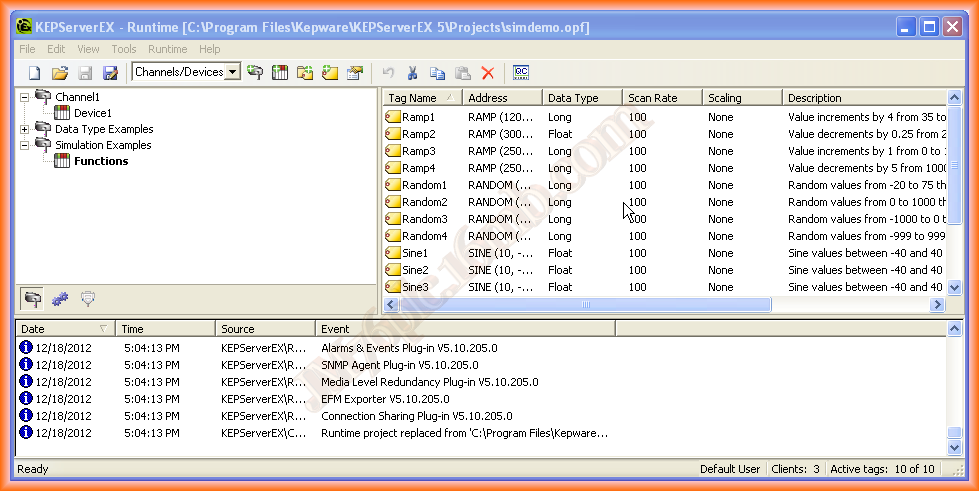
We run the KepServer, and we can observe how there are several clients connected at the bottom of the image, as well as the Active tags that we have configured.
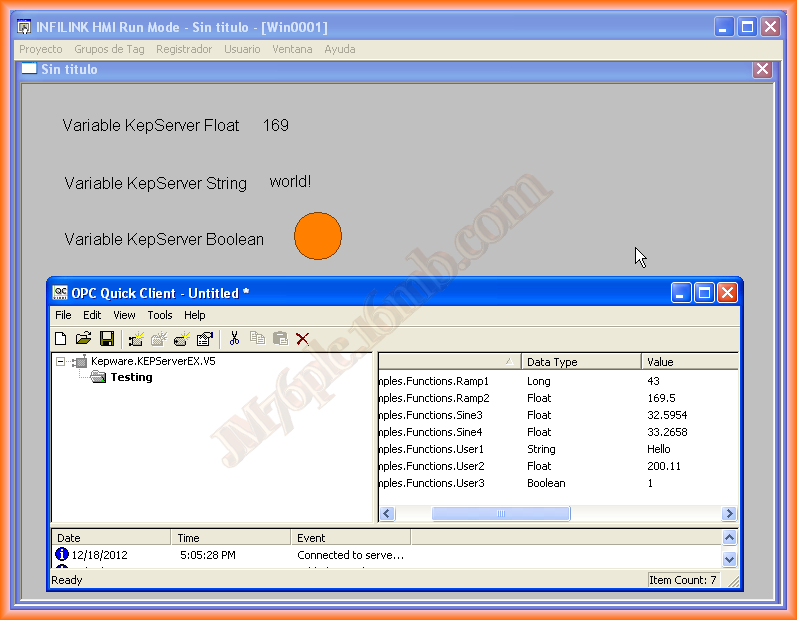
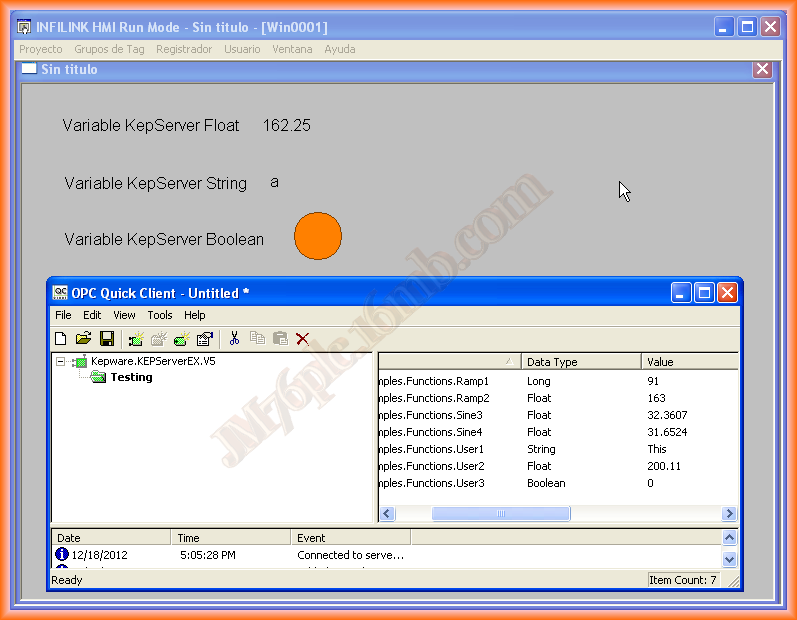
We run the Infilink Runtime and observe that the configuration is correct and works perfectly.
December 19, 2012