
Data Log Configuration in Factory Talk View ME
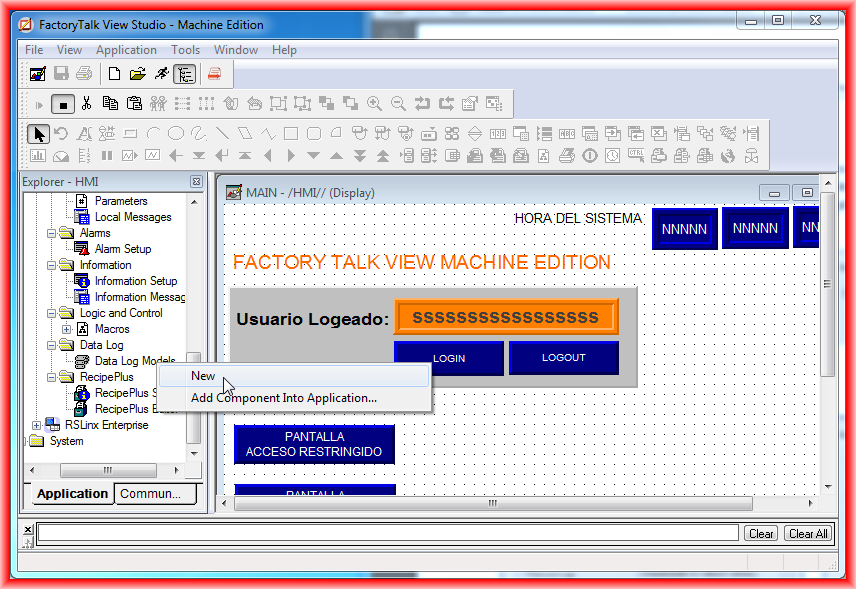
Continuing with the practices of Factory Talk View ME, today we are going to configure a new Data Log. For this, within the Data Log directory, we create a new one, provide the description we are interested in, and configure the maximum number of Data Points.
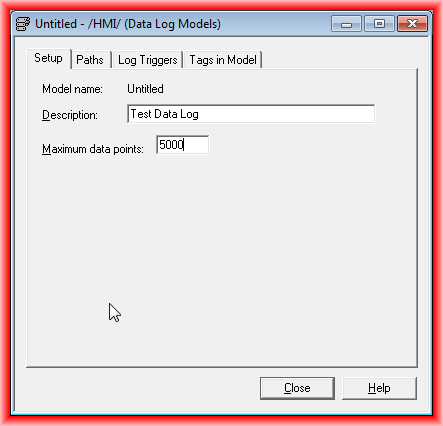
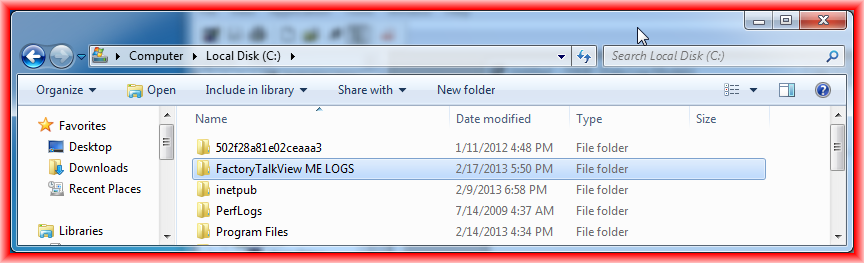
Before setting the "Paths" route, since I am going to run the runtime on the Computer, I create a new directory in C: where the .log file will be created.
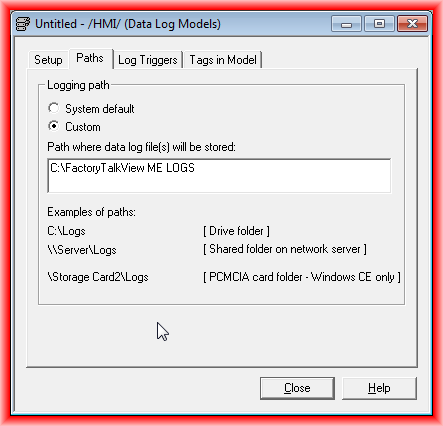
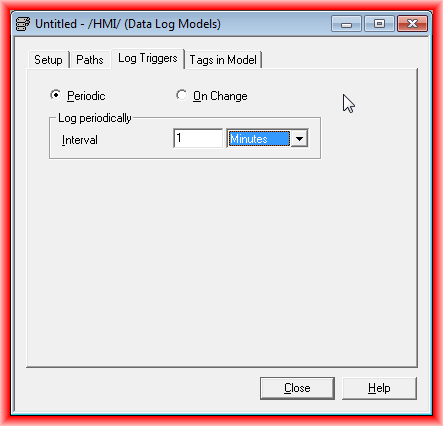
We can now specify the directory. The next step is to configure how we want to acquire the data; for this example, I have configured it to periodically every minute.
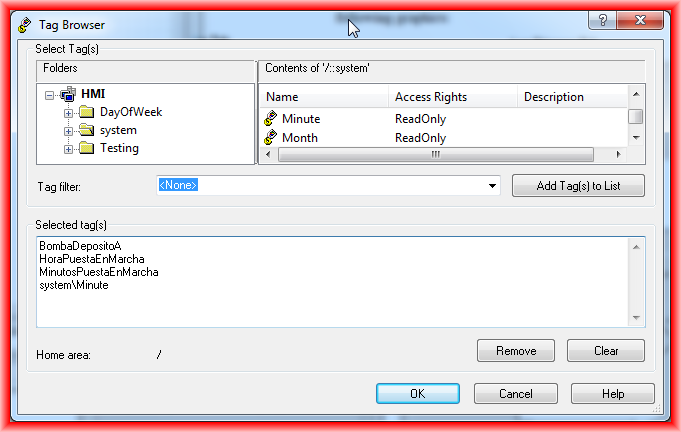
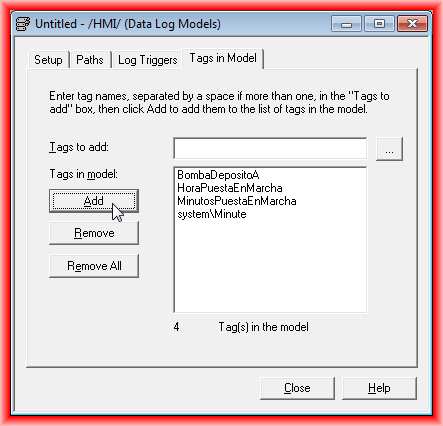
Finally, we need to configure the tags. We click on the button ... to open the Tag Browser and select the tags we are interested in. Once selected, we add them, and with these steps, it is configured.
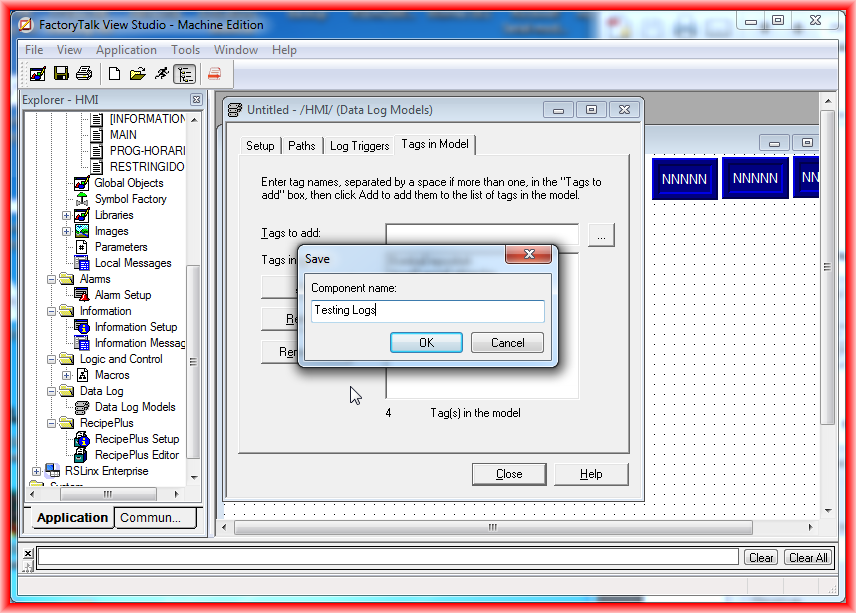
We save the Data Log by assigning it the name we are interested in.
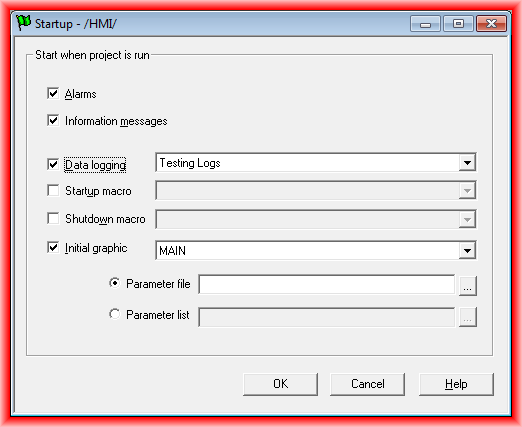
To execute the Data Log when starting the Runtime, we will configure it in Startup, so once it runs, it will start recording every minute.
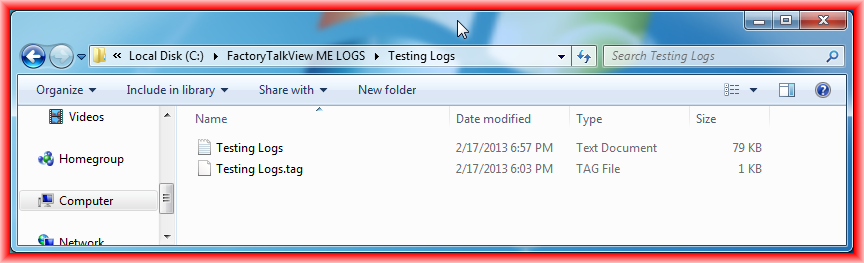
Once we have executed the Runtime, a *.log file has been generated in the directory we configured.
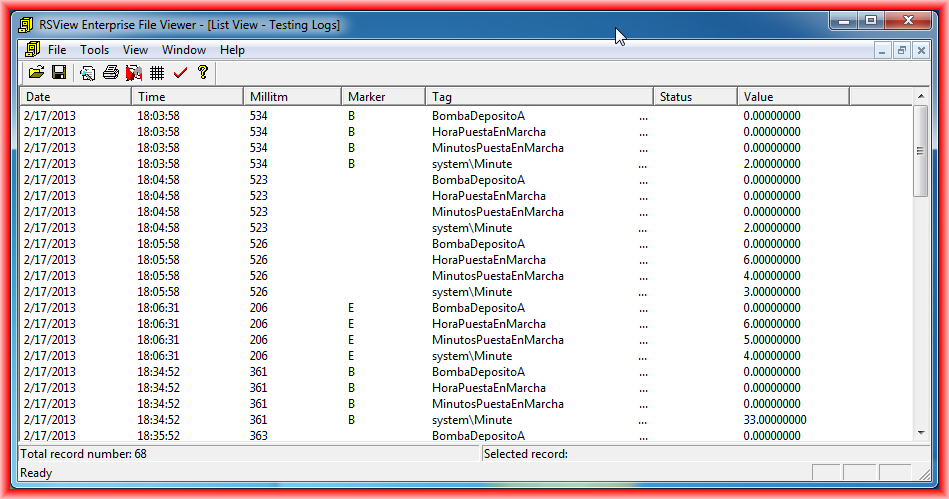
To observe the Data log, we can use the RSView Enterprise File Viewer application. As can be seen, once here, we can save our file as *.csv.
February 17, 2013