
DASSIDirect Configuration with S7-1200

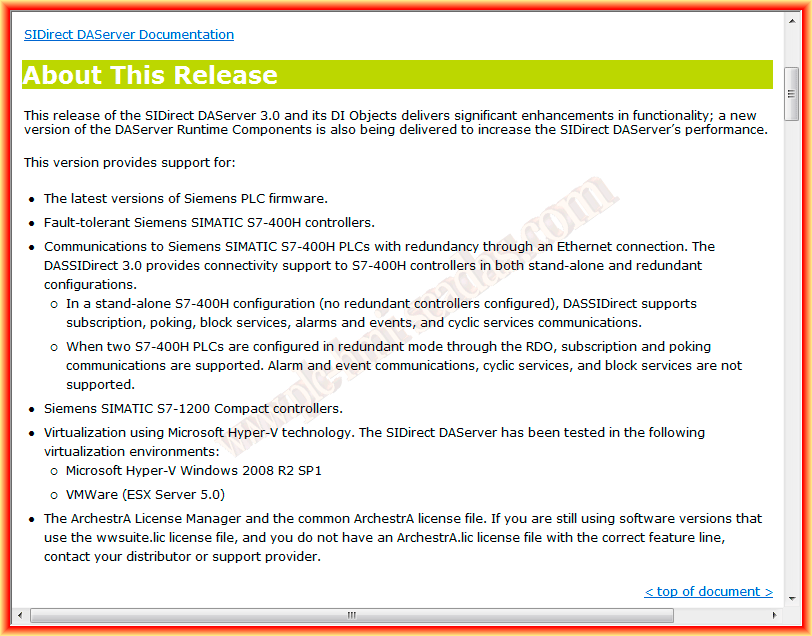
Configuration of the DASSIDirect DAServer, with version .3 it is possible to configure an S7-1200, which is the objective of this practice, so the first step has been the update, in case it is already installed or a new installation of the DAServer, you can also observe the new functionalities that the update offered.
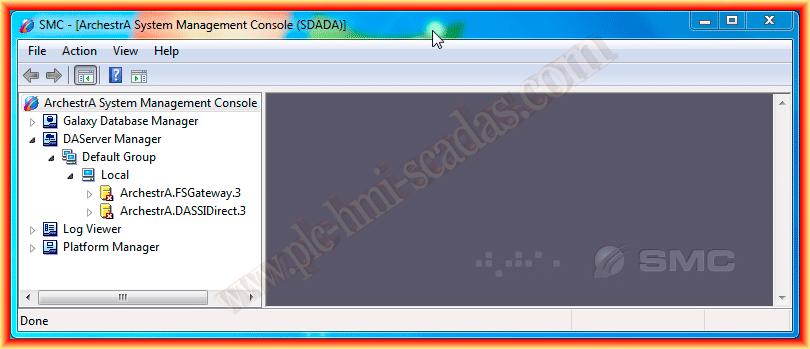
Once updated, or installed, we run the SMC Administration Console, and we can already see how our Server appears, although by default this service comes disabled.
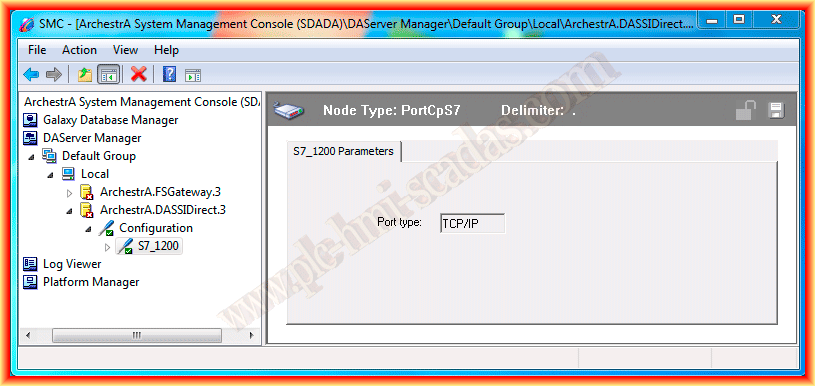
The first thing we are going to add by right-clicking is a PortCpS7 object, in the same way we would configure an S7-300/400, the Global parameters can be left as default or adapted according to needs.

To the added PortCpS7 object, we assign the name we want, and it can be observed that the type of port will be via TCP/IP.
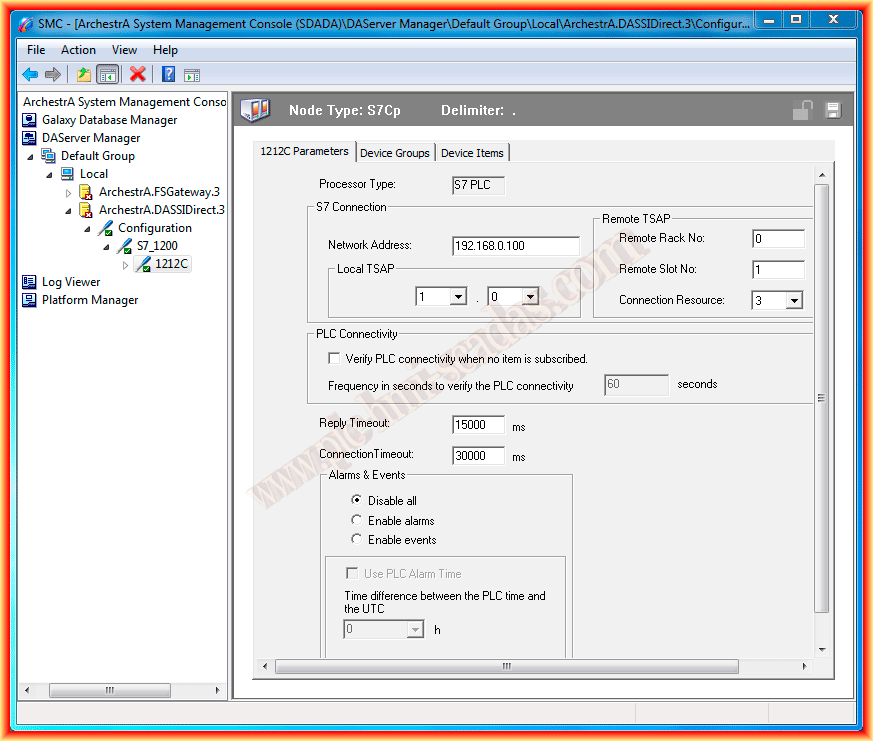
The next step, by right-clicking again, is to add the S7Cp object, again giving it the name we are interested in, and here is where we configure it with our device, specifying the IP address of our PLC, the Rack number which by default is 0 and the Slot number 1 for my case, since it is simply the PLC, Connection Resources can be left as default.
The next step is to add a new group, to which we will later add the tags we are interested in and the update period.


Now we can activate the Server and with any Client Server we can check if it is well configured and works correctly, in this example we will use the OPC Scout, where we add the tags we are interested in and activate Monitoring. It can be observed that the quality is good and it works perfectly, the next step would be to configure a new Access Name in Intouch and configure the tags.

March 22, 2013