
The following practice is dedicated to Professor Juan Carlos Martin Castillo, a professor with true vocation and who also has a fantastic blog dedicated to this field with many years of experience! Thank you!!!
The exercise is to communicate WinCC Runtime Professional V.12 with an S7-1200 PLC.
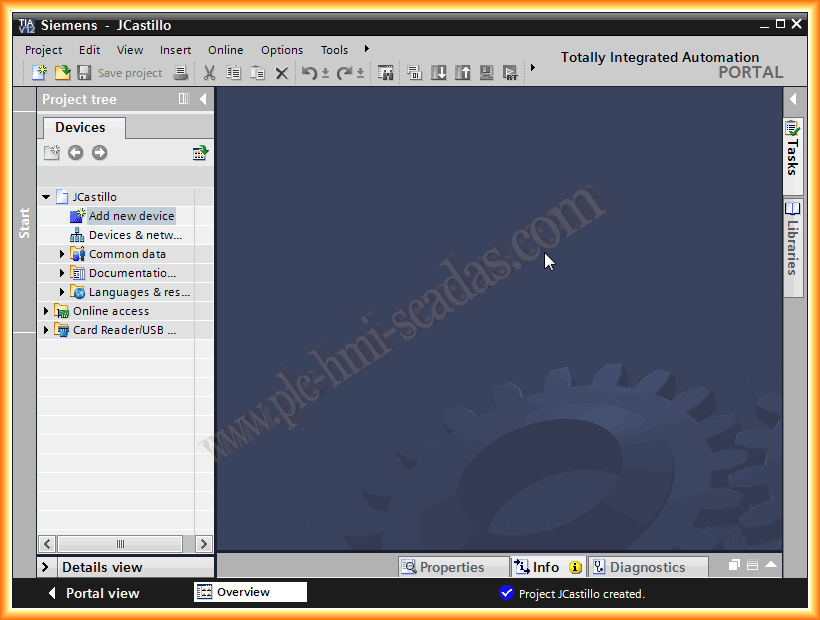
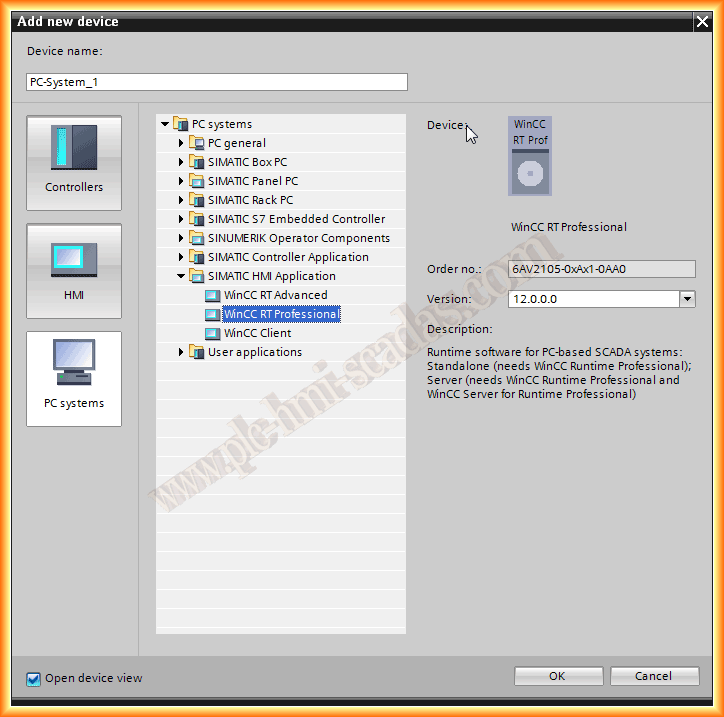
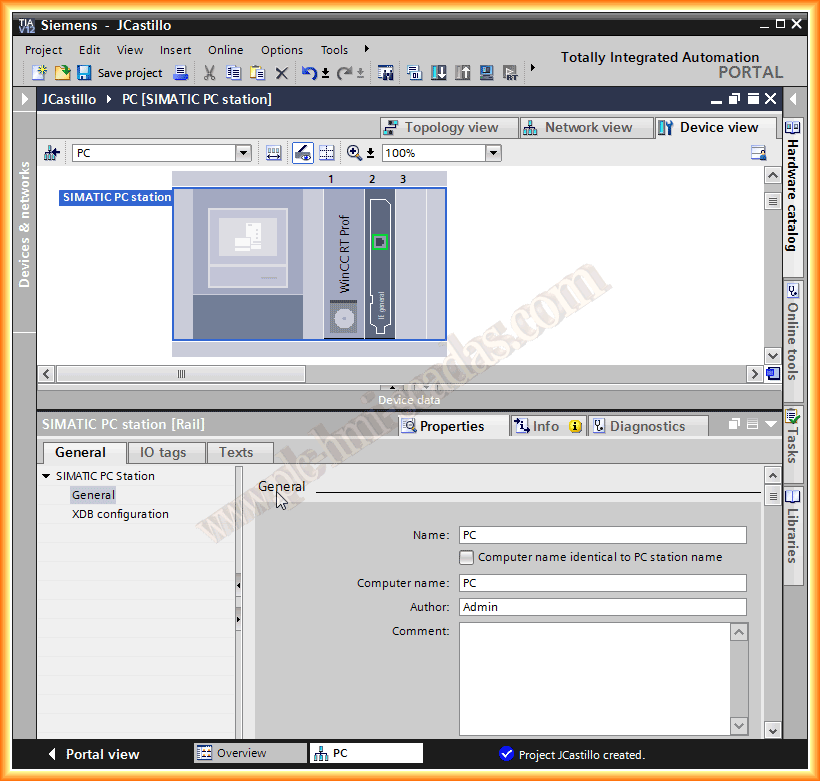
We create a new project and the first thing we do is add a new device, in this case, SIMATIC HMI Application and WinCC RT Professional.
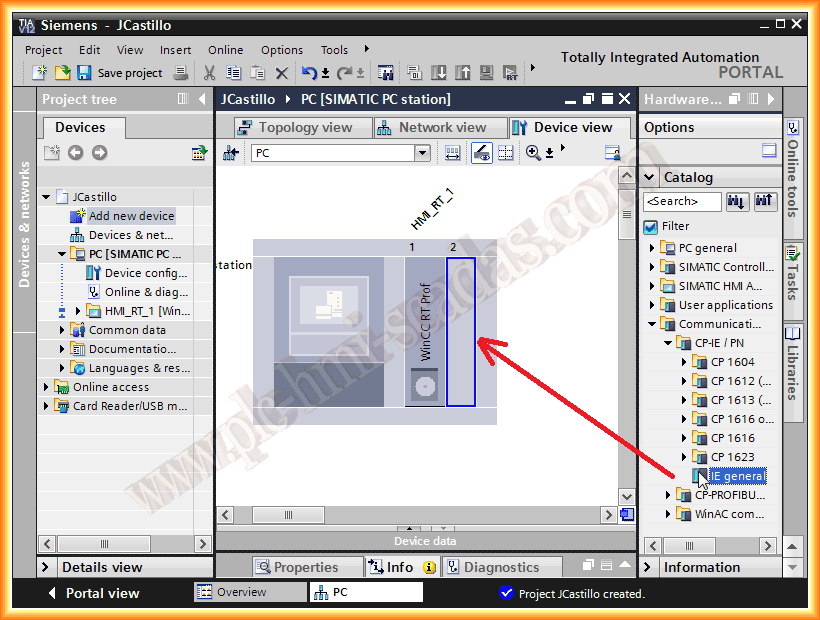
Next, we will add a communication module; since the target is an S7-1200, it is easy because our network card will be all we need. If we want to communicate via Profibus/MPI, we would need another CP like the 5611 A2, but continuing with this example, we drag IE General to Slot number 2.
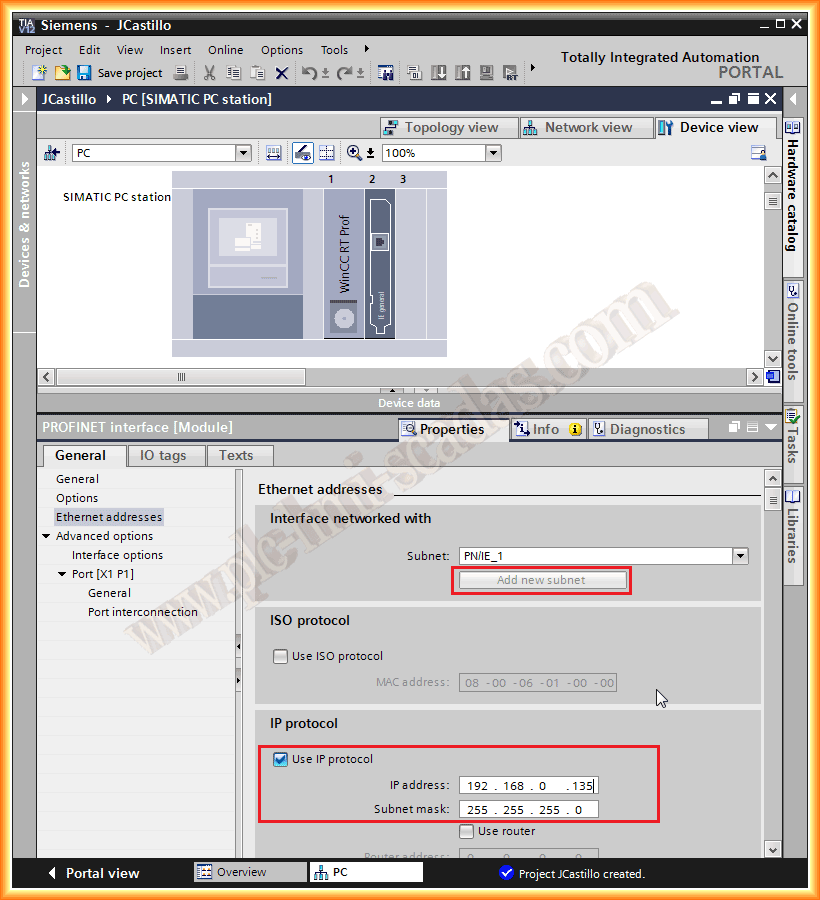
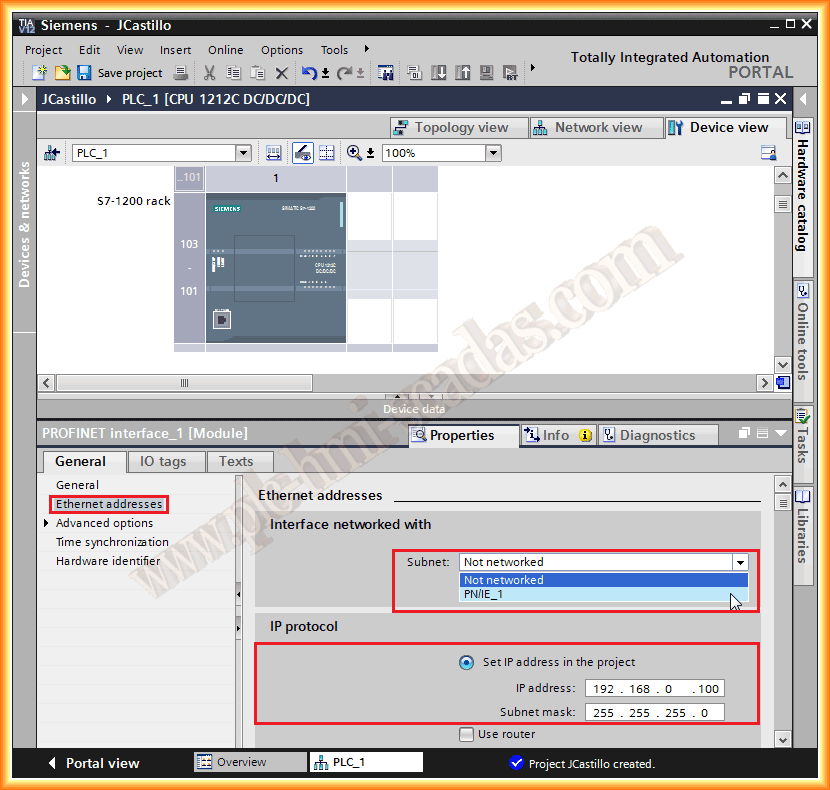
Once we have our card, we will configure the network. To do this, we click on Add new subnet, and automatically the PN/IE_1 network is created for us. Next, we need to configure the IP address, which must match the one currently assigned. To find out, we can run the command console and use IPCONFIG.
To finish configuring the station and avoid a warning when compiling, we assign a name in the Computer Name field or we can use the Check Box if they are identical.
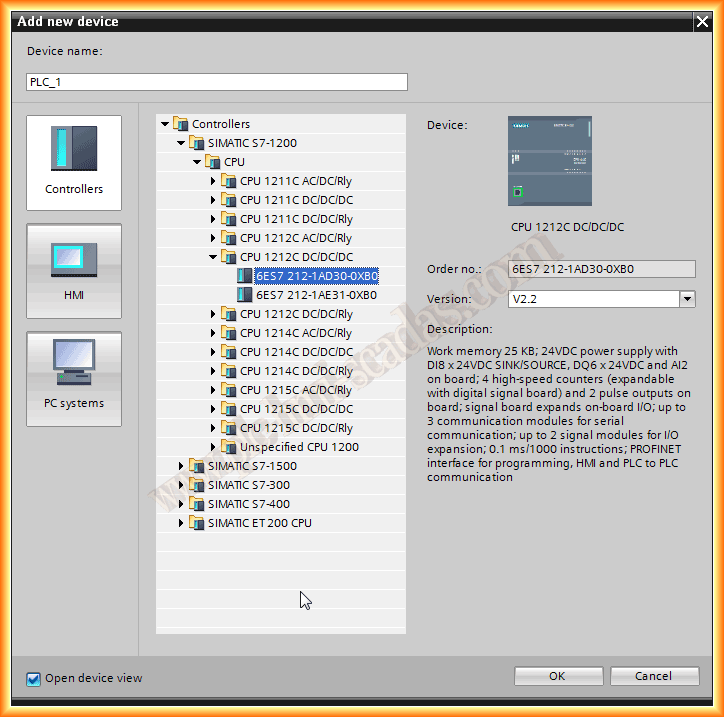
Once we have finished configuring the hardware of our WinCC RT, we will proceed to add a new device to add our PLC. As we mentioned, a 1200, we select it from the list and once added to the project, we will configure its properties. The most important thing is to add it to the subnet we created earlier and give it the IP address.
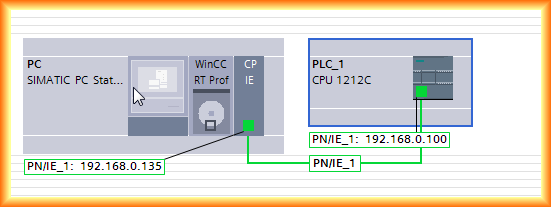
If we click on networks, we will see that our configuration is here.
Now it is time to create the corresponding project in the PLC. I have simply added some segments for the simulation, and in WinCC RT Professional, I have created an image, as can be seen, an input and output field for a counter, some rectangle objects to give it an animation, and for the example, it is more than enough.
We start from the premise that the first thing we did was program the PLC. Well, once done, when we go to create the connection between WinCC RT and the PLC, it is not necessary to do it in Connections, as it is done automatically when linking any object of our image with a variable declared in the PLC.
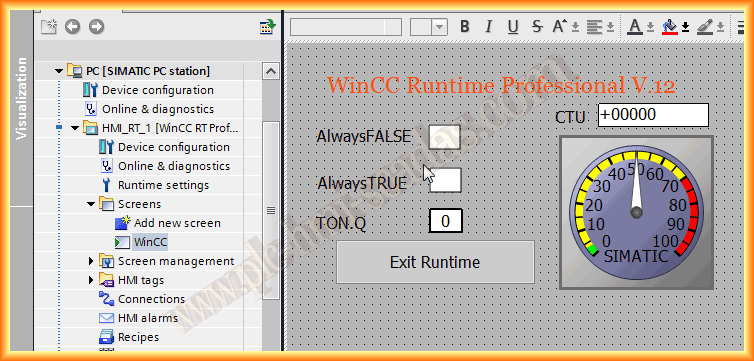
Continuing with the previous description, in the animations of the square, I linked the appearance with the Tag AlwaysFalse. By doing this, the connection has been created automatically.

The next image shows how the variables I have assigned and that belong to the PLC have been created.
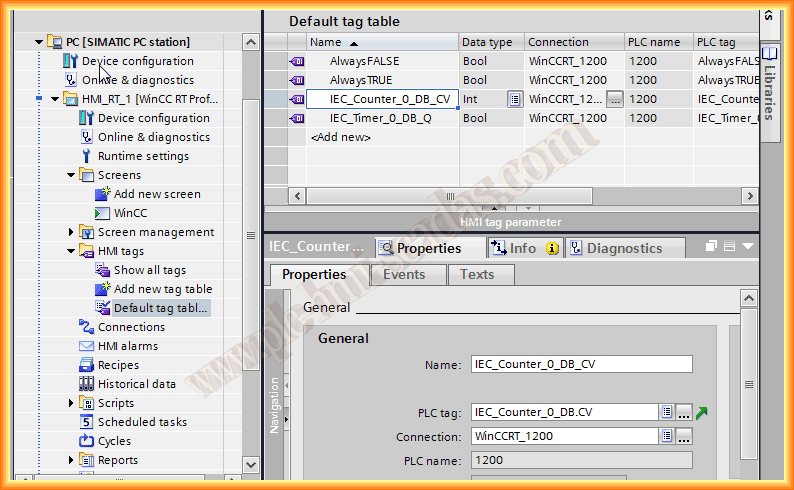
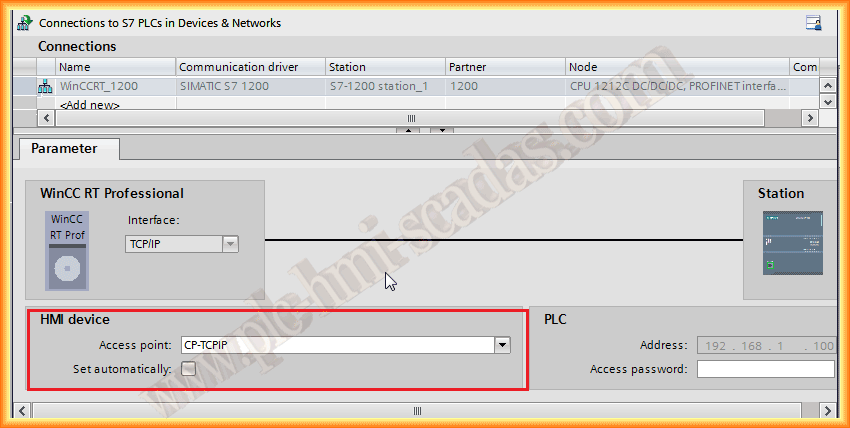
Here you can see the connection and that it has been created automatically, so I never start by creating the connection in the project, and here is the most important part for it to work!
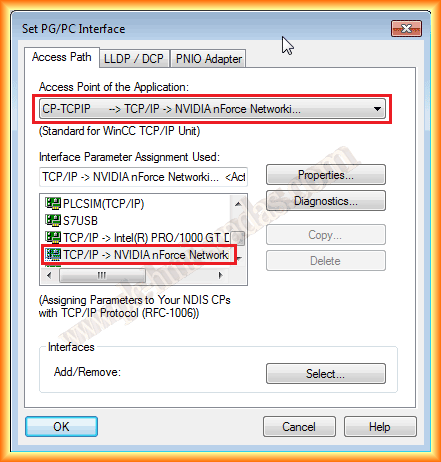
You must deselect the CheckBox Set automatically and select CP-TCPIP as the access point, which is usually set by default, and configure in Set PG/PC Interface the same Access Point with our network card as can be seen.
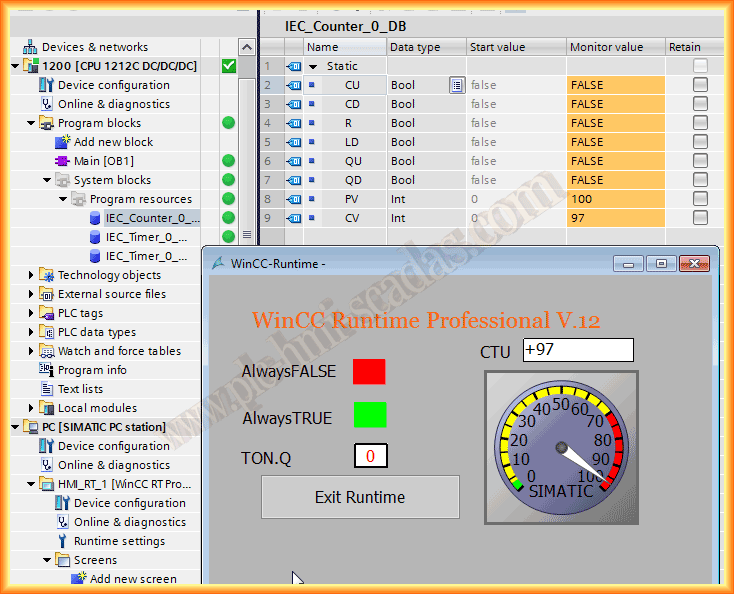
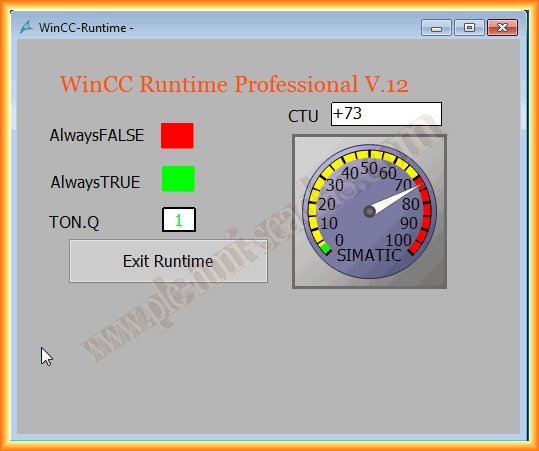
Once we have finished configuring all the images that correspond, we can compile and test our project, and at the same time go online with the PLC to check our program.
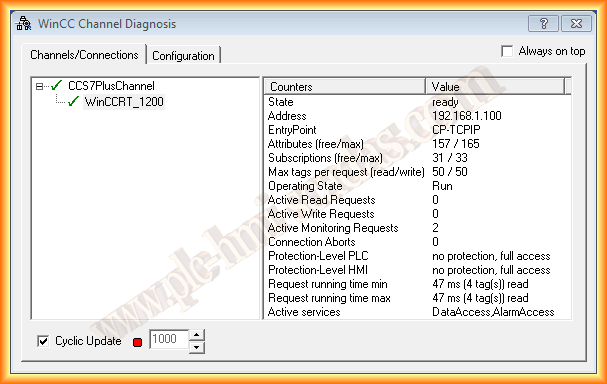
With WinCC RT Professional, the WinCC Channel Diagnosis tool is also available, which will help us know the status of our connection.
May 4, 2013
If you liked or found the information useful, share it...