
In this practice, we will configure the SoftLogix, this is the software from Rockwell Allen Bradley that allows us to turn our PC into a PLC. The slots will be the PCI cards that we install or have installed in our PC, and for older PCs, there are ISA cards.
The SoftLogix will be the one I will use to test our projects in the absence of having the CPU and to establish our link with the Panel View Plus or Factory Talk View SE.
Once installed, it starts automatically, and this is the interface, practically the same as the RSLogix Emulate 5000; we add the modules in the same way, right-click -> Create and add the card that interests us, as an example, I will add the Ethernet/IP network card.


Within the available catalog, we select the one that interests us, in my case Ethernet/IP SoftLogix5800, and I will use the card that I already have installed.


We assign the label that we want to display in the rack, and with that, we would have configured the card; we would do the same with subsequent cards to be added, in the case of configuring a DeviceNet network, ControlNet ...


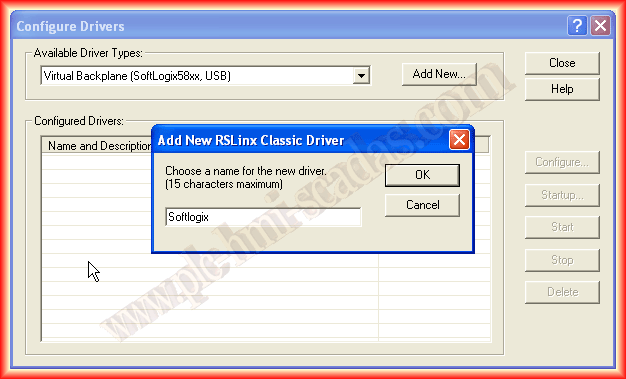
The configuration of RSLinx for project transfer is done by configuring the same driver as RSLogix Emulate, Virtual Backplane. We run RSLinx and add that driver.


We click on add and assign it the name we are interested in; if there is no error, it will show that it is running.

We can now observe that all our hardware configured in the SoftLogix is displayed correctly.

So far, we have configured the SoftLogix, the RSLinx, and finally, we are going to create a project to download to our controller. We run RSLogix and create a new project, selecting our SoftLogix as the controller, and by default, the chassis is assigned automatically; the default project directory is as is, and we click OK once a name and some description are assigned.

The following is the image of our new project; the next thing we will do is configure the hardware, as we need to add our Network card, for this, on Backplane, right-click -> New Module.


A pop-up window opens where we select the type of Module that interests us, in this case, communications and Ethernet/IP.

We configure the name we want to assign, with the IP address that we had configured in the SoftLogix and the Slot where it is located.

Our Network card is now added, and in the different tabs, we configure according to our needs; for this example, what has been done is sufficient, we click OK and that's it.

Assuming that we have developed our program, which in this practice I will skip, as I will dedicate a practice to explain the different sections of our project, but we assume that we have done it and we are going to perform the transfer.
On Communications -> Who Active

An instance of the Who Active from RSLinx opens, and we click on the controller, in this case, the SoftLogix; from this moment, we could perform a transfer from the PC to the Controller (Download) or vice versa, load the project from the Controller to our PC (Upload).

As I am interested in loading my program, I do a Download, and first, a warning window appears; we confirm, and the transfer starts automatically.


From this point on, we could put our Controller in Run; our program will execute, and we can monitor it, go online, observe, check... and modify if necessary.

May 8, 2013
If you liked it or the information was useful to you, share it...