
DASABCIP Configuration with SoftLogix
DASABCIP Configuration with SoftLogix
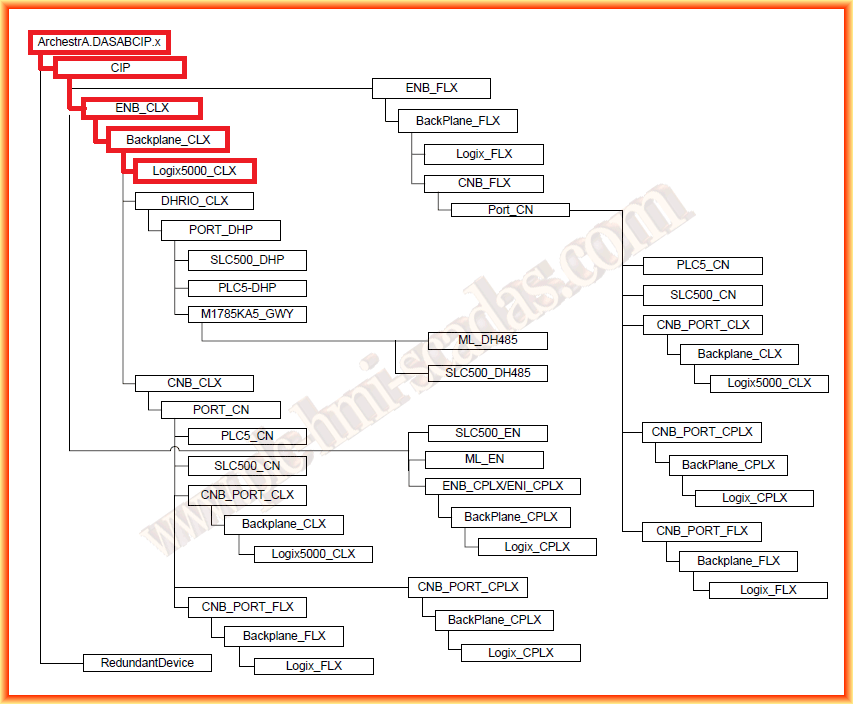
Taking advantage of the fact that we are doing some practices with SoftLogix from Allen Bradley (Rockwell), we will see how to configure the DAServer ABCIP. This server is the one we are interested in to configure a link via Ethernet; although we will use SoftLogix, it is applicable to ControlLogix and CompactLogix. The scheme we will follow is shown in the following figure, extracted from the manual, which contains all the details for its configuration.
As we have seen in previous practices, the first thing we do once DASABCIP is installed is to run the Administration Console, where all the installed DAServers will appear.
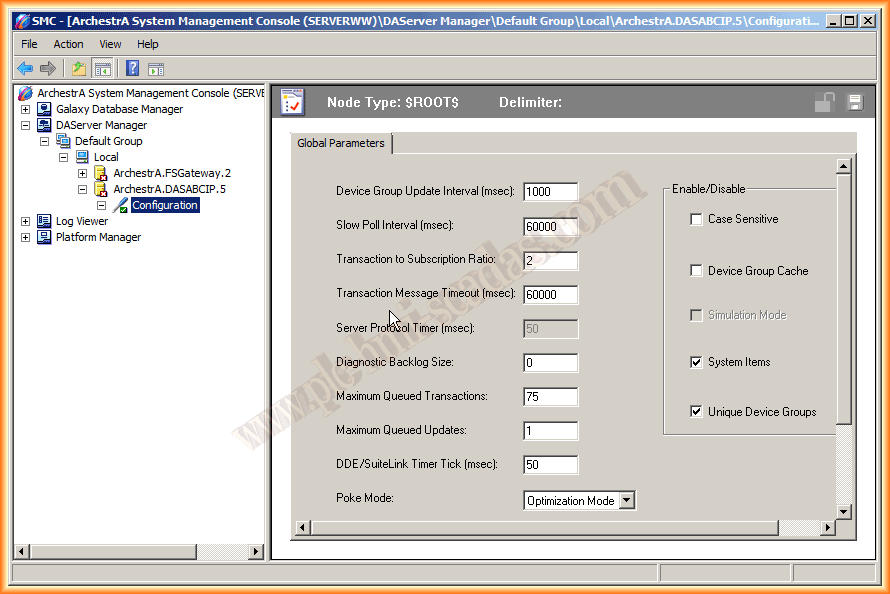
If we click on configuration, these are the values that appear by default and that we will leave as is.
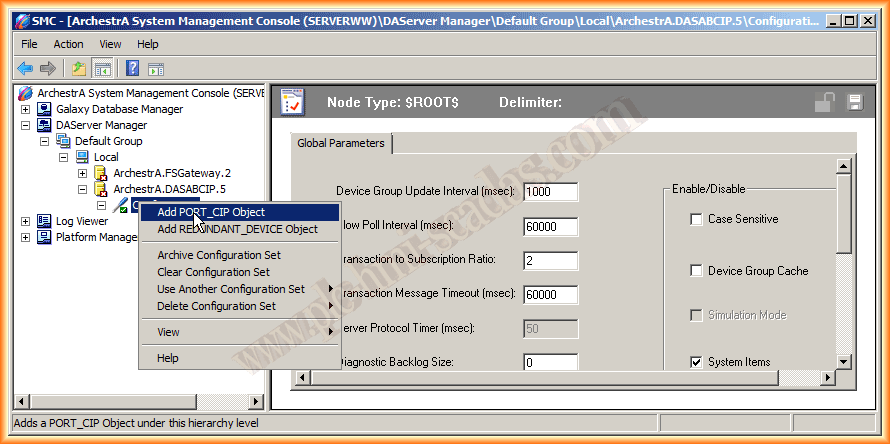
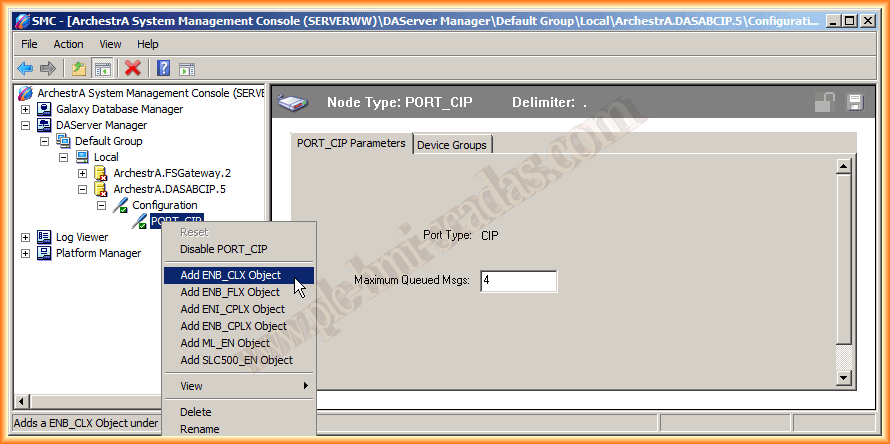
The first thing we are going to do is add an object of type PORT_CIP
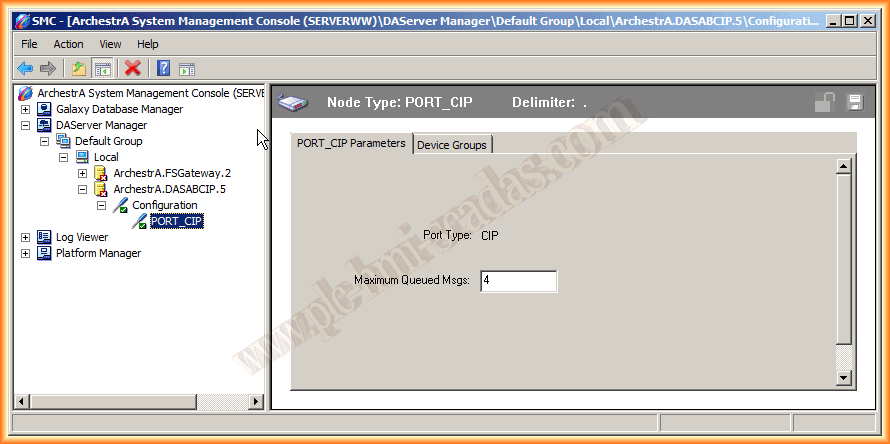
Once we have added our CIP port "Common Industrial Protocol", we will introduce the maximum number of messages that the server can send before receiving a response from the device. The allowed range is 1-40, and by default, it is 4.
In the Device Groups tab, in this case, it is not necessary to configure anything.
Once the Port is added, depending on the configuration we are going to perform, we will select the corresponding object. For our case, according to the scheme seen, we add the ENB_CLX Object
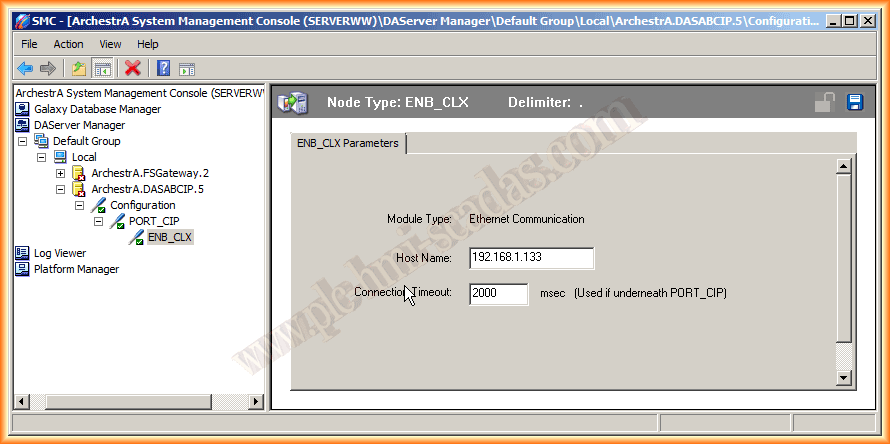
Once added, we have two configurable parameters. The first corresponds to the IP address of our device, which must be on the same subnet. The connection Timeout time can be left as default.
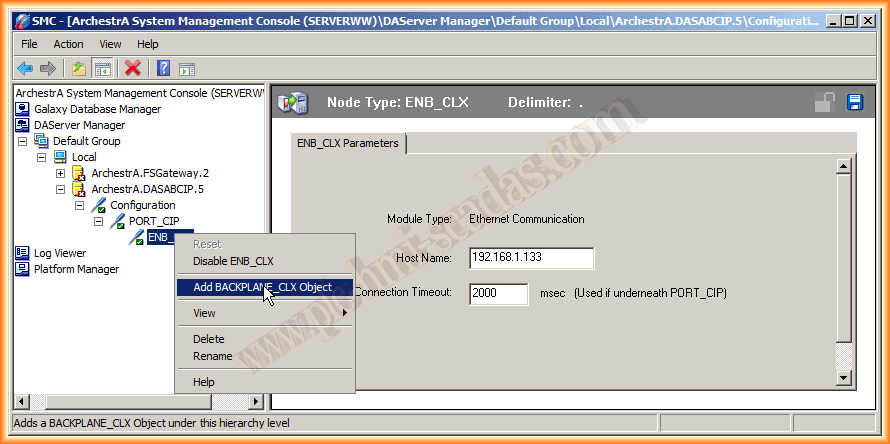
The next object we need to add is a BackPlane.
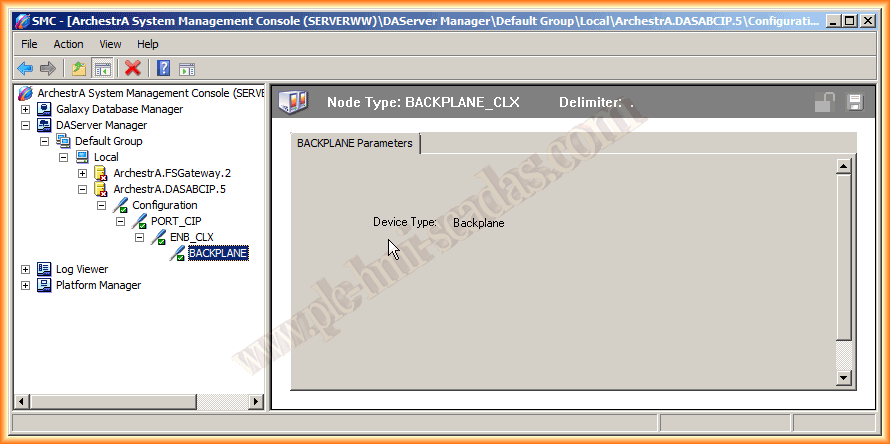
This object has no possible configuration, so once the Backplane is added, we need to add the Logix5000 object
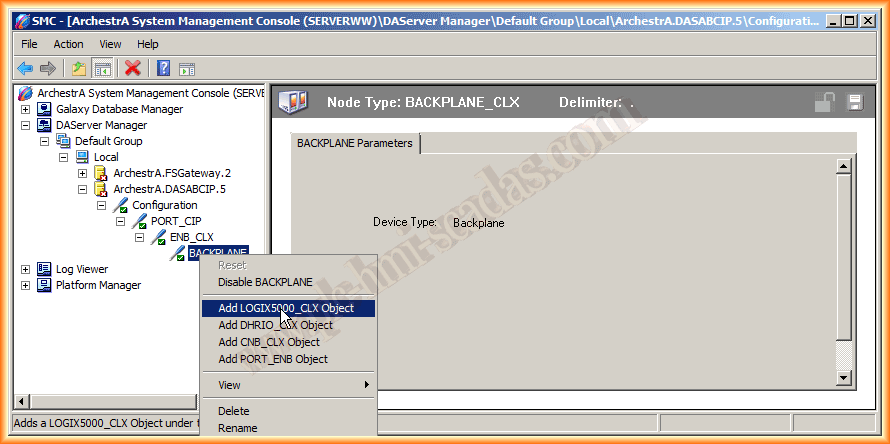
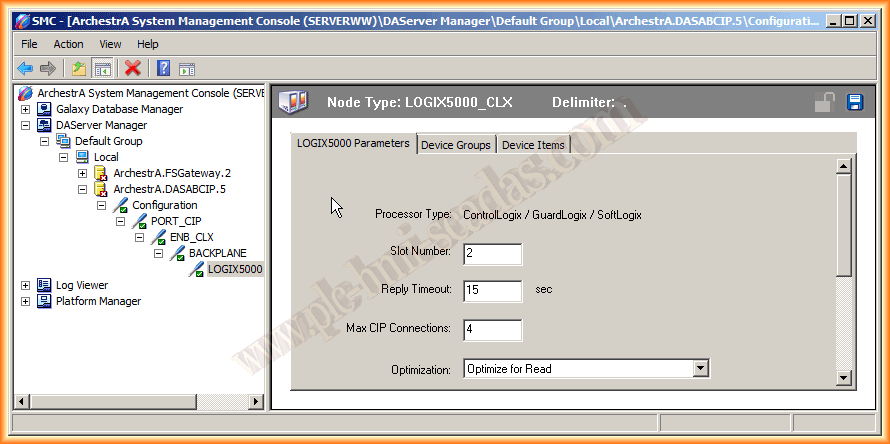
Here, the first most important parameter to add is the Slot number where our processor is located, in my case it is number 2
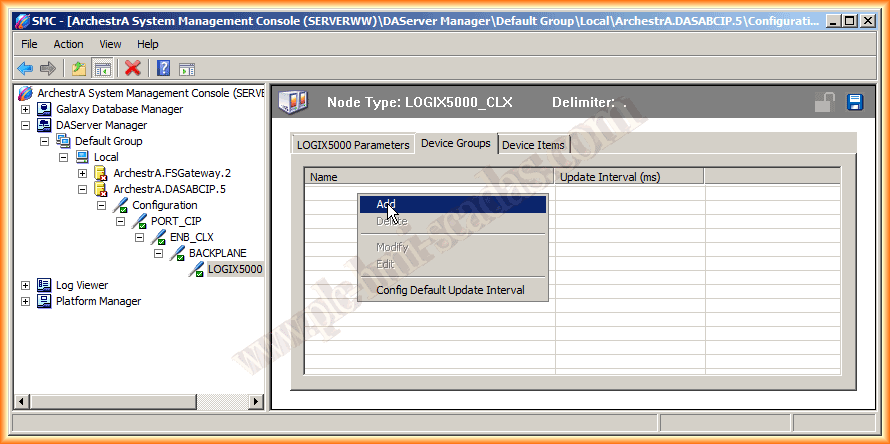
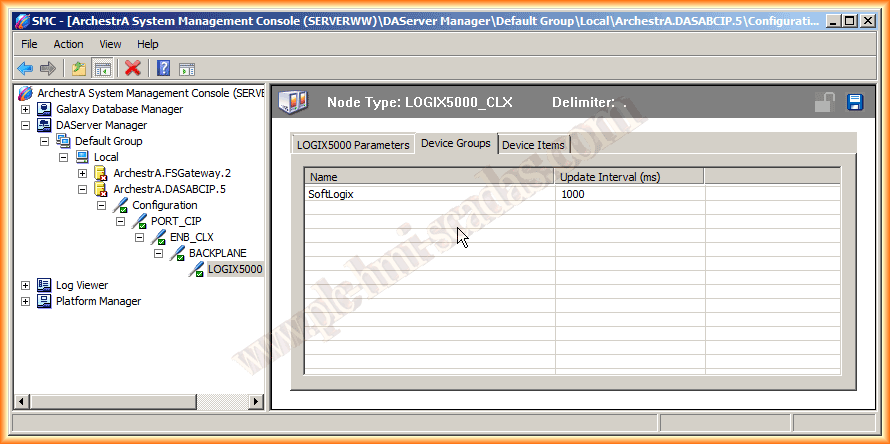
This time we do need to configure in Device Groups the name of our Topic, so we add a new one and give it the name that interests us. The topic we configure here will be the name we need when configuring a new AccessName in Intouch
We switch to the Device Items tab, where we will configure all our items, tags, based on RSLogix5000. The ItemReference addresses depend on the type of tag it is. Here are two examples of tags that belong to the main program and two tags that are at the controller level
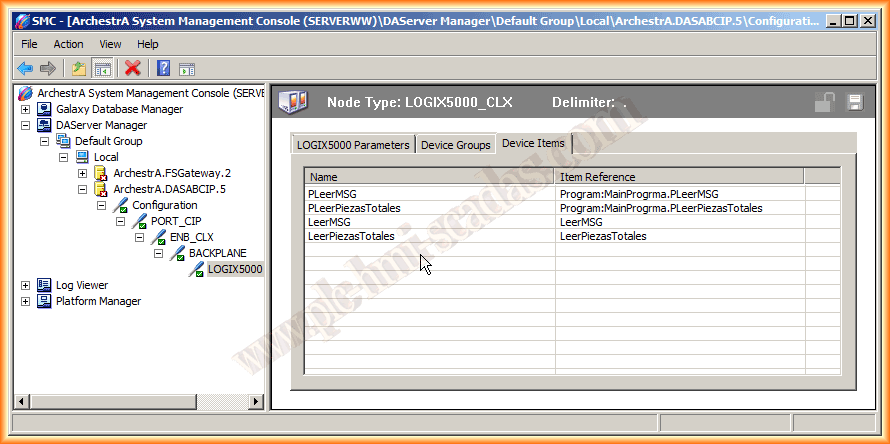
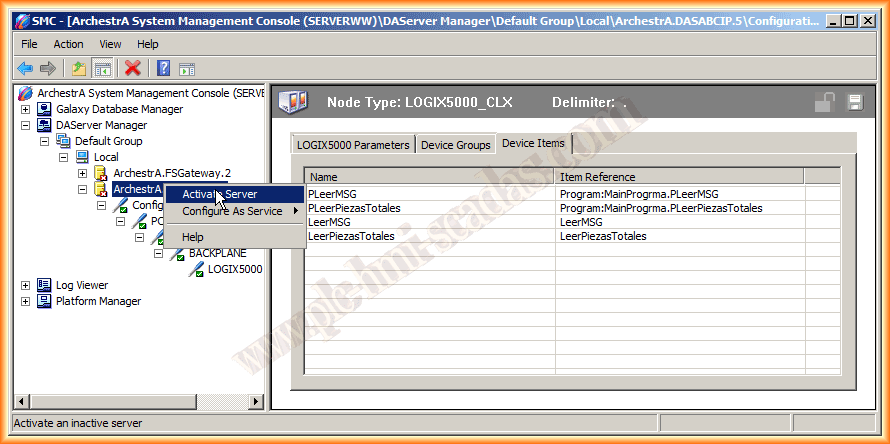
We save the changes and check that the configuration made is correct and works. We activate the Server and the DAServer Servers, we can access either by DDE/SuiteLink or by OPC.
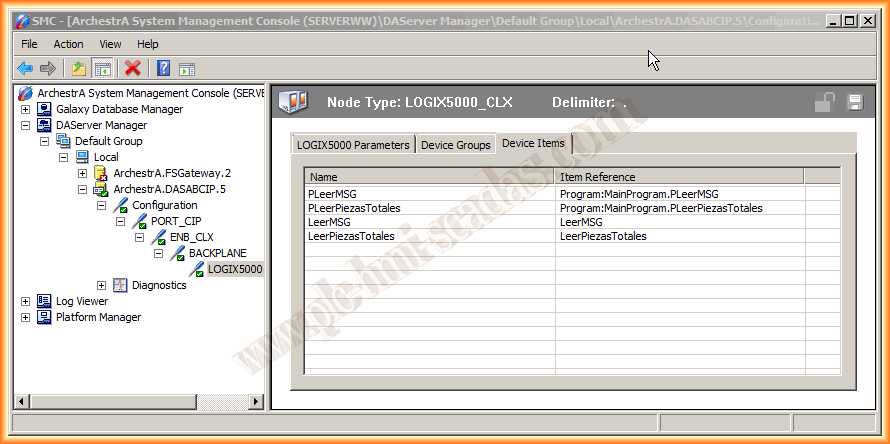
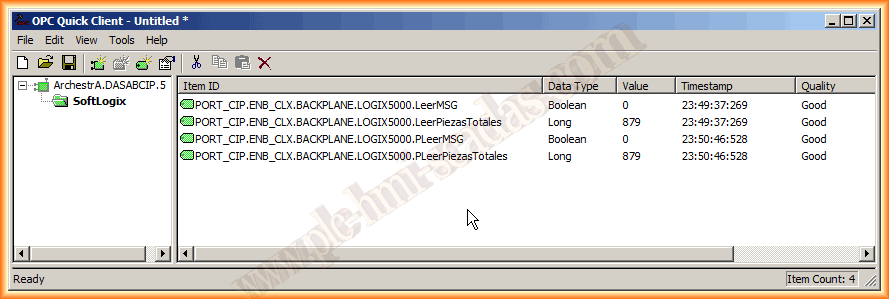
To check its operation, we run the OPC Client from Kepserver and here we observe that the quality is good and the values are updated in accordance with our program.
May 30, 2013
If you liked it or found the information useful, share it ...