
Vijeo Designer Configuration with SoftLogix
In the following practice, we will configure the connection between Vijeo Designer and SoftLogix. Before we start, it is worth noting that according to the documentation of Vijeo Designer, there is no specific driver for the SoftLogix controller, but the tests conducted have been satisfactory.
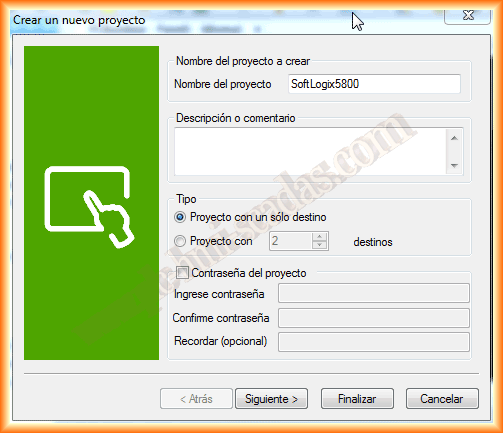
We create a new project, giving it a name of our choice and, if necessary, project type, password, etc...
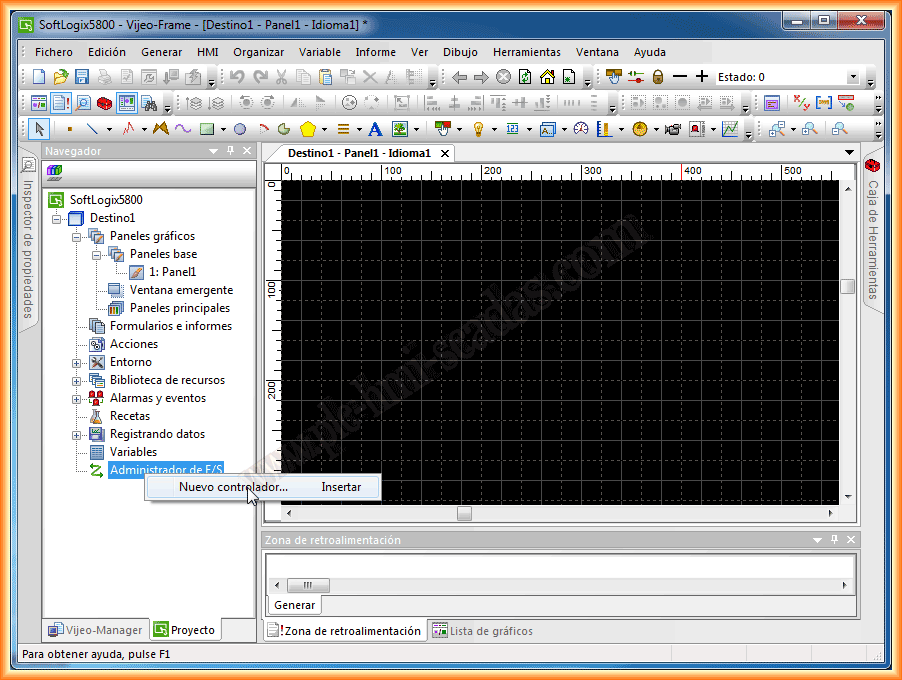
Once our project is created, we are already familiar with its graphical interface, and the first thing we will do is add a new controller.
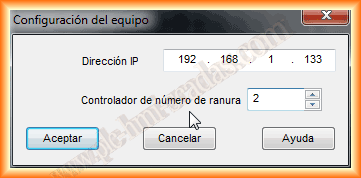
Within the Rockwell Drivers, we have several related to Ethernet/IP, which is the one I am interested in. As I mentioned earlier, there is none specific for SoftLogix, so to test if it worked, I selected as if my device were a ControlLogix, then specified its IP address and the CPU Slot.

When adding the tags, the easiest way is to link them. To do this, I had previously saved the project created with RSLogix5000 with the *.L5k extension, which will make our task much easier.
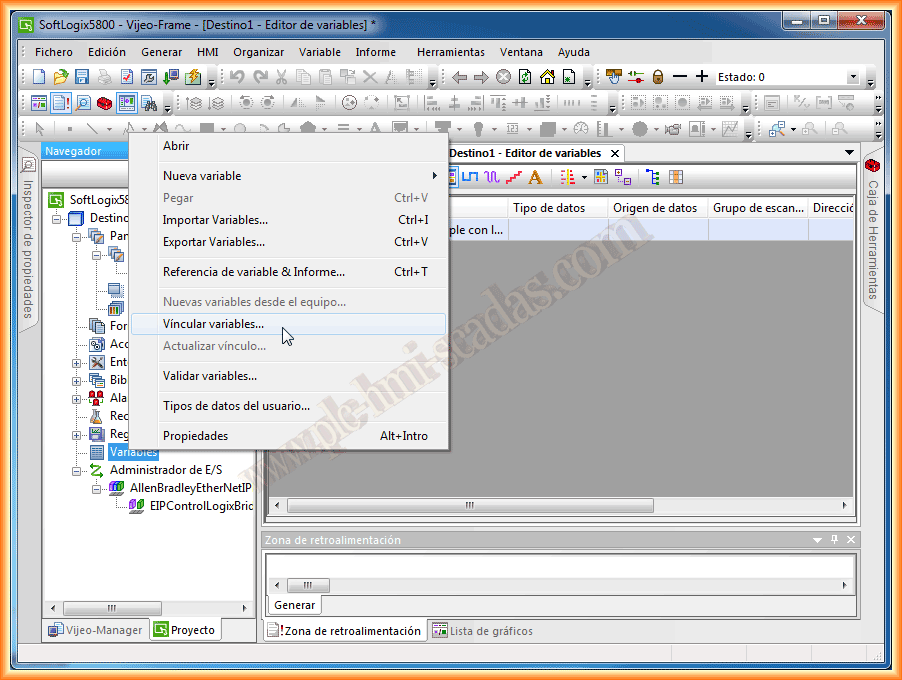
A new window opens, and we select the type we are interested in, for this case *.L5k, we find our file and proceed to open it.

It will automatically read all the tags we have created in our project, regardless of their scope, whether they are Controller, program, etc...
We select the ones we are interested in and add them to our project.

We have now added the tags to our project.
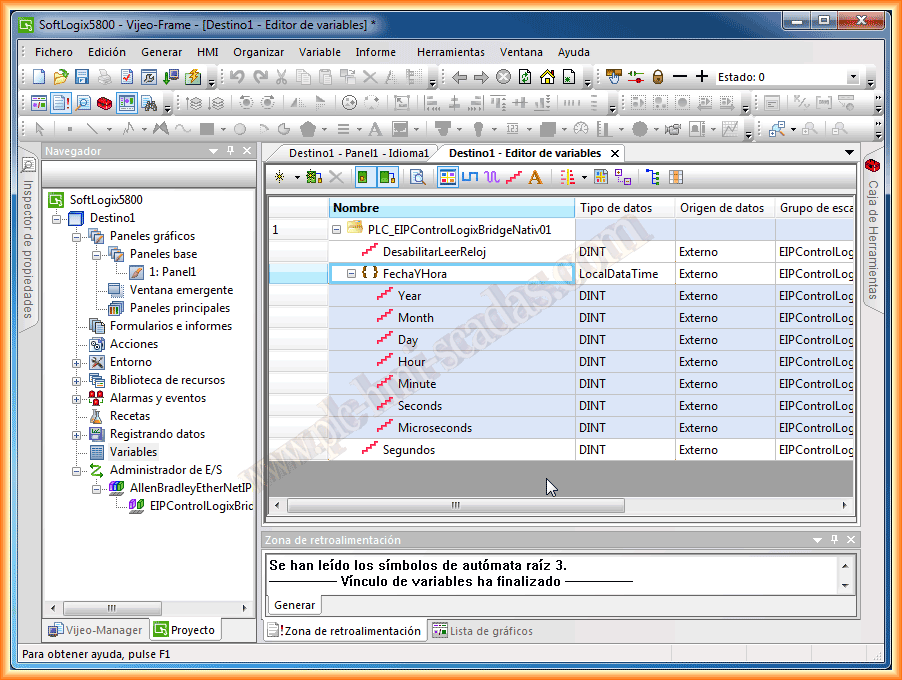
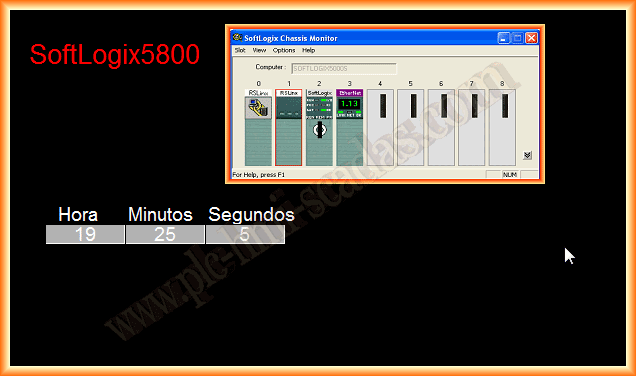
Finally, to check the operation, we add to our Panel some numeric display objects, which we link to the tags for hours, minutes, and seconds.

We can now compile our project, and if there are no errors, run our simulator. It can be observed that it works perfectly and there is communication between Vijeo Designer and SoftLogix.
June 6, 2013
If you liked it or found the information useful, share it...