
Factory Talk Alarm and Events Database
The following practice is the response to a query, and it involves creating a database for Factory Talk Alarm & Events. The application is developed locally, so the first step is to log in to the Local Directory.
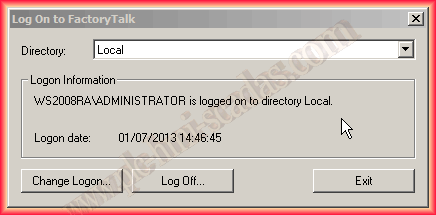
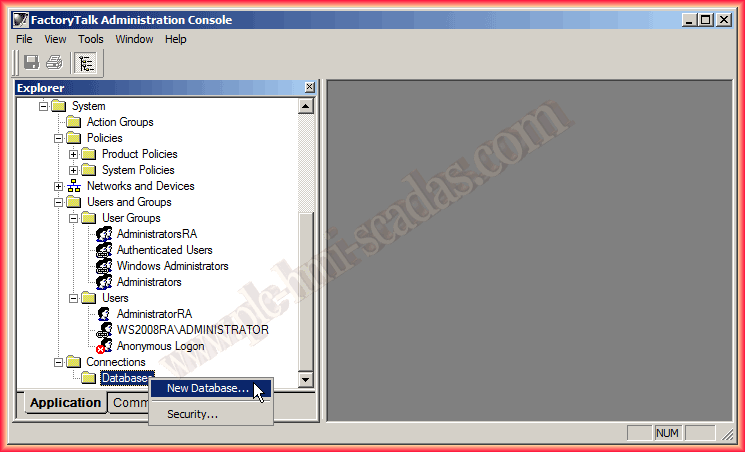
Once we are logged in and have the permissions, we execute the Factory Talk Administration Console. If we do not have permissions, the first step will be to add Users and User Groups for system administration. After this step, we go to the Connections directory, right-click on Databases -> New Database.
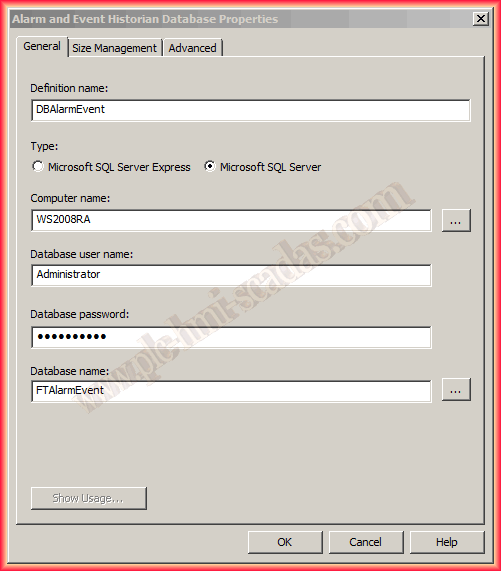
This is the wizard to configure our Database. We define the name we will assign in the first field, Definition name, and select the type of Database Management System. Since it is a requirement to install SQL Server when installing Factory Talk View Studio, we will use that.
Computer name: Name of the PC where SQL Server is installed. As we have mentioned that we are local, it is the host itself, known as Localhost.
Database user name: Name of the user with privileges to manage the SQL Server. By default, Windows Authentication is used to log in to SQL Server, so the Administrator user who performed the installation has the permissions.
Database Password: Password of the user specified in the previous field; it is essential that the user has a password.
Database name: Name of the Database we are going to create in case it does not exist or the name of an existing one.
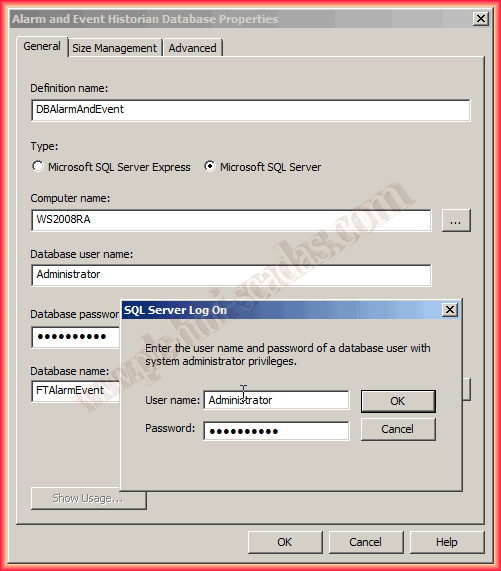
We click OK to confirm, and a pop-up window appears requesting a Username and Password.
After processing the request, the following Warning appears: Unable to connect to the database.
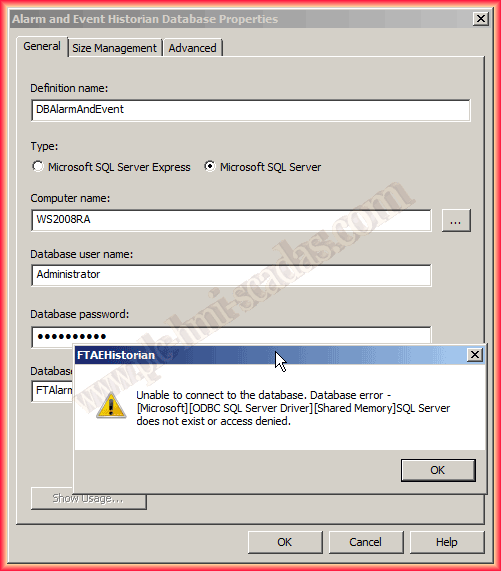
Considering that the User has permissions and the password is correct, the problem lies in the parameters we passed to the Computer name field, as when we click the button ... it scans the network and shows us all the devices on it, but this is not enough to connect to the SQL Server. We need to provide the instance name, as when installing FTView SE we have that option; the instance created is FTVIEWX64TAGDB, we pass that argument as well. In the end, this wizard creates an SQL query "CREATE DATABASE".
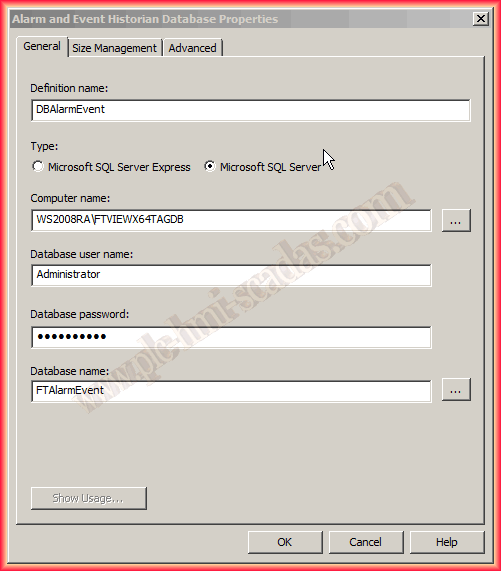
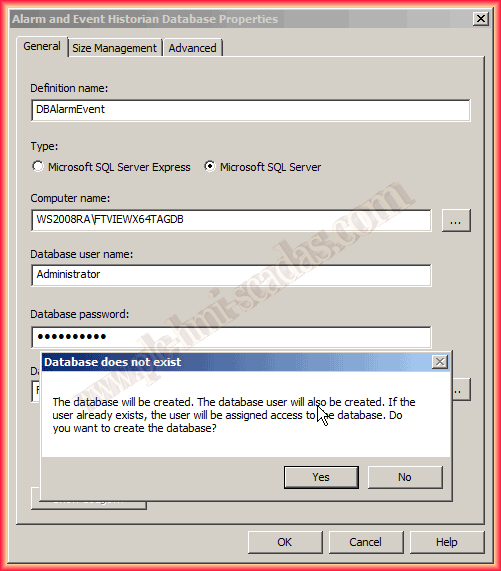
By passing that new argument, when we click the OK button, a window appears showing a notice, in this case, that the Database does not exist. If we want to create it, we click YES, and our Database is created.
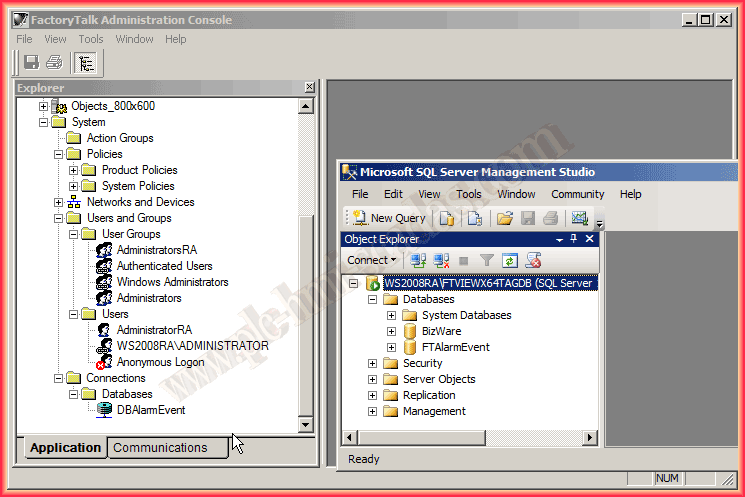
To verify, we run SQL Server Management Studio and connect. As can be seen in the image, the Database is created.
July 1, 2013
If you liked or found the information useful, share it ...