
Application Server - Distributed Application
In the previous practices of the Application Server 1st, 2nd, 3rd, we saw how to develop an application that runs locally on a single PC. Based on the same example of the Galaxy already created, we will add a new PC for process visualization.
As we saw, for visualization, 3 Objects are needed: PCWinPlatform, ViewEngine, and an instance of IntouchViewApp. From the previous objects, we can create a new Instance or a new Template. As can be observed, I have created a new Derived Template, where the most important thing is to configure in the PCWinPlatform the name of the node where the application will run, in this case, on the PC named PCVIEWINTOUCH.
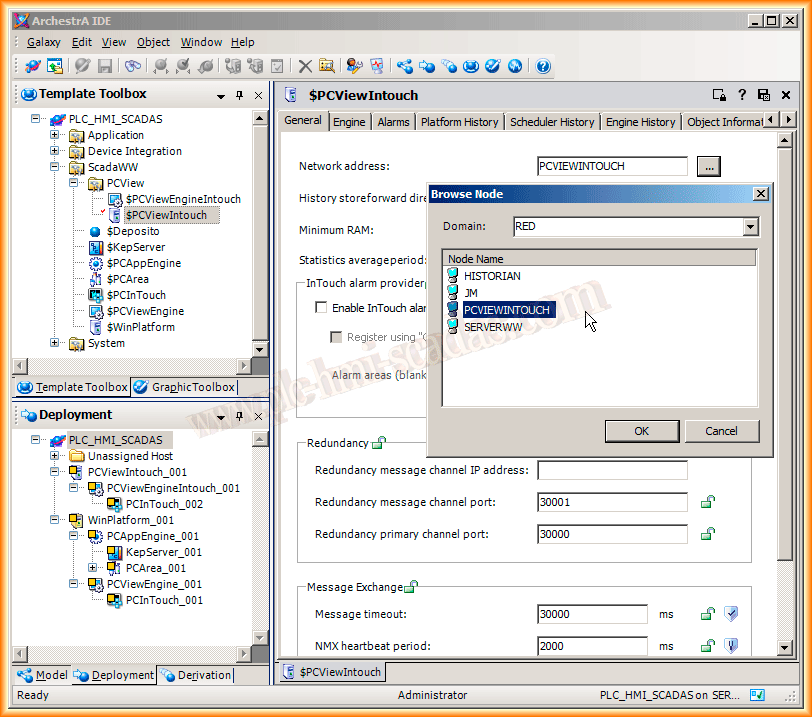
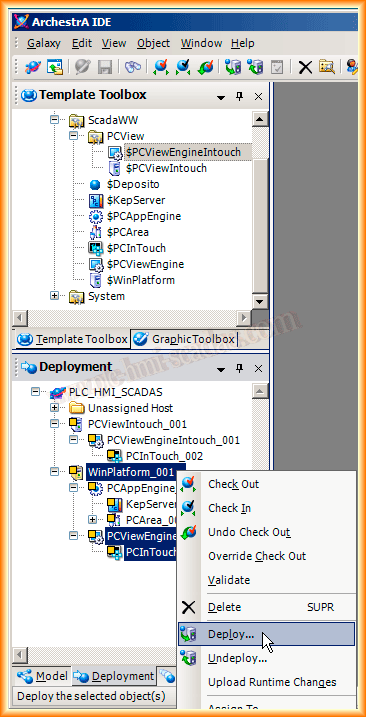
Next, we can instantiate our new objects within our Area and also in the Deployment order hierarchically as can be seen. If interested, we could have created a new Intouch application, but in this case, we will visualize the same application on both PCs.
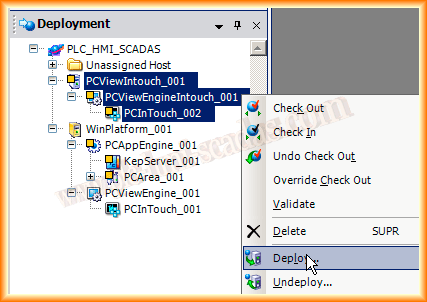
First of all, we need to deploy the main PC (GRNode), which is recognized because it is yellow.
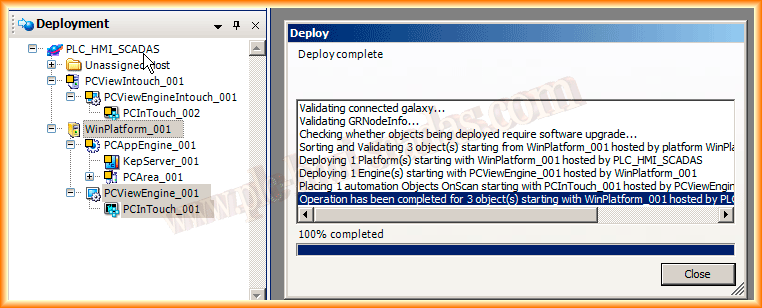
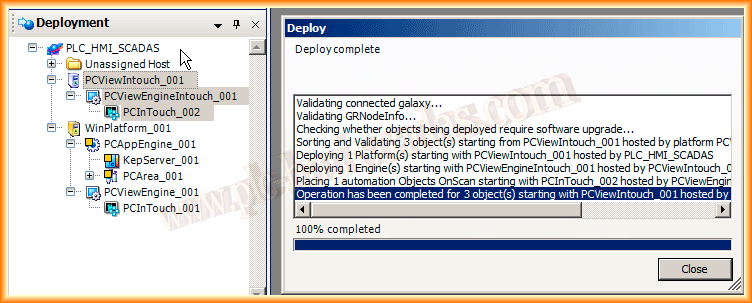
Once we have deployed and it has finished successfully, we can now deploy the new instances of our new Visualization PC.
If the process ends correctly, the application has just been created on our PCVIEWINTOUCH to be put in Runtime.
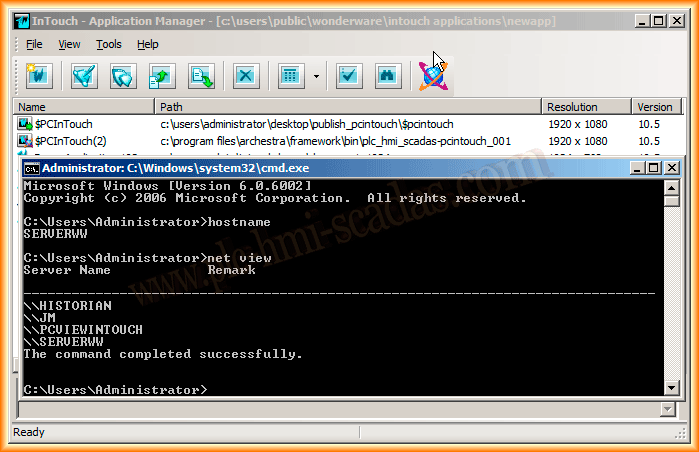
This is the Server, where our Galaxy is. Since it is in Deploy, we can observe that our application is available in the Intouch projects, but only for execution; editing must be done from the Application Server.
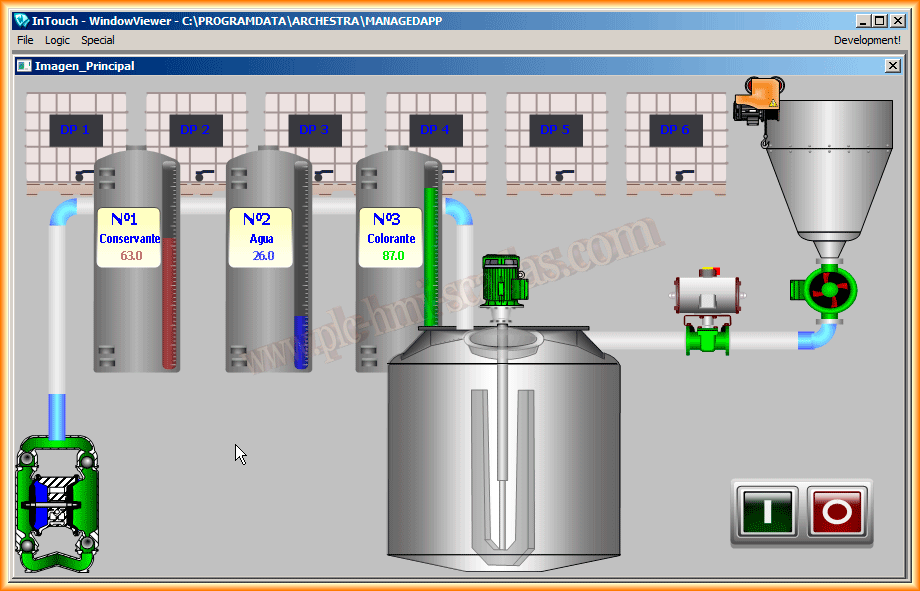
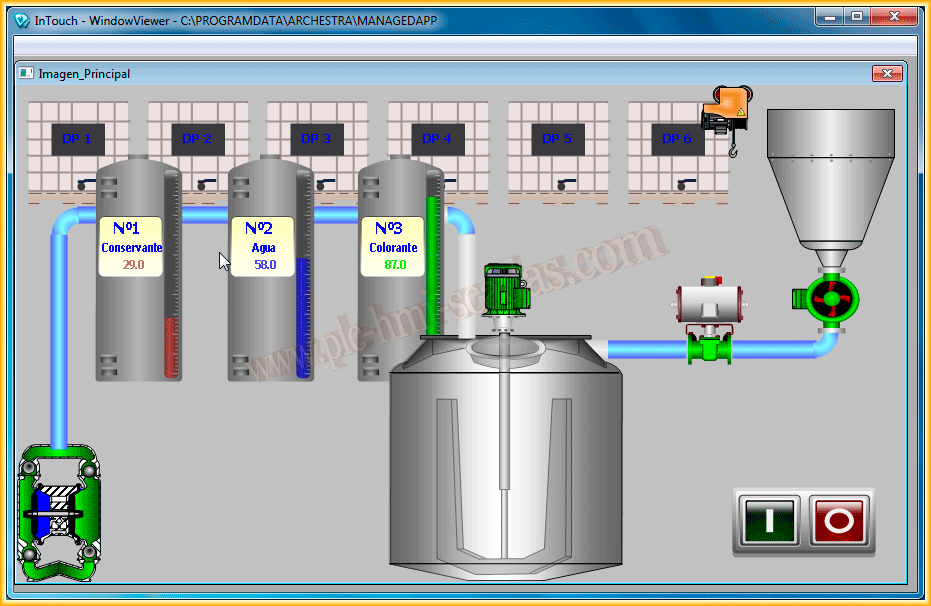
If we put it in Runtime, we can observe our application.
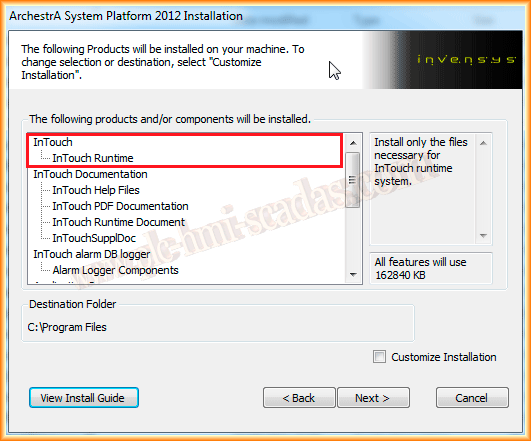
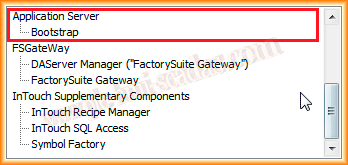
On the other hand, on the Visualization PC, all we need is to have installed the Intouch Runtime; automatically with this, the Bootstrap of the Application Server is installed. These are the minimum requirements.
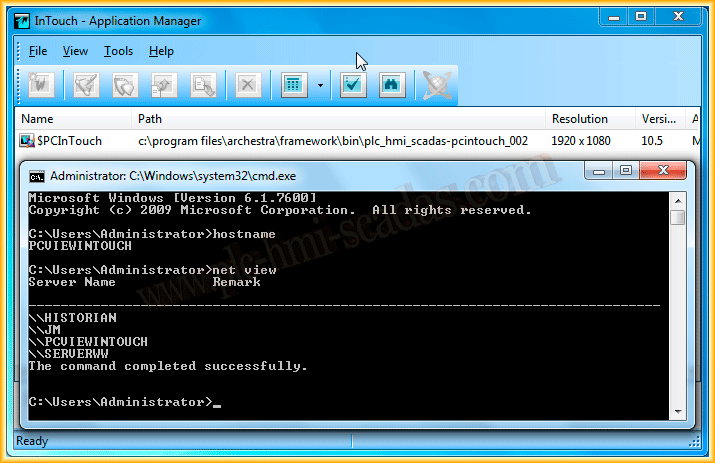
Here we can see that on the PCVIEWINTOUCH, with our application in Deploy, we observe that the project is ready to be put in Runtime.
If we run it, we verify that we have the same project and it works correctly.
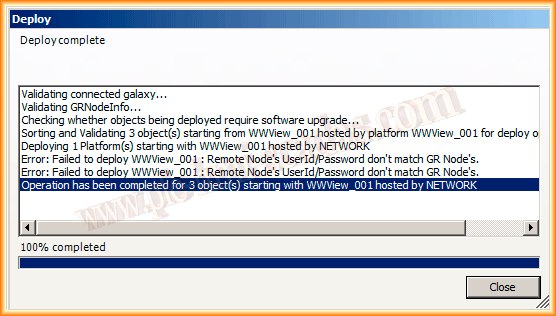
IMPORTANT: In the first test I performed, when deploying the PCVIEWINTOUCH, I encountered the following error: Remote Node´s UserId/Password don´t match GR Node´s.
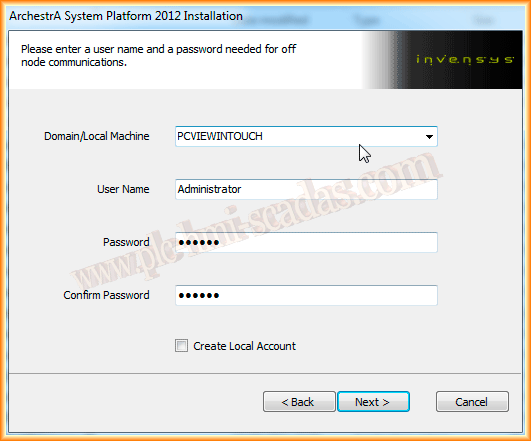
The problem, as can be seen, is a security issue, and it is due to the fact that when I installed the Intouch Runtime on the Visualization PC, it always asks for the username, password, and a checkbox to create a new user during installation, and at the time of deploying, I was not logged into the System as that user.
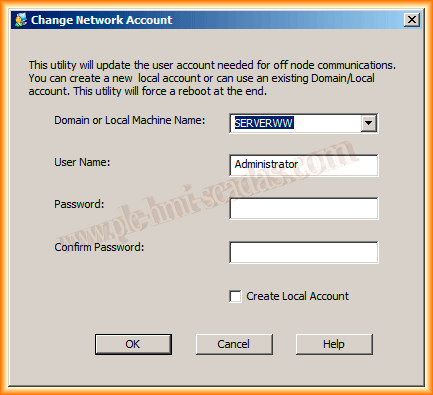
In a Windows 7 Operating System, the Administrator account is created by default, although it is disabled. Once I enabled it and logged in as Administrator, the problem was solved. In any case, there is the Change Network Account application that we can use to change the user and grant permissions.
August 5, 2013