
SQLDataGrid Configuration
Within ArchestrA Graphics, we have the SQLDataGrid object, this object is used to visualize a view, a table, or a query from a Database. It has 54 properties for its configuration and today we will look at the minimum properties for its configuration.

We start from the base that we have created a Database in our SQL Server Database Management System, the authentication we will use by default is Windows, as can be seen.
In this example, I only have one table with some records for visualization.


The first thing we are going to do is insert our object into Intouch, we navigate in the Objects directory to the one we are interested in, in this case SQLDataGrid, and we give it the desired size.

Once we have it positioned and assigned the size, we will edit its properties to perform its configuration, right-click -> ArchestrA Graphic "..." -> Edit Custom Properties

The first property we are going to configure is Autentication_dg, this property accepts two values, Windows or SQLServer, depending on the authentication mode, in this case Windows.

Once we have defined how we are going to authenticate, we define in the property ConfiguredUser_dg the name of the User, in my case the user Administrator

And the user password in the property ConfiguredPassword_dg

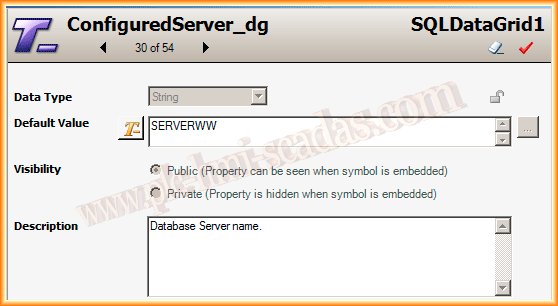
On the other hand, we need to define the name of the Host where SQL Server is installed, in my case it is called SERVERWW, so we have already configured the property ConfiguredServer_dg.
ConfiguredDatabase_dg is the property to assign the name of the Database we want to connect to.

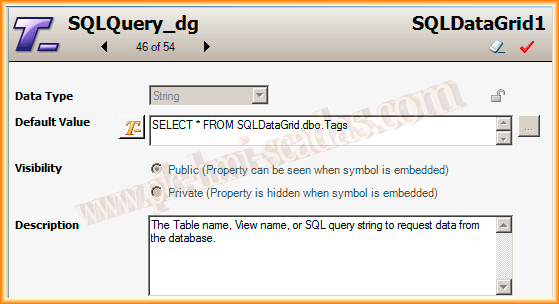
And in the property SQLQuery_dg, we will define the query we want to perform on the Database (SQLDataGrid), hosted on the Server (SERVERWW) with the user (Administrator) and its password (***) with authentication (Windows). Finally, the result of the Query will be displayed in our Object
Among all the properties, we can also set the property CmdTestConnection_dg to True to show if the connection is successfully established.

Once in Runtime, the Test button connects to the Database, where it can be observed that the connection has been successfully established.
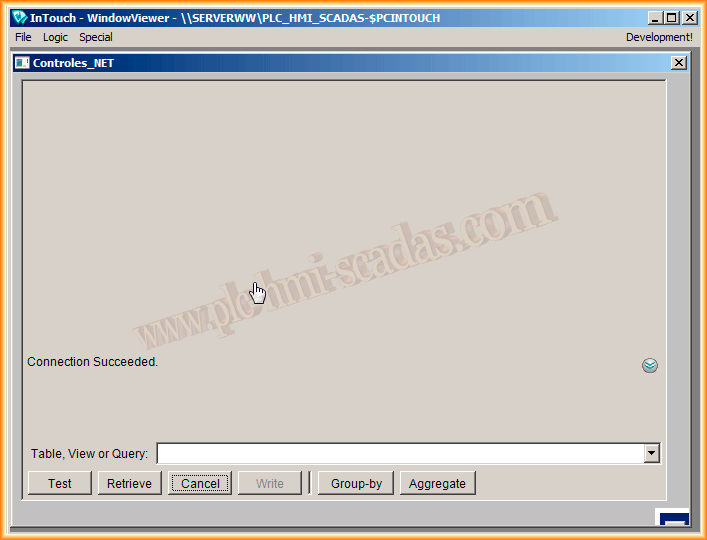
Now, we can press the Retrieve button to get the results of the query we assigned in the property SQLQuery_dg or insert the name of the Table, view, or new Query and we will obtain the results.
