
ArchestrA TrendClient
We will continue exploring .net controls and in this case, we will use the TrendClient for visualizing the trends of the variables of interest. As in previous cases, we create a new symbol and embed our control within it.
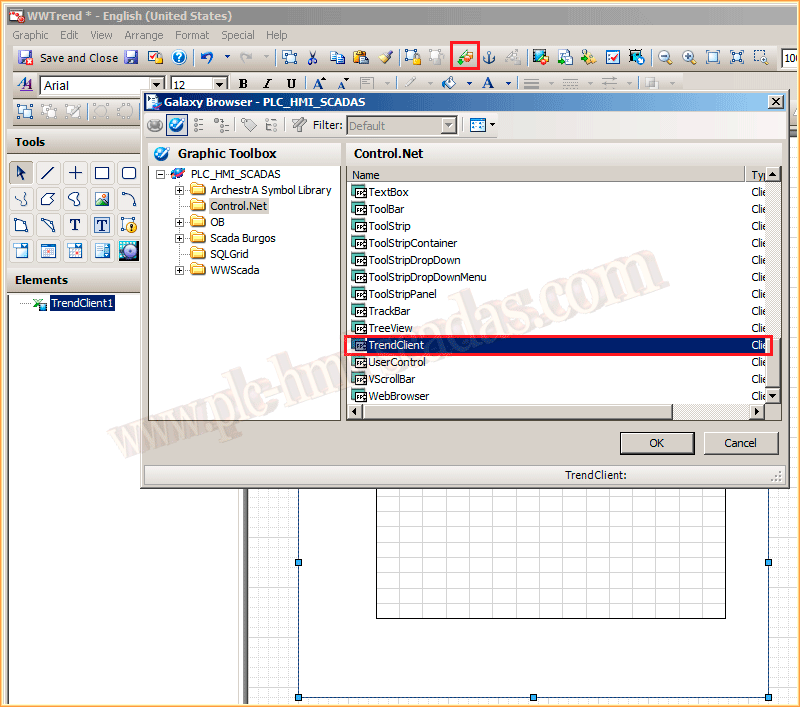
By default, this control comes with the following animations, which are shown in the next image. Configuring these will make it ready for use.
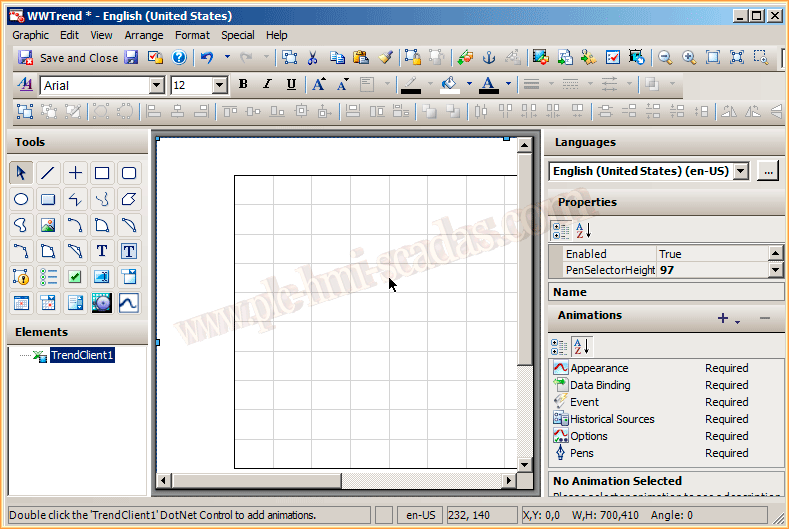
The first one we will configure is Historical Sources. Here there are two options: either we have a Historian Server, as in the following example, or we have enabled Historian Logging within Intouch. We will leave that practice for later. In this case, we will use the Historian that is on the same machine, which is Local, and the authentication we have configured is Windows, but it will adapt to our case. If the Historian were running on another Server, remote connections would need to be enabled in SQL Server.

Once the Data Source is selected and we have tested that the connection is correct, we can proceed to configure the Pens. For this example, I have added two as can be observed. It involves giving a name in Pen Name and associating this name with its reference directly or an Expression; I have associated them directly with the variables of interest.
Automatically, the fields related to Pen Details will be filled with the values configured in the variable declaration, or they can be assigned to the variable of interest. Within Pen Options, we will configure the style, color, and decimals as can be observed. Finally, within Historical, we can assign a name to the source and the name of the variable we are using in our Pens. In this same way, we would configure all the ones we are interested in.
With these two options we have just configured, we would have enough to see its operation; the other options can either be left as default or configured according to our interest.

This would be the appearance of the configuration we have just made, the minimum is 0 and the maximum is 100, because those values were acquired from the tags related to Pen Details Min and Max.

Within our screen in Intouch, we can now insert our symbol and adapt it to the desired dimensions.
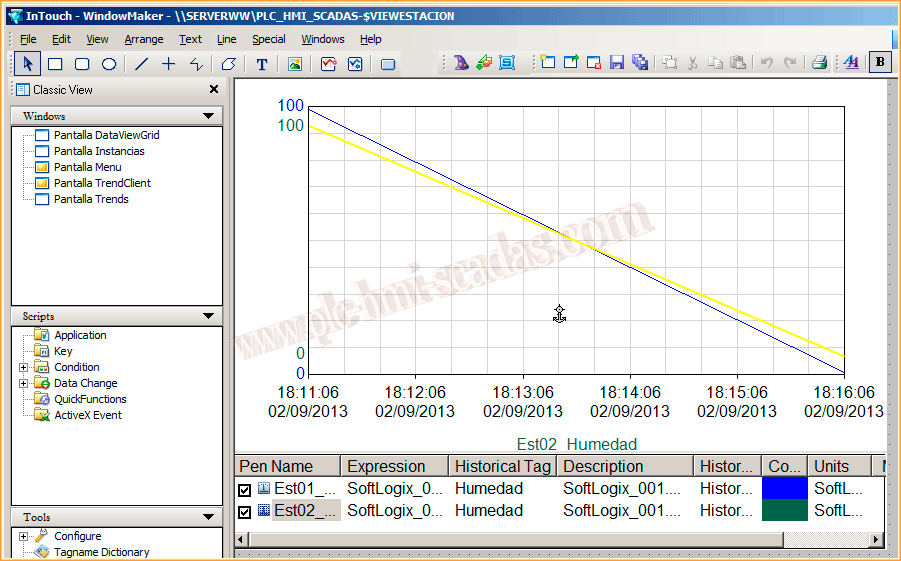
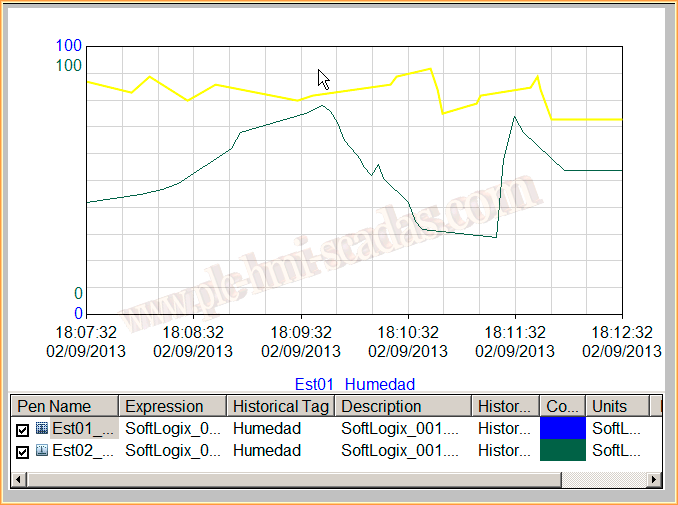
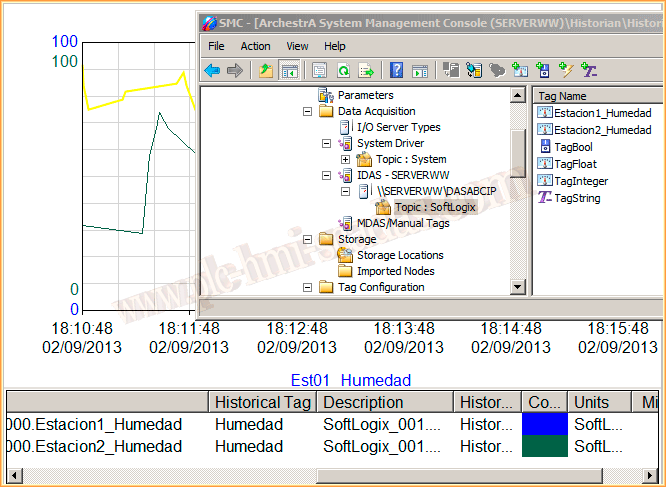
Finally, to test its operation, we start the Historian and the Runtime. Here we can observe the trend of our tags as well as their configuration within the Historian.
In the next practice
September 3, 2013