
WebBrowser Configuration within Application Server (ArchestrA)
In previous practices, we already saw how to configure an ActiveX Control, the WebBrowser object. This time we will see the example, but with .net controls and in the Application Server environment.
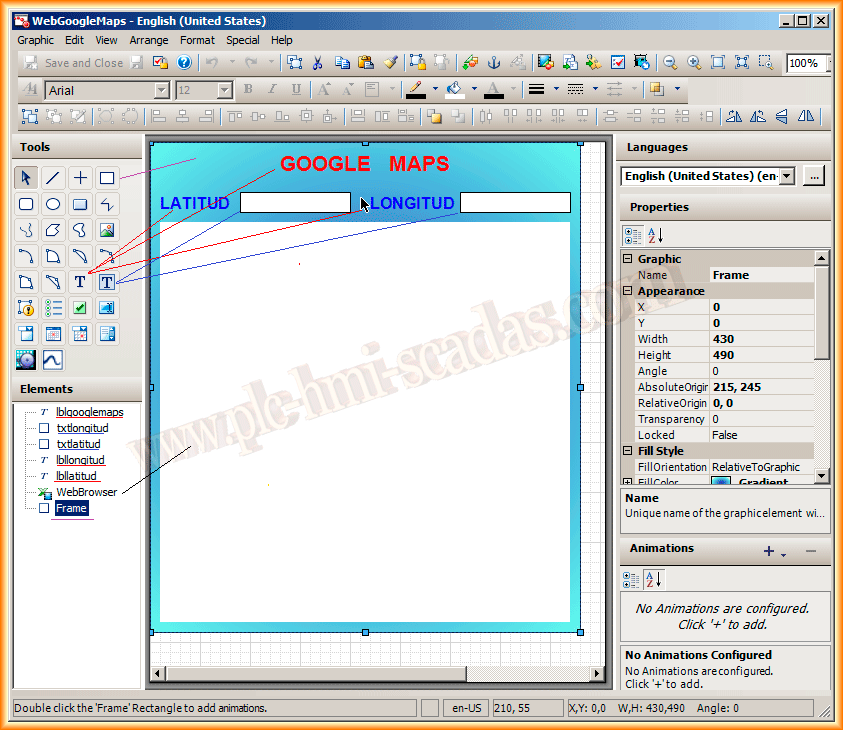
The first thing we are going to do is create a new symbol, and we already saw how to import .net controls, so we select the WebBrowser, which is the one we are interested in.

To address a colleague's question, this time what we are going to visualize will be the location of the Google Maps webpage, passing the coordinates, Latitude, Longitude. For this, we will insert the following objects, some TextBox fields for the Latitude data and another for the Longitude, some text objects, as observed.
The next step we are going to take is the declaration of the properties that interest us, this is done from the menu bar Special -> Custom Properties.

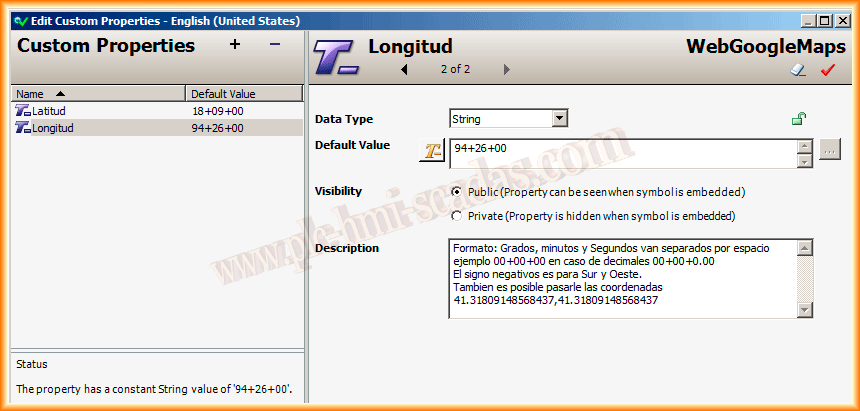
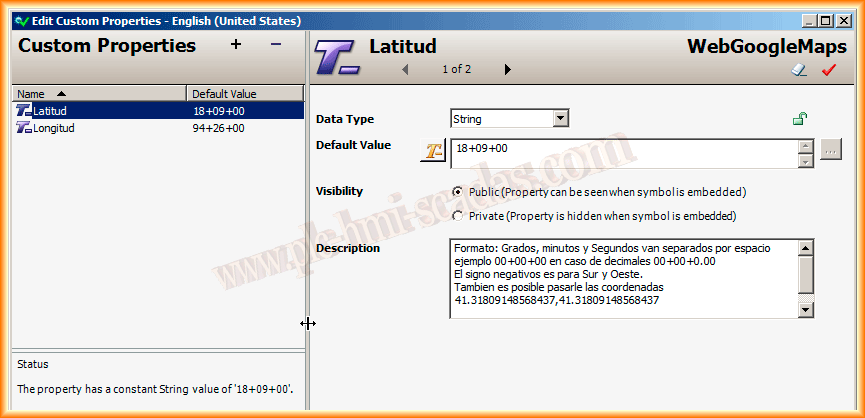
We are going to declare two properties, one for Latitude and another for Longitude, both are of type String and public access, to specify the coordinates we are interested in loading. The format can be as observed or as in the example of the description.
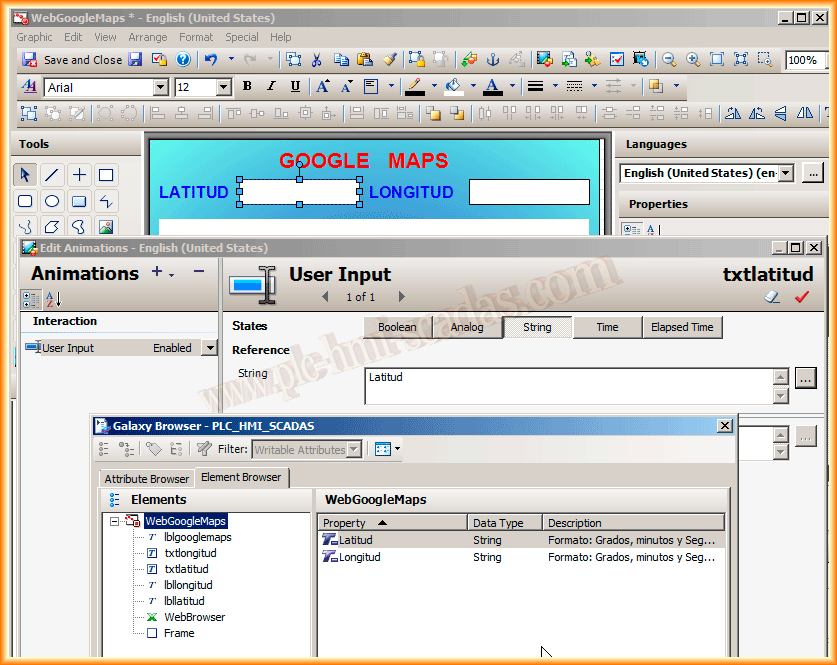
Once we have defined our properties, we will see where we are going to associate them. For the TextBox fields, we will configure the UserInput animation (so that the user can enter the data) and we will associate it with the Latitude and Longitude properties respectively, which means that the value of these String type properties will be what the user inserts.
The next step will be the configuration of the necessary Scripts for our Symbol, from the toolbar Special -> Scripts ...
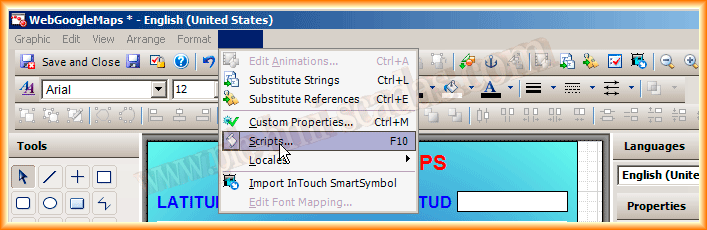
We will use within the predefined Scripts, On Show, where it will take the values of Latitude and Longitude and concatenate them to a URL address. This address is what we will pass to our WebBrowser object, this is done so that when the page loads, it goes to a default address, which will be the one we defined when inserting our Symbol into Intouch.

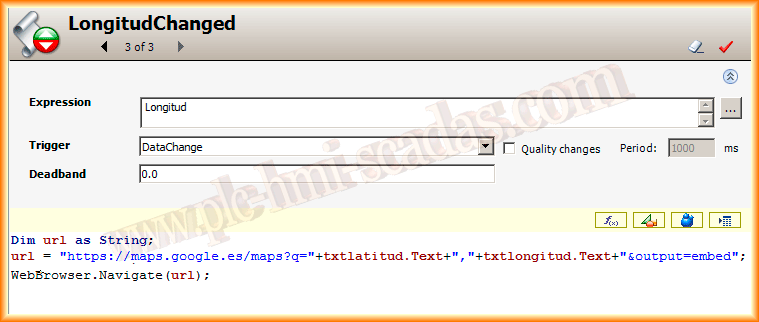
In addition to the predefined Script, we will create two more, which will execute when the value of Latitude and Longitude changes. This will happen every time the user changes their value in the TextBox we had already configured.
In these cases, the URL address is composed of the value acquired by the TextBox, although we could pass the same address as before.

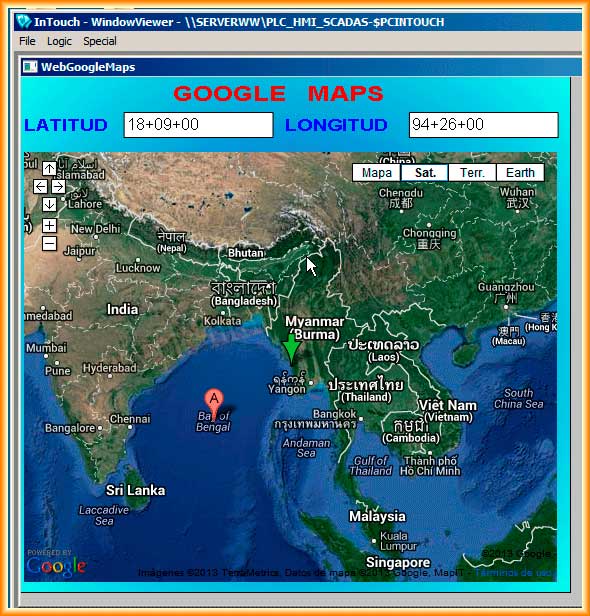
Finally, once we have saved our symbol and inserted it into our application, we will run the Runtime to test its functionality.
August 11, 2013