
UnityPro-ControlExpert CANOpen
Within Schneider's programmable logic controllers that are programmed with Unity Pro - which is now called Control Expert, if you need to configure a CANOpen network, there are two versions. For many of you, this is basic knowledge, but we must always consider the new generations or the initial tests.
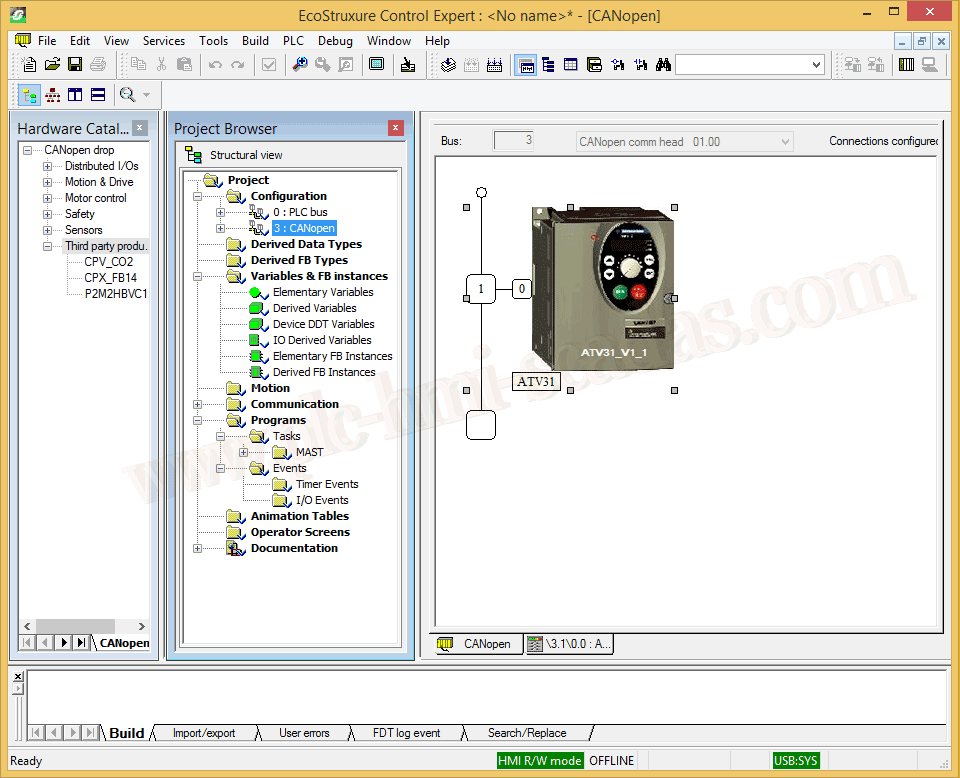
The first one is the tool embedded within Unity or Control Expert to configure the network, as shown in the following image.
By double-clicking on the CANOpen network, the editor and the device hardware to be inserted into the network open up.
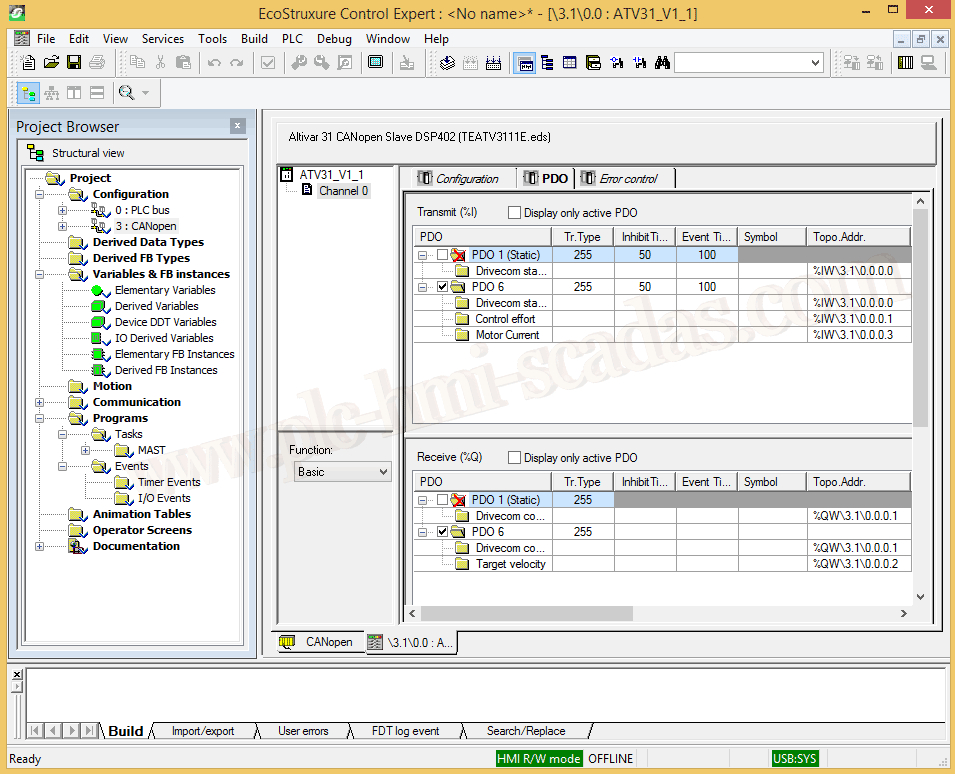
Configuration of our device, where we select the mode that interests us and the Process Data Objects (PDO). Some devices will have more than one configuration mode, as would be the case with the Altivar, where there are several modes or it may be that only one configuration is available.
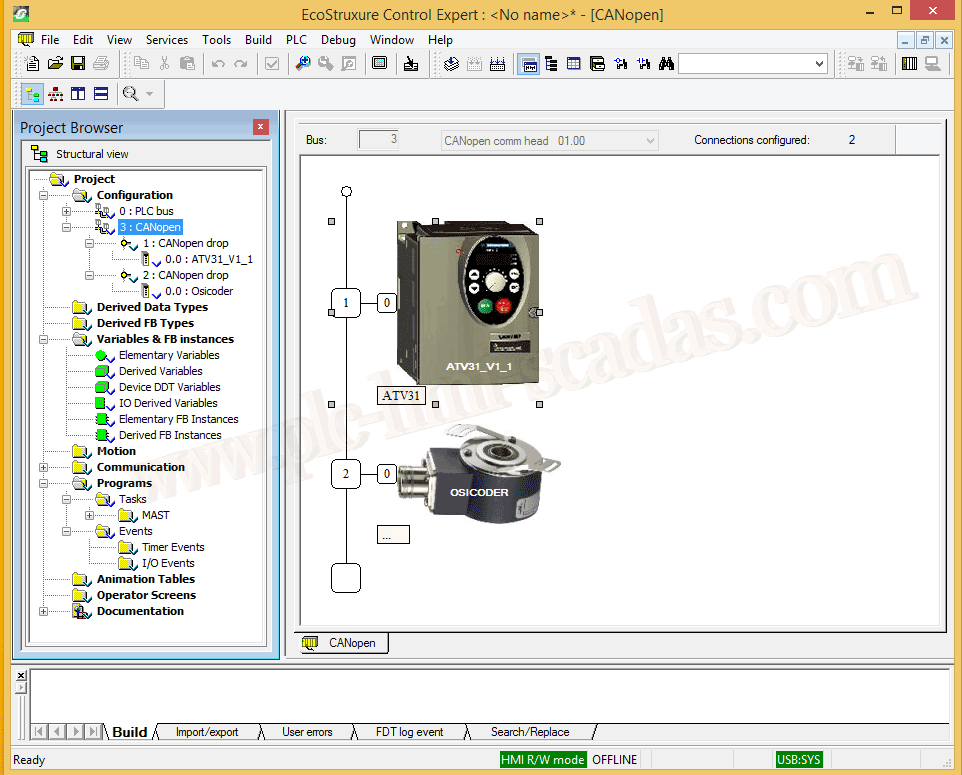
We can observe the network and the node number in each element.
But on the other hand, if for example we have a TSX P57
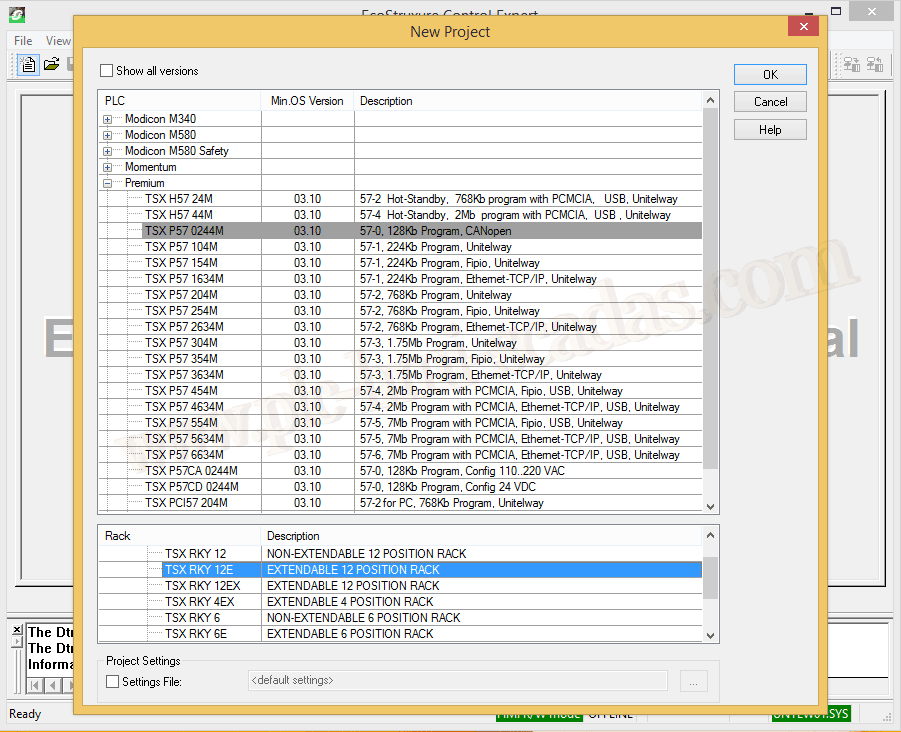
It has a CANOpen network and information about the module, LEDs, etc...
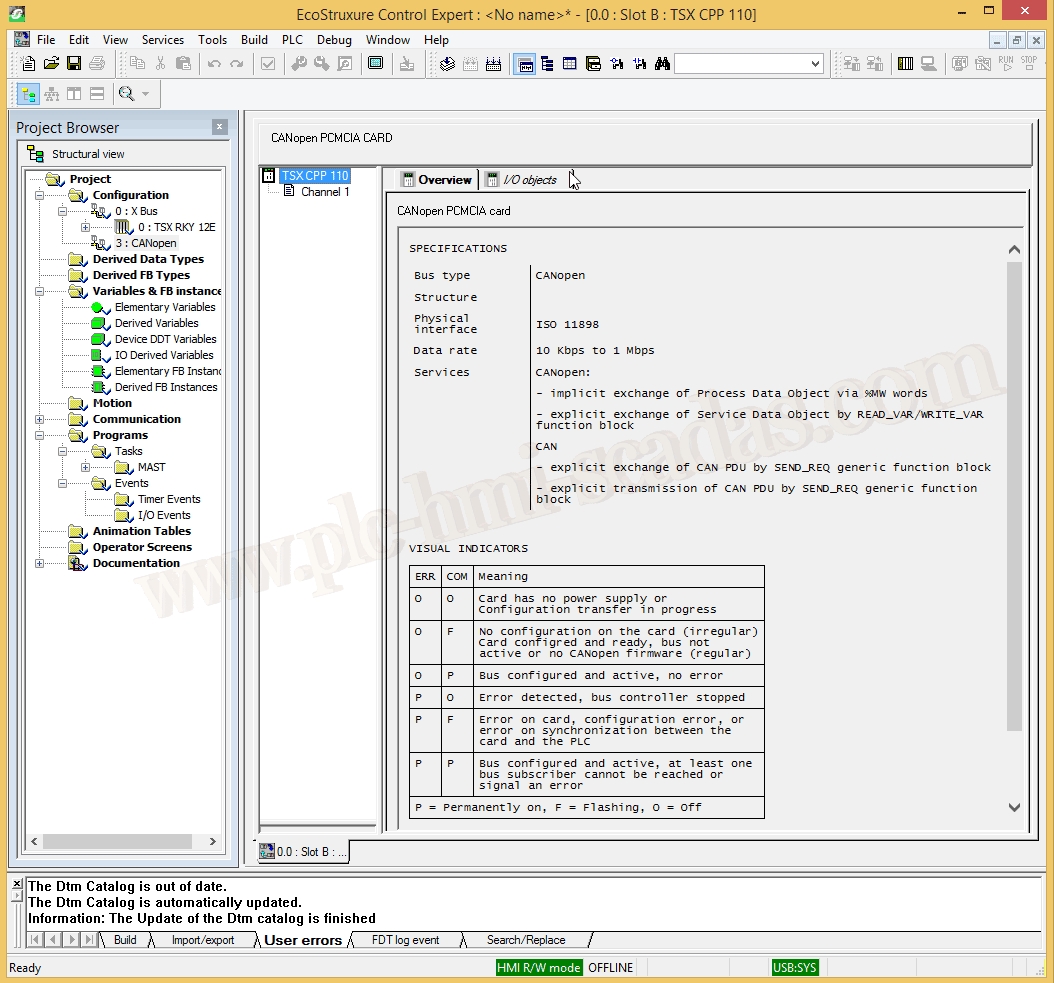
But if we go to Channel 1, it is waiting for the configuration file *.co to load the database, or we need to have SyCon installed to start it and configure the network.
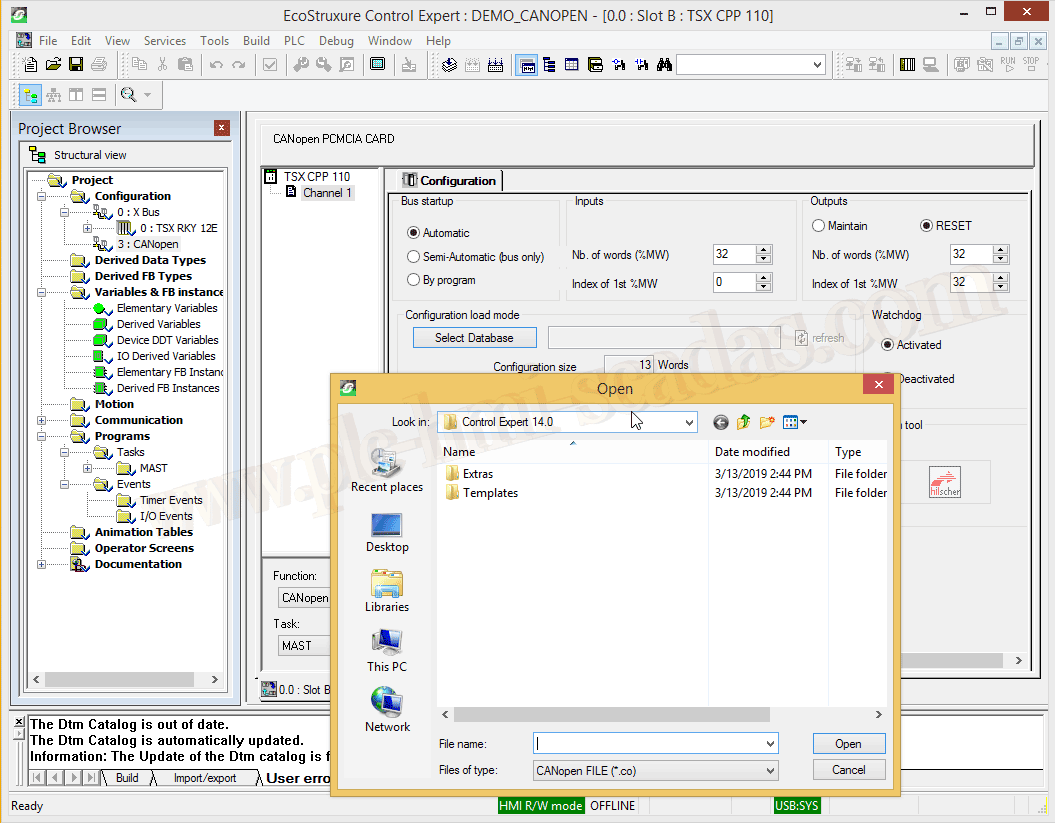
With SyCon we can configure the CANOpen, InterBus, and Profibus networks.
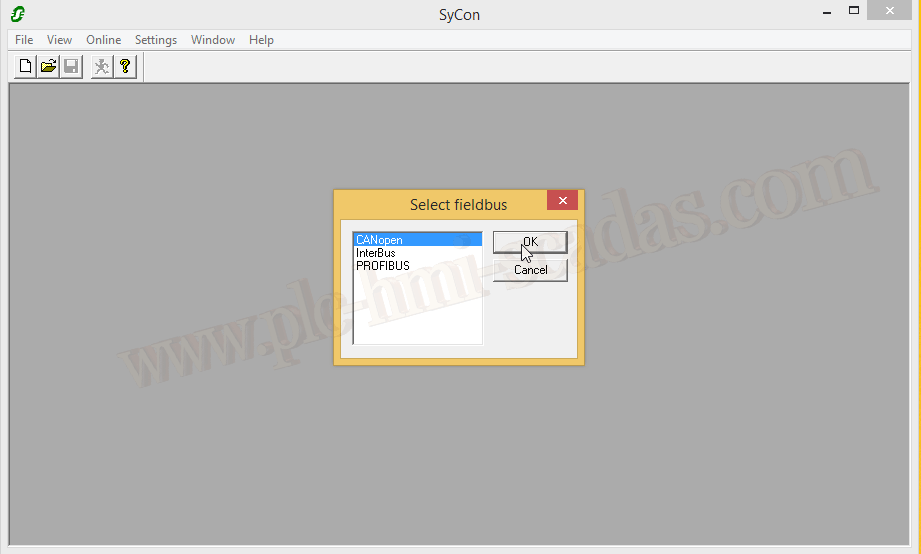
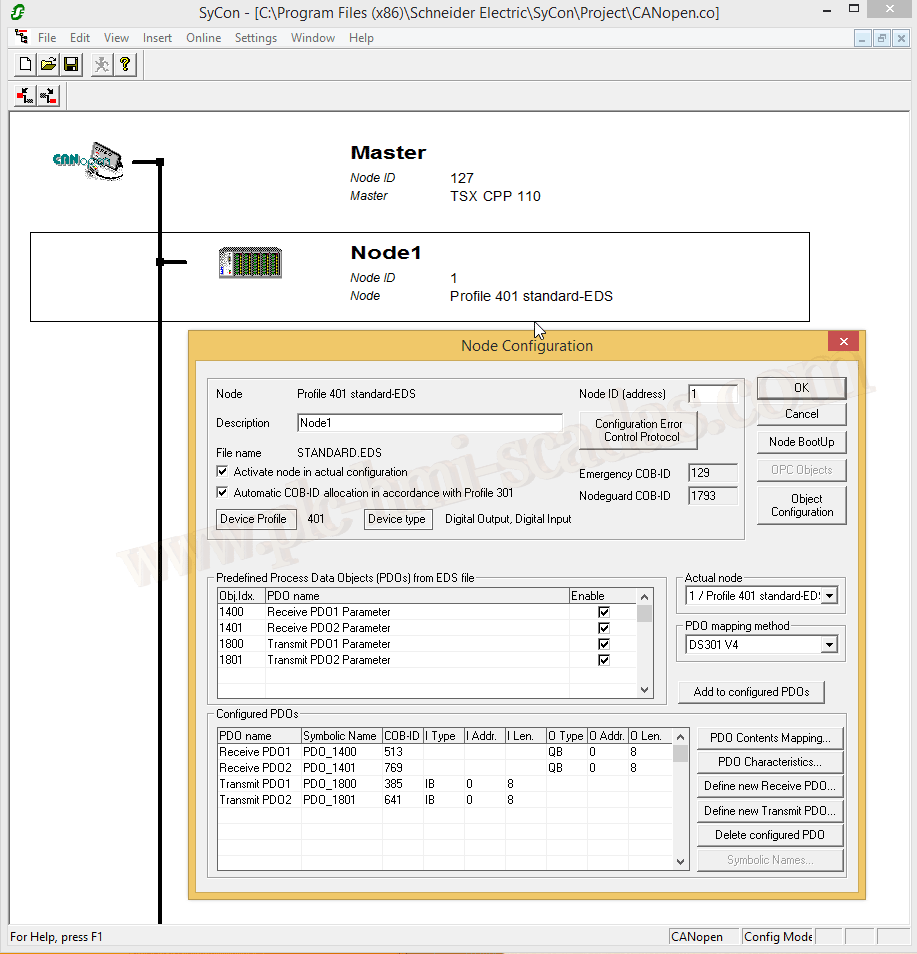
An example from SyCon, where we will configure the entire network with all the devices.
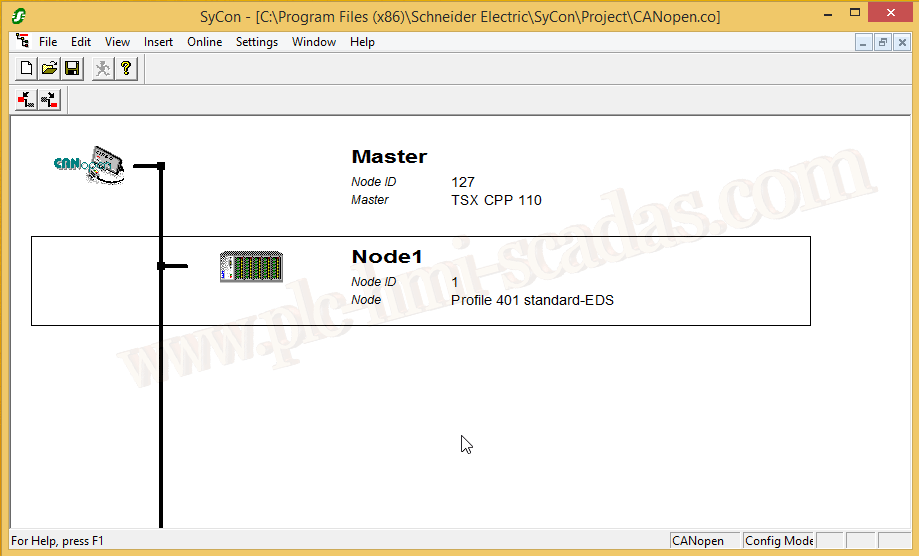
Each device is associated with an EDS - Electronic Data Sheets where all the information is stored. And it is in the properties of each device where we perform the configuration that interests us.
We save the file *.co and it is the one we will select as the Database file.
As information, the latest version of SyCon is v.11.
06-05-2019