
ActiveX Control Windows Media Player
In today's practice, we will see the use of ActiveX Controls in Panel View Plus, to work with the Windows Media Player Control. To insert an ActiveX Control, we go to Objects -> ActiveX Control ...

A pop-up window opens for us to select the Control we want to insert. If it is not yet registered, we have the option to register it; since the one we are interested in is already available, we select it.

Another pop-up window appears with the following warning.

We now have our Control on our Display. If we double-click, we have the following tabs. In the General tab Source, we specify the path of our file, which is the essential parameter, or we can pass it in Connections URL.


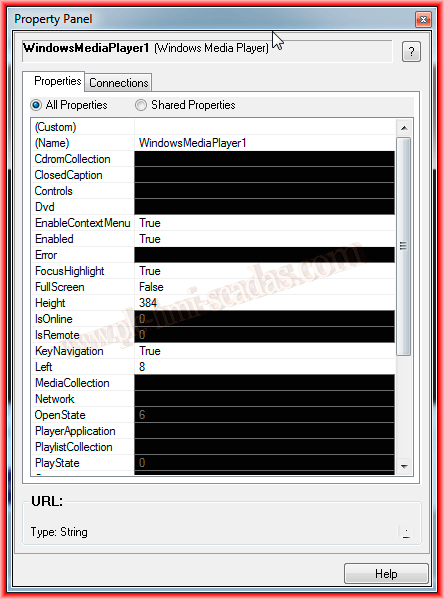
On the other hand, if we are interested in knowing all the properties of our Control, we can access them by right-clicking on Property Panel.

A pop-up window opens, consisting of two tabs, Properties, where we can observe all the properties of the Control and modify them according to our needs, and the other tab belongs to the Connections that we can configure.

Once we have seen that, we can run Test Display and check that our control works correctly.

July 20, 2013