
Changing Languages in Factory Talk View ME
In the following practice, we will see how to configure the language change in our Panel View Plus. We have the option to configure 20 different languages. To do this, the first thing we will do is go to the toolbar -> Tools -> Languages...

In the Language Configuration Wizard, the currently selected language appears. We consider that our application is already finished, and with the default language selected, we click Export. The following wizard appears, where we will export to a *.txt file or a Microsoft Excel *csv file.


By default, the path for this file is the one shown, but we can assign the path we want and click Finish; we will have exported our file.

This is the file we just exported and which we need to modify to load our new language.
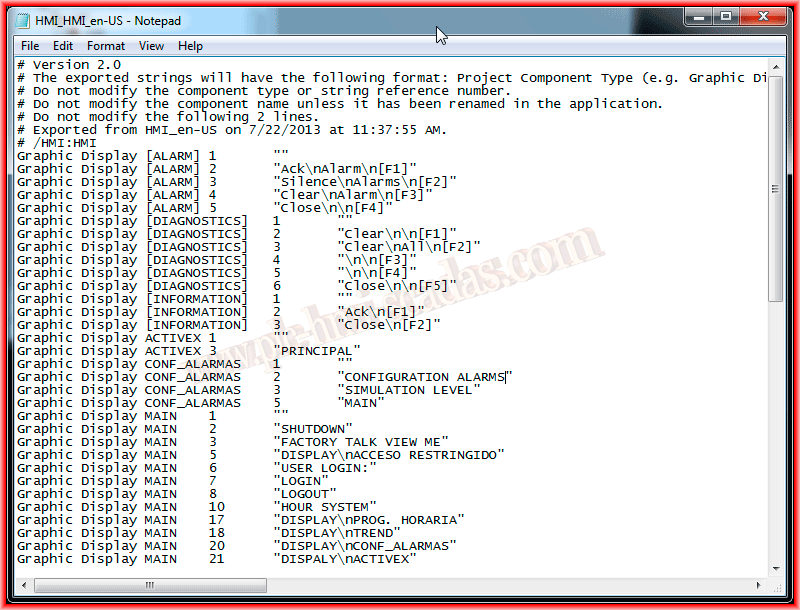
The texts that appear between the "text" are what we need to translate, and for this example, I have only changed the text corresponding to the main screen, and it would look like this.

Once we have changed our text, we go back to the toolbar -> Tools -> Languages and in the wizard, we select to add a new language, choosing the one that corresponds to the translated text.

With the new language added and selected, we click Import, which starts the import wizard, and we will import the file we have modified.


Select the path where we exported it and load it to import, click finish, and with this, we have the texts for the language change.


Now we need to add a button to perform the change; this button can be found according to the following image.


In the General tab, we will specify the language we want to execute when clicking on it.
We select it in Language. And in the Label tab, we assign the name we want for the button.
To test our application, when clicking on Test, the following window appears, and we select the languages we want for Runtime and the starting language.

By default, the language was in English, and when clicking on the language change button to Spanish, we verify that all the texts we changed are translated correctly.


June 22, 2013