
IBH Link S5++
In this practical guide, we will see the first step, which will be the configuration of the IBH Link S5++, although we will look at its configuration for later use (The final goal is to insert an S5 into the WinCC Scada as if it were an S7 communicating via TCP/IP), so we will see that we can easily communicate with an S5 CPU. By default, each IBH Link S5 comes with a factory IP, and we will change it to adapt it to our network.
The first thing we execute is the IBH Network, and since we are going to parameterize an IBH Link S5++, we press its button.
It automatically scans the network and will find our device with the default values set.
.png)

To change the configuration, we simply go to Settings and adapt it to our network; by default, we leave the Port configuration with the values that are already defined. To change these, consult the manual that refers to the ports according to the utility; for our case, it would be this one. Once the changes are made, click Safe Permanently, and the data will be saved, and the device will restart.
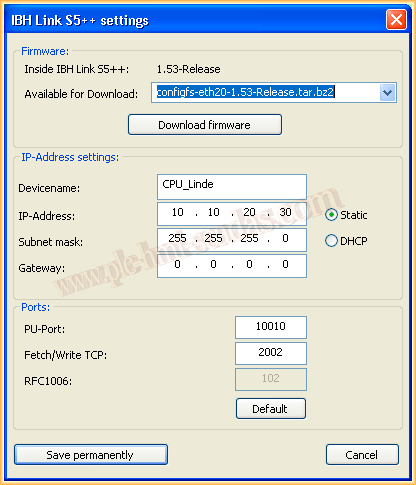
If you want to search for our device by name in the IBH Network, we will add a new station with its corresponding information: Name, IP Address, and port. Although it is not necessary, unless we are interested.

To communicate with the S5 CPU, we run the S5/S7 for Windows and go directly to the Online tab; we simply select S5 IBH Link Network and expand it, which will automatically detect our Gateway and our PLC.
We can now open the block of interest and view the program online, make the necessary changes, etc...
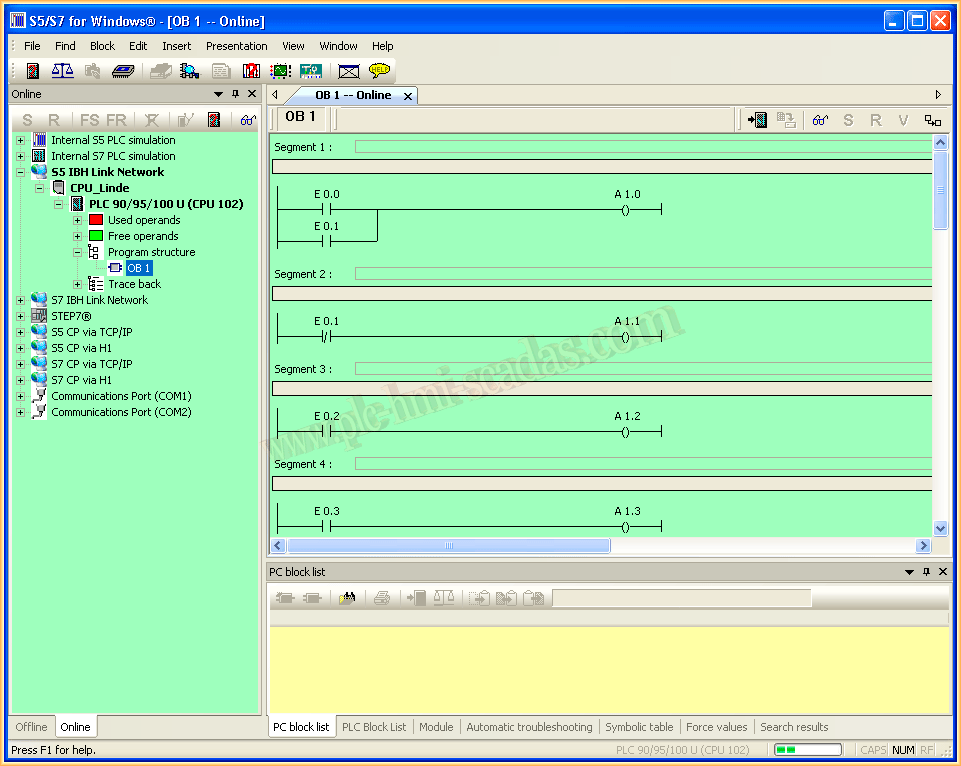
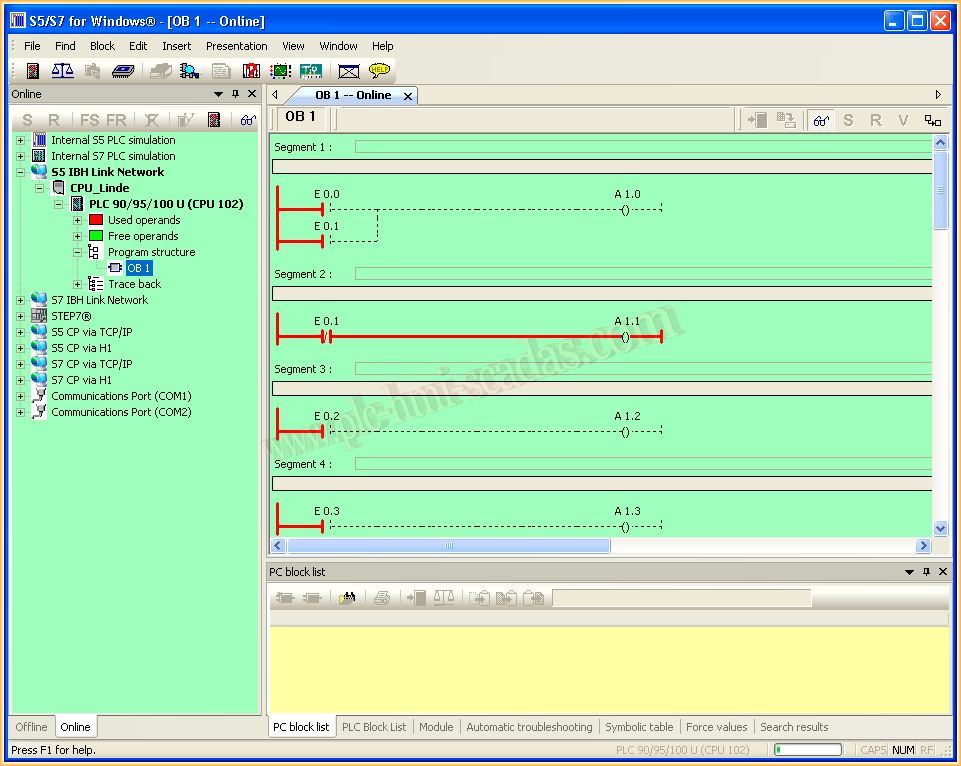
In the next image, we are already online; the communication has been very easy to establish...
A photograph of our PLC with the Gateway

If you liked it or found it useful, share it ... :-)