
Alarm DB Logger Manager Configuration
Before starting the configuration, a brief review of the requirements we need. If we are working with Intouch, by default it is not necessary to have a Database Management System, if we are working with Application Server, ArchestrA technology, it is already a requirement to have SQL Server, in the corresponding version. But if we are only working with Intouch, we can use the SQL Express version. Once this point is clarified, let's look at other details.
Depending on the installation we have performed, the user "sa" may be disabled, for this, the first thing we do is log in with the Windows user and within Security --> Logins, we observe the users and Groups created, with the right button on the user sa, we go to its properties.
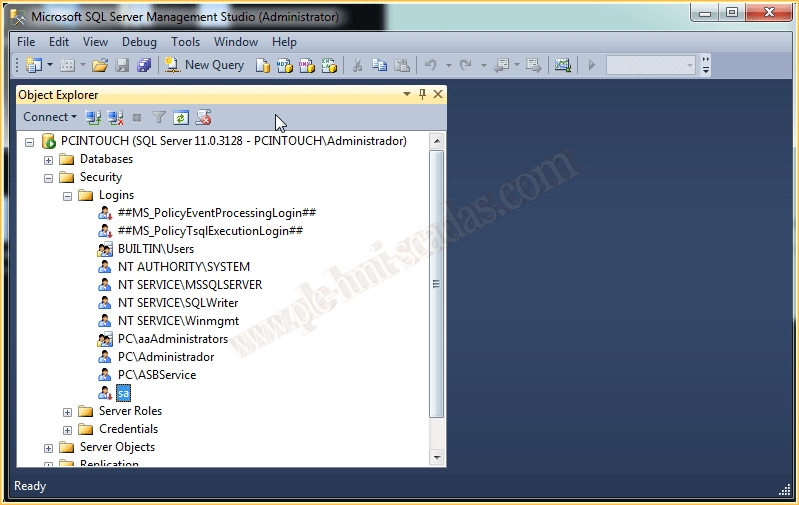
The first step will be to assign a password to the user sa, if we do not deselect the checkbox for Enforce password policy, the password must contain numbers, letters, uppercase letters, etc...


The next step is to go to the Status tab, to enable this user. We leave Server Roles and User Mapping by default as they are. No changes are necessary.
We have now enabled the user sa and defined its password, the next step will be to modify the authentication mode for our SQL Server, for this, right-click on the Server name, in my case PCINTOUCH(SQL .) and Security, here we change the radio button to SQL Server and Windows Authentication mode.

We verify that the steps we have taken are correct by logging in again with the user sa.

Now we move on to the configuration of Alarm DB Logger Manager, we start and the first thing we do is go to the Settings button, it will automatically load the wizard.


By default in the Server Name, we define the name of the Server, Local, LocalHost or the name itself
The default database is called WWALMDB
User that we have already enabled and know the password. The user "sa" or any other SQL user with the necessary permissions, does not have to be the user "sa"
And we can test the connection to verify that the connection is correct and click the create button, which will create the Database for us.
A pop-up window indicates that it has been created successfully, and we then check it on the SQL Server.


We continue with the wizard and indicate the alarms we want to register from level x to level x and also that they are included in the Query. If we are only going to work with Intouch, we leave the query that appears by default. I have deleted it for the next example, we continue with the wizard and define how we want to run it, as a Windows service or as an application.


We click finish and the wizard has concluded. To start it, we click the Start button and that's it, in the next part, we will see the definition of the alarms and the control for their visualization.


March 6, 2015
If you liked it or found it helpful, share it :-)