
DAServer Manager BackUp - Restore
DAServer Manager "BackUp - Restore - Move Configuration from one PC to another
Once we have created the configuration of our DAServer, regardless of the type, we will see how to save its configuration file as a BackUp, or how to move that configuration from one PC to another.
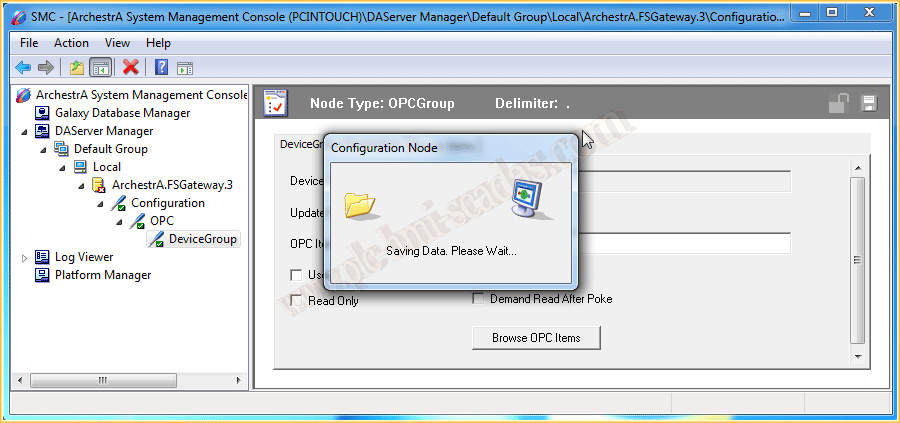
Once we have configured and saved the configuration, it is stored in a file with the extension *.AAcfg
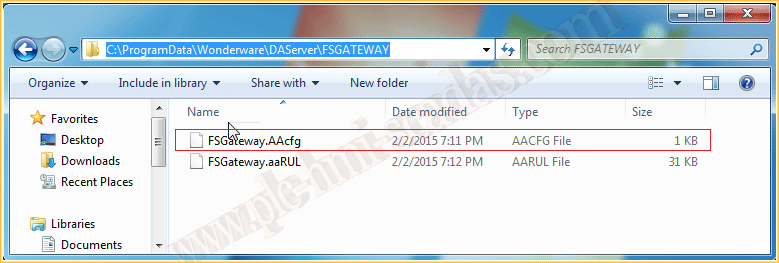
The path where this file is saved is C:\ProgramData\Wonderware\DAServer\NameOfTheDAServerWeUse
To make a BackUp, we simply have to save this configuration file.
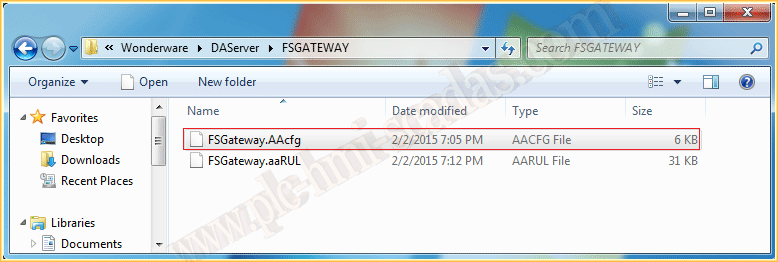
By default, this file is created when the installation is done, now we assume that we have installed the same DAServer and the same version on another PC and we want to load the configuration used, for this, we simply have to close the SMC ArchestrA System Management Console, and locate the directory where its configuration file is and replace it.
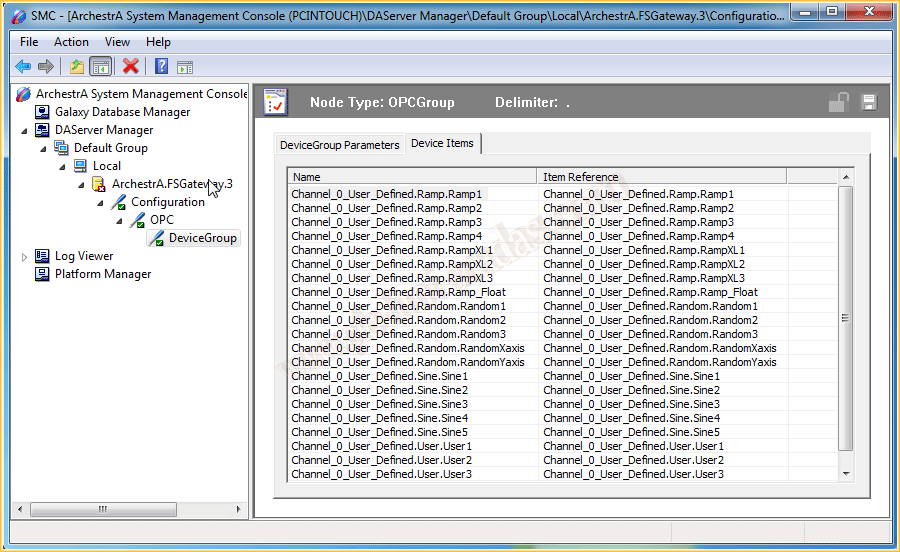
If we open the configuration, we can see that all the created configuration is loaded and ready to use.
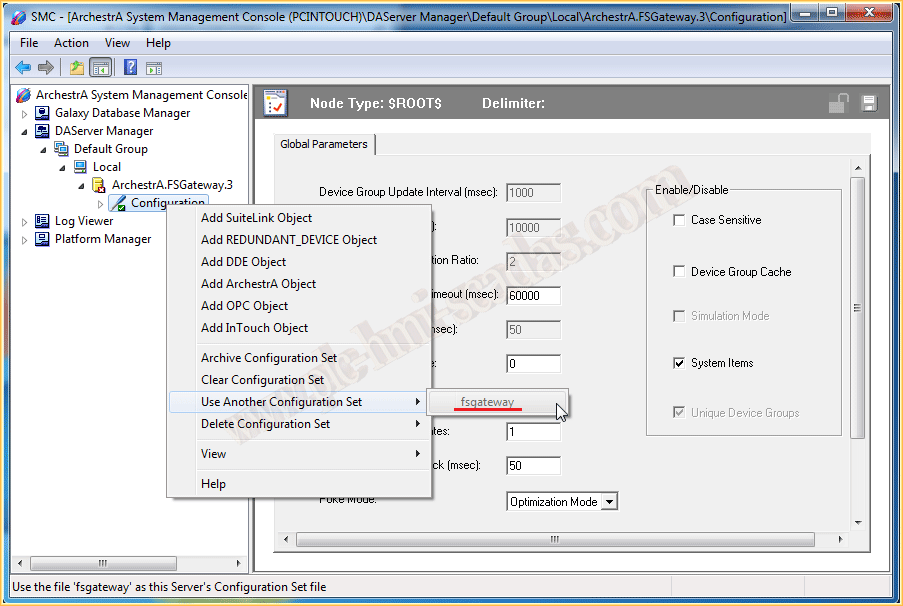
Now let’s imagine that we are using another DAServer and we do not know the name of the configuration file, the easiest way is to see the name as shown in the following image, and use the Windows search. Depending on the version we are using, the path may be as described or in the installation directory in the Bin folder.
If we want to create a new configuration, we will use the Archive Configuration Set function, we give it the name we are interested in and that’s it, once this step is created, we can use the default configuration or the one created.
If we want to delete the configuration we will use the Clear Configuration Set function
Monday, February 2, 2015
If you liked it or found it useful, share it ... :-)