
PLCSimAdvanced Load Offline Project
In the following tutorial, we will see how to load our TIA Portal project into PLCSIMAdvanced when we are not on the same network, or we do not have TIA Portal at that moment, or for any other reason. For testing, I have WinCC with the PLCSIMAdvanced installation, so I can perform tests. Once we have developed our TIA Portal project.
Within the Card Reader/USB memory section, we will add a new directory.
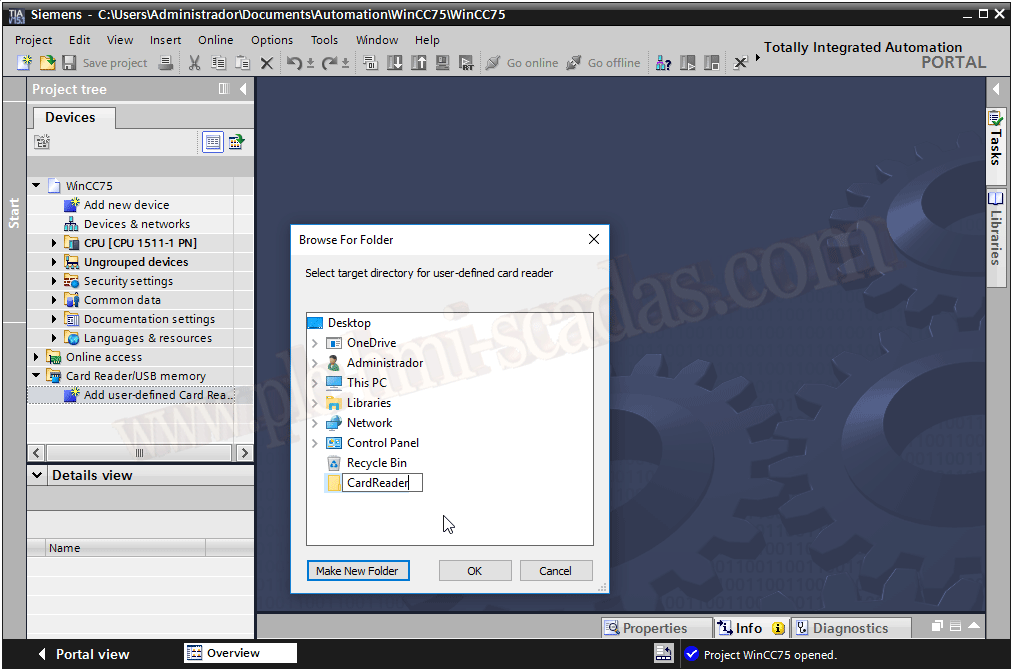
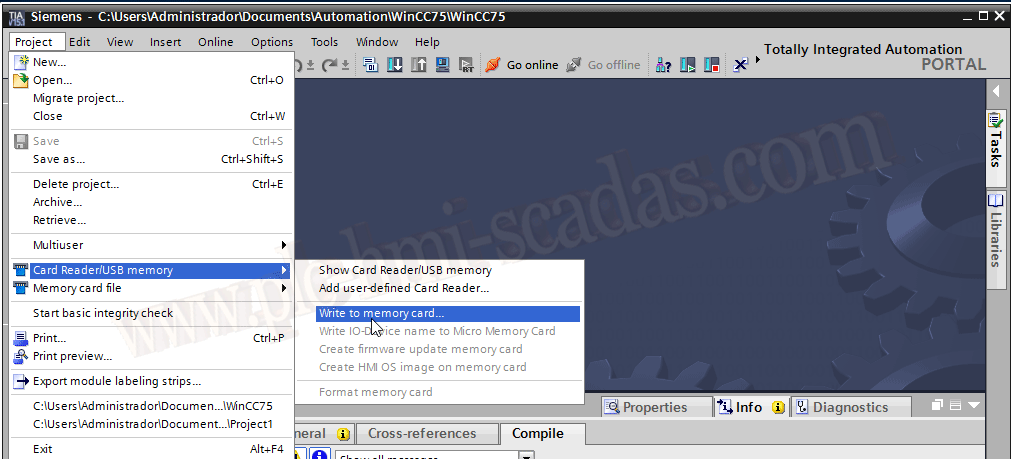
Once we have created our directory, we will write to the memory card; since we do not have one, we will write in our directory.
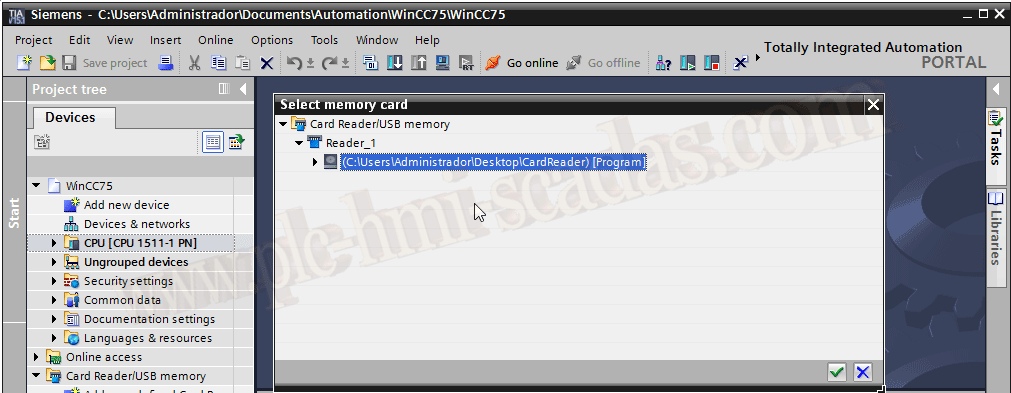
We select the created directory
And we need to change the device to PLC Simulation Advanced, as shown in the following image.
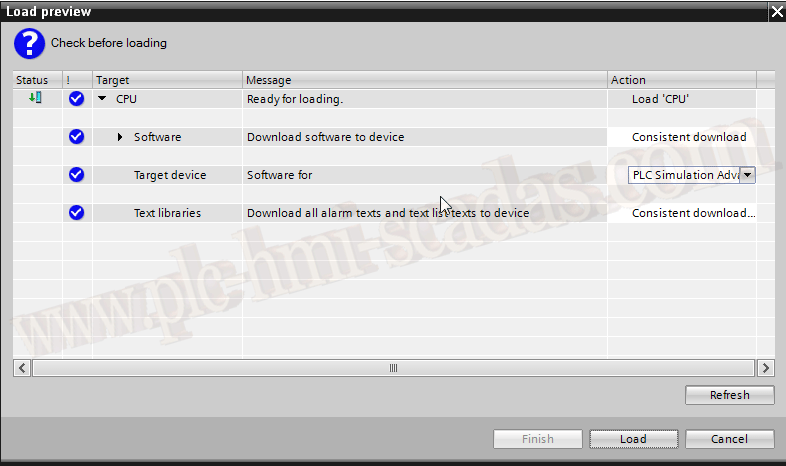
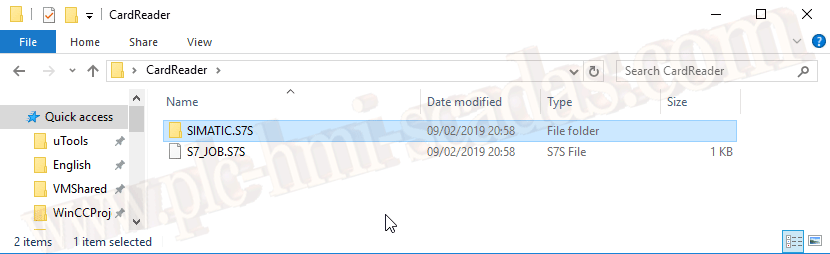
Once loaded, we have the files that have been generated.
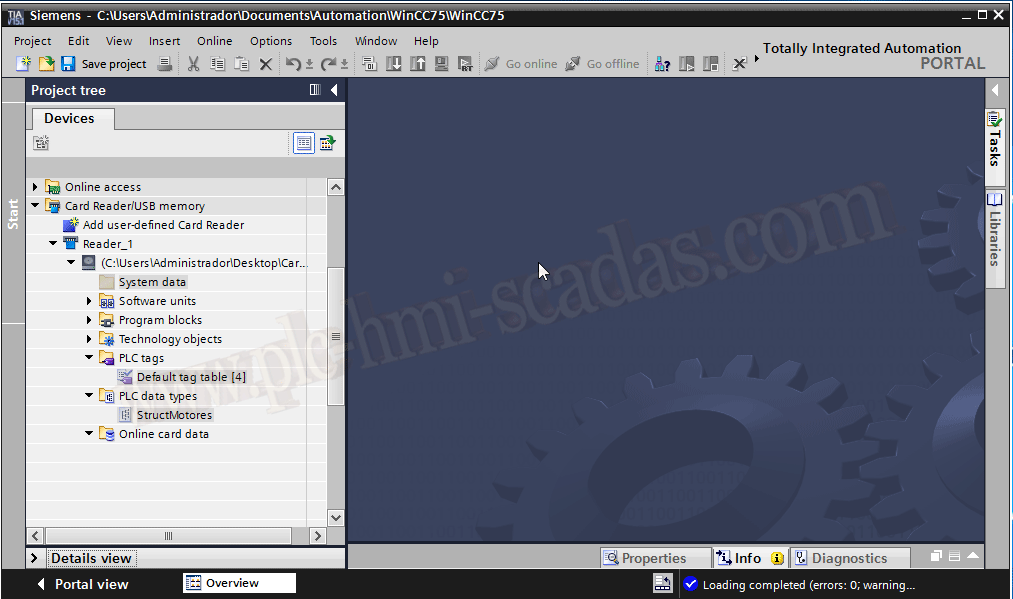
In TIA Portal, we can also observe it in our project.
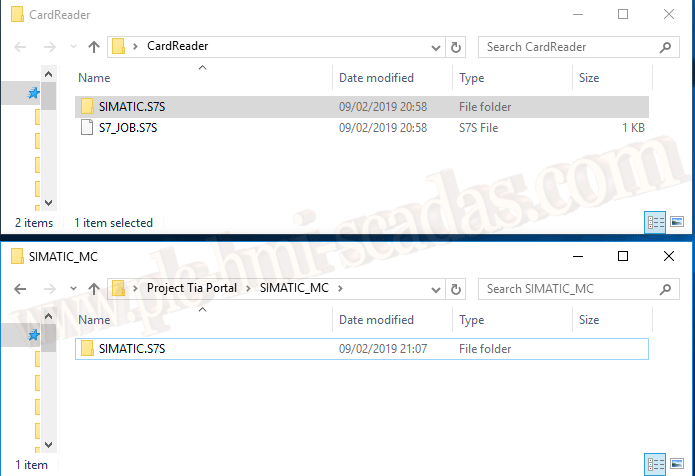
To load our project into PLCSimAdvanced, we need to create a directory; I have named it Project Tia Portal. This directory can be named as one wishes; within it, we need to create another one named SIMATIC_MC, which must be named exactly like that. Inside this, we copy the directory that was generated for us, SIMATIC.S7S.
In the hypothetical case that we only have PLCSIM Advanced and cannot make the transfer, if we have brought the directory, we can drag it into the control panel; this is a new feature added with the new version.
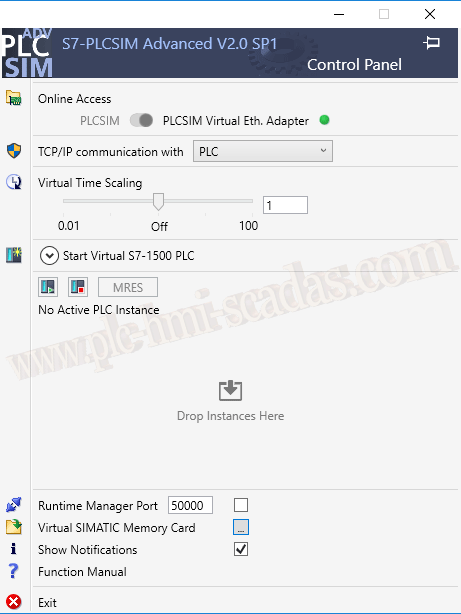
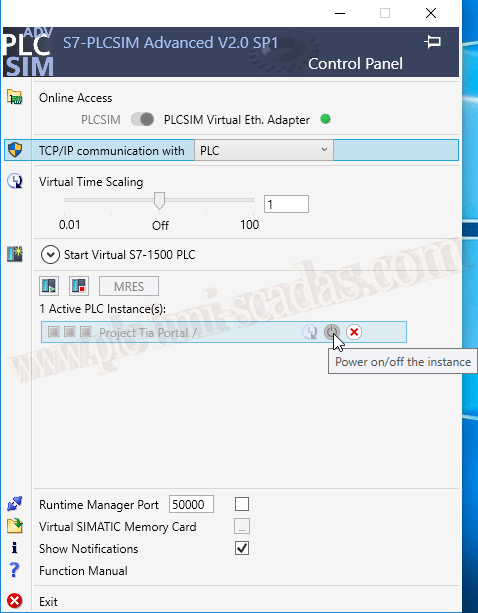
Once we have dragged it, we can start the instance; for this, we use the on/off button, as observed in the following image.
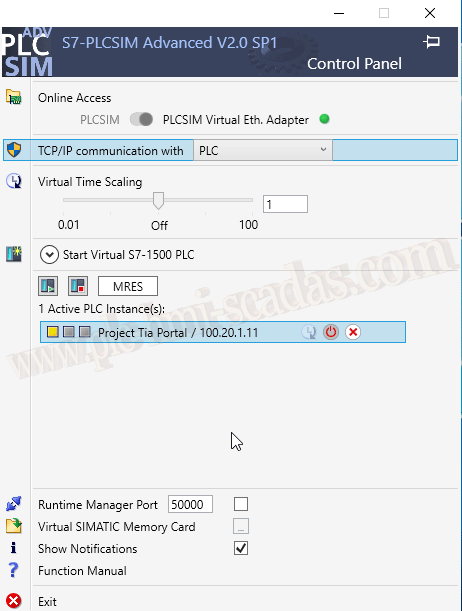
We can now put our project in RUN and perform the necessary tests.
10-02-2019