
Backup PLC5 with RSLogix5
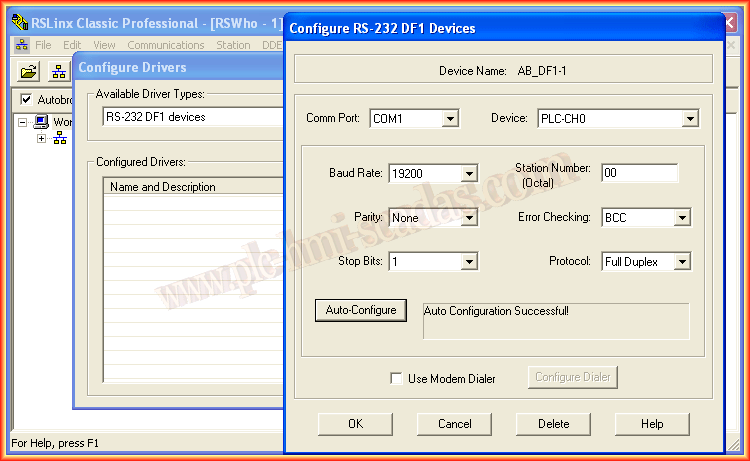
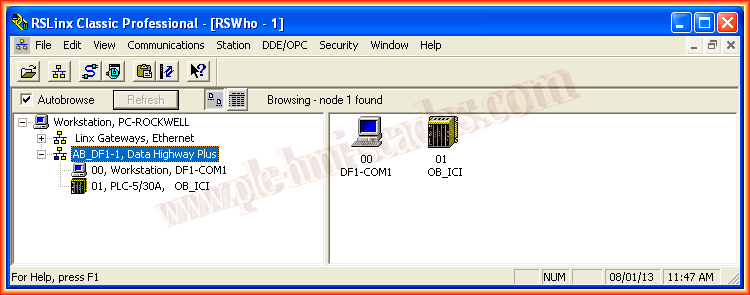
Taking the opportunity to connect to a PLC5 to check and restore its status, since it is in fault, we will first perform a Backup of the Program. To do this, the first thing we need to configure is the RS-232 DF1 Driver in RSLinx, as we will connect with the serial cable. Once the Driver is configured and we have confirmed that the PLC5 has been detected, we start the procedure.
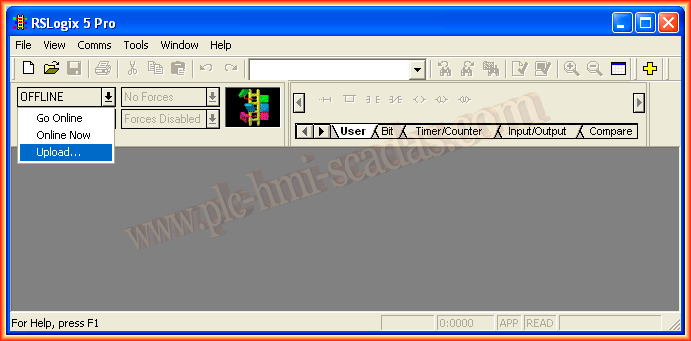
We start RSLogix5, and since we do not have the program, we will perform an Upload to have a Backup, and later we will make the necessary changes, but we must always have a copy, just in case...
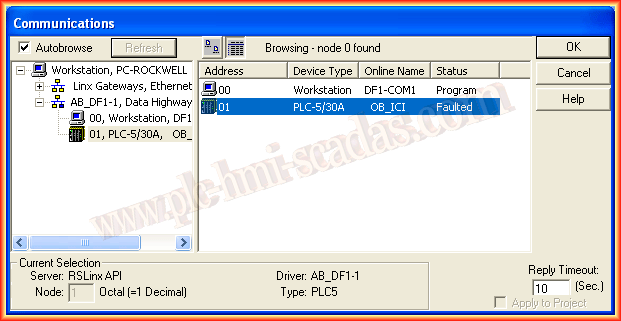
The Communications screen opens, and we select the PLC5. It can be observed that its status is in fault; we confirm with OK, and this window will close.
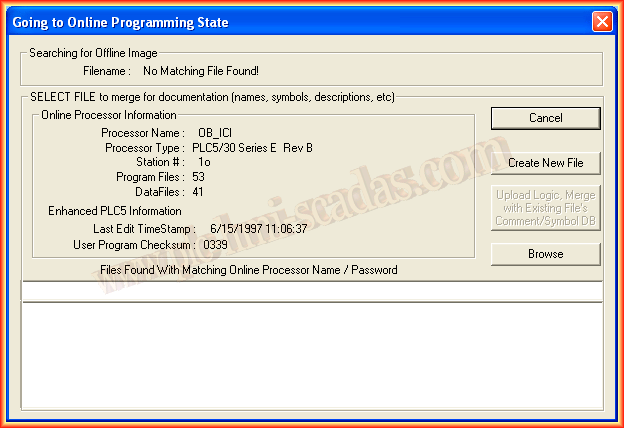
When closing the Communications window, the next one opens with the processor data, its name, station number, and the last time it was edited; it has been a while since 1997...
Since we do not have the original program, we click Create New File
Automatically, the program from the Processor starts loading to our PC (Upload)
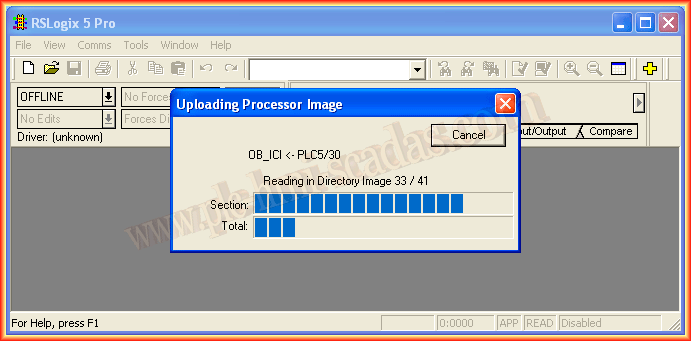
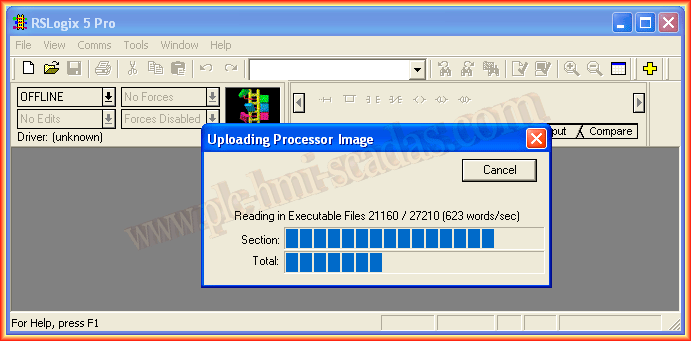
Once it has been uploaded to the PC, we now have our program.
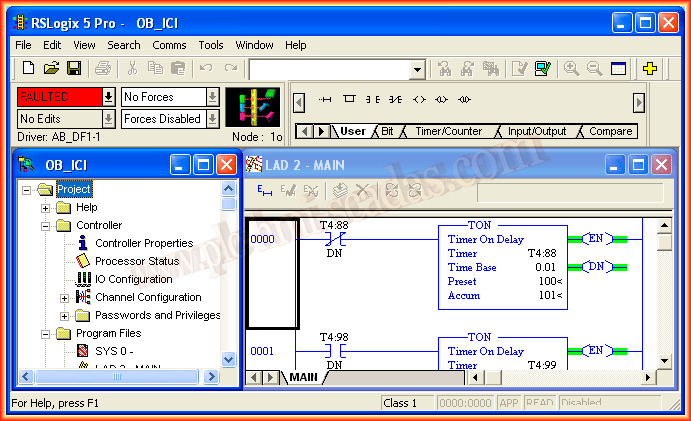
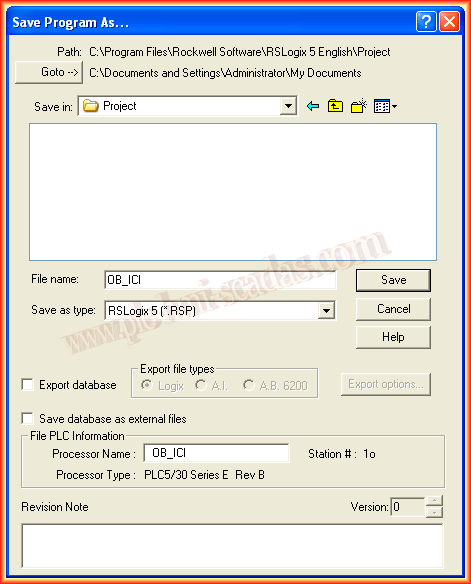
Finally, we save the program in the directory we have selected, with the name we assign or by default the name of the processor. Be careful, as it is saved in RSLogix5 format *.RSP by default!!!
August 4, 2013