
Simatic Net - Load PC Station Configuration
We have already seen in the previous tutorial how to configure Simatic Net and our PC Station, now we are going to see the other option to load the configuration. Let’s imagine that we are at our Engineering station where we have the complete project, the PLC or PLCs, and all the components, all developed from the Simatic Manager as we can see.
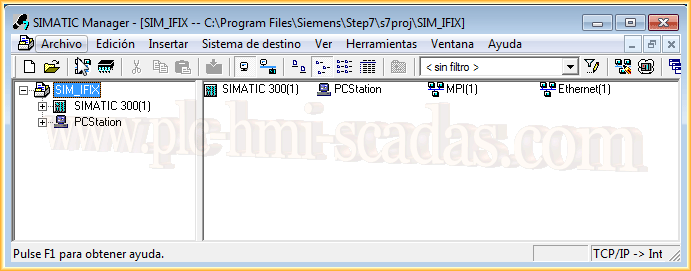
Let’s assume that we need to make a modification, and we are going to insert another object of the Application type. Just as we did, we drag it to our rack. Importantly, we must keep in mind that when we insert the objects, they must correspond with the version that is installed.
We will see an image if we select a version that does not correspond.
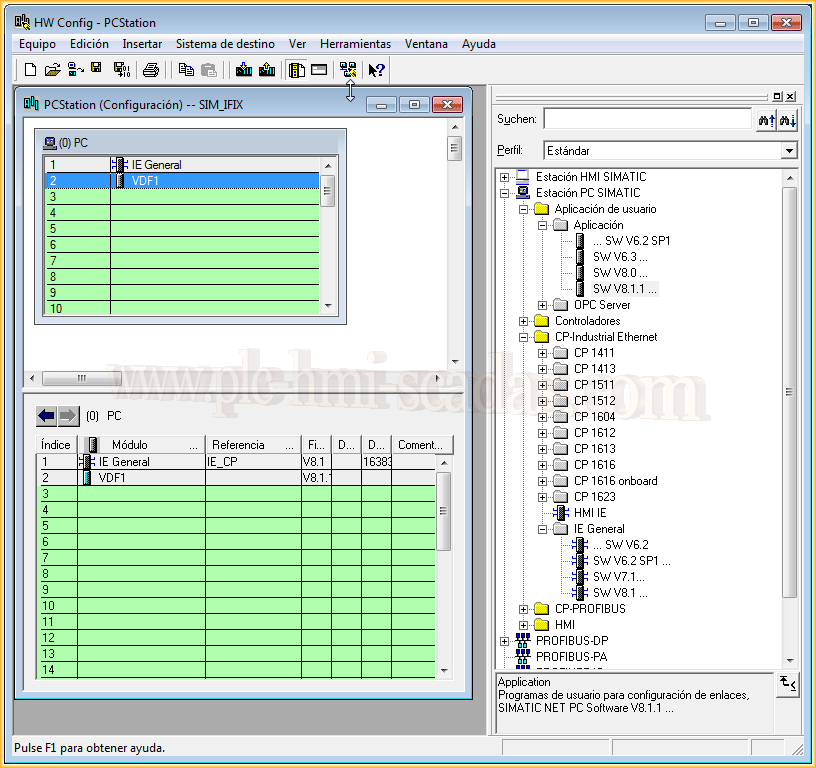
Here we have made the corresponding modification, we can now save and compile.
.png)
If we explore the directory of our project, there is a folder called XDBs, in this folder is where the configuration file(s) of our PC Station is saved.
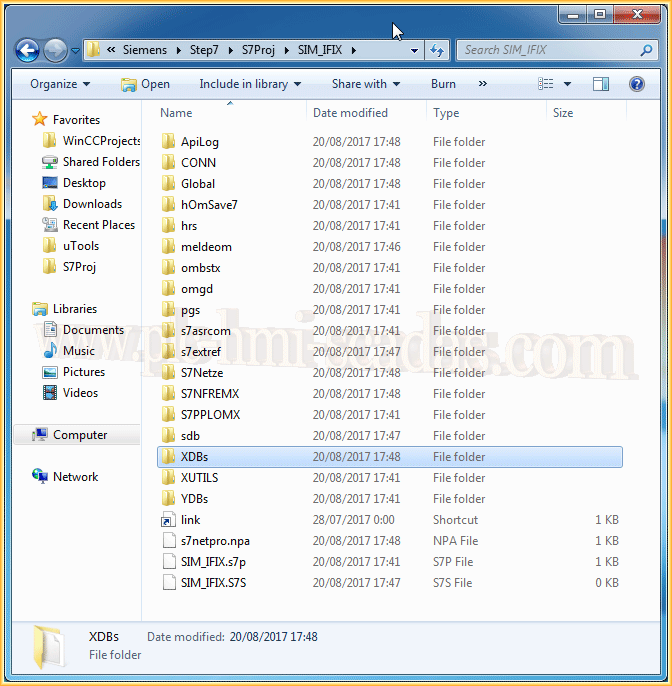
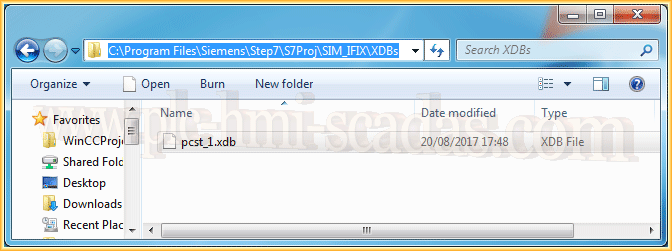
This is the file that we need to take to our PC, to load the new configuration.
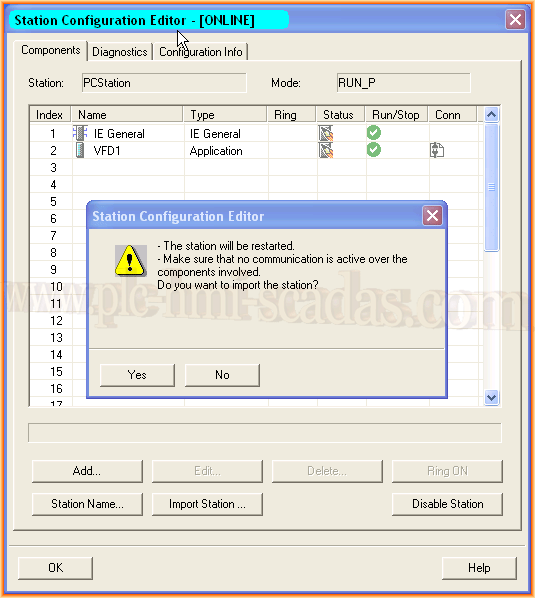
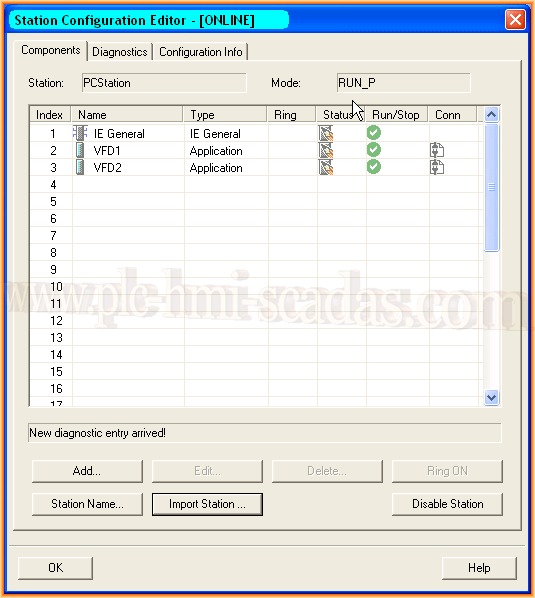
Now we are at our PC and this was the configuration that was loaded. We click the Import Station button, and this is the warning message that it shows us.
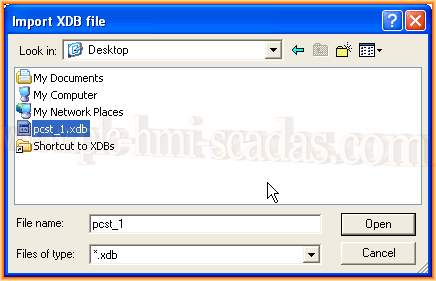
We explore to the directory where we have the file pcst_1.xdb, this is the default name. Now the file I am going to import has an invalid configuration because I selected hardware objects of a different version.
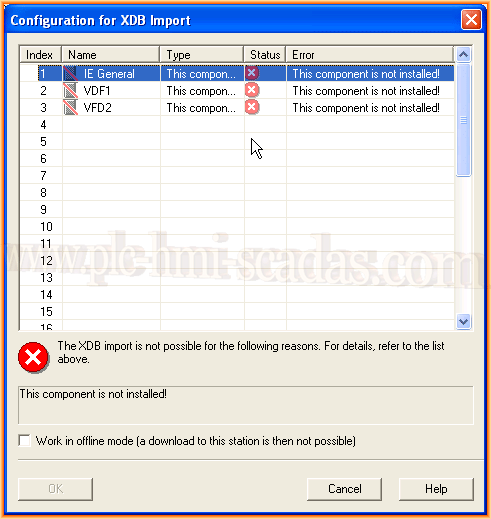
As can be seen, the message is an error because we do not have the version referenced installed.
Now we are going to import the correct file, and the warning message is that it will overwrite the existing one, so there is no problem.
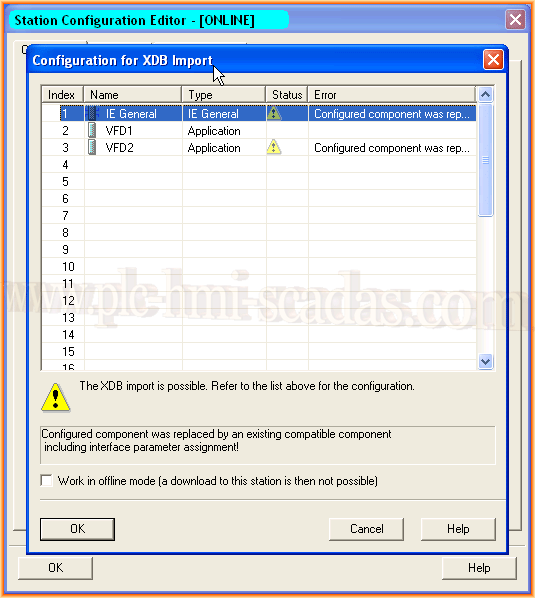
We have now loaded the new configuration. We can now put the application into operation and that's it.
CONCLUSION: We can load the configuration directly with the PC Internal interface, or we can import the configuration that was previously created on another machine.
August 20, 2017
"Gratitude in silence serves no one." Gladys Bronwyn Stern