
TIA Portal - PLCSIM Advanced Simulation
Some time ago, Siemens included a new version of PLCSIM in its portfolio, PLCSIM Advanced. This was released with TIA Portal V14, and now with version V15, the new version will be available. I recommend reading its manual to see all the new features it offers us; however, I will include an image from the official documentation, where you can easily see significant differences and improvements when debugging our projects!!!
This means we can try many options that were not possible with PLCSIM, and we will not need hardware for certain tests.

The installation of PLCSIM Advanced can be done either together with TIA Portal or as a standalone installation. If we install it with TIA Portal, we must keep in mind that we cannot have PLCSIM installed; in summary, they cannot coexist.
I add another image that shows other options we need to know, indicating whether the installation is Local or Distributed and whether we use the Softbus or TCP/IP protocol.

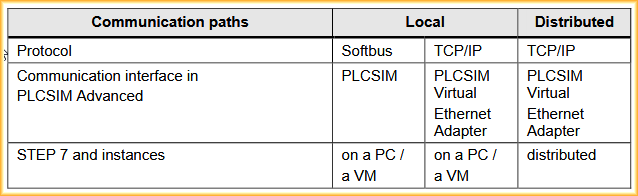
For testing, I performed the installation on an independent machine in a virtual platform. If we want to run multiple instances, more hardware will be needed.
Once installed and executed, it needs to be opened from the menu bar with a right-click, as it automatically minimizes when executed.
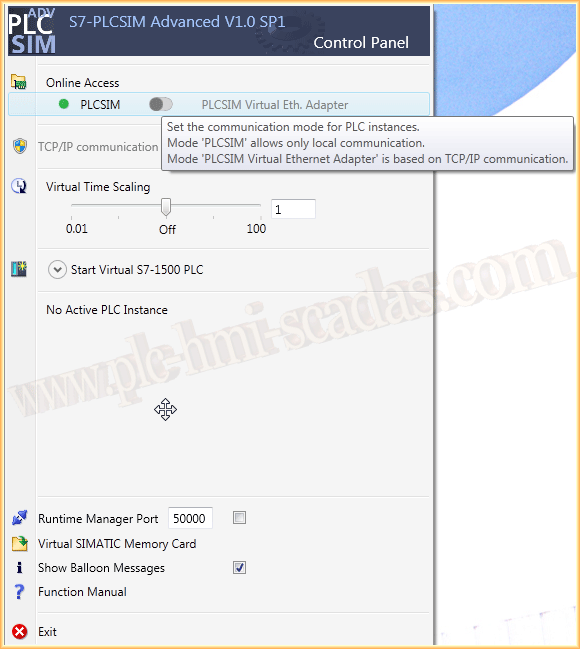
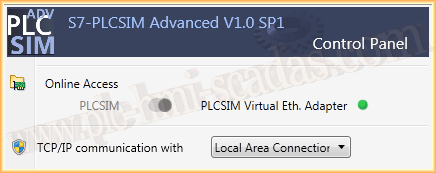
As can be seen in the image above in the tooltip, the first thing to do is select the link mode. Since I am on an independent machine, I select PLCSIM Virtual Eth. Adapter and choose my interface, the network card, where it goes without saying that we must be in the same IP range.
The next step is to configure the first instance. We give it a symbolic name, specify the IP address of our PLC, and the subnet mask. If using a router, specify it. Since I am not using one, I will leave it blank.
Finally, we need to specify what type of PLC we will use between the two options; I will simulate an S7-1500 and press Start to create the instance.

Here we have the interface with two instances; one of them has already had the project transferred, indicated by the green LED, and another one to load the project next.

In TIA Portal, except for a small feature we need to select, everything is as if it were a real PLC. We insert our device, configure the IP address, the program we want to simulate, and it would be ready to transfer to PLCSIM Advanced.

When transferring, we use the option Online --> Extended download to device.

We scan the network and find a device of type CPU-1500 Simulation, proceed to load it and press the Load button.

As I mentioned earlier, you only need to enable one option to simulate it; otherwise, when we try to load it, we will encounter this error.

To solve it, we just need to go to the project and open the properties with the right button. Inside the properties, under Protection, we enable the checkbox to support simulation.
We recompile our project, and we can transfer it without problems.

Here it shows that we already have two instances created, and both are running correctly.

If we observe in TIA Portal, here we have the two instances of PLCSIM Advanced, plus the real PLC, with which we can simulate communications with the virtual ones, as can be seen in the image.

Here you can download the complete manual of PLCSIM Advanced from Siemens' website.
January 11, 2018
"Gratitude in silence serves no one." Gladys Bronwyn Stern