
Setup AutoStart WWHistorian
In this practice, I will answer a question, since if it has not been configured, every time we start the WWHistorian Server, it needs to be started. The question was how to start it automatically.
We start from the assumption that we have just started our machine and the Service is stopped.
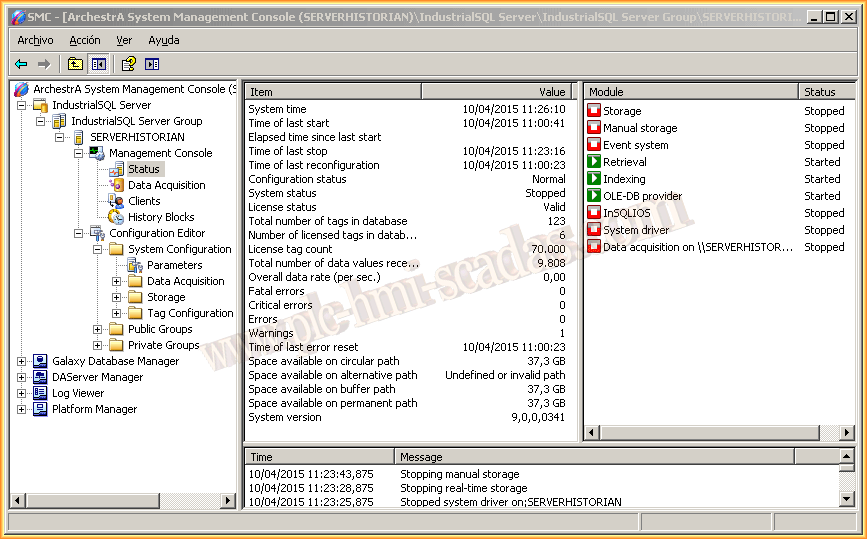
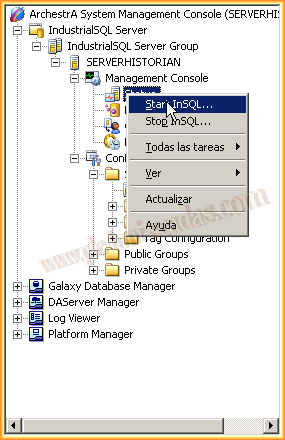
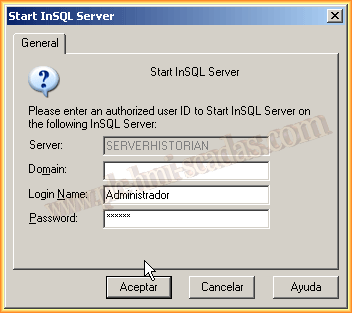
To Start or Stop it, right-click on Status, and a menu will appear where we will select the option that interests us. In this case, we are interested in starting it, you need to log in with a username and password, and it will start automatically.
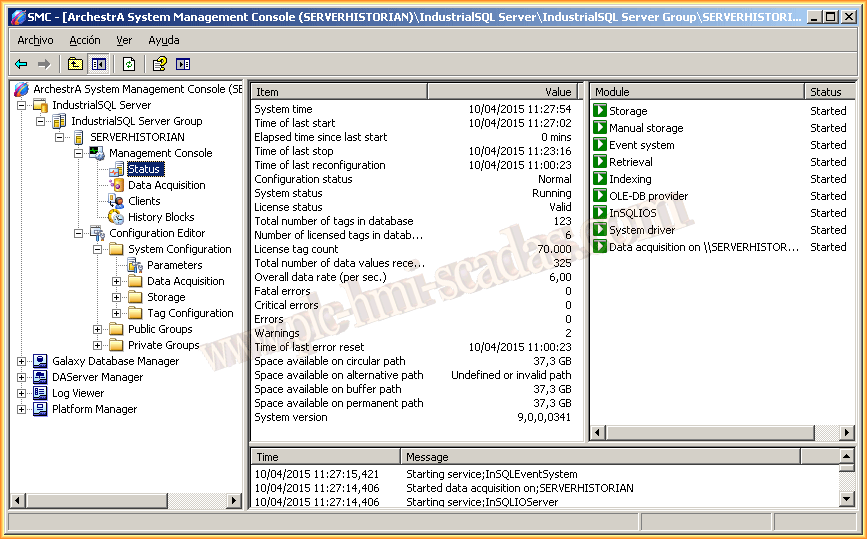
Here we can see in the following image that it has started correctly. We observe the tags that we are registering, the number of License tags, errors, Warnings, etc...
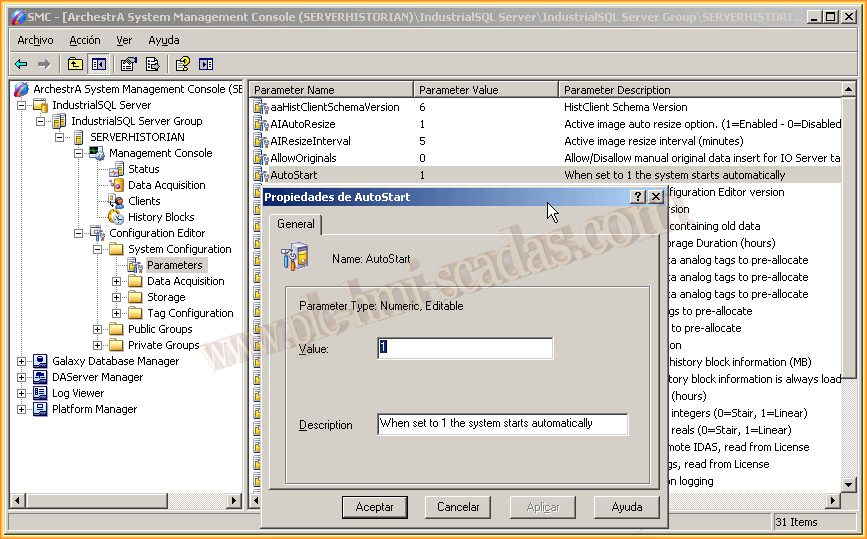
Now the answer, if we go to Configuration Editor --> System Configuration --> Parameters, we look for the AutoStart property and change the value to 1. With that, the next time we restart the machine, all services will start automatically.
April 10, 2015
If you liked it or found it useful, share it... :-)