
WinCC Control ActiveX Spreadsheet Excel
In the following practice, we will respond to a colleague's question, albeit with a bit of delay, but as the saying goes, better late than never...
This practice consists of inserting a Microsoft Excel spreadsheet into our SCADA in WinCC.
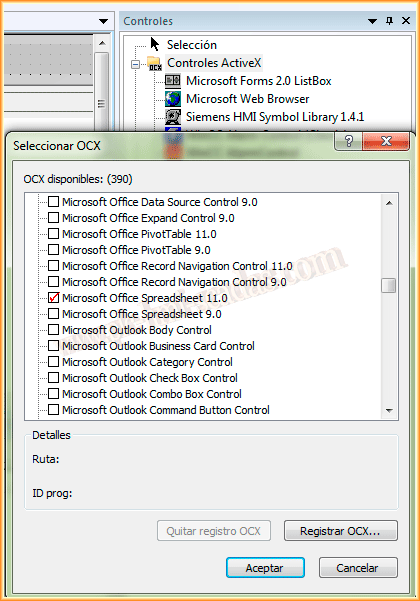
We will assume that we have already created a new project, or we are working on one, and we go to the Controls window. In the ActiveX Controls directory, right-click to add/remove controls.
Our system will automatically scan for all available controls.
In our case, the one we are interested in is Microsoft Office Spreadsheet 11.0, which I will select and add to the list of available controls.
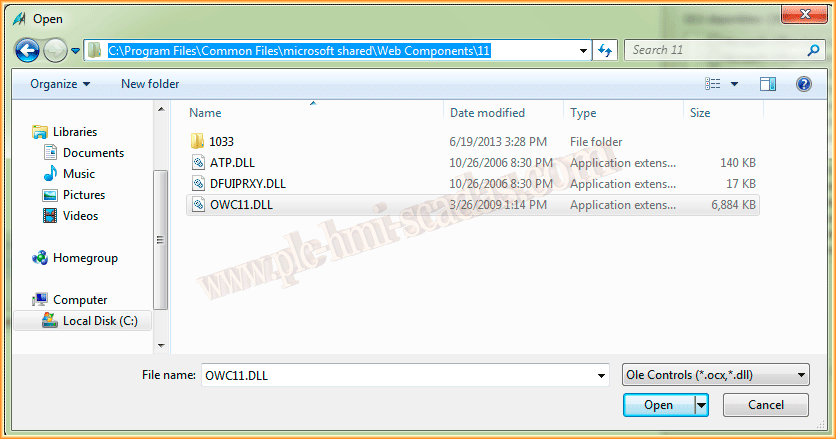
In the hypothetical case of needing to register the control, the path of the *.dll/*.ocx file is in the following directory, and its name is OWC11.dll
Our control is now ready to be inserted and configured; we simply drag it and give it the appropriate dimensions.

To configure its properties, simply double-click on the control itself, and a pop-up window will appear for configuring its properties, as can be seen in the following image.
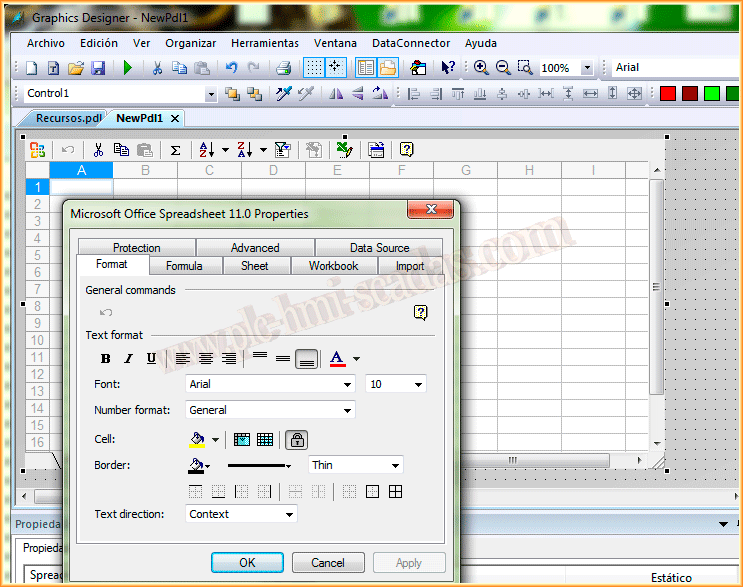
It would be good practice to consult all the properties of the Control in Microsoft help; here are some of the ones that will be used.

In this case, to do a test, I will load a CSV file from the Import tab. However, all the properties that are necessary for our objective or purpose should be adapted.


Finally, to do the test, we run the runtime and check how we have the linked data from our Excel sheet.

November 17, 2013