
WinCC Image Window Design and Current Screen Name
Previously, I mentioned the following: when we start designing how our SCADA will be, we could say that we have two main options, either work with each screen individually, changing each one of them, which will be the example we will see today, or the option I prefer, which is to work with image windows based on a base screen, which will be the introduction we will see today.
The idea is to obtain the name of the current screen we are on, for subsequent actions when we are on a specific screen, and also how to change screens...
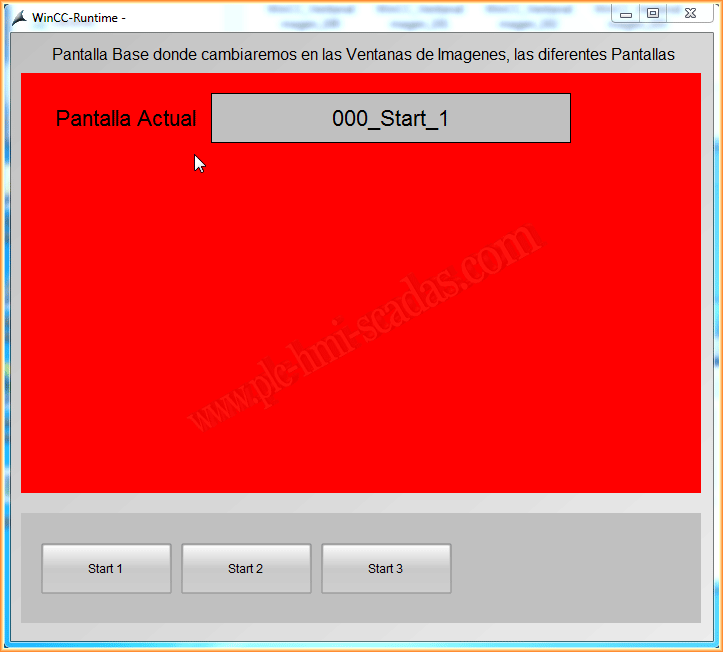
As we can see in the following image, we have a main screen, which will be the one we will see all the other screens on, and we will change in the image window, just as we could do with the menu, a different menu for each zone or area.
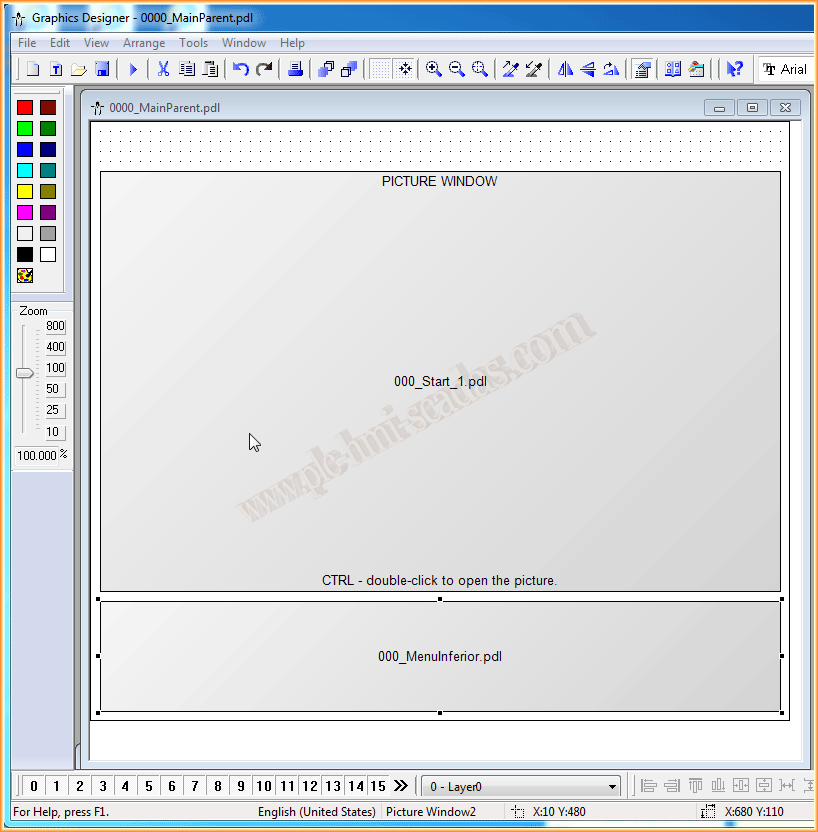
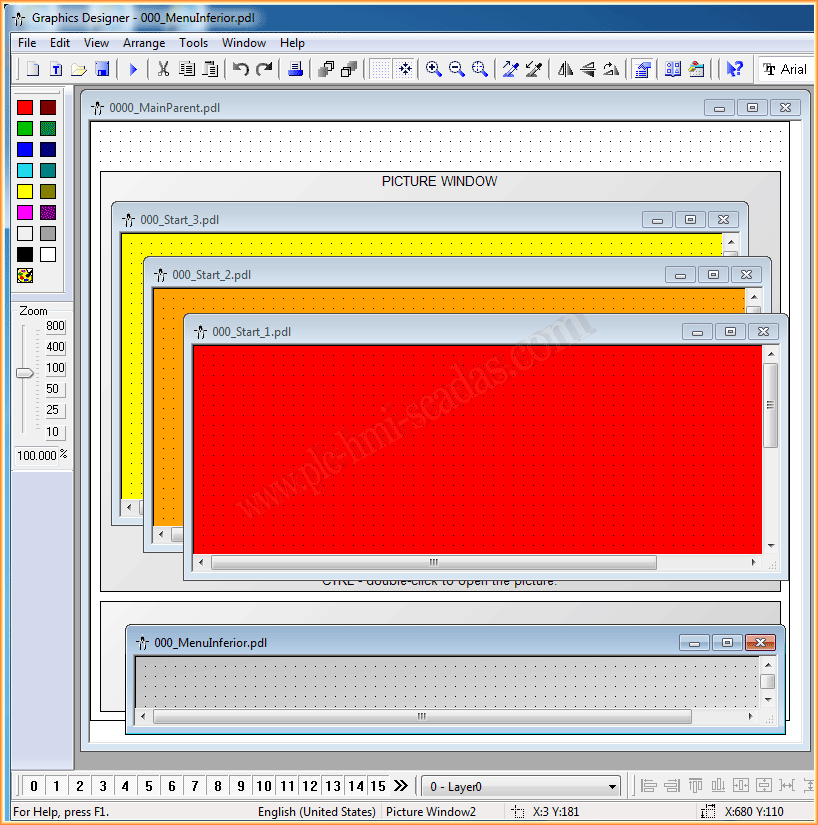
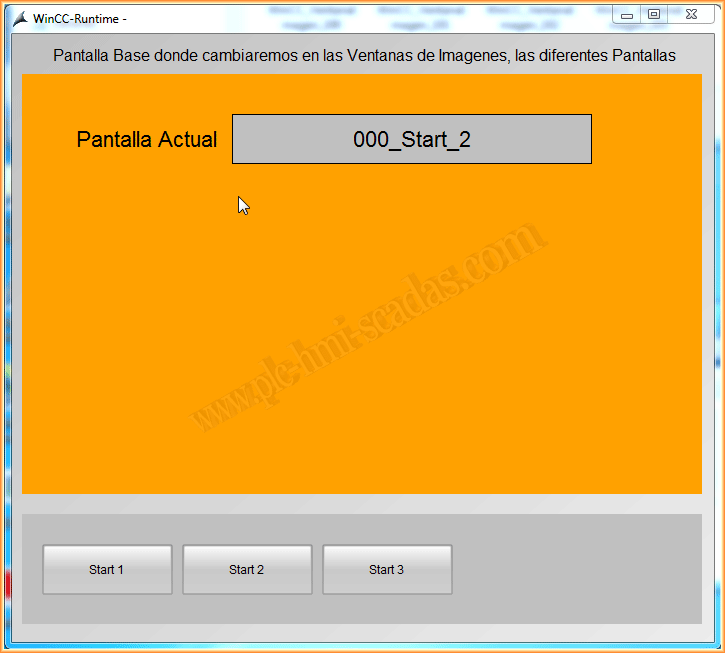
For example, let's assume that the following screens would belong to our process; to check the difference, I have put a color that catches the attention well on the background of the screen.
The name, as can be seen, is 000_start_1 - 2 - 3.
In each screen, I have inserted an input and output field, linked with the variable that will store the name of the current screen.
Now let's move on to the part of the code that we will use, and to change screens, the idea is to change the screen we are going to show in the image window; for that, we use the following statement, referencing the main screen with HMIRuntime.Screen("MainScreenName"), where the image window is located, we reference this object with its name .ScreenItems("ObjectName") and change the PictureName property with the screen that interests us.
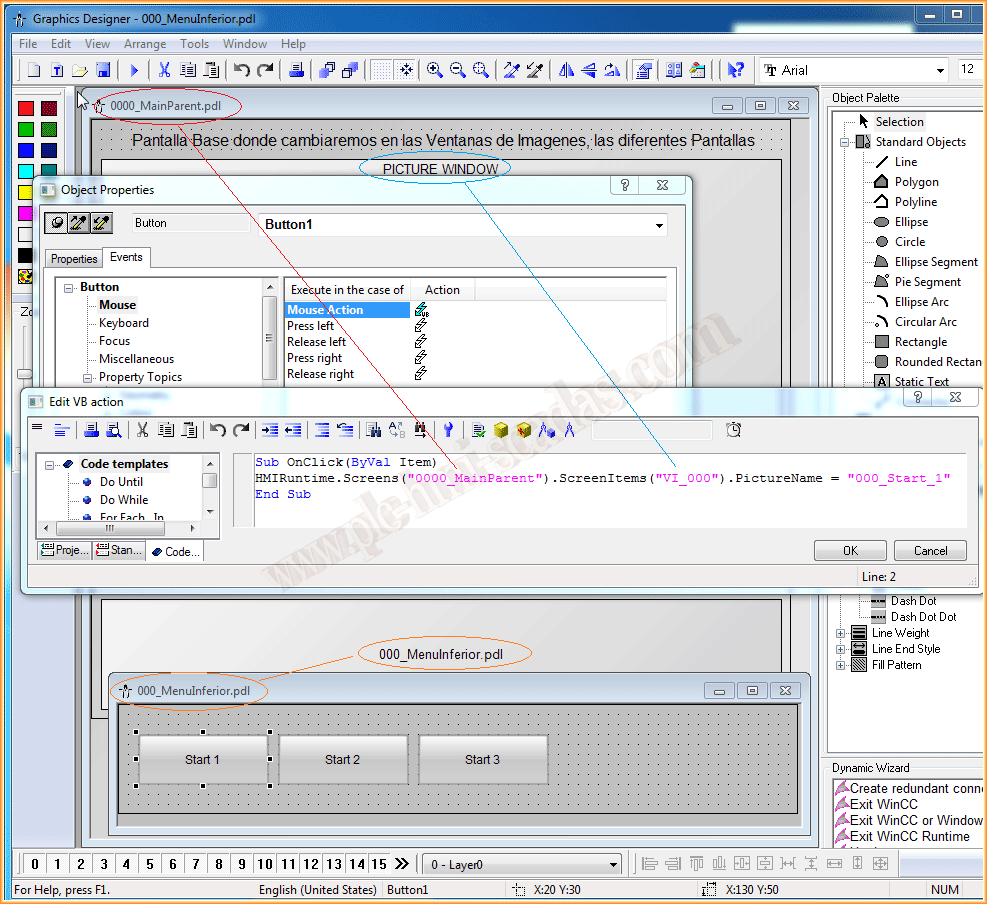
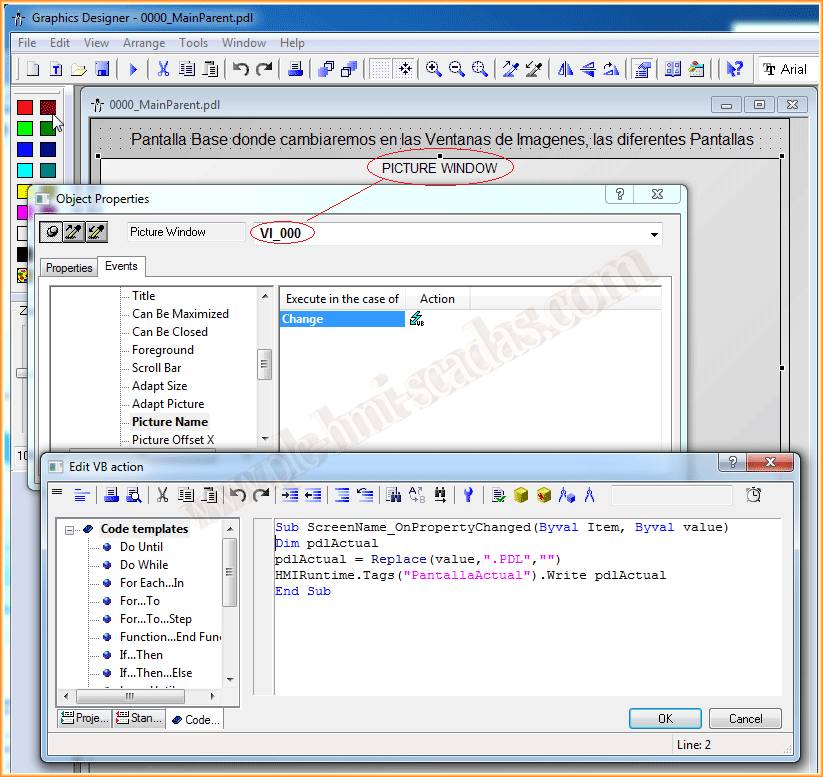
With the above code, we have already solved how we are going to change the screen; now we just need to save the screen name in the variable we have declared for this purpose. For this, we will take advantage of the Picture Name change event of our image window, and we will use the following code.
If we directly save the Value argument in the variable, the screen will be saved with the .pdl extension, hence the reason for using the Replace function to remove the extension, although the best thing is to try it out to experiment for oneself.
Finally, we put it into operation and check how it behaves and how it works; from here, the best thing is to try it...
December 13, 2014
If you liked it or found it useful, share it :-)