
WinCC ChipCard Option
In the following practice, we will prepare our WinCC to work with ChipCard security. By implementing this method, we comply with the regulations.
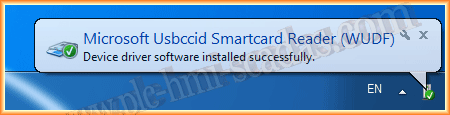
The first step is to connect the reader to a USB port; Windows 7 will automatically recognize the new device and install its driver.
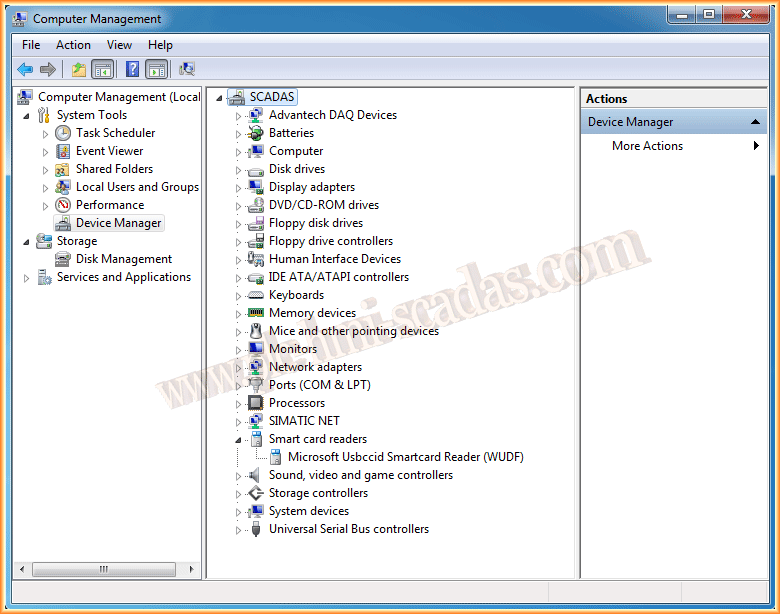
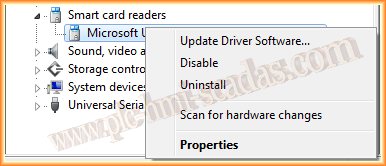
The first step will be to update our controller. To do this, we go to the website http://www.hidglobal.mx/ and download the driver for our reader, depending on the operating system.
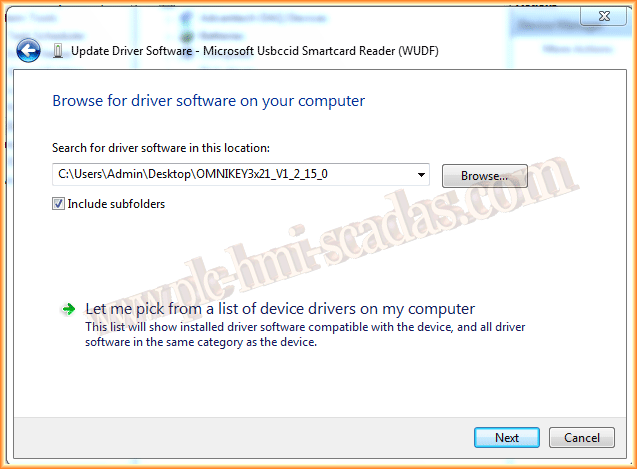
Once our driver is updated, it should appear as shown in the following image: OMNIKEY 3x21 or according to the model we are using.
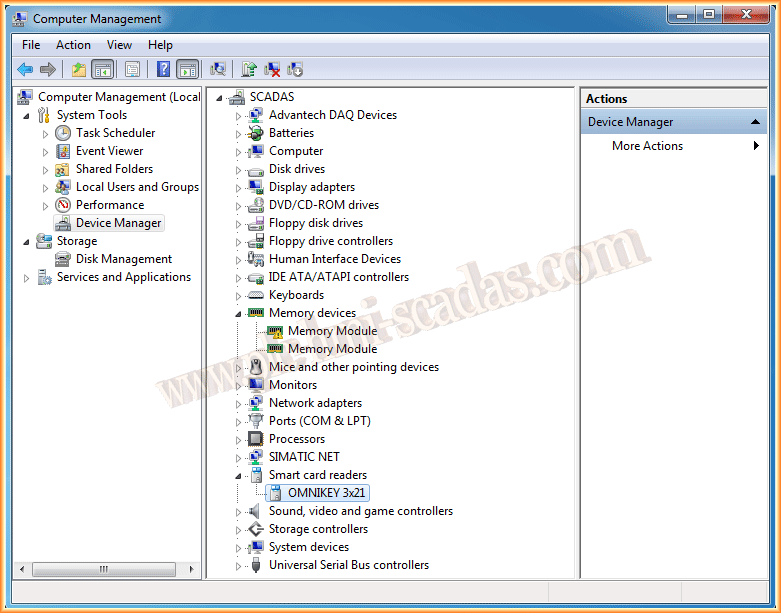
The next step is to install CT-API, an application also downloaded from the previous website. We proceed with the installation and will see a warning if we are going to use multiple readers.
If we do not install this application, WinCC will not enable the Chip Card menu.
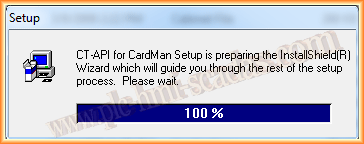
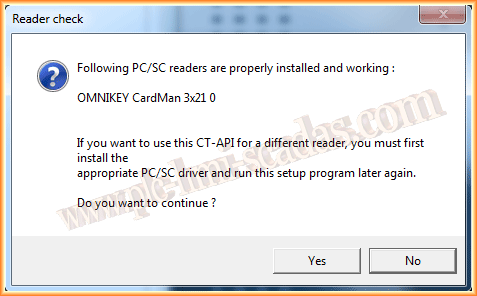
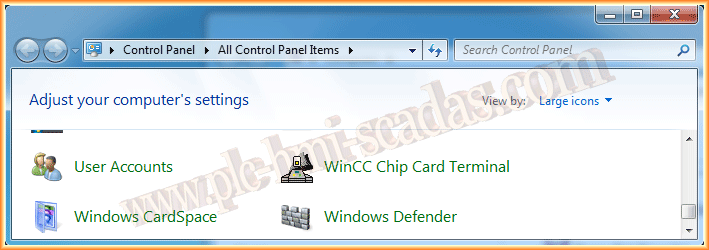
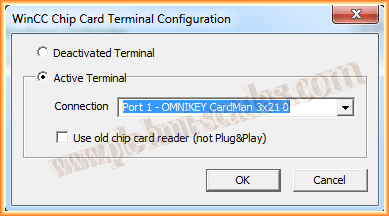
Once installed, we can configure the WinCC Chip Card Terminal option in the Control Panel, selecting the reader and port we will use.
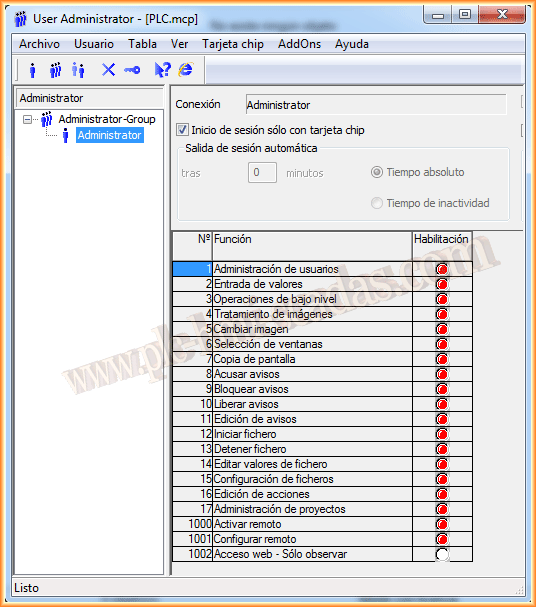
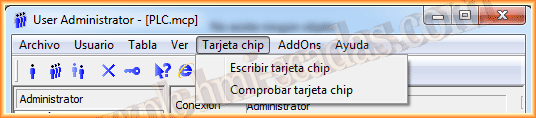
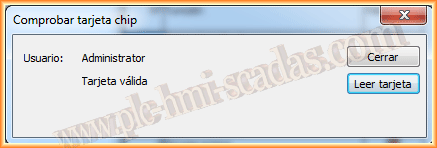
With these steps, we can now open the User Manager and see that the Chip Card option is enabled. We can insert the cards and start recording users.
If we are only interested in having the user log in with the ChipCard, we will select the checkbox enabled for that purpose.
August 3, 2014
If you liked it or found it useful, share it... :-)