
WinCC OPC UA Client
Continuing with the last practice related to WinCC Servers, we will see that just as it is a Server, it is also a Client of the different OPCs. The first one we will see is WinCC OPC UA Client, and for the Server, we will use another WinCC to develop this practice.
We start from the basis that we have our project created and we have added a new Driver of the OPC type, once added, we position ourselves over the OPC Groups (OPCHN Unit#1) and with the right button, we select System Parameter.

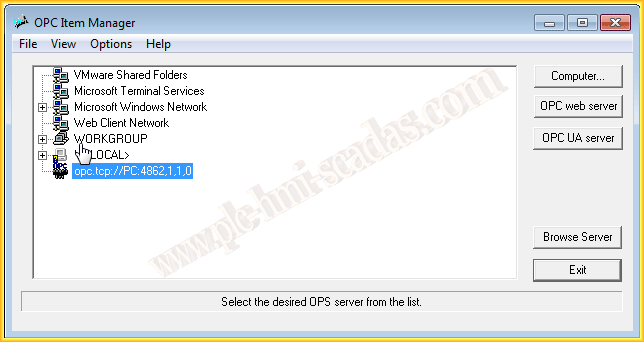
Having selected it, the OPC Item Manager is executed, since we are going to use the OPC UA Server, we click on its button and a pop-up window appears, the parameters to enter are the Server URL and port, and in the Security area, the type of security we are going to use, for this example we do not choose security, but for a real application, this is not advisable.
Review the previous practice to see the security options that could be executed with WinCC.

Once added, it is correctly listed. The next step will be to see the variables of interest from this Server, when executing Browser Server, the following warning appears and we cannot proceed with the wizard.
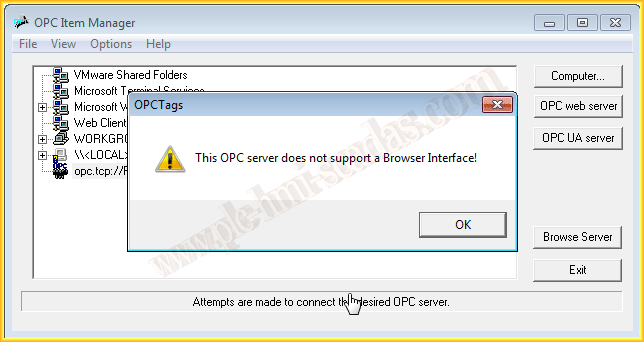
Consulting Siemens documentation, this is due to a Security Certificate issue, to solve it we go to the directory where it has been installed C:/Program Files/Siemens/WinCC/OPC/UAWrapper/PKI/CA
Inside this directory, we have three folders, one with the rejected certificates "rejected" and this is where we will take the certificate and put it inside the certs folder.


Here we have moved the Certificate from the rejected folder to certs, as shown in the images.

Having executed these previous steps, the warning is resolved and we can go back to execute the previous steps and when we click on Browse Server, the following pop-up window will appear.

Here we already have a list of all available variables, according to the filtering we specified earlier or all if we did not use it.
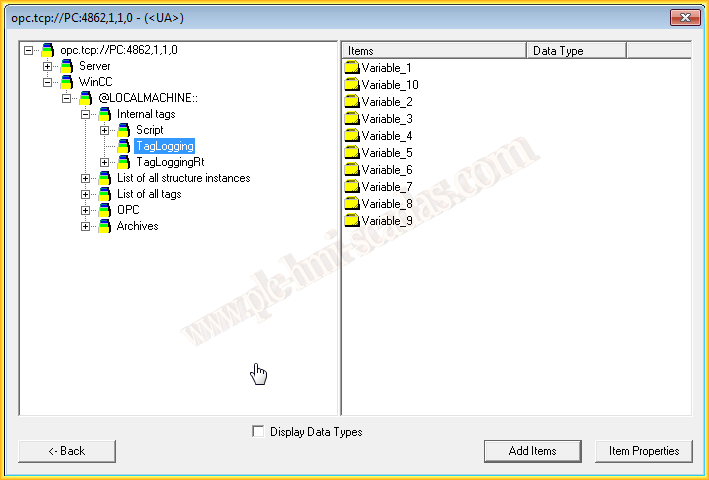
The next steps are to select the variables of interest and add them, upon adding them we receive another warning since until now we had not created any connection and the wizard requests to create a new one.

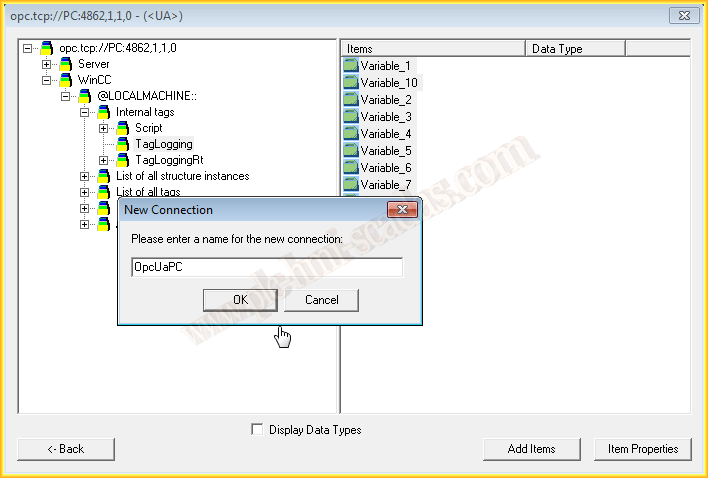
When adding the new connection, to be able to add the variables, it is necessary to assign them a prefix and a suffix, as shown in the following image, to make the addressing of the variables clear, I have put Prefix as the prefix and Suffix as the suffix.
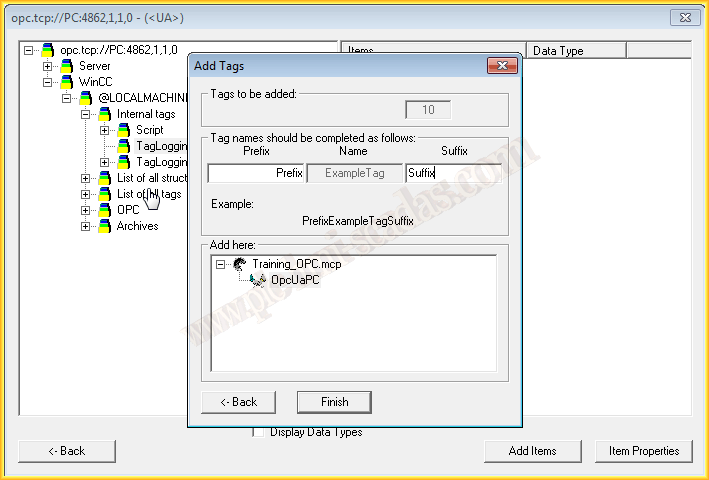
We have now correctly added our variables.

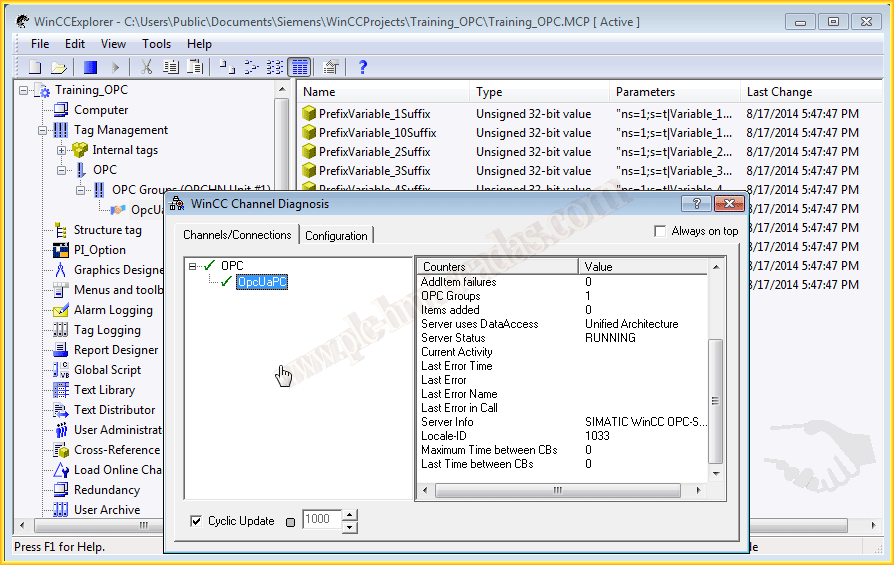
Considering that the OPC UA Server is in Runtime, we can now test our WinCC Client and run the Runtime. To verify that the connection is correct, we use the WinCC Channel Diagnosis and check that it is working perfectly. If I have the opportunity, I will do this same test but with another Server that is not WinCC.
September 11, 2014
If you liked it or found it useful, share it :-)