
WinCC OPC XML Client Server
Continuing with the latest practices, this time we will use WinCC as an OPC XML Server and another WinCC as an OPC XML Client. On the server, we can see that it is installed and working correctly if we perform the following checks.
First of all, check that a new Wincc-OPC-XML application is added in IIS.

If we explore the directory, we check that the following files are present.

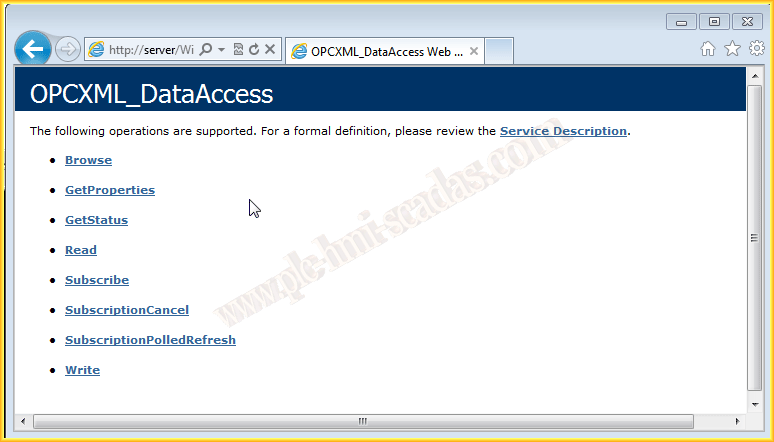
Finally, if we open Internet Explorer and type the address Http://Server/WinCC-OPC-XML/DAWebservise.asmx
The following image will appear, indicating that it is functioning correctly.
Once we have verified that the Server is correctly installed and functioning, we proceed to configure the new link in our WinCC Client. As in the previous practice, we have added a new Driver, of type OPC.
With the right button, we start the wizard and this time select Web Service OPC.
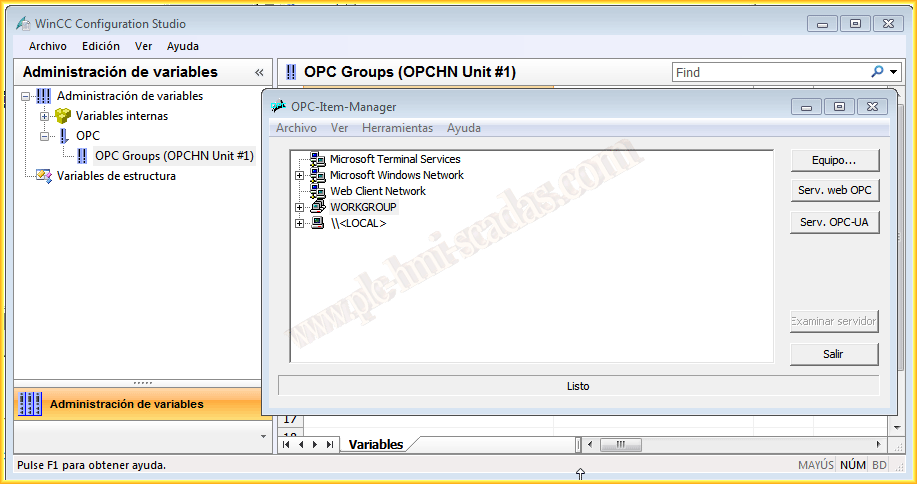
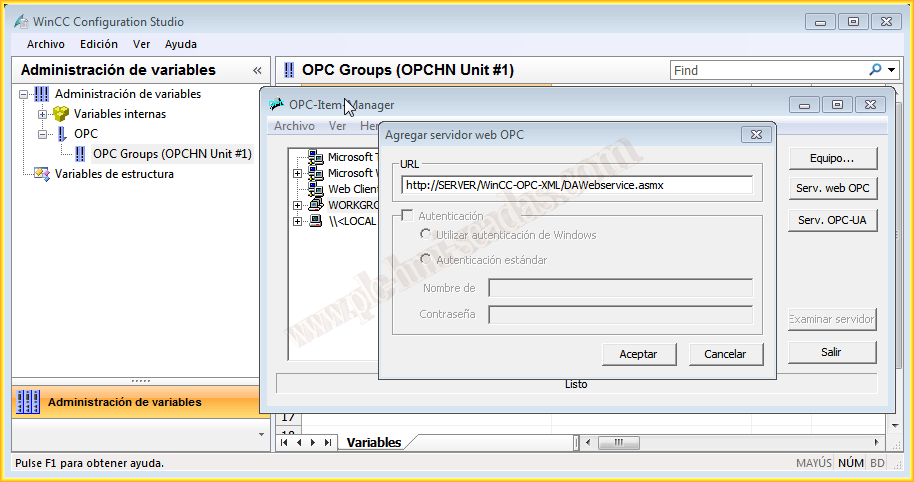
We add, as we mentioned, the address of the Server, which we previously verified was correct and functioning.
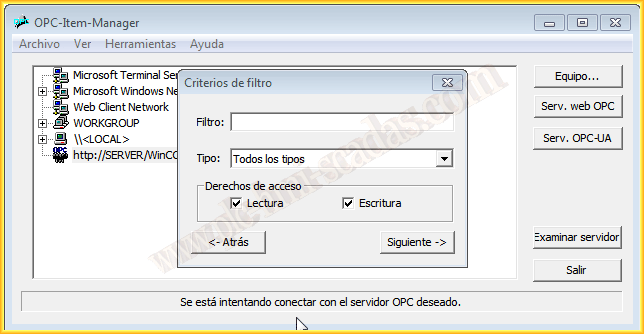
Once added, we click on Browse Server, and specify the filtering that interests us, if we are interested.

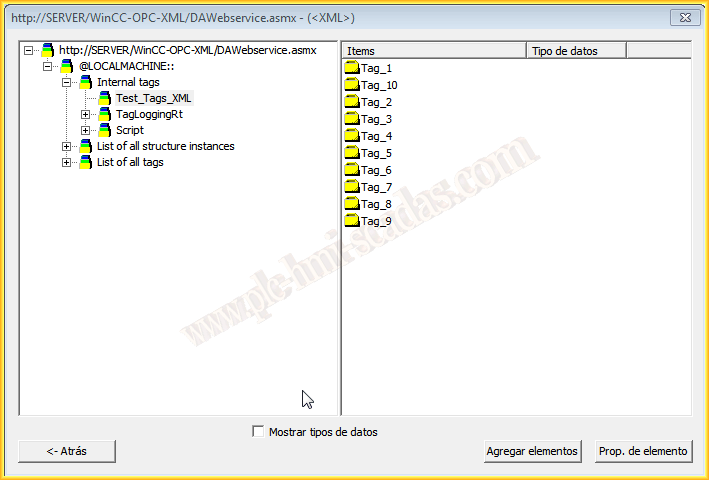
We can now observe all the created variables and groups, where we will select the ones we are interested in and from the group we are interested in. When adding elements, since we have not created the connection, the wizard appears to create a new one.

We assign a name for the new connection that we are going to create.
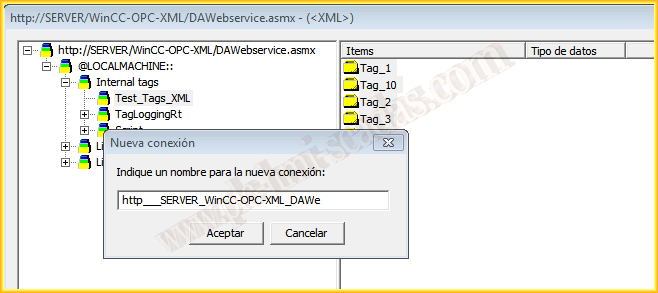
Together with the prefix and suffix that interest us for this connection, with this we can finish the wizard and the new connection will be created with the variables we have selected.

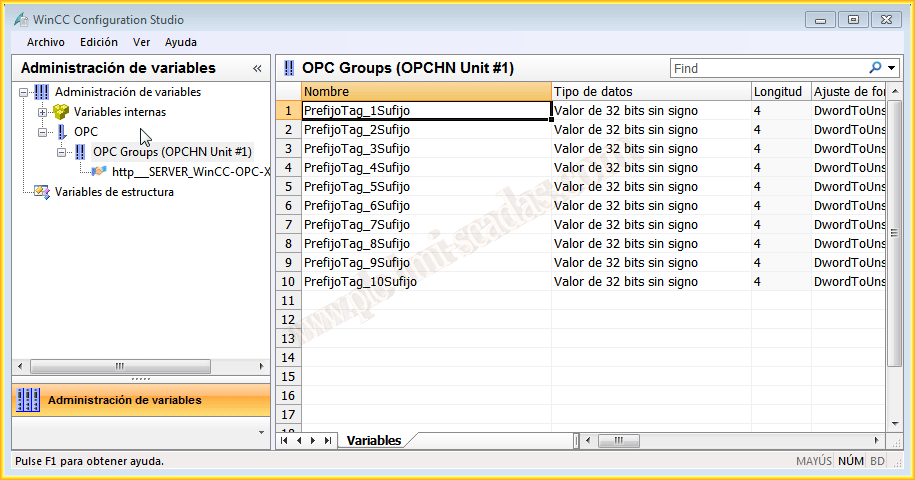
Here we have the added variables, to which the prefix and suffix for the connection are added from the source variable. We can now use the variables in our project and get to work.
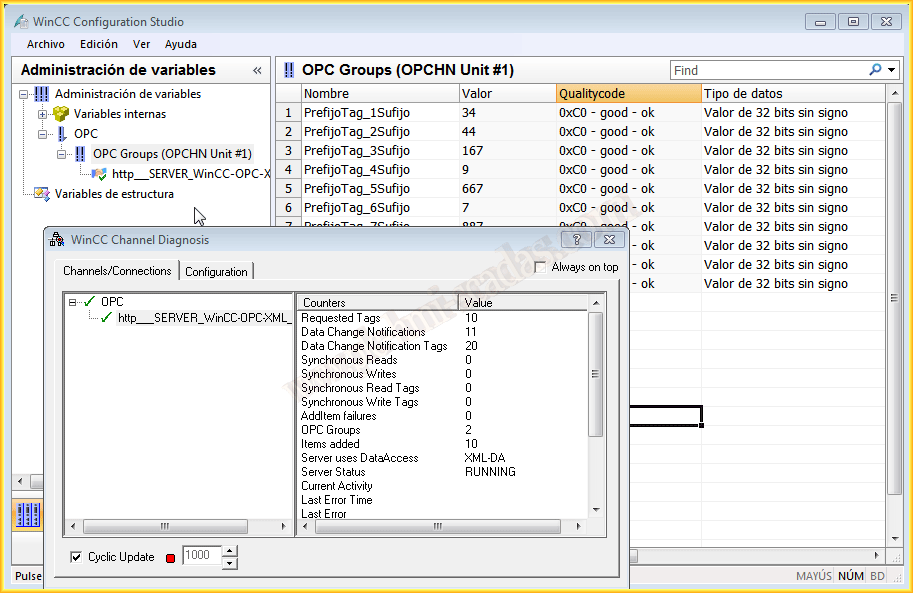
To check the operation, we run the runtime and check the status of the connection with the WinCC Channel Diagnosis and the value of the variable showing its column.
September 26, 2014
If you liked it or found it useful, share it... :-)